Dressmaker records automatically once DOR is installed: launch the game and the AI handles recording. There is no record button to press. From before you take your first order in the workshop until you close the game, sketchbook design, fabric choice, cutting, sewing and trims all land in one video, in order. This guide walks through the routine step by step: installing DOR, checking the recording, saving finished dress moments, finding them later, making a making of video and sharing it. A short video of a dress coming together says far more than a single screenshot.
- Keep the whole making of a dress on video, from the sketchbook design to delivering it to the customer.
- Save the reveal of a dress with every trim in place as a clip on the spot.
- Use AI Voice Notes to find what you muttered while working, like 'lace or a ribbon', and jump to that cutting scene.
- Combine fabric choice, pattern cutting, machine sewing and the finishing trims into a 9:16 making of for Reels.
Before you record Dressmaker: install and recording mode
Dressmaker is light on hardware, so running a recorder alongside it is simple. DOR is a free Windows app and never adds a watermark, so your finished dress goes to Reels or TikTok with nothing stamped over it. Dressmaker uses full session recording, so even if you make several dresses in one sitting, it stays one video until you close the game. If you sew at a relaxed pace on a laptop, also read recording games on a low end PC. The table below lists what is worth knowing before your first Dressmaker recording.
| Item | For Dressmaker | Notes |
|---|---|---|
| Install | DOR, free Windows app | No watermark, so your finished dress is never covered |
| Game version | Windows PC version on Steam | DOR records Dressmaker running on your PC |
| Recording mode | Full session recording | One video from launch to exit, unbroken across several dresses |
| Display mode | Fullscreen, windowed and borderless all record | Windowed Dressmaker with reference images beside it still records |
| Resolution and frame rate | 1080p at 30fps by default | Keep 1080p for crisp fabric prints, or use the lighter 720p/30fps mode |
| Storage | About 30MB for a 30 second 1080p clip | Leave extra drive space on days you work through a stack of orders |
Record Dressmaker with DOR: step by step
- 1Set up DORDownload and install DOR. It takes about a minute and is free. Leave it running, and there is nothing to prepare each time you open the workshop.
- 2Open DressmakerStart Dressmaker from Steam and step into the workshop. As soon as DOR detects the game, recording begins, so everything from taking a customer's order or opening the sketchbook is captured.
- 3Check the recording statusBefore you choose your first fabric, glance at the DOR app once to confirm the recording. If nothing starts, follow what to do when the recorder does not detect your game. After that, focus on patterns and fabric.
- 4Clip right after you finishPress the clip save shortcut the moment the last lace or button is on and the whole dress is in view, or right after you hand it to the customer. The last 30 seconds are saved as a clip, so you never have to hunt for the reveal in a long recording full of different dresses.
- 5Close the game and view My ClipsWhen you finish working, close the game. The full session and every clip you saved appear together in My Clips in the DOR app. Dresses you hung in the shop window and dresses you unpicked and redid are filed the same way.
Find your recordings
Your recordings live in My Clips in the DOR app, also called the library. Each time you open and close Dressmaker becomes one session, and clips saved with the shortcut appear underneath it. If you made several dresses in one session, split it by dress using the moments you take an order or open the sketchbook. Points where the screen layout changes, such as fabric selection, pattern layout and the sewing machine view, make clean start points for each stage. Set a start and an end point to trim what you need, then export it as 16:9, 9:16 or 1:1. The full steps are in how to trim game clips. Like the making of your favorite dress. When space fills up, older videos you have not liked are cleared first, so that one stays.
Save the moments you want to keep
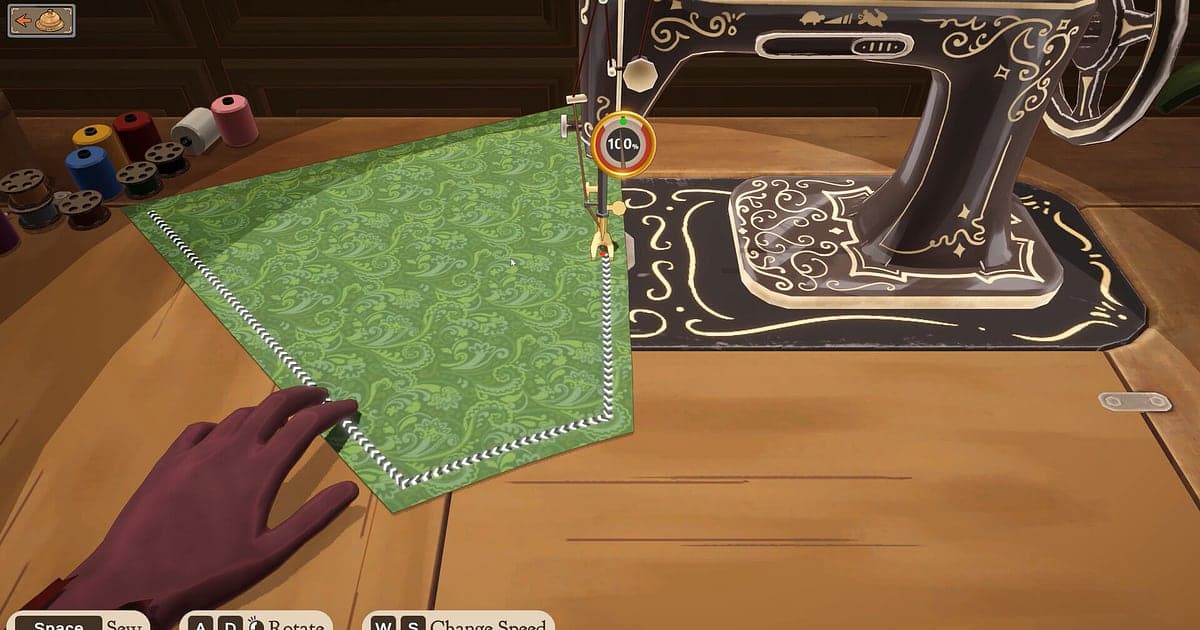
Dressmaker has clear stages, so saving a clip each time a moment worth showing comes up makes building a making of video very easy. Press the clip save shortcut and the last stretch is saved as a clip. The default length is 30 seconds, and you can choose 15, 30, 45 or 60 seconds in settings. Good times to press it are right after you finish laying out the pattern on the fabric, right after you stitch a panel on the machine, right after the last trim completes the dress, and right after a customer is happy with the order. For stages with repetitive motion, like sewing, 15 seconds is plenty. For the finished dress reveal, 30 seconds leaves room on either side. See saving the last few seconds instantly for which length fits which moment.
Find what was said with AI Voice Notes
It is a solo game, but words come out on their own at the worktable. Mutters like 'she asked for long sleeves this time', 'leave seam allowance on this pattern' and 'lace or a ribbon, can't decide' are typical. DOR records game audio and your mic together, and AI Voice Notes writes those words onto the recording timeline as text. Your explanation of why you picked a fabric sits right next to the cutting scene, so it works as caption copy for a making of video or as design notes for the next dress. If your voice comes out quiet, check your input device in recording games with mic audio.
Build a montage with AI Highlight
Once a dress is done, turn your saved clips into a making of. In the library, check choosing the fabric, cutting to the pattern, stitching the panels, adding the trims and the finished dress reveal, then select AI Highlight. DOR joins them into one montage. Add the happy customer delivery at the end and the story runs from order to handover. To set the order of the stages yourself, see how to merge game clips.
Edit in DOR Studio
DOR Studio opens in your browser with nothing to install. Cut the cutting and sewing into short beats, then add music and the dress name as text over the reveal. Glitch transitions between stages and a punch zoom on the first look at the dress give a making of real rhythm. Sewing machine shots keep the action in the center, so they crop well to 9:16, and vertical framing tips are in recording games for vertical Shorts. Download the finished video as an mp4 or share it as a link straight away.
Share with a dor.gg link
Send trimmed moments as dor.gg links. Whoever opens one plays it right in a phone browser without installing anything, so a link in a group chat is enough for a friend who loves sewing to watch the dress come together. Tips on showing the whole process from fabric to delivery in a short video are in sharing Dressmaker finished dress videos.
Dressmaker recommended settings and troubleshooting
Dressmaker is full of fine detail like fabric prints and trims, so keeping the default 1080p at 30fps captures lace and patterns sharply. If you work for long stretches on a laptop, the 720p/30fps mode lightens the load, but keep the finished dress shots in 1080p. Fullscreen, windowed and borderless windows all record, so keep the game's display settings as they are. DOR uses GPU hardware encoding, so its effect on your frame rate while you work is small. Finished dresses suit 1:1, sewing shots suit 9:16, and stages that need the whole screen, like laying out fabric, suit 16:9, so see exporting game clips for exporting in each ratio. DOR never touches your game files or save data.
| Symptom | What to check | Fix |
|---|---|---|
| Sewing machine sounds or music are missing | Your Windows output device and DOR audio settings | Confirm which device the game plays through, then work through [fixing game recordings with no sound](game-recording-no-sound-fix). |
| The recording is a black screen | The game's display mode and the capture method | Try borderless, or follow [fixing fullscreen recording](fullscreen-recording-not-working) to switch to monitor capture. |
| Fabric prints look smudged | Recording resolution | If you are using the 720p mode, switch back to the default 1080p. |
| Several dresses in one video are hard to tell apart | Library sessions and clips | Save a clip right after each dress is finished, and split the session at each new order. |