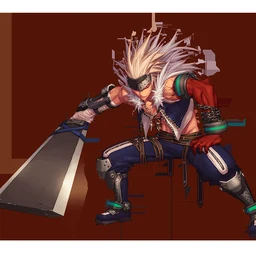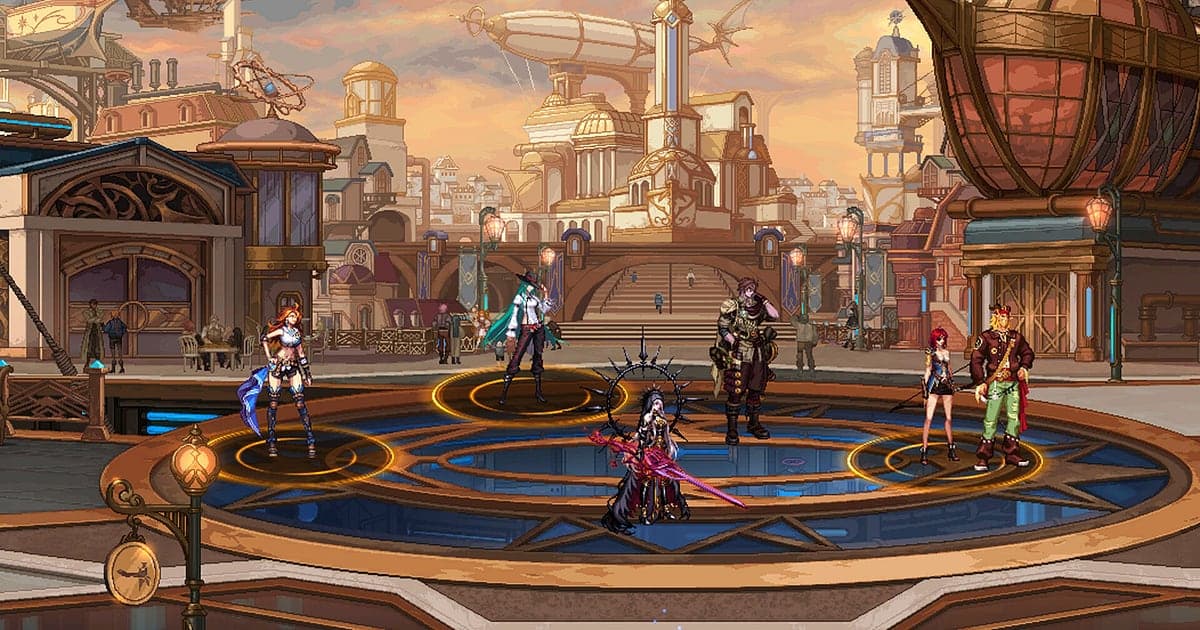
Dungeon Fighter Online records automatically once DOR is installed: launch the game and the AI handles the rest. You never have to find a record key or button. Start Dungeon & Fighter on your PC and DOR detects it, keeping everything from gearing up in town through daily dungeons, advanced dungeons and party raids in one video until you close the game. Recordings are organized in My Clips in the app, so there is no in game recording folder to dig through. This guide walks you through installing DOR, confirming the recording, saving epic drops and amps, finding raids in long recordings, making combo videos and sharing with your guild.
- Keep a full day of DFO in one video, from town prep to the final phase of the Bakal raid.
- Save a double epic drop, an amp success flash or an awakening burst as separate clips.
- Use AI Voice Notes to find raid calls like 'hold is up, dump everything' and jump straight to that phase.
- Combine a PvP combo comeback, a dungeon speed run and a raid clear into a week of highlights.
- Post an epic drop to your guild Discord with a single dor.gg link as proof.
Before you record Dungeon Fighter Online: install and recording mode
Dungeon Fighter Online is light on hardware, so getting ready to record is simple. DOR is a free Windows app and never adds a watermark. DFO uses full session recording, which means the video does not split no matter how many dungeon runs you do; it keeps running until you close the game. Days of dailies followed by raids can run for hours, so it is worth reading recording long gameplay without stutter first. The table below lists what is worth knowing before your first DFO recording.
| Item | For Dungeon Fighter Online | Notes |
|---|---|---|
| Install | DOR, free Windows app | Works with no record key or button, and adds no watermark |
| Game version | Dungeon & Fighter running on your PC | DOR detects the game automatically when it starts |
| Recording mode | Full session recording | Town, dungeons, raids and PvP stay in one video until you quit |
| Where recordings go | My Clips in the DOR app | No in game recording folder to find |
| Resolution and frame rate | 1080p at 30fps by default | 60fps is available, plus a lighter 720p/30fps mode |
| Storage | About 30MB for a 30 second 1080p clip | Leave plenty of free space on days you chain dailies and raids |
Record Dungeon Fighter Online with DOR: step by step
- 1Install DORDownload DOR and install it. Setup takes about a minute and the app is free. Leave DOR running afterwards. You do not need to press a record key before joining a raid party.
- 2Launch Dungeon Fighter OnlineStart the game on your PC as usual and choose your character. Recording begins as soon as DOR detects the game, so the character select screen and the town loading screen at the start of the video are expected.
- 3Check that recording is runningWhen you arrive in town, glance at the DOR app once to confirm the recording is in progress. If the game is not picked up, follow what to do when the recorder does not detect your game. After that, run as many dailies as you like.
- 4Clip epics and amp successesRight after two epic beams drop in an advanced dungeon, or right after you press the +12 amp and the success flash goes off, press the clip save shortcut. The last 30 seconds are stored as a separate clip, so you will not have to hunt through a full day of footage.
- 5Quit and open My ClipsWhen you finish your dailies and close the game, the full session video plus every clip you saved appear together in My Clips in the DOR app. The day you first clear a raid is kept the same way, right through the reward screen.
Find your recordings
Your recordings live in My Clips in the DOR app, also called the library. Each time you open and close DFO becomes one session, and anything you saved with the clip save shortcut appears as its own clip. To find a raid in a full day of footage, the quickest clue is a note of when you entered the boss fight, and inside a raid, the cutscene that plays at each phase change is a natural divider. The clear is just after the last cutscene, so find the reward screen first and rewind about a minute to catch everything from the final attack to the rewards. Set a start and an end point to trim what you need, then export as 16:9, 9:16 or 1:1. The full walkthrough is in how to trim game clips. Like the videos you want to keep, such as your first raid clear. When space fills up, older videos you have not liked are cleared first, so liked videos stay.
Save the moments you want to keep
Even with a full day recorded, moments that flash by like an epic or an amp are much easier to find if you clip them on the spot. Press the clip save shortcut and the last stretch becomes a clip. The default length is 30 seconds, and you can pick 15, 30, 45 or 60 seconds in settings. In DFO, good moments to press it are right after an epic drops, right after an amp success flash, and right after an awakening skill takes a huge chunk out of a boss. Upgrade and amp results only need 15 seconds, while a raid's final phase can run over a minute, so set the clip length to 60 seconds for that. To change the shortcut, see saving the last few seconds instantly.
Find what was said with AI Voice Notes
Raid parties run on calls like 'hold is up, dump everything', 'take the buff and awaken together' and 'two epics just dropped'. DOR records game audio and your microphone together, and AI Voice Notes writes your party's calls onto the recording timeline as text. To check when the buffer called for awakening or which pattern you agreed to hold, find the line in the timeline text and select it to jump to the scene. Your 'going for +12 amp, hold your breath' is on record too, which makes the result easy to find again. If your raid calls over Discord, see recording Discord call audio.
Build a montage with AI Highlight
A week of DFO is full of repeated dailies that drag if you watch them straight. In the library, check your clips of the Bakal raid clear, the double epic drop, the amp success, the awakening burst, the PvP combo comeback and the dungeon speed run, then select AI Highlight. DOR joins them into one montage, so a week of highlights comes together without manual editing. To arrange class combos in your own order, see how to merge game clips.
Edit in DOR Studio
DOR Studio opens in your browser with nothing to install. Drop a punch zoom where your skills chain together and add your class name and damage numbers as text for a class showcase. Try a shake zoom on the awakening cut in and a glitch transition between dungeons, with a background track underneath. DFO is a side scroller, so boss fights your party will watch suit 16:9 with the full screen visible, while a Short of just your combo works in 9:16 with your character centered; framing tips are in recording games for vertical Shorts. Download the result as an mp4 or share it as a link right away.
Share with a dor.gg link
Send trimmed moments as dor.gg links. Whoever opens the link plays it in the browser without installing anything, which makes epic drop brags easy to post in your guild Discord. Send raid partners the stretch from the final attack to the reward screen, and send guildmates only the few seconds before you press upgrade through the result. Failed upgrades make great stories too. Tips on finding raid scenes to send are in sharing Dungeon Fighter raid videos.
Dungeon Fighter Online recommended settings and troubleshooting
Dungeon Fighter Online is fairly light, so recording runs smoothly even at minimum spec. The 2D sprite art looks sharp at the default 1080p and 30fps, and 60fps makes raids full of skill effects and fast PvP combos smoother. If crowded towns or overlapping effects get heavy, drop to the 720p/30fps mode. Fullscreen, windowed and borderless windows all record, and GPU hardware encoding keeps the frame rate impact small. On an older PC, see recording games on a low end PC. DOR has no cheat features and never touches game files or play data.
| Symptom | What to check | Fix |
|---|---|---|
| The recording is a black screen | The display mode in the game settings | DOR records fullscreen, windowed and borderless alike. If it is still black, follow [fixing fullscreen recording](fullscreen-recording-not-working) to switch to monitor capture. |
| Skill sound effects are missing | Your Windows output device and DOR audio settings | Confirm which device game audio plays through, then work through [fixing game recordings with no sound](game-recording-no-sound-fix). |
| Stutter in raids with stacked effects | Recording resolution and frame rate | GPU hardware encoding keeps the impact small, but if your PC still struggles, drop to 720p/30fps mode. |
| Not sure where recordings are saved | My Clips in the DOR app | DOR recordings are organized by session in My Clips, ready to play and trim. |
| Worried a recorder could affect your account | How DOR works | DOR only captures the screen, has no cheat features and does not modify game files or play data. |