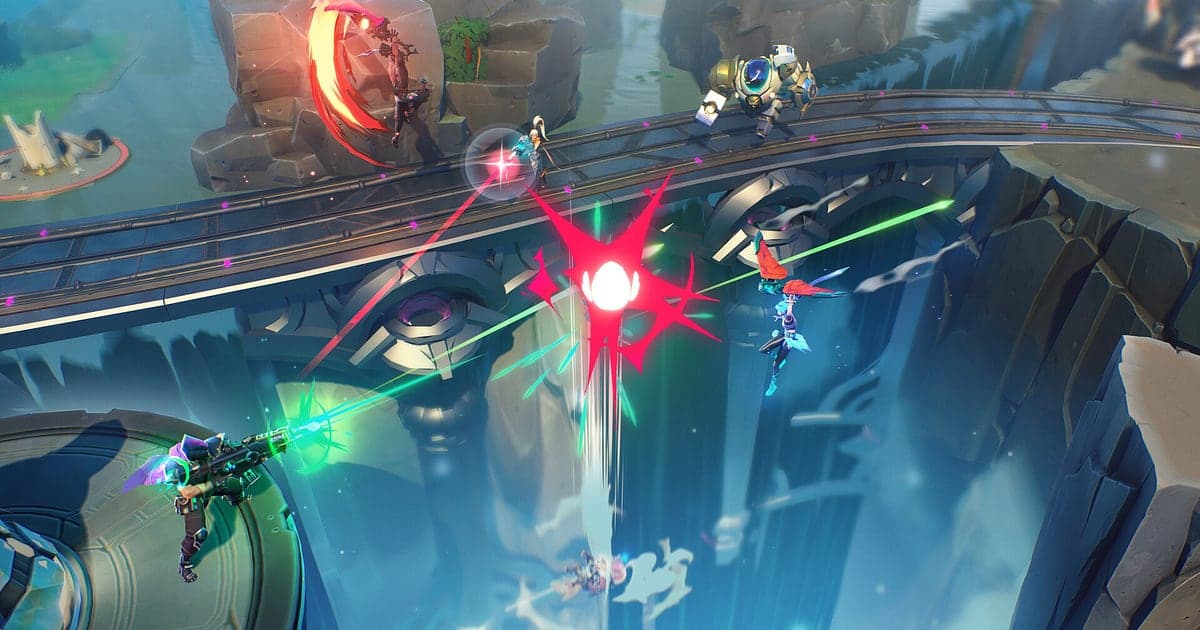
Supervive records automatically: install DOR, launch the game, and AI handles it. When you queue into a match, DOR records the whole thing and automatically saves the stretches where you popped off as highlight clips. The teamfight where you shoved a gliding Hunter off the island, the revive that saved your squad and the final two squads survival are waiting for you when the match ends. The full match is on video too, so you can rewatch any fight like a replay. This guide covers setup, checking your auto highlights, saving extra moments, finding squad comms, making montages and shorts, sharing, and fixing recording problems.
- Have every Supervive match recorded on its own, and rewatch it from the first drop to the end like a replay.
- Get edge knock kills, teamfight carries and final squad survivals saved as highlight clips by AI.
- Find squad comms like 'Push him off the edge' with AI Voice Notes and see who called it first.
- Join highlights from several matches with AI Highlight for a ranked recap or a Hunter main reel.
- Send a 9:16 short with a shake zoom on the edge knock to your squad Discord as a dor.gg link.
Before you record Supervive: install and recording mode
All you need is DOR, a free Windows app that adds no watermark. This guide covers Supervive for PC (Windows). Supervive is a game DOR records match by match. Recording starts when you enter a match, and AI automatically picks out the stretches where you stood out and saves them as highlight clips. Each match's recording and highlights are organized together when it ends, so even a long night of queues stays neatly split by match. Supervive is light, so the default 1080p at 30fps records smoothly. How per match automatic recording works is explained in DOR automatic game recording.
| Item | For Supervive | Notes |
|---|---|---|
| Install DOR | Free Windows app | No watermark on videos |
| Game version | Supervive for PC (Windows) | Detected automatically when the game opens |
| Recording mode | Automatic recording match by match | Each match gets its own recording |
| Auto highlights | AI picks out your standout stretches as highlight clips | Ready to watch when the match ends |
| Resolution and frame rate | 1080p at 30fps by default, 60fps available | Light enough to run smoothly on low end PCs |
Record Supervive with DOR: step by step
- 1Install DOR and leave it runningInstall DOR and open it once; it then waits in the background for Supervive. If your squad talks on Discord, check that DOR picked the headset you normally use.
- 2Launch Supervive and queue upStart the game and enter a match, and DOR records that match automatically. There is no record button to press and no scenes to pick in advance.
- 3Play as usualWhile you glide between islands and dive into teamfights, AI picks out your standout stretches. Recording uses GPU hardware encoding, so fights full of overlapping abilities add little load.
- 4Save extra moments with the shortcutOn top of the auto highlights, save any moment you personally want to keep, like a squad laughing fit, with the clip save shortcut, which keeps the last 30 seconds.
- 5Open My Clips after the matchWhen the match ends, My Clips already holds that match's recording and its auto highlights. Watch them while you wait for the next queue.
Find your recordings
Recordings collect in My Clips, the library in the DOR app. Supervive is recorded match by match, so each match gets one recording, organized together with the highlight clips AI picked and any clips you saved with the shortcut. To rewatch the whole match, open the recording and scrub from the first drop to the end; to see a single fight, open its highlight clip directly. To tighten a highlight further, set a start and an end, trim, and export in 16:9, 9:16 or 1:1. Like the matches you want to keep, such as a rank up game. When space fills up, older videos you have not liked are cleared first, so that match stays. Trimming tips are in how to trim game clips.
Save the moments you want to keep
Separately from the auto highlights, pressing the clip save shortcut saves the stretch of play just before you press it. The default is 30 seconds, with 15, 30, 45 or 60 seconds available. A quick edge knock fits in 15 seconds, and a long final two squads survival is better at 60 seconds so it is captured from the start. It is especially handy for the funny moments only your squad would appreciate, like a teammate gliding straight off the map. The idea is explained in save the last few seconds instantly.
Find what was said with AI Voice Notes
AI Voice Notes turns squad comms into text pinned to the recording timeline. Lines like 'Glide to that island first', 'Push him off the edge', 'Hold on, I'll revive you' or 'Two squads left, let them fight' are kept as sentences at that moment, and selecting one jumps to the scene. You will see exactly who called to knock them off the edge in which fight, which helps when you review a loss. To keep Discord voices in the recording too, see record Discord call audio.
Build a montage with AI Highlight
AI Highlight joins the clips you check into one montage. Check auto selected highlights like 'Knocked off the island', 'Glider dive teamfight carry' and 'Final two squads survival' together with a 'Revive clutch' you saved yourself, press AI Highlight, and the best moments from several matches run as one video. It works well as a ranked recap or a Hunter main reel, and a 'Solo squad wipe' makes a clean ending. To set the order yourself, use merge game clips.
Edit in DOR Studio
DOR Studio opens in your browser with nothing to install. Merge and trim clips, add text, background music and effect templates, and export in 16:9, 9:16 or 1:1 as an mp4 or a share link. Shake zoom the frame where the enemy gets knocked off the island and put your Hunter's name on screen. A punch zoom suits a glider dive, and a glitch transition works between matches. Export 9:16 and it is ready for TikTok. See everything in the DOR browser clip editor and vertical shorts in record vertical shorts from games.
Share with a dor.gg link
Send the auto sorted highlights to your squad Discord as one dor.gg link, and whoever opens it watches in a browser with no app. There is no watermark, so the top down battlefield view stays clean, on YouTube and TikTok too. Tips for posting clips in Discord are in share clips on Discord.
Supervive recommended settings and troubleshooting
Supervive records in fullscreen, windowed and borderless. Recording starts at 1080p and 30fps; choose 60fps to keep ability heavy teamfights smooth. The game is light, so older PCs handle it fine, and if things still feel tight, switch to the lighter 720p/30fps mode. Ways to keep recording light on modest hardware are in record games on a low end PC.
| Symptom | What to check | Fix |
|---|---|---|
| No recording appears after a match | Whether DOR was running before the game | Open DOR first, relaunch Supervive, then queue into the next match |
| The recording is a black screen | Display mode and other overlay software | Close other recorders and relaunch. DOR switches to monitor capture if game capture is blocked |
| Squad comms are missing | The Windows output device and DOR microphone setting | Set both to your headset and record a short test |
| Stutter on an older PC | Recording resolution and frame rate | Switch to 720p/30fps mode |

