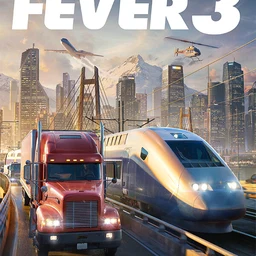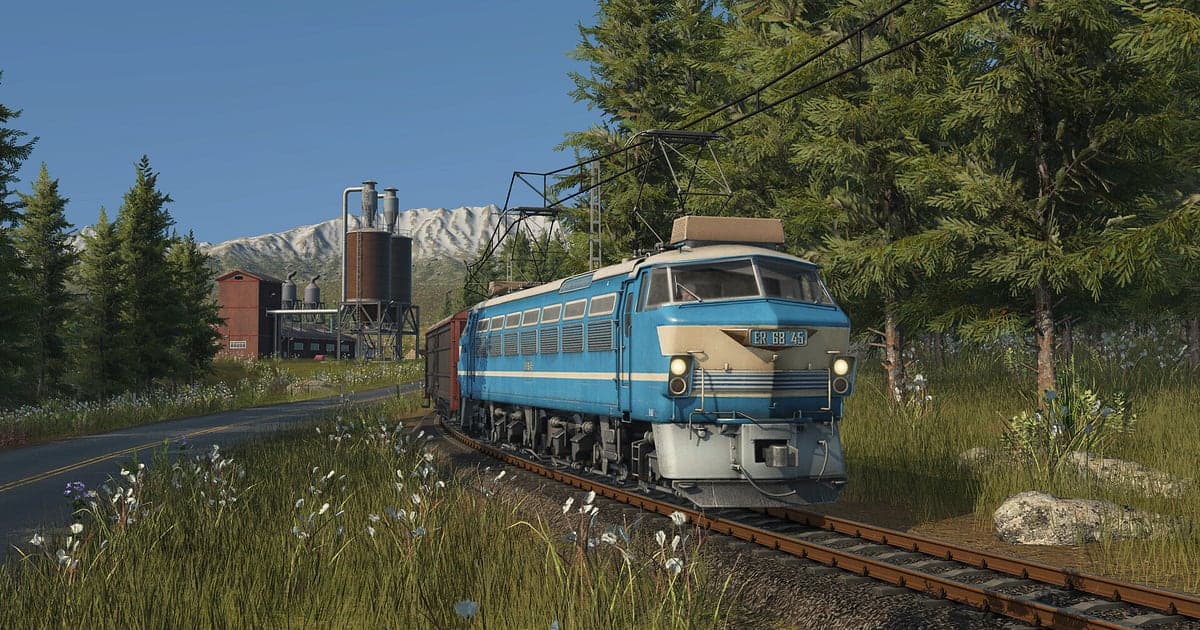
Transport Fever 3 records automatically: install DOR, launch the game, and AI starts recording the moment you roll a map seed. From one steam engine hauling coal to a rail network tying every city together, the whole history of a save ends up on video, and low camera shots chasing your trains are recorded exactly as you see them. This guide covers preparing for multi hour build sessions, saving finished scenes, finding your spoken planning notes, editing a growth montage and a rail documentary style video, sharing, and fixing recording problems.
- Keep hours of building, from rolling the map seed to a sprawling network, in one video.
- Clip the moment you untangle a junction and the first freight train clears the station.
- Use AI Voice Notes to turn lines like 'this station needs more platforms later' into planning notes for next session.
- Chain a farming village growing into a city into a timeline style video with AI Highlight.
- Export a shot that follows a train as a 9:16 vertical video.
Before you record Transport Fever 3: install and recording mode
All you need is DOR, a free Windows app that adds no watermark. This guide covers Transport Fever 3 for PC, launched from Steam. Recording works per session with no time limit, so launch to exit stays one continuous recording. Building games tend to eat whole evenings, so keep plenty of free space on the drive where recordings collect. Moving recordings to a larger drive is covered in change the recording save location. Transport Fever 3 is fairly light, so the default 1080p at 30fps records smoothly even at minimum spec.
| Item | For Transport Fever 3 | Notes |
|---|---|---|
| Install DOR | Free Windows app | No watermark on videos |
| Game version | Transport Fever 3 for PC, launched from Steam | Recording starts when you roll a map seed |
| Recording mode | Session recording: one video from launch to exit | No recording time limit |
| Mods and multiplayer | The screen is recorded as is | Modded vehicles and buildings, and building with friends, appear as you see them |
| Resolution and frame rate | 1080p at 30fps by default, 60fps available | Light enough to record smoothly at minimum spec |
Record Transport Fever 3 with DOR: step by step
- 1Install DOR and leave it runningInstall DOR and open it once; it then waits in the background for the game. If you like to talk through your line plans, check which microphone DOR picked.
- 2Launch Transport Fever 3 and make a mapStart the game and DOR begins recording. Capture starts at the screen where you roll a seed and generate the map, so the settings you started with are at the top of the recording.
- 3Check that it is recordingBefore you place your first station, open the DOR app once to confirm it is recording. After that there is nothing to think about while you lay track.
- 4Clip right after a line opensRight after the line from the coal mine to the steel mill is done and the first train departs, or a mountain tunnel opens, press the clip save shortcut. The last 30 seconds become a clip and the session recording keeps going.
- 5Quit and check My ClipsWhen you close the game, the day's build recording and your saved clips appear in My Clips. Check that the first run on today's new line was captured.
Find your recordings
Recordings collect in My Clips, the library in the DOR app. Each launch and quit makes one recording, and clips saved with the shortcut are listed separately. In a recording that runs for hours, use the first time a train moves, the year changing at the top of the screen and new vehicles appearing as markers. Trim a finished scene by setting a start and an end, and pick 9:16 as the output ratio when you trim to get a vertical video. If you plan a growth video for one save, like the scenes you keep from each era. When space fills up, older videos you have not liked are cleared first, so those scenes stay to the end. Tips for cutting long videos are in how to trim game clips.
Save the moments you want to keep
The clip save shortcut keeps the stretch of play just before you press it. The default is 30 seconds, with 15, 30, 45 or 60 seconds available. A train pulling out of a station or crossing a viaduct fits in 30 seconds. Rush hour at a hub, with train after train coming and going, is better at 60 seconds so the flow is not cut. Press just before the train leaves the screen. If you miss it, it is still in the session recording, ready to trim from the library. The idea is explained in save the last few seconds instantly.
Find what was said with AI Voice Notes
AI Voice Notes turns what you say on mic into text pinned to the recording timeline. It is useful even in a solo building game. Lines such as 'this junction keeps jamming everything', 'connect the coal mine straight to the steel mill' or 'time to switch to electric' are kept as sentences at that moment, and selecting one jumps to the scene. When you start your next session, follow the sentences to find the station you meant to fix last time. In multiplayer with friends, your own screen, game audio and mic record together. To balance your mic level, see record game audio with your mic.
Build a montage with AI Highlight
AI Highlight joins the clips you check into one montage. Check 'First freight departure', 'Double track junction done', 'Mountain tunnel opens', 'Upgrading to electric' and 'Village to city', press AI Highlight, and you get a network growth video. Save one clip at each new era and the village turning into a city plays out like a timeline. To set the order yourself, use merge game clips.
Edit in DOR Studio
DOR Studio opens in your browser with nothing to install. Merge and trim clips, add text, background music and effect templates, and export in 16:9, 9:16 or 1:1 as an mp4 or a share link. Trim the long track laying stretches into short pieces and lay a calm track under the train crossing a viaduct. Add the year and line name as text for a rail documentary feel, and add the seed and map settings so viewers can start on the same map. A glitch transition suits the jump to a new era. See everything in the DOR browser clip editor and vertical editing in record vertical shorts from games.
Share with a dor.gg link
Send your hub station video as one dor.gg link. Post it on Reddit or Discord and people watch it in a browser with no app. YouTube uploads carry no watermark, so nothing covers your network. Picking finished scenes out of hours of building is covered in how to share Transport Fever 3 gameplay videos.
Transport Fever 3 recommended settings and troubleshooting
Transport Fever 3 records in fullscreen, windowed and borderless. Recording starts at 1080p and 30fps; choose 60fps to keep low camera shots chasing trains smooth. If the game gets heavy once your cities grow and the screen fills up, lower the game's graphics options first, and on an older PC switch DOR to 720p/30fps mode. Settings for modest hardware are in record games on a low end PC.
| Symptom | What to check | Fix |
|---|---|---|
| Stutter after your cities grow | Game graphics options and recording resolution | Lower game options; if it still struggles, use 720p/30fps mode |
| The recording is a black screen | Display mode and other overlay software | Close other recorders and relaunch. DOR switches to monitor capture if game capture is blocked |
| Recording does not start when the game opens | Whether DOR was running first | Open DOR first, then relaunch the game |
| Your voice is missing | The microphone selected in DOR | Switch to the mic you use and record a short test |