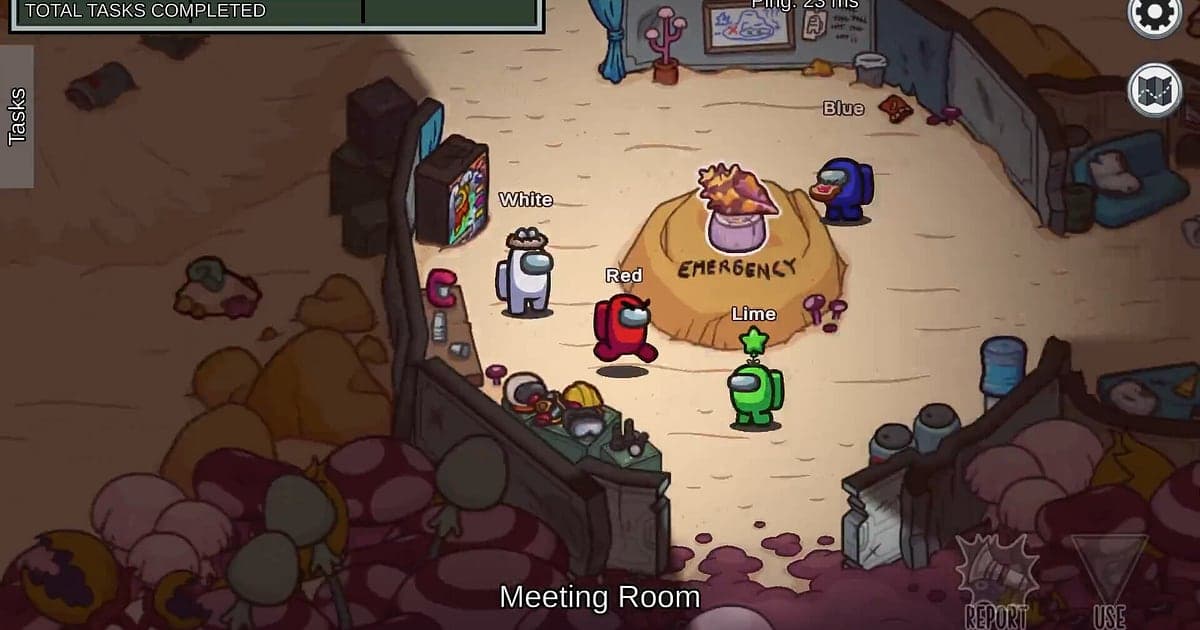
Among Us records automatically once DOR is installed: launch the game and the AI handles capture. Waiting for friends in the lobby, the role reveal, tasks and sabotage, emergency meetings and the ejection screen, every round you play that day runs together in one video from launch until you quit. Among Us has no replay feature of its own, but with a recording you can watch any round back like a replay. This guide shows you how to record Among Us on PC with DOR, a free Windows app, then find scenes like an impostor popping out of a vent or a lie that held all the way through the meeting, trim them and pass them around your friend group.
- Keep every Among Us round you play that day in one video, lobby to ejection screen, with no record button.
- Save impostor highlights like a vent escape nobody saw or a lights sabotage double as clips right away.
- Use AI Voice Notes to keep meeting alibis and accusations as timeline text and check who really claimed Electrical.
- Pick only your impostor rounds and join them with AI Highlight into one reel.
- Post the round you were wrongly ejected in to your group chat with a dor.gg link and plead your case.
Before you record Among Us: install and recording mode
Among Us is light, so even an older laptop records it comfortably. DOR is a free Windows app and never adds a watermark. Among Us uses full session recording, which means the video does not split at the end of each round: the lobby and every round run together until you close the game. The game is only fun on video if your meeting excuses come through clearly, so check your input device with recording games with mic audio before your first session. The table below lists what is worth knowing before you record Among Us.
| Item | For Among Us | Notes |
|---|---|---|
| Install | DOR, free Windows app, no watermark | Nothing to set up each time you join a lobby |
| Game version | Windows PC version on Steam | DOR records Among Us running on your PC |
| Recording mode | Full session recording, one video from launch to exit | Rounds do not split the video, the lobby and next round follow on |
| Display mode | Fullscreen, windowed and borderless all record | DOR switches to monitor capture where game capture is blocked |
| Resolution and frame rate | 1080p at 30fps by default, 60fps available | The default is plenty for a light game, and 720p/30fps mode is there too |
| Audio | Game audio and your mic together | Your meeting defense and the sabotage alarm end up in one video |
Record Among Us with DOR: step by step
- 1Install DORDownload DOR and install it. It takes about a minute and costs nothing. Once installed, leave DOR running. If you want your meeting defense on record, just make sure your mic is connected.
- 2Launch Among Us and join a lobbyStart Among Us from Steam and join the lobby where your friends are. Recording begins as soon as DOR detects the game, so even the lobby chatter while everyone picks a color is captured.
- 3Confirm the recording is runningBefore the first round starts, glance at the DOR app to confirm recording is in progress. If the game is not picked up, follow what to do when the recorder does not detect your game. After that, play as usual, whether you are doing card swipe or venting across the map.
- 4Save a clip right after a big momentWhen you land a kill as impostor that nobody saw, or flip the vote in an emergency meeting and get a crewmate ejected, press the clip save shortcut right after the ejection animation ends. The moment is saved as its own clip, so you will not have to dig through a recording with ten rounds in it.
- 5Close the game and open My ClipsWhen you are done for the night, close Among Us. The video with the lobby and every round, plus the clips you saved, appear together in My Clips in the DOR app. If you jotted a line about each round, now is the time to pull it out.
Find your recordings
Your recordings live in My Clips in the DOR app, also called the library. Each launch and exit of Among Us becomes one session, and anything you saved with the clip save shortcut shows up as its own clip. Rounds are short, so one recording often holds more than ten. Use the lobby screens to tell them apart: count one round every time you pass a lobby screen while scrubbing and you will reach the round you want quickly. The role reveal at the start, showing whether you are crewmate or impostor, is another good landmark. Trim emergency meetings as one block from the moment the meeting screen opens to the end of the ejection animation, so viewers can see who suspected whom. The meeting screen and the map are laid out wide, so 16:9 keeps the voting window from being cropped, though 9:16 and 1:1 are available too. The full walkthrough is in how to trim game clips. Like the rounds that become legend. When space fills up, older videos you have not liked are cleared first, so your liked rounds stay put.
Save the moments you want to keep
Even with every round recorded, saving the rounds with a twist as clips on the spot is much faster. Press the clip save shortcut and the last stretch of gameplay is saved as a clip. The default length is 30 seconds, and you can choose 15, 30, 45 or 60 seconds in settings. In Among Us, good times to press it are right after you slip into a vent following a kill nobody saw, right after you take out two crewmates back to back during a lights sabotage, right after your alibi holds and someone else gets ejected, and right after a reactor sabotage decides the round at the last second. Meetings fit better at 60 seconds so the discussion, the vote and the ejection are all included, while a quick kill is fine at 15. Lengths and shortcut settings are covered in saving the last few seconds instantly.
Find what was said with AI Voice Notes
The real game in Among Us happens during meetings. Lines like 'I was doing card swipe, I swear', 'I literally saw you vent' and 'Skip, there's no evidence' pour out every round. DOR records game audio and your mic together, and AI Voice Notes logs every alibi and accusation onto the recording timeline as text. Want to know who claimed Electrical? Find that line in the timeline text, select it, then check the scene just before to see where that friend actually was. The person who shouted 'Lights are out, stick together' turning out to be the impostor is on record too. If your voice is not being recorded, work through fixing a mic that is not recording.
Build a montage with AI Highlight
Collect only your impostor rounds and you get a reel that will ruin your friends' trust for weeks. In the library, check the vent escape nobody saw, the vote you flipped in the meeting, the lights sabotage double, the perfect alibi lie and the reactor meltdown finish, then select AI Highlight. DOR joins them into one montage. You can also tack on a crew win on the final vote as the closer. To join rounds in order yourself, see how to merge game clips.
Edit in DOR Studio
DOR Studio opens in your browser with nothing to install. Stitch a takedown to that round's meeting and drop a punch zoom as the vote result appears. Add a caption like 'was the impostor' at the end and you have a twist Short. A shake zoom on the sabotage alarm and glitch transitions between rounds keep the pace up. For Shorts, build it in 9:16 and keep your character near the center. Vertical framing tips are in recording games for vertical Shorts. Download the result as an mp4 or share it as a link straight away.
Share with a dor.gg link
Send trimmed scenes as dor.gg links. Whoever opens the link plays the video right in the browser without the app, which makes it ideal for pleading your case in the group chat or Discord after a wrongful ejection. If you are still playing with the same lobby, though, hold back impostor rounds, since they can sway everyone's deductions in the next game. Share them all once the night is over and the video works as the big reveal. Tips on what to trim for each scene are in sharing Among Us clips, and posting to Discord is covered in sharing clips on Discord.
Among Us recommended settings and troubleshooting
Among Us is a light 2D game, so the default 1080p at 30fps already captures crewmate colors and the map clearly. There is not much fast motion, so 60fps is optional, and on an older laptop the 720p/30fps mode records even more lightly. Settings for weaker machines are in recording games on a low end PC. Fullscreen, windowed and borderless windows all record, so keep whatever display mode you already use. DOR uses GPU hardware encoding, so its effect on your game is small. DOR has no cheat features and never touches your game files or play data.
| Symptom | What to check | Fix |
|---|---|---|
| The recording is a black screen | The display mode in the game's settings | DOR records fullscreen, windowed and borderless alike. If it is still black, follow [fixing fullscreen recording](fullscreen-recording-not-working) to switch to monitor capture |
| Your meeting voice or game audio is missing | Your Windows output device and DOR mic setting | Make sure the device you actually use is selected, then work through [fixing game recordings with no sound](game-recording-no-sound-fix) |
| Ten plus rounds and you cannot find the one you want | Where the lobby and role reveal screens are | Count one round per lobby screen, and next time jot down your role and result after each round |
| Video stutters on an older laptop | Recording resolution and frame rate | GPU hardware encoding keeps the impact small, but drop to 720p/30fps mode if it still struggles |
| A meeting clip is cut and makes no sense | The start and end of your trim | Trim again as one block from the meeting screen opening to the end of the ejection animation |