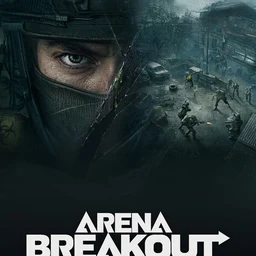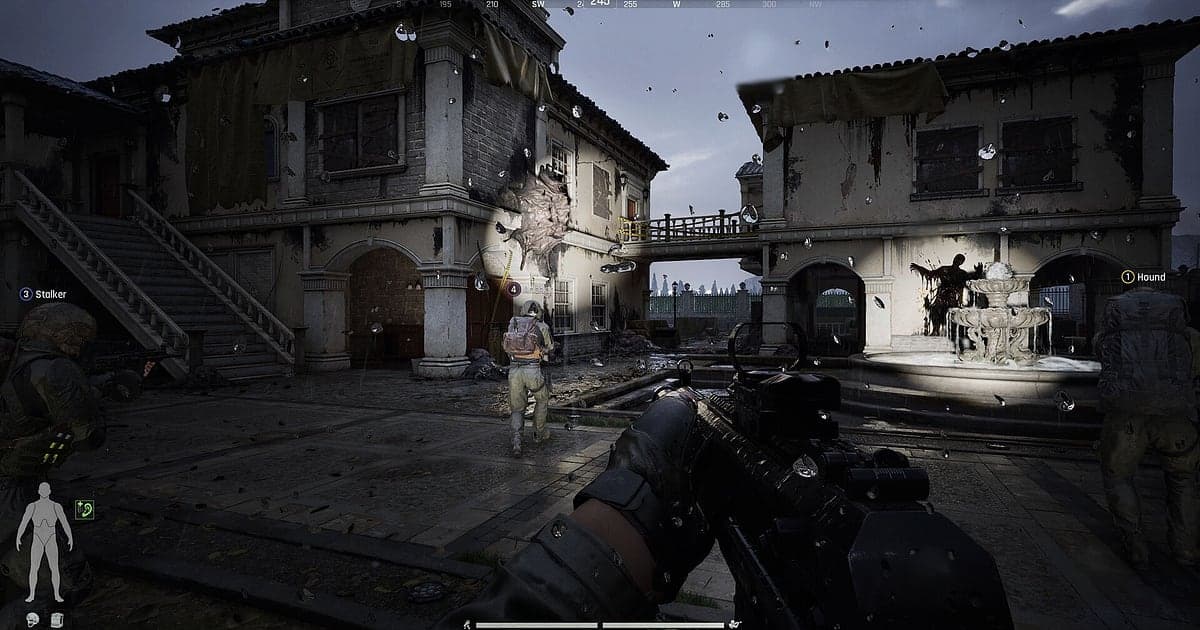
Arena Breakout: Infinite records automatically once DOR is installed: launch the game and the AI takes care of it. There is no OBS scene to set up and no record button to press. Start ABI and DOR captures the whole raid, from loadout to deployment to the post raid results, along with game audio and your mic. The raid where you cracked a vault on a high risk map and crawled silently to the extract, the firefight where an ambush caught you just before extracting, and the loot tally with a full backpack are all there to rewatch. Every raid ends differently, so recordings are also great for reviewing the ones that went wrong. This guide is for anyone recording ABI for the first time. It covers getting ready, confirming the recording, saving fights, finding moments raid by raid, building a season loot log, sharing with your squad, and settings for a demanding game.
- Keep an evening of raids across different maps and difficulties in one video.
- Save a quiet move after cracking a vault, a stairwell close quarters fight or breaking through an extract ambush as its own clip.
- Use AI Voice Notes to find squad calls like 'two sets of footsteps upstairs' and review a raid that went wrong.
- Bundle a rare gear find, surviving a squad wipe threat and the post raid loot tally into a season loot log.
- Paste the ambush clip into your squad's Discord and plan the next route together.
Before you record Arena Breakout: Infinite: install and recording mode
All you need to record ABI is DOR. It is a free Windows app and never adds a watermark to your videos. ABI is recorded per game session rather than per raid, using full session recording, so time sorting gear in the stash, deployment loading, the raids and the results screens all go into one video. There is no recording time limit, so long raids keep recording, but chaining several raids makes the file grow; if the drive your game is on is tight, point recordings at a roomier drive with changing your recording save location. The table below covers what to check before your first ABI recording.
| Item | For Arena Breakout: Infinite | Notes |
|---|---|---|
| Install | DOR, free Windows app | No watermark on your recordings |
| Game version | Windows PC version on Steam | DOR detects and records Arena Breakout: Infinite running on your PC |
| Recording mode | Full session recording | Not split per raid; one video from launch to exit |
| Display mode | Fullscreen, windowed and borderless all record | Switches to monitor capture if game capture is blocked |
| Resolution and frame rate | 1080p at 30fps by default | 60fps is available, plus a lighter 720p/30fps mode |
| Audio | Gunfire, footsteps and your mic record together | Footstep calls stay in the same video for reviews |
Record Arena Breakout: Infinite with DOR: step by step
- 1Install DORDownload DOR, install it and leave it running. If you trade calls with your squad on voice, confirm DOR has your headset mic selected. Gunfire, footsteps and your mic end up in the same video.
- 2Launch ABI and open your stashStart Arena Breakout: Infinite from Steam and DOR detects the game and starts recording right away. Modding guns and setting up your loadout in the stash is captured too, so there is nothing to do before you deploy.
- 3Check the recording before your first deploymentBefore your first raid, open the DOR app once and confirm it is recording. If the game is not detected, follow what to do when the recorder does not detect your game. Then jot down the map, difficulty and gun for each raid in a phone note.
- 4Save a clip right after you make it outWhen you clear the player camping in front of the extract and get out, or grab rare gear from a vault, press the clip save shortcut right after. The last stretch is saved as its own clip, so you never have to scroll a multi hour recording from the start.
- 5Quit and open My ClipsCheck the results screen of your last raid and close the game. The session video and every clip you saved appear together in My Clips in the DOR app. Raids where you went down are in the session video too, so you can see who got you.
Find your recordings
Find your recordings in My Clips in the DOR app, also called the library. Each time you open and close ABI is grouped into one session, and moments saved with the clip save shortcut during raids appear as separate clips. Scrub the timeline and the stash screen and deployment loading repeat for every raid, so count loading screens in the order you noted and you land right at the start of the raid you want. Night and blizzard raids look clearly different, so you can tell them apart just by skimming. An extraction sits right before the results screen appears, and so does a death, so rewinding from the results screen is fastest. Include the results screen in extract clips so success is obvious, and cut out long stretches of stash management. Export as 16:9, 9:16 or 1:1, and see how to trim game clips for the full walkthrough. Like the loot runs you want to keep. When space fills up, older videos you have not liked are cleared first.
Save the moments you want to keep
Even with the whole raid recorded, the moments you survive are much easier to find if you clip them on the spot. Press the clip save shortcut and the last stretch is saved as a clip. The default length is 30 seconds, and you can choose 15, 30, 45 or 60 seconds in settings. Finding rare gear on Lockdown difficulty and putting it in your bag fits about 30 seconds, while a close quarters firefight in an indoor CQB area, from just before opening the door to clearing the room, suits 45 seconds. Set clips to 60 seconds for an extract on Forbidden Zone where you fight through a last firefight carrying high tier gear, or a Solo Ops raid where you get surrounded and make it out alone. Right after you hold on alone once your whole squad is down, and right after you spot and clear an enemy first in night or fog, are also good moments to press it. Length settings are covered in saving the last few seconds instantly.
Find what was said with AI Voice Notes
In ABI squad play, sound and calls decide who survives. Lines like 'two sets of footsteps upstairs', 'vault's open, I've got bag space', 'someone's camping the extract' and 'armor's broken, bandaging up' run through every raid. DOR records game audio and your microphone together, and AI Voice Notes writes the calls you traded with your squad onto the recording timeline as text. When you review a raid that went wrong, find who called the footsteps upstairs first, or when you noticed the extract ambush, and select the line to jump straight to that scene. Seeing the moment of the call next to the moment the fight actually started makes it easier to decide which route to avoid next deployment. If your mic sounds quiet, check your input device with recording games with mic audio.
Build a montage with AI Highlight
Gather the clips you saved each raid and you have a season loot log. In the library, check your clips of a quiet move after cracking a vault, a stairwell close quarters fight, breaking through an extract ambush, a rare gear find, surviving a squad wipe threat and the post raid loot tally, then select AI Highlight. DOR joins your successful extracts into one video. Split clips by difficulty for a progression log from your first Normal extract to a Forbidden Zone escape, or gather only the deaths for a squad review video. If you want to set the order yourself, see how to merge game clips.
Edit in DOR Studio
DOR Studio opens in your browser with nothing to install. Trim just the fight, put a punch zoom on the headshot frame, and add the Koen you earned on the results screen as text. A handheld effect suits a sprint to the extract, a shake zoom suits a grenade going off, and a glitch transition works between raids. Close quarters fights indoors can go out as 9:16 ABI Shorts straight away, while open ground fights that need distant enemies and terrain visible fit 16:9. Framing tips are in recording games for vertical Shorts. Download the result as an mp4 or share it as a link.
Share with a dor.gg link
Send trimmed moments as dor.gg links. Whoever opens one plays it right in their browser without the app. When you paste a link into your squad's Discord, add a line with the map, difficulty and whether you extracted, so a squadmate heading back to that map instantly remembers which route the fight happened on. Do not throw away raids where you died either. Trim the minute before you went down and send it, and you can work out together which direction the shots came from. Which moments to keep for each difficulty and weather condition are covered in sharing Arena Breakout: Infinite extraction videos, and posting to Discord is covered in sharing clips on Discord.
Arena Breakout: Infinite recommended settings and troubleshooting
ABI is demanding on the graphics card, so at or above the recommended spec you can keep both the game frame rate and the recording stable. For recording, the default 1080p at 30fps is enough. Choose 60fps for smoother close quarters fights, or the 720p/30fps mode if your PC is near its limit. DOR uses GPU hardware encoding, so its impact on in game frame rate is small. Fullscreen, windowed and borderless windows all record, and if anti cheat blocks game capture, DOR switches to monitor capture. If your frame rate wobbles while recording, work through fixing FPS drops while recording. DOR never touches game files or memory, only records the screen and sound, and has no cheat features.
| Symptom | What to check | Fix |
|---|---|---|
| The recording is a black screen | The display mode in the game's settings | DOR records fullscreen, windowed and borderless, and switches to monitor capture when game capture is blocked. Follow [fixing fullscreen recording](fullscreen-recording-not-working). |
| Footsteps or squad calls are missing | Your Windows output device and DOR audio settings | Confirm which device the game plays through, then work through [fixing game recordings with no sound](game-recording-no-sound-fix). |
| Files get large after several raids | Recording resolution and free drive space | Clip only extracts and fights and see [reducing game recording file size](reduce-game-recording-file-size). |
| Frame rate drops in firefights | In game graphics settings and recording frame rate | Drop recording to 720p/30fps mode and lower in game graphics one step. |
| Worried a recorder could get you banned | How DOR works | DOR is a standard recorder that only captures the screen and sound without touching game files or memory, and it has no cheat features. |