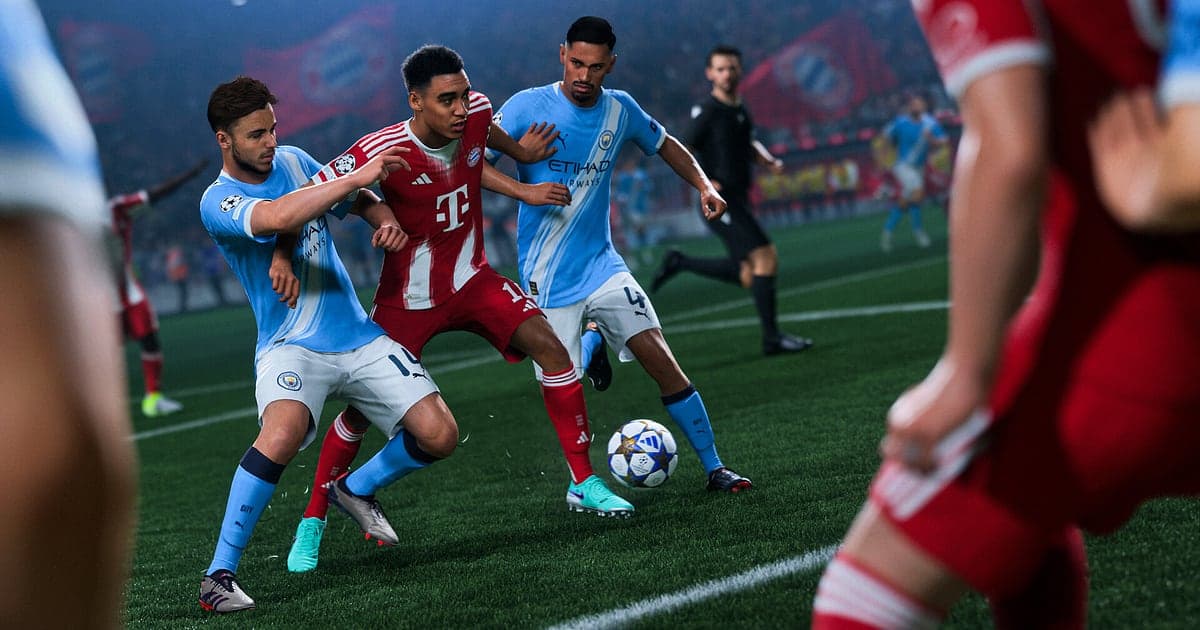
EA SPORTS FC 26 records automatically once DOR is installed: launch the game and the AI takes it from there. You never press a record button before kickoff. From the moment the menu music starts until you quit to desktop, your Ultimate Team matches, Career Mode fixtures and friendlies against mates all end up in one video. Because DOR captures the screen you actually played on rather than the in game replay camera, that curler from outside the box is saved from the exact angle you saw it. This guide covers the whole routine for FC 26 on PC in order: getting ready, checking that recording is running, clipping goals, finding them again, building a goal reel and sending it to friends.
- Keep a full day of Weekend League in one video, from the first kickoff to the final whistle, including the squad screens in between.
- Save the goals and saves you will want to rewatch, like a finesse shot from outside the box, a trivela finish or a one on one stop, as separate clips.
- Use AI Voice Notes to find lines like 'three minutes added, just hold' and jump straight to that point in the match.
- Join a season's worth of goal clips into one goal of the season compilation with AI Highlight.
- Send the winner you just scored to your club's group chat or Discord server with a single dor.gg link.
Before you record EA SPORTS FC 26: install and recording mode
FC 26 leans hard on your graphics card, so it pays to check your PC and your free drive space before the first recording. DOR is a free Windows app and never puts a watermark on your videos. FC 26 uses full session recording, which means matches are not cut into separate files; everything from launch to exit becomes one video. The game itself already needs 100GB to install, so plan room for recordings on top of that. Minimum and recommended hardware is listed in FC 26 PC system requirements. The table below sums up what to know before you record FC 26.
| Item | For EA SPORTS FC 26 | Notes |
|---|---|---|
| Install | DOR, free Windows app | No watermark, and setup takes about a minute |
| Game version | EA SPORTS FC 26 for PC on Steam | The Steam version runs alongside the EA app, and DOR records the game window itself |
| Recording mode | Full session recording | Menus, squad management and matches stay in one video until you quit |
| Display mode | Fullscreen, windowed and borderless | All three record, so leave the game's display settings as they are |
| Resolution and frame rate | 1080p at 30fps by default, 60fps available | Pick 60fps if you want counter attacks and skill moves to look smooth |
| Storage | About 30MB for a 30 second 1080p clip | Keep free space for recordings in addition to the 100GB game install |
Record EA SPORTS FC 26 with DOR: step by step
- 1Install DORDownload DOR, install it and leave it running. It is free, so there is no payment step, and once it is installed there is nothing to prepare each time you launch FC 26. Set it up before your Weekend League starts and every match from the first one is covered.
- 2Launch FC 26Start EA SPORTS FC 26 from Steam. The EA app opens alongside it, and when the title screen appears DOR detects the game and starts recording. By the time the menu music plays, recording is already running, so head into Ultimate Team, Career Mode or whatever you planned to play.
- 3Check that recording is runningBefore your first kickoff, open the DOR app once and confirm the recording is in progress. If the game is not picked up, work through what to do when the recorder does not detect your game. After that, you can change your squad or browse the transfer market between matches and the recording keeps going.
- 4Clip the goal right after it goes inWhen a long shot hits the net or your keeper stops a one on one, press the clip save shortcut as the celebration starts. The build up and finish are stored as a separate clip, so you will not have to dig through hours of footage to find that goal later.
- 5Quit and open My ClipsWhen you are done for the day, close FC 26. The full session video and every goal clip you saved appear together in My Clips in the DOR app. Even a day where you played a long run of Weekend League matches back to back sits in one session, so you always know which day a goal came from.
Find your recordings
Your recordings live in My Clips in the DOR app, also called the library. Each time you open and close FC 26 becomes one session, and goals or saves you grabbed with the clip save shortcut show up as their own clips. To find a specific goal in a long session, the most reliable landmark is the scoreline at the top of the screen. Skip ahead in big jumps until the score changes from 1 to 0 to 2 to 0, then rewind to the moment you won the ball, and you have the start of the move. Set a start and an end point to keep just that stretch, then export it as 16:9, 9:16 or 1:1. The full walkthrough is in how to trim game clips. Like the videos you want to keep for good, such as your best goal of the season or the last kick of a shootout. When space fills up, older videos you have not liked are cleared first, so liked goals stay put.
Save the moments you want to keep
Even though the whole session is recorded, clipping the moments you care about on the spot makes them far easier to find. Press the clip save shortcut and the last stretch of play is saved as a clip. The default length is 30 seconds, and you can choose 15, 30, 45 or 60 seconds in settings. In FC 26, good times to press it are right after a curler from outside the box goes in, right after a dribble that takes you past three defenders, right after a big save from your keeper, and right after a stoppage time winner. A counter attack that starts at the halfway line may not fit in 30 seconds, so bump the length to 45, and a penalty shootout with several kicks fits best at 60. To change the shortcut or choose the right length for each kind of moment, see saving the last few seconds instantly.
Find what was said with AI Voice Notes
Playing friendlies over a Discord call, or sharing a couch with a mate, means a steady stream of lines like 'trivela it, curl it in', 'why is the keeper off his line' and 'that's twenty wins this weekend'. DOR records game audio and your microphone together, and AI Voice Notes writes what was said onto the recording timeline as text. After the match, if you want to rewatch the equalizer you conceded seconds after shouting 'three minutes added, just hold', find that line in the timeline text and select it to jump straight to the scene. You do not have to scan the scoreline when the reaction itself points you to the moment. To get your call audio into the recording as well, see recording Discord call audio.
Build a montage with AI Highlight
A season of saved goals turns into one compilation with AI Highlight. In the library, check your finesse shot from outside the box, the trivela finish, the one on one keeper save, the run past three defenders, the 90+4 winning header and the last penalty of the shootout, then select AI Highlight. DOR joins the checked moments into a single montage. Build one on Sunday night after Weekend League ends and you have a weekly highlight ready for your club's group chat. If you would rather arrange the goals in the order you scored them, see how to merge game clips.
Edit in DOR Studio
DOR Studio opens in your browser with nothing to install. Trim a goal to the moment before the strike, add a punch zoom on the finish, put the scorer and the minute on screen as text and lay a background track underneath, and you have a goal short. When you join goals from different matches, drop a glitch transition between them so viewers can tell where one match ends and the next begins. Export 9:16 for Shorts and Reels, 1:1 for chat previews and 16:9 for a regular YouTube upload. For keeping the ball and the goal in frame on a vertical video, read recording games for vertical Shorts. When you are done, download the result as an mp4 or share it as a link straight away.
Share with a dor.gg link
Send trimmed goals as dor.gg links. Whoever opens the link plays the video right in their browser on a phone or PC without installing anything, which makes it easy to send 'that goal from earlier' to the friend you just played. Post the weekly goal reel in your club's Discord server and send the comeback winner on its own to the mate who was on the other end of it. Picking and trimming goal moments is covered in sharing FC 26 goal videos, and posting to Discord is covered in sharing clips on Discord.
EA SPORTS FC 26 recommended settings and troubleshooting
FC 26 is GPU heavy, so a PC at or above the recommended spec keeps both your in game frame rate and the recording steady. The default 1080p at 30fps already captures shirt numbers and the scoreline clearly, and 60fps is the pick if you want fast breaks and skill moves to look smooth. On a PC that is close to the minimum, the lighter 720p/30fps mode keeps the load down. Fullscreen, windowed and borderless windows all record, so there is no need to change the game's display settings. Where anti cheat blocks game capture, DOR switches to monitor capture and keeps recording. DOR uses GPU hardware encoding, so its effect on your frame rate during a match is small. It has no cheat features and never touches your game files or play data. If you notice frame drops while recording, work through fixing FPS drops while recording.
| Symptom | What to check | Fix |
|---|---|---|
| The recording is a black screen | The display mode in the game's settings | DOR records fullscreen, windowed and borderless alike. If it is still black, follow [fixing fullscreen recording](fullscreen-recording-not-working) to switch to monitor capture. |
| Commentary and crowd noise are missing | Your Windows output device and DOR audio settings | Confirm which device the game plays through, then work through [fixing game recordings with no sound](game-recording-no-sound-fix). |
| Passes feel delayed or the match stutters | Recording resolution, frame rate and your PC spec | GPU hardware encoding keeps the impact small, but on a tight spec drop to 720p/30fps mode. |
| Drive space disappears after a Weekend League | Free space on your drive | Keep room beyond the 100GB game install, and like the goals you saved as clips so they are kept. |
| Worried a recorder could affect your account | How DOR works | DOR only captures the screen, has no cheat features and does not modify game files or play data. |