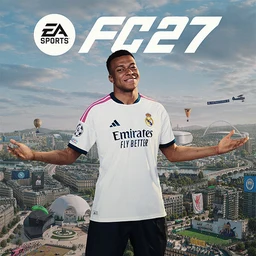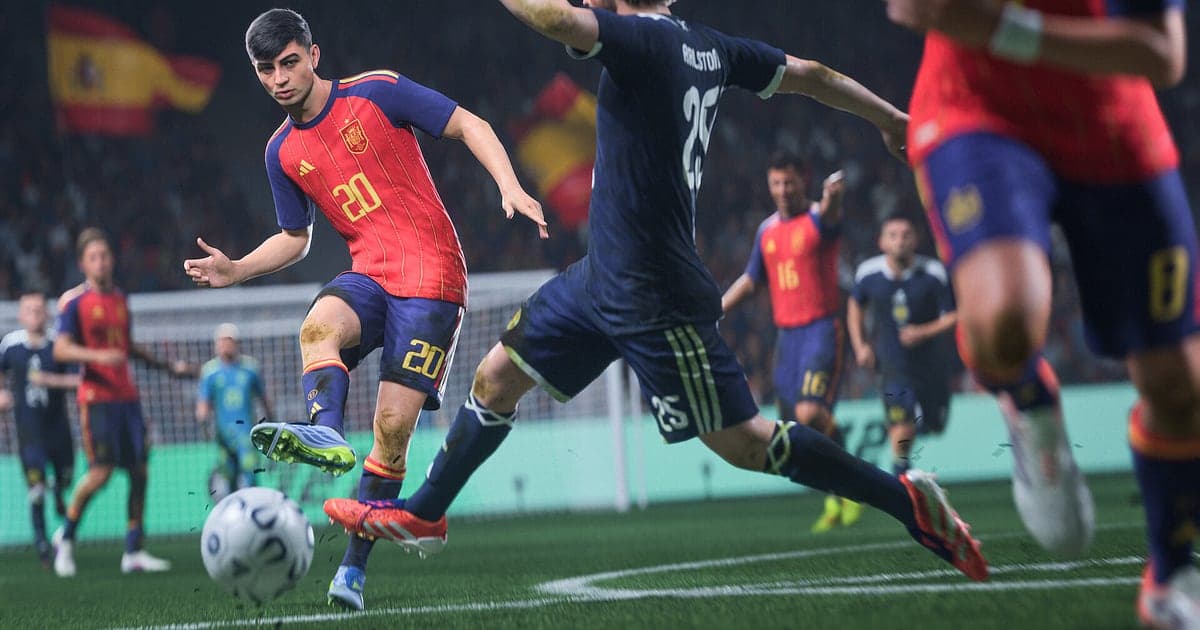
EA SPORTS FC 27 records automatically once DOR is installed: launch the game and the AI takes care of it. There is no highlight save to remember mid match and no separate recorder to start. From the moment FC 27 opens through Steam until you quit, the squad screen, every kickoff and that stoppage time corner all land in one video. This guide walks through the whole routine in order: getting ready, confirming the recording, saving goals as they happen, finding a goal across several matches, building compilations and shorts, and sending a link to the mate you just beat. A Division Rivals comeback and your Career Mode wonderkid's debut goal are captured exactly the same way.
- Keep Ultimate Team, Career Mode and Clubs matches in one video from kickoff to the final whistle.
- Save a finesse shot into the top bins or a one on one keeper save as its own clip the moment it happens.
- Find the callouts you traded with a friend in Clubs or friendlies using AI Voice Notes and jump to that moment.
- Combine a season's worth of goal clips into one compilation with AI Highlight.
- Cut a stoppage time header into a 9:16 short and send it to whoever lost with a dor.gg link.
Before you record FC 27: install and recording mode
FC 27 uses full session recording. While the game is open, menus, squad building and every match you play run together in a single video, so an evening of switching between Ultimate Team and Career Mode still produces one recording. DOR is a free Windows app and never adds a watermark. Weekend sessions of back to back matches make long videos quickly, so save to a drive with plenty of space. To move recordings to another drive, see changing the recording save location. The table below lists what to check before you record FC 27.
| Item | For FC 27 | Notes |
|---|---|---|
| Install | DOR, free Windows app | No watermark, so goals post straight to Shorts or Reels |
| Game version | Windows PC version on Steam | DOR records FC 27 running on your PC |
| Recording mode | Full session recording | One video from launch to exit, not split by match |
| Display mode | Fullscreen, windowed and borderless all record | If game capture is blocked, DOR switches to monitor capture |
| Resolution and frame rate | 1080p at 30fps by default | Pick 60fps for smoother ball flight, or the lighter 720p/30fps mode |
| Storage | Video length grows with every match | Check free drive space before a weekend grind |
Record FC 27 with DOR: step by step
- 1Install DORDownload DOR and install it. Once setup finishes, DOR waits in the background for FC 27 to start. If you plan to cram Division Rivals matches before the weekly reward deadline, install it ahead of time.
- 2Launch FC 27Start FC 27 from Steam as usual. Recording begins as soon as DOR detects the game, so the title screen, main menu and squad screen at the start of the video are expected.
- 3Check that recording is runningBefore your first kickoff, glance at the DOR app once to confirm the recording is in progress. If the game is not picked up, follow what to do when the recorder does not detect your game. After that, switching modes keeps everything in the same video.
- 4Save the goal right after it goes inWhen a long range strike nestles in the corner or a one two on the counter ends in a goal, press the clip save shortcut before the celebration finishes. The last 30 seconds are stored as a separate clip, build up included.
- 5Quit and open My ClipsClose FC 27 and every match from the session lands in My Clips as one video, with the goal clips you saved listed alongside. A match that went all the way to penalties is in that same video.
Find your recordings
Your recordings are organized in My Clips in the DOR app, also called the library. Each time you open and close FC 27 becomes one session, and goals you grabbed with the clip save shortcut appear as separate clips. To find a specific goal inside a session, count the kickoff and result screens that repeat between matches to work out which match it was, then use half time to pick the right half. A quick note like 'third match, around the 80th minute' when you score makes it even easier. Once you find the moment, set a start and an end point, then export as 16:9, 9:16 or 1:1. A three pass counter suits 16:9 where the whole pitch is visible, while a single curler works well in 9:16. The full walkthrough is in how to trim game clips. Like the videos you want to keep, such as the match that sealed promotion. When space fills up, older videos you have not liked are cleared first.
Save the moments you want to keep
Press the clip save shortcut right after a goal and the last stretch of play is saved as a clip. The default length is 30 seconds, and you can choose 15, 30, 45 or 60 seconds in settings, which makes it work much like the highlight save button from the FIFA days. A finesse shot from outside the box or skill moves past three defenders fits in 15 or 30 seconds. A counter that started with a tackle in your own half is better at 45 seconds so the turnover is included. For a one on one save, press it before the replay kicks in. Penalty shootouts bring the takers out one by one, so saving 60 seconds right after the final kick catches the earlier ones too. To change the shortcut or length, see saving the last few seconds instantly.
Find what was said with AI Voice Notes
Playing Clubs or friendlies with a mate means a steady stream of lines like 'I'm making the run, play it through', 'keeper's off his line, chip it' and 'don't push the line, they're countering'. DOR records game audio and your microphone together, and AI Voice Notes writes the conversation onto the recording timeline as text. When you want to check whether you held on after saying 'two minutes added, just hold it', select that line in the timeline and you land right on the moment. If you commentate on your own matches, your voice is captured with the game too. If your mic sounds quiet, check the input device with recording games with mic audio.
Build a montage with AI Highlight
The goal clips you collect over a season can become one compilation. In the library, check the finesse shot top bins, the one two on the counter, the one on one keeper save, the stoppage time header and the final penalty in the shootout, then select AI Highlight to join them into a single video. Build one from just your promotion games, or pick only the goals of a single player you developed in Career Mode. To arrange the clips in match order yourself, see how to merge game clips.
Edit in DOR Studio
DOR Studio opens in your browser with nothing to install. Trim from just before the strike to the net bulging and add a punch zoom for that broadcast replay feel. Give a skill move clip a handheld effect, and drop a glitch transition between matches. Put the scorer's name and the score on screen as text, add background music, and you have a football edit. Use 9:16 for YouTube Shorts and Reels, or 1:1 for an Instagram post. To keep the ball in frame on a vertical cut, read recording games for vertical Shorts. When you are done, download an mp4 or share it as a link straight away.
Share with a dor.gg link
Send trimmed goals as dor.gg links. Whoever opens the link watches in their browser without the app, so you can message the winning goal to the friend you just beat in a friendly or post it in your Clubs team's Discord. Send the teammate who assisted the 16:9 cut with the full build up, and send your 1v1 opponent the short version with only the decisive moment. How to pick goals out of a multi match recording is covered in sharing FC 27 goal videos, and posting to Discord is in sharing clips on Discord.
FC 27 recommended settings and troubleshooting
If you play FC 27 on a 144Hz or 240Hz monitor, a GPU at the recommended spec keeps your high refresh rate while recording. Recording defaults to 1080p at 30fps. To keep fast passes and dribbles smooth, choose 60fps. If your PC struggles, the 720p/30fps mode is the lighter option. DOR uses GPU hardware encoding, so its effect on match frame rate is small. Fullscreen, windowed and borderless windows all record, so leave the game's display settings as they are. If controls feel heavy or frames drop only while recording, start with fixing FPS drops while recording. DOR has no cheat features and never touches your game files or play data.
| Symptom | What to check | Fix |
|---|---|---|
| The recording is a black screen | The game's display mode | DOR records fullscreen, windowed and borderless alike. If it is still black, follow [fixing fullscreen recording](fullscreen-recording-not-working) to switch to monitor capture. |
| Crowd noise and commentary are missing | Your Windows output device and DOR audio settings | Confirm which device the game plays through, then work through [fixing game recordings with no sound](game-recording-no-sound-fix). |
| Matches stutter while recording | Recording resolution, frame rate and game refresh rate | GPU hardware encoding keeps the impact small, but if it still stutters, drop to 720p/30fps mode. |
| You cannot tell which match a goal was in | Kickoff and result screens | Count the kickoff and result screens between matches, and save a clip right after each goal next time. |
| Worried a recorder could cause a ban | How DOR works | DOR only captures the screen, has no cheat features and does not modify game files or play data. |