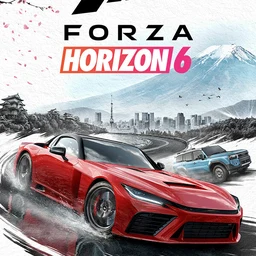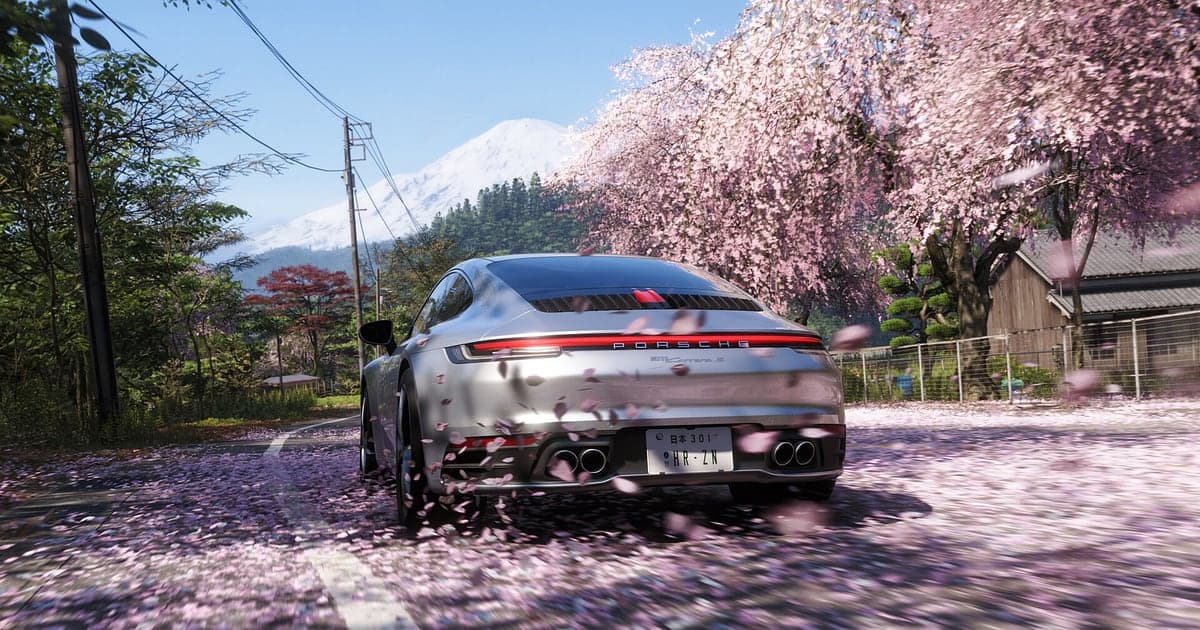
Forza Horizon 6 records automatically once DOR is installed: launch the game and the AI handles the rest. Free roam across the Japan Horizon Festival, races, Touge Battles and convoy cruises with friends all run together in one video while the game is open, so even a perfect corner you hit by chance is kept. Your drives are saved as video files without touching the replay menu. This guide walks through the full routine in order: getting ready, confirming the recording, saving drifts and records, finding scenes in a long recording, building drive montages and car cinematics, and sending links to your crew.
- Keep a whole day of free roam, races, Touge Battles and garage tuning in one video.
- Save a mountain drift zone chain or a speed trap record as its own clip on the spot.
- Find convoy banter like 'drift zone on the next corner' with AI Voice Notes and jump to that corner.
- Join a danger sign landing and a last corner overtake into a drive montage with AI Highlight.
- Polish your first drive in a legend car into a car cinematic and post the dor.gg link in your crew's Discord.
Before you record Forza Horizon 6: install and recording mode
Forza Horizon 6 uses full session recording. Finishing a race or heading back into free roam does not split the video, and it keeps going until you close the game. DOR is a free Windows app and never adds a watermark, so a game this pretty goes up as a clean original with no logo. Roaming the big open world takes time and recordings get large, so for ways to manage file size see reducing game recording file size. The table below covers what to check before your first recording.
| Item | For Forza Horizon 6 | Notes |
|---|---|---|
| Install | DOR, free Windows app | No watermark on recordings or edits |
| Game version | Windows PC version on Steam | DOR records Forza Horizon 6 running on your PC |
| Recording mode | Full session recording | Free roam and races stay in one video until you exit |
| Display mode | Fullscreen, windowed and borderless all record | If game capture is blocked, DOR switches to monitor capture |
| Resolution and frame rate | 1080p at 30fps by default | 60fps keeps fast scenery and drifts smooth, or use the lighter 720p/30fps mode |
| Audio | Game audio and mic recorded together | Engine notes, the radio and convoy chatter share one video |
Record Forza Horizon 6 with DOR: step by step
- 1Install DORDownload DOR and install it. Once setup finishes, DOR waits in the background for the game to start. If your crew is planning a weekend convoy, install it ahead of time.
- 2Launch Forza Horizon 6Start Forza Horizon 6 from Steam as usual. Recording begins as soon as DOR detects the game, so the title and loading screens at the start of the video are expected.
- 3Check that recording is runningOnce you are on the festival map and behind the wheel, glance at the DOR app once to confirm the recording is in progress. If the game is not picked up, follow what to do when the recorder does not detect your game. After that, entering or leaving races keeps everything in the same video.
- 4Save the clip right after a driftJust linked several corners into one long slide through a mountain drift zone, or set a new speed trap record? Press the clip save shortcut right after. The last 30 seconds are stored as a separate clip.
- 5Quit and open My ClipsClose the game and the whole drive lands in My Clips as one video, with the clips you saved alongside. Your first run in a car you bought at the auction house is in the same video too.
Find your recordings
Your recordings collect in My Clips in the DOR app, also called the library. Each time you open and close Forza Horizon 6 becomes one session, and anything you grabbed with the clip save shortcut appears as its own clip. Races are easy to find because the starting countdown and the results screen bracket them, but a drift or jump that happens by chance in free roam has no marker. When that happens, note the real time right away. Recording starts when you launch the game, so the gap between the two is the spot in the recording. Set a start and an end point to trim, then export as 16:9, 9:16 or 1:1. Keep a single drift to 10 to 20 seconds, from where the car starts sliding to where it straightens out, and start a close race about 30 seconds back, as you tuck in behind the rival heading into the final corner. The walkthrough is in how to trim game clips. Like the drives you want to keep. When space fills up, older videos you have not liked are cleared first.
Save the moments you want to keep
On a map this big, great moments arrive without warning. Press the clip save shortcut right after one and the last stretch is saved as a clip. The default length is 30 seconds, and you can choose 15, 30, 45 or 60 seconds in settings. A danger sign landing or a speed trap pass fits in 15 seconds, while a mountain drift zone chain suits 30 or 45 so the first corner entry is included. For a last corner overtake, where the chase matters, save 45 seconds right after the finish line, and give mood pieces like a convoy cruise 60 seconds so they work as cinematic source material. To change the shortcut or length, see saving the last few seconds instantly.
Find what was said with AI Voice Notes
Cruising in a convoy with friends means a steady flow of lines like 'drift zone on the next corner', 'hit 400 through the speed trap', 'danger sign jump, sending it' and 'that car just showed up in the auction house'. DOR records game audio and your microphone together, and AI Voice Notes writes the conversation onto the recording timeline as text. To find out who hit the wall on which corner, select the line where it was mentioned and jump straight to the scene. To capture your friends' voices as well, see recording Discord call audio.
Build a montage with AI Highlight
Once your driving clips add up, build a drive montage. In the library, check the mountain drift zone chain, the speed trap record, the danger sign landing, the last corner overtake, the convoy cruise and your first drive in a legend car, then select AI Highlight to join them into one video. It works as a showcase for a fresh tune, or you can pick only the runs from one car for a per car video. To set the order yourself, see how to merge game clips.
Edit in DOR Studio
DOR Studio opens in your browser with nothing to install. Trim from just before turn in, add a punch zoom as the drift snaps sideways, a shake zoom on a jump landing and a glitch transition where scenes change. A light handheld effect makes it feel like a car cinematic shot trackside. Put the car name and tune on screen as text and add background music to finish. Export scenic drives in 16:9 and single drifts in 9:16. For vertical framing, see recording games for vertical Shorts. When you are done, download an mp4 or share it as a link straight away.
Share with a dor.gg link
Send trimmed moments as dor.gg links. Whoever opens the link watches in a browser without the app, so one link proves your speed trap record in the crew Discord or sends a drift to a car loving friend, engine note and all. Friends on phones will find a 9:16 drift easiest to watch. Where to cut Touge Battles and Tokyo runs is covered in sending Forza Horizon 6 drift clips, and posting to Discord is in sharing clips on Discord.
Forza Horizon 6 recommended settings and troubleshooting
If you play Forza Horizon 6 on a 144Hz or 240Hz monitor, a GPU at the recommended spec keeps your high refresh rate while recording. Recording defaults to 1080p at 30fps. To keep scenery rushing past and drifts smooth, choose 60fps. If your PC struggles, drop to the 720p/30fps mode. DOR uses GPU hardware encoding, so its effect on driving frame rate is small. Fullscreen, windowed and borderless windows all record, so keep your usual display settings. If frames drop only while recording, start with fixing FPS drops while recording. DOR has no cheat features and never touches game files or save data.
| Symptom | What to check | Fix |
|---|---|---|
| The recording is a black screen | The game's display mode | DOR records fullscreen, windowed and borderless alike. If it is still black, follow [fixing fullscreen recording](fullscreen-recording-not-working) to switch to monitor capture. |
| Engine sound and radio are missing | Your Windows output device and DOR audio settings | Confirm which device the game plays through, then work through [fixing game recordings with no sound](game-recording-no-sound-fix). |
| Frames drop at high speed while recording | Recording frame rate and game refresh rate | GPU hardware encoding keeps the impact small, but if it struggles, keep recording at 30fps or use 720p/30fps mode. |
| A free roam moment is hard to find | The real time it happened | Use the gap between the time you noted and when you launched the game, and save a clip right after the moment next time. |
| Worried recording could affect your save | How DOR works | DOR only captures the screen and never modifies game files or save data. |