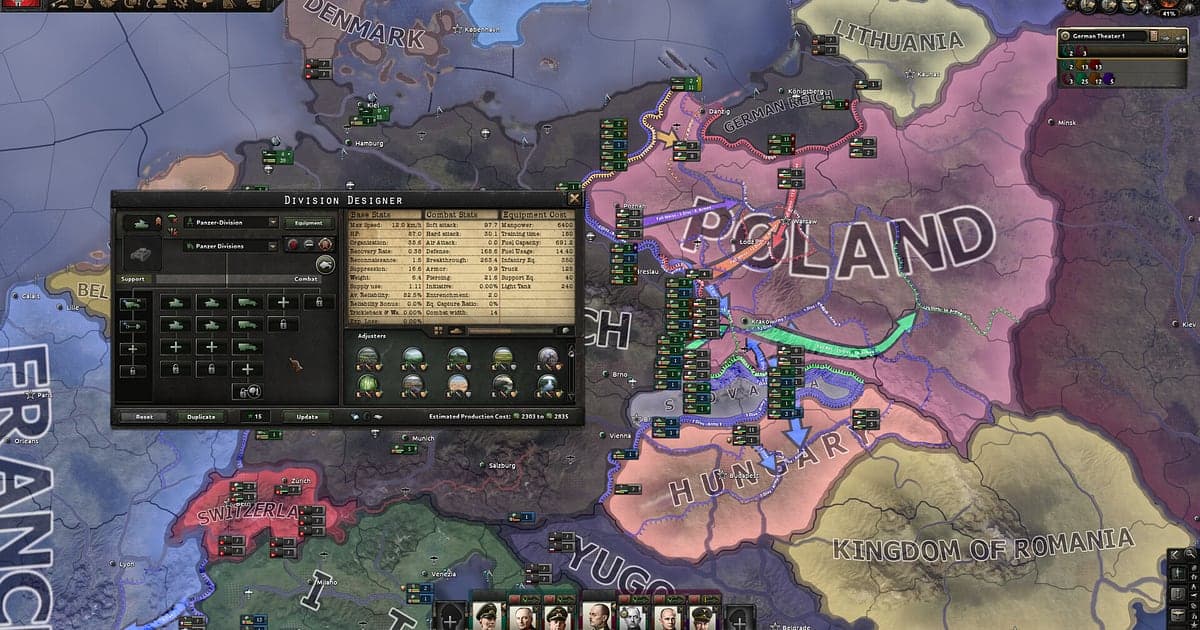
Hearts of Iron IV records automatically once DOR is installed: launch the game and the AI handles recording. There is no record button to press. From the moment you pick a nation and the clock starts on the first day of 1936 until you close the game, every change on the map ends up in one video. This guide takes you through the routine in order: installing DOR, checking the recording, saving decisive moments, finding them later, building a war recap and sharing it with your multiplayer group. Just playing builds up footage of the front lines moving, which makes it easy to retrace how the campaign unfolded.
- Keep an entire campaign on video, from your first national focus to the peace conference.
- Save the moment your tanks close an encirclement, or an enemy capital falls, as a separate clip.
- Use AI Voice Notes to find multiplayer diplomacy like 'when are we launching Barbarossa' and jump to that moment.
- Pick only the stretches where the front moved and stitch them into a campaign recap.
Before you record Hearts of Iron IV: install and recording mode
Hearts of Iron IV is light on hardware, so running a recorder alongside it is simple. DOR is a free Windows app and never adds a watermark, so the map stays unobstructed. HOI4 uses full session recording, so the video keeps going through years of in game time and every switch between pause and fast speed, until you close the game. A single campaign can run for many hours, so read recording long gameplay without stutter ahead of time. The table below lists what is worth knowing before your first HOI4 recording.
| Item | For Hearts of Iron IV | Notes |
|---|---|---|
| Install | DOR, free Windows app | No watermark, so the map stays clear |
| Game version | Windows PC version on Steam | DOR records Hearts of Iron IV on your PC, single player or multiplayer |
| Recording mode | Full session recording | One video from launch to exit, not cut by pausing or changing speed |
| Display mode | Fullscreen, windowed and borderless all record | Windowed HOI4 with the wiki open beside it still records |
| Resolution and frame rate | 1080p at 30fps by default | Keep 1080p for a map full of text, or use the lighter 720p/30fps mode |
| Storage | About 30MB for a 30 second 1080p clip | Leave plenty of drive space on weekends you push a campaign to the end |
Record Hearts of Iron IV with DOR: step by step
- 1Install DORDownload and install DOR. It takes about a minute and is free. Leave it running afterwards, and there is nothing to prepare each time you start a campaign.
- 2Launch Hearts of Iron IVStart Hearts of Iron IV from Steam and pick a nation or load a save. As soon as DOR detects the game, recording begins, so everything from choosing your first national focus is captured.
- 3Check the recording before you unpauseBefore you let time run, glance at the DOR app once to confirm the recording. If nothing starts, follow what to do when the recorder does not detect your game. After that, focus on production lines and battle plans.
- 4Clip right after the tide turnsPress the clip save shortcut right after your armor closes an encirclement, an enemy capital falls or a naval invasion secures a beachhead. The last stretch is saved as a clip, so you never have to look for it in hours of campaign footage.
- 5Quit and open My ClipsWhen you finish for the day, save and close the game. The full campaign session and every clip you saved appear together in My Clips in the DOR app. The day you barely held on as a minor nation and the day you ended the world war are filed the same way.
Find your recordings
Your recordings live in My Clips in the DOR app, also called the library. Each time you open and close HOI4 becomes one session, and clips saved with the shortcut appear underneath it. To find a particular point in a long session, use the in game date shown on screen as your guide, and look for the stretches where a war declaration or a completed national focus pops up. Set a start and an end point to trim the part you need, then export it as 16:9, 9:16 or 1:1. The full steps are in how to trim game clips. Like the videos you want to keep, such as the first campaign where you ended the war. When space fills up, older videos you have not liked are cleared first, so that record stays.
Save the moments you want to keep
In a strategy game, the moments that change the war are short and the waiting around them is long. Even with the whole session recorded, clipping decisive moments on the spot makes them much easier to find. Press the clip save shortcut and the last stretch is saved as a clip. The default length is 30 seconds, and you can pick 15, 30, 45 or 60 seconds in settings. In HOI4, good times to press it are right after an encirclement closes and enemy divisions are cut off, right after an enemy capital falls, right after a naval invasion lands, and right after a long national focus completes. When the game is on high speed and the front is moving, 60 seconds catches the whole shift in one clip. A single notification only needs 15. See saving the last few seconds instantly for which length suits which moment.
Find what was said with AI Voice Notes
Multiplayer HOI4 is all diplomacy and coordination. Lines like 'when are we launching Barbarossa', 'Italy, hold the Africa front' and 'closing the encirclement with the tanks' keep flowing over Discord. DOR records game audio and your mic together, and AI Voice Notes writes that conversation onto the recording timeline as text. Find who promised to join the war and when, or where you agreed to land, and select it to jump straight to that scene. If an ally breaks a promise, it is on record word for word. To capture your teammates' voices too, see recording Discord call audio.
Build a montage with AI Highlight
Once a campaign is over, turn your saved clips into a war recap. In the library, check the completed national focus, the armored encirclement, the naval invasion beachhead, the fall of the enemy capital and the peace conference, then select AI Highlight. DOR joins them into one montage, and hours of campaign play out start to finish in a few minutes. To lay the clips out year by year yourself, see how to merge game clips.
Edit in DOR Studio
DOR Studio opens in your browser with nothing to install. Cut only the stretches where the front moves and stitch them together for a recap where the map shifts fast. Add years and operation names as text, then drop in an epic score. A punch zoom when an encirclement closes and glitch transitions where one year turns into the next make the flow clear. Download the finished video as an mp4 or share it as a link straight away.
Share with a dor.gg link
Send trimmed moments as dor.gg links. Whoever opens one plays it in the browser without installing anything, so one link in your Discord channel shows your multiplayer lobby how the Eastern Front looks right now. Campaign recaps fit YouTube and encirclements fit Shorts, with no logo covering the map. Tips on pulling only breakthroughs and capital captures from hours of campaign are in sharing Hearts of Iron 4 gameplay videos, and posting to Discord is covered in sharing clips on Discord.
Hearts of Iron IV recommended settings and troubleshooting
Hearts of Iron IV is full of map labels and numbers, so keeping the default 1080p keeps country names and division counts sharp. 30fps is plenty for a map game, and on a laptop you play for long stretches, the 720p/30fps mode keeps the load down. Fullscreen, windowed and borderless windows all record, so keep the game's display settings as they are. DOR uses GPU hardware encoding, so its effect on late game speed is small. A campaign spread over several days adds up, so use reducing game recording file size to balance quality and size. DOR has no cheat features and never touches your game files, saves or mods.
| Symptom | What to check | Fix |
|---|---|---|
| Music or teammates' voices are missing | Your Windows output device and DOR audio settings | Confirm which device the game and Discord play through, then work through [fixing game recordings with no sound](game-recording-no-sound-fix). |
| The recording is a black screen | The game's display mode and the capture method | Try borderless, or follow [fixing fullscreen recording](fullscreen-recording-not-working) to switch to monitor capture. |
| Map text looks blurry in the recording | Recording resolution | If you are using the 720p mode, switch back to the default 1080p. |
| Worried a recorder could affect your account | How DOR works | DOR only captures the screen, has no cheat features and does not modify game files, saves or mods. |