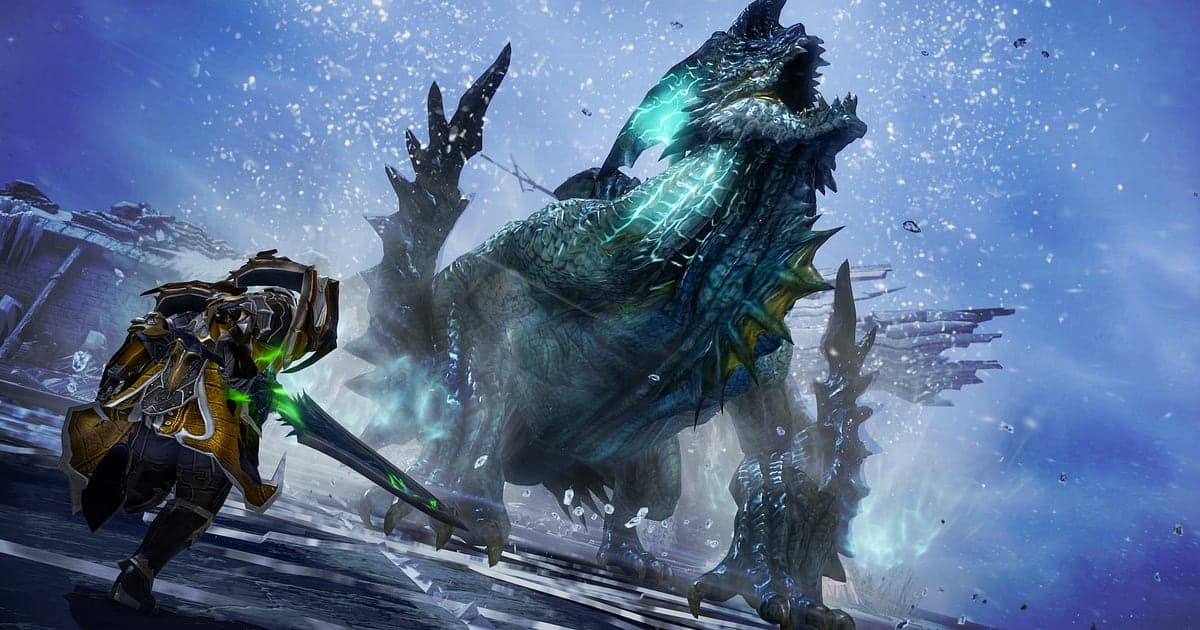
Lost Ark records automatically: install DOR, launch the game, and AI keeps everything from raid entry to clear without a record button. Lost Ark is a PC MMORPG run by Smilegate, built around party content such as the Kazeros Raid, Legion Raids and Abyss Raids. You cannot know in advance which gate a single counter will save or which awakening skill will fill the screen for the final hit, so DOR records everywhere in Arkesia from the moment the game opens until you close it. This guide covers setup, saving clears, finding scenes in hours of prog, reviewing raid calls, building a weekly recap, sharing, and fixing frame rate problems.
- Keep hours of Legion Raid prog, from entering the first gate to clearing the last, as one video.
- Clip the counter that saved the raid or the burst window after a stagger check right after it happens.
- Find raid Discord calls like 'Stagger bar's almost there' with AI Voice Notes and use them to review mechanics.
- Combine gate clears and awakening finishers into a weekly recap for your static's group chat.
Before you record Lost Ark: install and recording mode
All you need is DOR, a free Windows app that adds no watermark. This guide covers Lost Ark running on a Windows PC. Recording works per session. When a gate takes attempt after attempt, two or three hours pass quickly, and all of it stays in one video with no recording time limit. On raid nights, keep plenty of free space on the drive where recordings collect. Lost Ark is heavy on the graphics card, and frames and recording both stay steady on PCs at or above the recommended spec. Tips for recording hours of raiding without hitches are in record long gameplay without stutter.
| Item | For Lost Ark | Notes |
|---|---|---|
| Install DOR | Free Windows app | No watermark on videos |
| Game version | Lost Ark on a Windows PC | Detected automatically when the game opens |
| Recording mode | Session recording: one video from launch to exit | Gate attempts and retries stay in the same recording |
| Display mode | Fullscreen, windowed and borderless all record | Switches to monitor capture if game capture is blocked |
| Resolution and frame rate | 1080p at 30fps by default, 60fps available | The game is GPU heavy, so use 720p/30fps mode when frames are tight |
| Per game setting | Turn full play recording on or off per game in settings | Keep it on for raid nights only if you like |
Record Lost Ark with DOR: step by step
- 1Install DOR and leave it runningInstall DOR and open it once; it then waits in the background for Lost Ark. If your raid group makes calls on Discord, check that DOR picked the headset you normally use.
- 2Launch Lost ArkStart Lost Ark and DOR detects it and begins recording. Capture starts at character select, so there is nothing to do before you head into a raid.
- 3Check that it is recordingBefore the raid group gathers, open the DOR app once from your stronghold or a city to confirm it is recording. Recording uses GPU hardware encoding, so a gate where eight players' skills overlap adds little load.
- 4Clip right after a gate clearThe moment you finally clear a gate after a long night of wipes, press the clip save shortcut before you open the chest. The last 30 seconds become a clip, including the boss going down, while the session recording keeps going.
- 5Quit and check My ClipsWhen you close Lost Ark, the day's recording and your saved clips appear in My Clips. Check that tonight's gate clear was captured.
Find your recordings
Recordings collect in My Clips, the library in the DOR app. Each launch and quit makes one recording, and clips saved with the shortcut are listed separately. In a raid, clearing a gate moves you to the next one, and a wipe restarts the same gate from the beginning. Scrub through the recording and count the points where the gate changes and where you restart, and you will quickly see which attempt was the clear. For the clear itself, first find the quiet stretch where everyone stops to check rewards, then rewind a minute or two to catch the last mechanic and the boss falling. Trim mechanic reviews in 16:9 so every raid member's position is visible, and cut awakening finishers in 9:16. Like your first clear. When space fills up, older videos you have not liked are cleared first, so that record stays. Trimming tips are in how to trim game clips.
Save the moments you want to keep
The clip save shortcut keeps the stretch of play just before you press it. The default is 30 seconds, with 15, 30, 45 or 60 seconds available. A single counter or an awakening finisher fits in 15 or 30 seconds. A stagger check that flows into a burst window needs 45 or 60 seconds to include the bar going down. To keep a wipe caused by a missed mechanic for review, set 60 seconds and press right after the wipe so the mechanic's warning is included. If you miss it, trim it from the session recording. The idea is explained in save the last few seconds instantly.
Find what was said with AI Voice Notes
AI Voice Notes turns raid Discord calls into text pinned to the recording timeline. Calls like 'Counter's up, hit it now', 'Stagger bar's almost there', 'Throw a battle item' or 'Save your awakening for next phase' are kept as sentences at that moment, and selecting one jumps to the scene. You can review which mechanic someone said the stagger came in late on, right next to the footage, which is ideal for talking through the same moment before the next attempt. To capture Discord voices evenly, see record Discord call audio.
Build a montage with AI Highlight
AI Highlight joins the clips you check into one montage. Check 'Counter that saved the raid', 'Stagger check into burst', 'Awakening skill finisher' and 'Legion Raid gate clear', press AI Highlight, and this week's raids become one recap. Slot an 'Abyss Dungeon final boss' or a 'Chaos Dungeon pull' in between if you like. It comes out at a length that suits your static's group chat. To set the order yourself, use merge game clips.
Edit in DOR Studio
DOR Studio opens in your browser with nothing to install. Merge and trim clips, add text, background music and effect templates, and export in 16:9, 9:16 or 1:1 as an mp4 or a share link. Punch zoom the frame your awakening lands and finish with a shake zoom as the boss falls. A glitch transition works between gates. Add your class and the gate name as text for a clean proof of clear. See everything in the DOR browser clip editor and vertical shorts in record vertical shorts from games.
Share with a dor.gg link
Post prog footage in your static's Discord as one dor.gg link. Everyone watches it in a browser on PC or phone with no app, so you can review together before the next attempt. YouTube and TikTok uploads carry no watermark either. Sending gate clears and mechanic mistakes to your raid group is covered in how to share Lost Ark raid videos.
Lost Ark recommended settings and troubleshooting
Lost Ark records in fullscreen, windowed and borderless. Recording starts at 1080p and 30fps; choose 60fps if you want awakening skills to look smooth. If overlapping raid skills drop the game's own frame rate, lower the game's graphics options first, and on a tight PC switch DOR to 720p/30fps mode. If frames drop only while recording, check fix FPS drops while recording first.
| Symptom | What to check | Fix |
|---|---|---|
| Frames drop when skills overlap in a gate | Game graphics options and GPU headroom | Lower options; if it still struggles, use 720p/30fps mode |
| The recording is a black screen | Display mode and other overlay software | Close other recorders and relaunch. DOR switches to monitor capture if game capture is blocked |
| Raid calls are missing | The Windows output device and DOR microphone setting | Set both to your headset and record a short test |
| Recording does not start when Lost Ark opens | Whether full play recording for Lost Ark is on in settings | Make sure it is on, open DOR first, then relaunch the game |
| Worried a recorder could get you banned | What the recorder does to the game | DOR records only the screen, never changes game files or gameplay data, and has no cheat features |