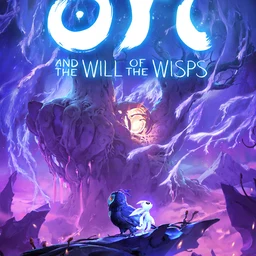
Ori and the Will of the Wisps records automatically once DOR is installed: launch the game and the AI handles the rest. From the opening fall into Niwen until you quit, exploring, failing, retrying and finally succeeding run together in one video, so you never have to remember a record button before a hard section. This guide walks through the full routine in order: getting ready, confirming the recording, saving the moment you clear a section, telling attempts apart inside a long recording, making route guides and scenic cuts, and sending them to friends. The forest looks hand painted and the music carries a lot, so even simple cuts look good.
- Keep your whole journey through Niwen in one video, failed attempts included.
- Save the moment you finally escape the giant spider with the clip save shortcut.
- Find mutters like 'grapple, then two wall jumps' with AI Voice Notes and jump to that attempt.
- Join your first flight with Ku, burrowing through the sand and the final scene into a short film with AI Highlight.
- Send your clean route to a friend stuck on the same section with one dor.gg link.
Before you record Ori and the Will of the Wisps: install and recording mode
Ori and the Will of the Wisps is GPU heavy, so a PC at the recommended spec or above keeps both in game frame rate and recording stable. DOR is a free Windows app and never adds a watermark. The game uses full session recording, which means that however many times you retry the same escape, the video keeps running until you close the game. Exploration takes time and recordings easily run for hours, so for steady long recordings see recording long gameplay without stutter. The table below lists what to check before your first recording.
| Item | For Ori and the Will of the Wisps | Notes |
|---|---|---|
| Install | DOR, free Windows app | No watermark on recordings or edits |
| Game version | Windows PC version on Steam | DOR records the game running on your PC |
| Recording mode | Full session recording | Failures and retries stay in one video until you exit |
| Display mode | Fullscreen, windowed and borderless all record | If game capture is blocked, DOR switches to monitor capture |
| Resolution and frame rate | 1080p at 30fps by default | Pick 60fps for smoother wall jumps and dashes, or the lighter 720p/30fps mode |
| Storage | Videos grow with exploration time | Leave plenty of free space on days you play for hours |
Record Ori and the Will of the Wisps with DOR: step by step
- 1Install DORDownload DOR and install it. Once setup finishes, DOR waits in the background for the game to start. If this is a fresh playthrough, install it before launching so the opening is on record.
- 2Launch the gameStart Ori and the Will of the Wisps from Steam as usual. Recording begins as soon as DOR detects the game, so the title screen and save select at the start of the video are expected.
- 3Check that recording is runningOnce your save loads and you are back in the forest, glance at the DOR app once to confirm the recording is in progress. If the game is not picked up, follow what to do when the recorder does not detect your game. After that, every retry stays in the same video.
- 4Save the clip right after you clear itJust outran the giant spider and made it out of the escape, or chained wall jumps and dashes without a single slip? Press the clip save shortcut right after. Only the successful attempt is stored as a separate clip.
- 5Quit and open My ClipsClose the game and the whole session lands in My Clips as one video, with the clips you saved alongside. Failed attempts live in the session video and the successes sit in your clips.
Find your recordings
Your recordings collect in My Clips in the DOR app, also called the library. Each time you open and close the game becomes one session, and anything you grabbed with the clip save shortcut appears as its own clip. To find a specific attempt inside a long session, count the restarts. Every failure is followed by a screen change and Ori setting off again from the same spot, so counting those tells attempts apart, and whatever comes after the last restart is the success. Jotting the real world time on your phone as you enter a hard section also helps, since you can compare it to when the recording started. Set a start and an end point to trim, then export as 16:9, 9:16 or 1:1. The painterly backgrounds and wide compositions suit 16:9 best. The walkthrough is in how to trim game clips. Like the videos you want to keep, such as your first clear. When space fills up, older videos you have not liked are cleared first.
Save the moments you want to keep
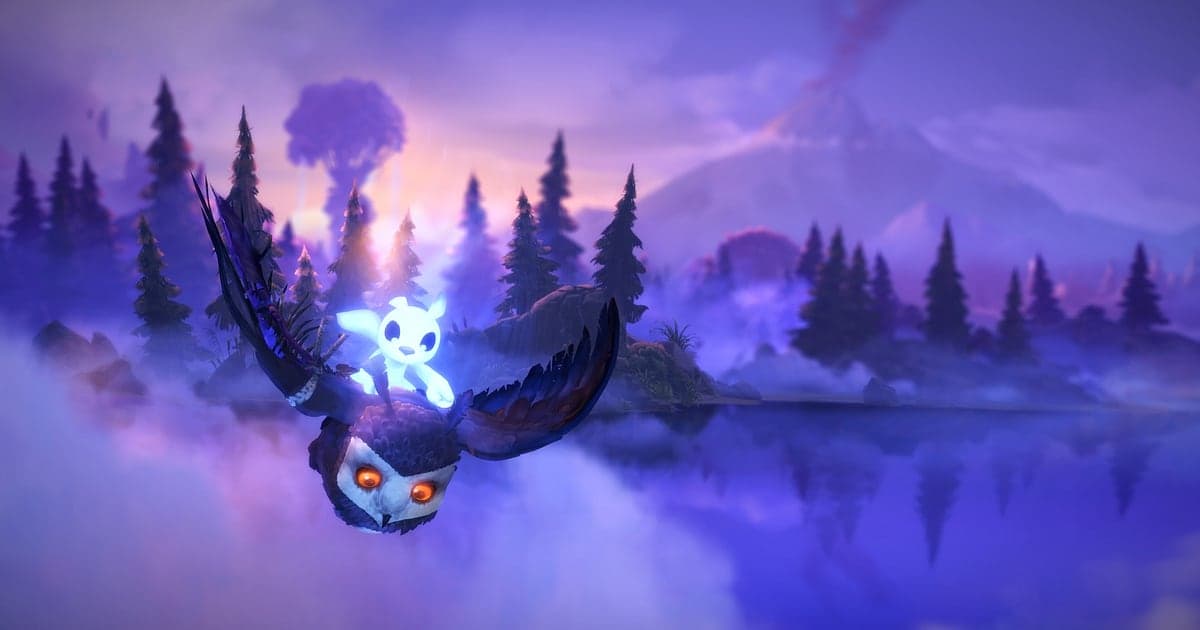
Even though the whole session is recorded, saving the moment you succeed as a clip means you never dig through dozens of failures to find it. Press the clip save shortcut and the last stretch is saved as a clip. The default length is 30 seconds, and you can choose 15, 30, 45 or 60 seconds in settings. A long stretch like escaping the giant spider fits best at 60 seconds, so the clip runs from the moment you enter to the moment you get out. A deathless wall jump chain fits in 30. For scenic moments like your first flight with Ku, press it as the sequence ends. If you are testing a speedrun route skip, save each clean attempt at 15 seconds so they are easy to compare. To change the shortcut or length, see saving the last few seconds instantly.
Find what was said with AI Voice Notes
Hard sections pull lines out of you, like 'drop the dash here and you fall', 'grapple, then two wall jumps' and 'tenth try at this escape, come on'. DOR records game audio and your microphone together, and AI Voice Notes writes what you said onto the recording timeline as text. If you talked through how you solved a route, that explanation sits right next to the footage, and the moment you asked 'what was the next item in the trading quest' is easy to find by text. Explanations to stream chat are captured the same way. To balance your voice against the game audio, see recording games with mic audio.
Build a montage with AI Highlight
Once you reach the end, stitch the moments that hit hard. In the library, check escaping the giant spider, the deathless wall jump chain, the first flight with Ku, burrowing through the sand and the final scene, then select AI Highlight to join your Niwen journey into one video. The music does a lot of the work, so even plain cuts feel cinematic. A reel of nothing but failures is fun too. To set the order yourself, see how to merge game clips.
Edit in DOR Studio
DOR Studio opens in your browser with nothing to install. Cut the failed attempts, merge only the runs that worked, and label each section with text to get a route guide that is also nice to watch. Add a shake zoom where a giant boss fills the screen and a glitch transition where one area gives way to the next. Background music turns it into something close to a short film. Export route guides in 16:9 for YouTube and short scenic cuts in 1:1 or 9:16. Saving an mp4 is covered in exporting clips, or share it as a link straight away.
Share with a dor.gg link
Send trimmed moments as dor.gg links. Whoever opens the link watches in a browser without the app, so a friend stuck on the same section can see your route in seconds. If a scene reveals a boss or story beat, ask how far your friend has played first, and send friends who have not cleared it a platforming section with fewer spoilers. Decide up front whether to send only the success, add the painful near miss before it, or collect only the failures, and your trim points become obvious. Which attempt to pick for each scene is covered in sharing Ori and the Will of the Wisps boss fights and escapes.
Ori and the Will of the Wisps recommended settings and troubleshooting
Ori and the Will of the Wisps is GPU heavy, so start recording at the default 1080p and 30fps, and move to 60fps for smoother wall jumps and dashes only when your in game frame rate has headroom. If frames are short, drop to the 720p/30fps mode. DOR uses GPU hardware encoding, so its effect on frame rate is small and precise platforming still feels right. Fullscreen, windowed and borderless windows all record, so keep your usual display settings. If frames drop only while recording, start with fixing FPS drops while recording. DOR has no cheat features and never touches game files or save data.
| Symptom | What to check | Fix |
|---|---|---|
| The recording is a black screen | The game's display mode | DOR records fullscreen, windowed and borderless alike. If it is still black, follow [fixing fullscreen recording](fullscreen-recording-not-working) to switch to monitor capture. |
| Music and sound effects are missing | Your Windows output device and DOR audio settings | Confirm which device the game plays through, then work through [fixing game recordings with no sound](game-recording-no-sound-fix). |
| Frames drop during platforming while recording | Recording frame rate and graphics load | GPU hardware encoding keeps the impact small, but if it struggles, keep recording at 30fps or use 720p/30fps mode. |
| You cannot find the success among dozens of tries | Where the restarts are | Count the moments Ori restarts from the same spot to find the last attempt, and save a clip right after clearing next time. |
| Worried recording could affect your save | How DOR works | DOR only captures the screen and never modifies game files or save data. |