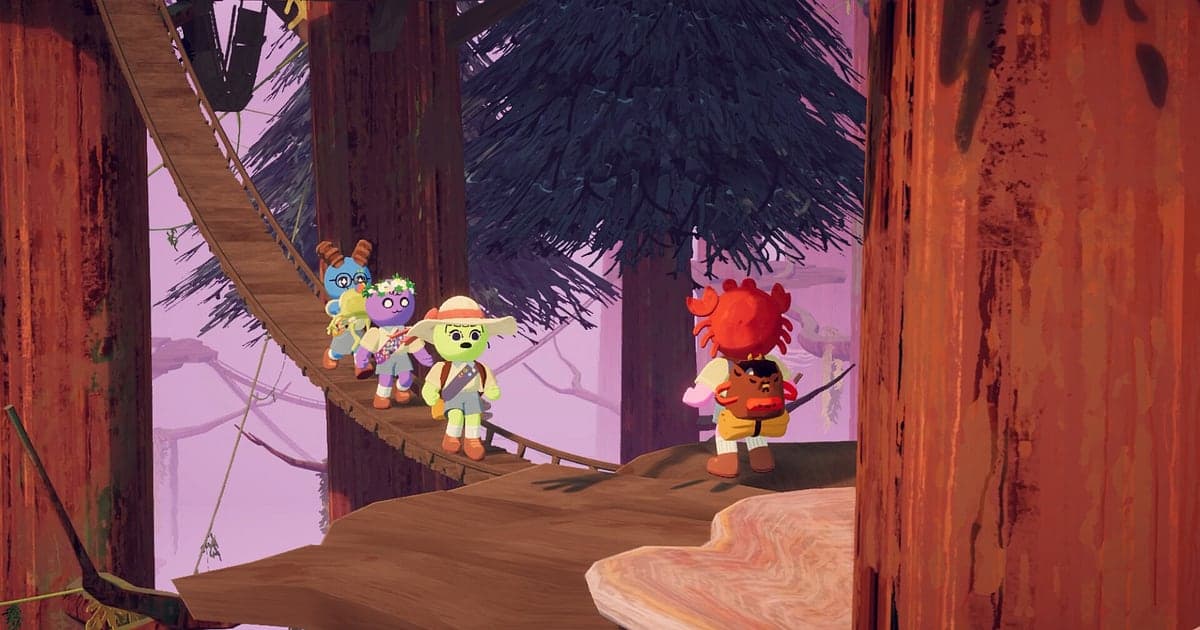
PEAK records automatically once DOR is installed: launch the game and the AI handles recording. There is no record button to remember. From the moment your scouts wash up on the beach until you close the game, the whole climb ends up in one video, along with your friends' proximity voice chat. This guide takes you through the full routine in order: installing DOR, checking the recording, saving falls and rescues, finding them later, building a fails reel and sharing it. In a game where nobody knows who will let go first, the safest plan is to have recording running from the very start.
- Keep a full PEAK run on video, from the beach through every campfire to the summit.
- Save the fall one ledge below the top, or the moment all four of you slide off together, as a clip on the spot.
- Use AI Voice Notes to find shouts like 'hold on, I'm out of stamina' and jump straight to that moment.
- Combine rope rescues, the campfire marshmallow break and the summit into one climbing highlight video.
Before you record PEAK: install and recording mode
PEAK is light on hardware, so running a recorder alongside it needs very little preparation. DOR is a free Windows app and never adds a watermark. PEAK uses full session recording, so even when a run ends and you try a fresh island, the video keeps going until you close the game. With friends, up to four of you climb from your own PCs, and the player rules are covered in PEAK max players. If all four of you keep DOR running, one run is saved from four points of view. The table below lists what is worth knowing before your first PEAK recording.
| Item | For PEAK | Notes |
|---|---|---|
| Install | DOR, free Windows app | No watermark, so clips go straight to TikTok or YouTube |
| Game version | Windows PC version on Steam | DOR records PEAK on your PC, and each friend running DOR keeps their own view |
| Recording mode | Full session recording | One video from launch to exit, not cut when a run ends |
| Audio | Game audio and mic recorded together | Friends' proximity voices and your own screams are both kept |
| Resolution and frame rate | 1080p at 30fps by default | 60fps is available, plus a lighter 720p/30fps mode |
| Storage | About 30MB for a 30 second 1080p clip | Leave extra drive space on nights you climb run after run |
Record PEAK with DOR: step by step
- 1Install DORDownload and install DOR. It takes about a minute and is free. Leave it running afterwards, and there is nothing to set up each time your group gets together.
- 2Launch PEAKStart PEAK from Steam and join your friends' lobby. As soon as DOR detects the game, recording begins, so everything from waking up on the beach after the plane crash onward is captured.
- 3Check that recording is runningBefore you grab the first cliff, glance at the DOR app once to confirm the recording. If nothing starts, follow what to do when the recorder does not detect your game. After that, focus on stamina and where to anchor the rope.
- 4Clip the accident right after it happensWhen a friend loses their grip just below the summit, or you haul someone up by rope at the last second, press the clip save shortcut. The last 30 seconds are saved as a clip, from just before the scream to the fall itself.
- 5Quit and open My ClipsWhen the climbing is over, close PEAK. The full session and every clip you saved show up together in My Clips in the DOR app. The run that reached the top and the run that wiped in the first biome are filed the same way.
Find your recordings
Your recordings live in My Clips in the DOR app, also called the library. Each time you open and close PEAK becomes one session, and clips saved with the shortcut appear underneath it. To find a particular run inside a long session, use two landmarks: waking up on the beach and lighting a campfire. They split the session into runs and sections cleanly. Set a start and an end point to trim the part you want, then export it as 16:9, 9:16 or 1:1. If you stop an expedition at a campfire and continue it over several evenings, you get one session per evening, so read PEAK save and continue run for the resume rules. Like the video of your first summit. When space fills up, older videos you have not liked are cleared first, so that run stays.
Save the moments you want to keep
Most of the best PEAK moments come out of nowhere and are over in seconds. Even with the whole session recorded, pressing the clip save shortcut when something funny happens cuts your search time later. The last stretch is saved as a clip. The default is 30 seconds, and you can pick 15, 30, 45 or 60 seconds in settings. Good times to press it are right after a friend slips just below the top, right after someone hangs on at zero stamina and finally pulls up, right after the friend who ate the mystery mushroom starts acting strange, and right after four people dangle off one rope and survive. Set 45 or 60 seconds for long rescues so the clip runs from 'anchor the rope here' to the final pull. See saving the last few seconds instantly for which length fits which moment.
Find what was said with AI Voice Notes
Half the fun of PEAK is proximity chat. 'Hold on, I'm out of stamina', 'don't eat that, it could be poison' and 'just make it to the campfire' never stop. DOR records your friends' proximity voices through game audio together with your microphone, and AI Voice Notes writes those lines onto the recording timeline as text. To settle who screamed for help first, or who suggested eating the mushroom, find the line in the timeline text and select it to jump to the scene. If your own voice comes out quiet, check your input device in recording games with mic audio.
Build a montage with AI Highlight
When a run is over, turn your saved clips into a fails reel. In the library, check the zero stamina hang, the slip right below the summit, the rope rescue, the whole team sliding off together and the summit itself, then select AI Highlight. DOR joins them into one montage. Mixing the accidents from a failed run with the summit from a good one gives you a climbing diary that is fun to rewatch with your group. To set the order yourself, see how to merge game clips.
Edit in DOR Studio
DOR Studio opens in your browser with nothing to install. Trim from just before the scream and drop a shake zoom on the frame where the grip slips. Add the friend's name as text, lay music underneath and export in 9:16 for a fall clip that fits TikTok and Shorts. A punch zoom after the summit arrival and glitch transitions between runs give a fails reel its rhythm. Download the result as an mp4 or share it as a link straight away.
Share with a dor.gg link
Send trimmed moments as dor.gg links. The person you send it to plays it in the browser without installing anything, so just drop the link to the friend who fell, in Discord or a group chat. When all four climbers share clips from their own view, the same fall can be watched from four angles. Tips on picking short clips to send are in sharing PEAK gameplay videos, and posting to a Discord channel is covered in sharing clips on Discord.
PEAK recommended settings and troubleshooting
PEAK is light on hardware, so recording at the default 1080p and 30fps barely touches your gameplay. If you want slips and swinging ropes to look smoother, switch to 60fps. On a laptop or an older PC, use the 720p/30fps mode to keep the load down, and see recording games on a low end PC for more tips. Fullscreen, windowed and borderless windows all record, so keep the game's display settings as they are. DOR uses GPU hardware encoding, so its effect on your frame rate while climbing is small. It has no cheat features and does not touch game files or play data.
| Symptom | What to check | Fix |
|---|---|---|
| Friends' proximity voices are missing | Your Windows output device and DOR audio settings | Confirm which device the game plays through, then work through [fixing game recordings with no sound](game-recording-no-sound-fix). |
| The recording is a black screen | The game's display mode and the capture method | Try borderless, or follow [fixing fullscreen recording](fullscreen-recording-not-working) to switch to monitor capture. |
| The climb stutters while recording | Recording resolution and frame rate | GPU hardware encoding keeps the impact small, but if your PC still struggles, drop to 720p/30fps mode. |
| Files pile up after many runs | Recording resolution and free drive space | Clip what you want to show, and leave watched sessions unliked so they are cleared first when space fills up. |