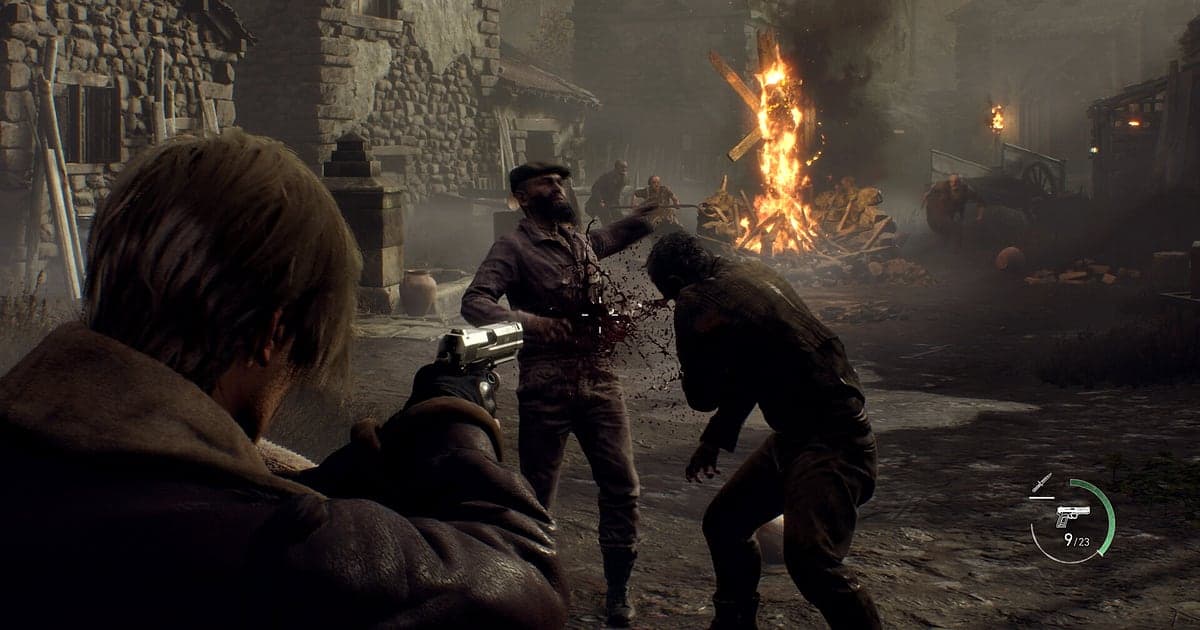
Resident Evil 4 records automatically once DOR is installed: launch the game and the AI handles the rest. Start the remake from Steam and DOR detects it, keeping everything from Leon's first steps into the remote village through every chapter, every long think at the Merchant and the credits, all in one video until you close the game. You can rewatch any chapter without replaying it. This guide walks you through the full routine for Resident Evil 4: installing DOR, confirming the recording, saving parries and boss fights, finding them later, building a best of video and sharing it without spoilers.
- Keep a full playthrough on video, from the first village siege to the end credits.
- Save a knife parry against a chainsaw Ganado or a headshot into a roundhouse kick as separate clips.
- Use AI Voice Notes to find run notes you muttered, like 'hide Ashley, I'll clear this room', and jump to that scene.
- Combine the lake boss finish, the Krauser knife fight and a fully upgraded Merchant visit into one best of video.
- Post a no damage boss kill on Professional or your S+ clear screen to Discord with a single dor.gg link.
Before you record Resident Evil 4: install and recording mode
Resident Evil 4 is GPU heavy, so it pays to settle your recording resolution and frame rate once before you start. DOR is a free Windows app and never adds a watermark. Resident Evil 4 uses full session recording, which means the video does not split when a chapter changes or when you die to a boss and retry; it keeps running until you close the game. If your frame rate drops once recording is on, check fixing FPS drops while recording first. The table below lists what is worth knowing before your first Resident Evil 4 recording.
| Item | For Resident Evil 4 | Notes |
|---|---|---|
| Install | DOR, free Windows app | No watermark on your videos |
| Game version | Resident Evil 4 on PC, launched from Steam | DOR detects the game automatically when it starts |
| Recording mode | Full session recording | Not split by chapter or boss fight; one video until you quit |
| Display mode | Fullscreen, windowed and borderless all record | Keep whichever mode you already use in the game settings |
| Resolution and frame rate | 1080p at 30fps by default | 60fps is available, and the lighter 720p/30fps mode helps if your PC struggles |
| Storage | About 30MB for a 30 second 1080p clip | Leave plenty of free space on days you play through in one sitting |
Record Resident Evil 4 with DOR: step by step
- 1Install DORDownload DOR and install it. Setup takes about a minute and the app is free. Leave DOR running afterwards. You do not need to press a record button each time you start a new run.
- 2Launch Resident Evil 4 from SteamStart Resident Evil 4 from Steam and load your save. Recording begins as soon as DOR detects the game, so the title screen and the first loading screen at the start of the video are expected.
- 3Check that recording is runningBefore the first fight, glance at the DOR app once to confirm the recording is in progress. If the game is not picked up, follow what to do when the recorder does not detect your game. After that, focus on ammo and staying alive.
- 4Clip parries and boss killsRight after you hear the chainsaw and land a knife parry, or right after a boss health bar finally empties after several deaths, press the clip save shortcut. The last 30 seconds are stored as a separate clip, so you will not have to dig through failed attempts in a long recording.
- 5Quit and open My ClipsQuit at a save point, and the full session video plus every clip you saved appear together in My Clips in the DOR app. On the day you reach the ending, the credits and clear screen are kept the same way.
Find your recordings
Your recordings live in My Clips in the DOR app, also called the library. Each time you open and close Resident Evil 4 becomes one session, and anything you saved with the clip save shortcut appears as its own clip. Every failed attempt against the same boss sits in the same video, so noting when the boss cutscene started and which attempt you won on takes you straight to the successful run. Chapter loading screens are good dividers too. Set a start and an end point to trim what you need, then export as 16:9, 9:16 or 1:1. The full walkthrough is in how to trim game clips. Like the videos you want to keep, such as your first Professional clear. When space fills up, older videos you have not liked are cleared first, so liked videos stay.
Save the moments you want to keep
Even with the whole run recorded, saving the scenes you care about on the spot makes them far easier to find. Press the clip save shortcut and the last stretch of play becomes a clip. The default length is 30 seconds, and you can pick 15, 30, 45 or 60 seconds in settings. In Resident Evil 4, good moments to press it are right after a knife parry connects, right after a headshot into a roundhouse kick clears a group, and the instant a boss health bar empties. Fights that run past a minute, like surviving the first village siege or the Krauser knife fight, fit better with the clip length set to 60 seconds. Saving a 15 second clip after every parry also makes a parry compilation easy later. To change the shortcut, see saving the last few seconds instantly.
Find what was said with AI Voice Notes
Playing Resident Evil 4 pulls lines out of you like 'chainsaw, back up, back up', 'upgrade the handgun at the Merchant first' and 'parried, now kick him'. DOR records game audio and your microphone together, and AI Voice Notes writes those streamer style notes onto the recording timeline as text. On your next run, find the chapter where you swore to save ammo by searching the timeline text and selecting the line to jump to that scene. On nights you play while on a call with a friend, the screams and laughter are kept too. If your voice sounds quiet, check your input device with recording games with mic audio.
Build a montage with AI Highlight
A full playthrough shown as is includes a lot of exploring and crate smashing. In the library, check your clips of the knife parry on a chainsaw swing, the headshot into a roundhouse kick, surviving the village siege, the lake boss finish, the Krauser knife fight and the fully upgraded Merchant visit, then select AI Highlight. DOR joins them into one montage that carries the whole run's dread and payoff. Pick only the parry clips and you get a parry compilation. To arrange boss fights from several sessions yourself, see how to merge game clips.
Edit in DOR Studio
DOR Studio opens in your browser with nothing to install. Drop a punch zoom on the frame where the blades meet during a parry and a shake zoom on the kick that follows. Add difficulty and chapter as text and it doubles as a guide clip; add background music and it becomes an edit. A glitch transition between boss fights keeps scenes clearly separated. Export 9:16 for Shorts or 16:9 for a YouTube guide, and see exporting DOR clips for ratio and quality details. Download the result as an mp4 or share it as a link right away.
Share with a dor.gg link
Send trimmed scenes as dor.gg links. Whoever opens the link plays it in the browser without installing anything. Because this is a story game, send friends who have not played yet short combat moments that do not reveal a boss or the ending, such as the village siege or a parry. Friends who are playing too can get the whole boss fight, and your Discord server can see the full run through to the S+ clear screen. Tips on picking spoiler free scenes are in sharing Resident Evil 4 boss fight videos.
Resident Evil 4 recommended settings and troubleshooting
Resident Evil 4 is GPU heavy, so a PC at or above the recommended spec keeps both in game frame rate and recording stable. Start with the default 1080p at 30fps, and switch to 60fps if you want parries and melee chains to look smoother. The recording captures exactly what is on screen even in dark interiors, so keep the game's brightness setting as you like it. If things get heavy once recording is on, drop to the 720p/30fps mode. Fullscreen, windowed and borderless windows all record, and DOR uses GPU hardware encoding so the frame rate impact is small. For playthroughs that run for hours in one sitting, see recording long gameplay without stutter. DOR has no cheat features and never touches game files or saves.
| Symptom | What to check | Fix |
|---|---|---|
| The recording is a black screen | The display mode in the game settings | DOR records fullscreen, windowed and borderless alike. If it is still black, follow [fixing fullscreen recording](fullscreen-recording-not-working) to switch to monitor capture. |
| Chainsaw sounds and music are missing | Your Windows output device and DOR audio settings | Confirm which device the game plays through, then work through [fixing game recordings with no sound](game-recording-no-sound-fix). |
| Frame rate drops in scenes like the village siege | Recording resolution, frame rate and game graphics settings | GPU hardware encoding keeps the impact small, but if your PC still struggles, drop to 720p/30fps mode. |
| Failed attempts make the win hard to find | Boss start time notes and clips | Save a clip right after the boss falls and note your attempt count so you can jump straight to it. |
| Worried a recorder could affect your account | How DOR works | DOR only captures the screen, has no cheat features and does not modify game files or play data. |