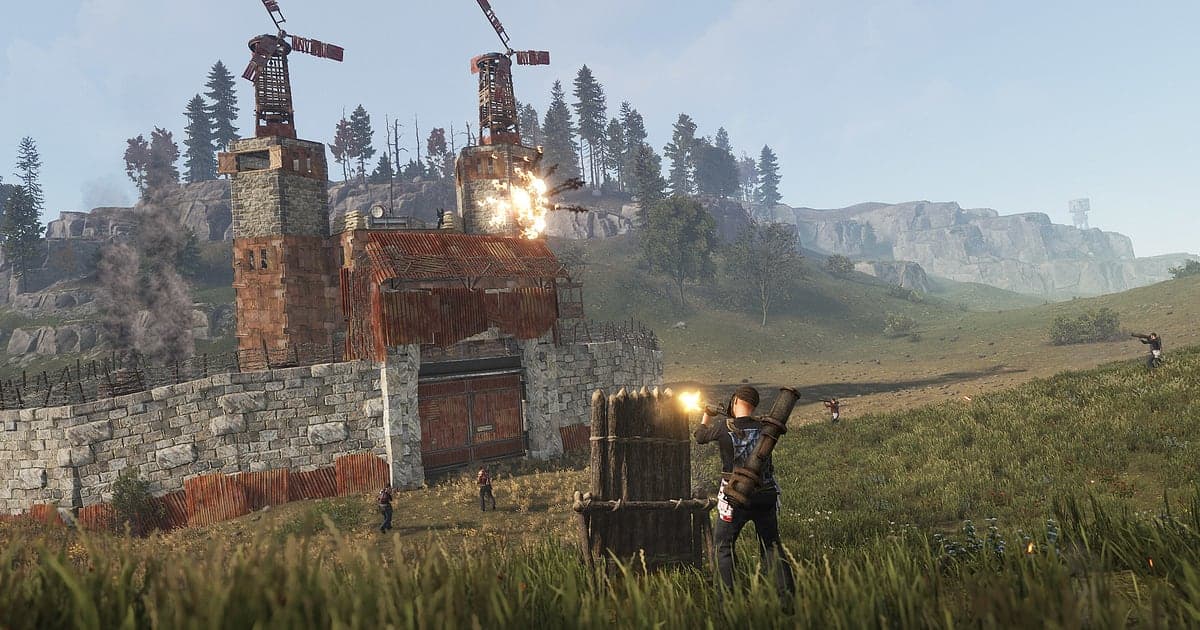
Rust records automatically: install DOR, launch the game, and AI handles the recording with no button to press and no capture area to set. A Rust session rarely goes to plan. You spawn on wipe day holding a rock, put up a shack, farm for hours, and then a raid kicks off with no warning. Because you can never tell in advance which minute will matter, DOR detects Rust as it starts and keeps one unbroken video running until you close the game. This guide is about what comes after: pulling the few minutes that count, such as a rocket raid or an offline raid you held off, out of a recording that may run for six hours. Work through it in order to set up DOR, save the right moments, find your clan's calls, build a wipe montage, share it and fix frame rate trouble.
- Keep everything from your first wipe day spawn to log off as one video of your time on the server.
- Clip a three rocket breach that reached the TC, or a door camper you turned the tables on, seconds after it happens.
- Jump to the moment someone said 'Oil Rig's empty, go now' using AI Voice Notes.
- Turn a week of raids, defenses and fights into one wipe video with AI Highlight.
- Make a 9:16 short of a C4 breach and post it to the clan Discord with one dor.gg link.
Before you record Rust: install and recording mode
All you need is DOR. It is a free Windows app and it puts no watermark on your recordings. This guide covers Rust for PC, launched through Steam. Rust uses session recording, which means one video runs from the moment the game starts until it closes, no matter how many times you hop servers or die and respawn. Stay online for six hours and you get a single six hour recording, so it pays to know how to find scenes in it later. Rust is heavy on the graphics card, and frames and recording both stay steady on PCs at or above the recommended spec. Start with the default 1080p at 30fps, and if your server has constant fights and frames get tight, switch to the lighter 720p/30fps mode. Tips for capturing hours of play without hitches are in record long gameplay without stutter.
| Item | For Rust | Notes |
|---|---|---|
| Install DOR | Free Windows app, waits in the background once installed | No watermark on recordings |
| Game version | Rust for PC, launched from Steam | Detected automatically when the game opens |
| Recording mode | Session recording: one video from launch to exit | Keeps running through server hops and respawns |
| Display mode | Fullscreen, windowed and borderless all record | Switches to monitor capture if anti cheat blocks game capture |
| Resolution and frame rate | 1080p at 30fps by default, 60fps available | Rust is GPU heavy, so use 720p/30fps mode when frames are tight |
| Storage | About 30MB for a 30 second 1080p clip | Long session videos are managed in a 5GB allowance by default, liked videos are kept |
Record Rust with DOR: step by step
- 1Install DOR and keep it openInstall DOR and run it once. From then on it waits in the background for Rust to start. If your clan plans raids over Discord, take a moment now to check that the microphone DOR picked is the headset you talk into.
- 2Launch Rust from SteamStart Rust from your Steam library and DOR picks it up and starts recording. Capture begins at the server browser, so even if you join the second a server wipes, your first spawn and rock farming are on video.
- 3Confirm the recording is liveOn your first night, open the DOR app once from somewhere safe, like inside your shack, check that Rust is being recorded, then go back to the game. Recording runs on GPU hardware encoding, so a gunfight near Outpost adds very little load.
- 4Clip right after a raid or fightAs soon as you break the TC, or clear a roof camper off your base, press the clip save shortcut. The last 30 seconds become a clip by default and the session recording carries on. You can remap the shortcut to whatever key suits you in DOR settings.
- 5Log off and open My ClipsWhen you close Rust, that session's recording and the clips you saved appear together in My Clips. If you were offline raided, the walk through your base after logging in sits right at the start of the recording, so check that first.
Find your recordings
Recordings collect in My Clips, the library inside the DOR app. Each time you open and close Rust you get one session recording, and the clips you saved with the shortcut during that session are listed on their own. Rust recordings are long, so knowing what to look for saves time. For a raid, start from the first explosion you hear. For offline raid damage, look at the opening minutes, when you walk back into your base after logging in. The shift between day and night on screen also gives you a rough sense of the time. When you find the part you want, set a start and an end, trim it, and export in 16:9, 9:16 or 1:1. Like any raid you want to keep for the whole wipe. When space fills up, older videos you have not liked are cleared first, so liked raids survive past the next wipe. Cutting a long video down in stages is explained in how to trim game clips.
Save the moments you want to keep
Pressing the clip save shortcut saves the stretch of play right before you pressed it. The default is 30 seconds, and you can choose 15, 30, 45 or 60 seconds in settings. Rust moments vary wildly in length, so set a rule of thumb for each kind. Catching a door camper the instant the door opens, or dropping three players with an AK spray, fits in 15 or 30 seconds. A raid where the first rocket opens a wall and you push through two more doors to reach the TC needs 45 or 60 seconds to include the entry. Good moments to press are when the shooting stops and just before you open the loot boxes, or when Bradley goes down and just before you walk up to the wreck. Press in the middle of a fight and the final shot may be cut off. If you forget, it is all in the session recording, ready to trim from the library later. What each length is good for is covered in save the last few seconds instantly.
Find what was said with AI Voice Notes
AI Voice Notes writes down what your clan and nearby proximity chat said and pins each line to that point on the recording timeline. In Rust, raid routes and defense spots are all decided by voice, and a day later nobody remembers who called what. Lines such as 'Three rockets opens that wall', 'Find the TC first' or 'Roof camper up top, careful' show up as text at the moment they were spoken, and selecting one takes you to that scene. When you review a failed raid, you can see exactly which door you ran out of explosives at, with the video and the conversation side by side. To search quickly, use words your group repeated that day, such as TC, Oil Rig or rockets. Game audio and your microphone are recorded together; to keep Discord voices clear in the mix, see record Discord call audio.
Build a montage with AI Highlight
AI Highlight joins the clips you check in your library into one montage. In Rust, a wipe is the natural unit. Say you collected 'Rocket raid breach', 'Offline raid defense', 'Oil Rig takeover', 'Bradley down' and 'Door camper flipped' over the week. Check those five and press AI Highlight, and the hours of gathering and building drop away, leaving a video of the wipe's biggest events. Pair the day you got raided with the day you raided them back and the wipe plays out like a story. If you would rather arrange every clip yourself, use merge game clips instead.
Edit in DOR Studio
DOR Studio opens in your browser with nothing to install. You can merge and trim clips, add text, background music and effect templates, and export in 16:9, 9:16 or 1:1 as an mp4 download or a share link. For a Rust raid, cut the wait while explosives are placed, put a shake zoom on the frame where the C4 goes off and a punch zoom on the moment the loot room behind the wall comes into view. A handheld effect suits a tense night defense, and a glitch transition works between raids. A caption like 'Wipe day 3' helps people outside your clan follow along. Export in 16:9 when the whole base needs to be visible, and 9:16 for a short that sticks to one player's view. Everything the editor can do is in the DOR browser clip editor, and vertical editing is in record vertical shorts from games.
Share with a dor.gg link
Send any trimmed raid or finished edit as one dor.gg link. The person who opens it watches straight away in a browser on PC or phone, with no app to install. Post it in the Discord channel where clanmates who missed the raid hang out, and everyone sees what happened before the next login. Trim out any frame that shows your base location or a door code before you share. How to package an offline raid aftermath for your team is covered step by step in how to share Rust gameplay videos.
Rust recommended settings and troubleshooting
Rust records in fullscreen, windowed or borderless window, so keep the display mode you already use. Recording starts at 1080p and 30fps; choose 60fps if you plan fast moving raid shorts. If the game's own frame rate is low, tune Rust first. The basic method is to lower Options > Graphics entries one at a time and compare in the same spot, and keeping the game on an SSD also helps. After the June 2026 update, mice polling at 1000Hz or higher were listed as a possible cause of frame drops, and lowering the polling rate below 1000Hz in the mouse software was given as the workaround. The order to change options is in Rust best settings for FPS, and if frames drop only while recording, start with fix FPS drops while recording. Common symptoms are below.
| Symptom | What to check | Fix |
|---|---|---|
| Frames drop at Outpost or in big fights | Options > Graphics and your mouse polling rate | Lower graphics entries one by one and set polling below 1000Hz; if it still struggles, switch DOR to 720p/30fps mode |
| The recording is a black screen | Your Rust display mode and any overlay or recorder running alongside it | DOR records all three display modes and switches to monitor capture when game capture is blocked. Close other recorders and relaunch the game |
| No gunshots or clan voices in the recording | The Windows output device and the microphone selected in DOR | Set both to the headset you actually use, record a short test and play it back |
| Recording does not start when Rust opens | Whether DOR was running before Rust | Open DOR first, then relaunch Rust from Steam |
| Worried a recorder could get you banned | What the recorder does to the game | DOR records only the screen, never changes game files or gameplay data, and has no cheat features |