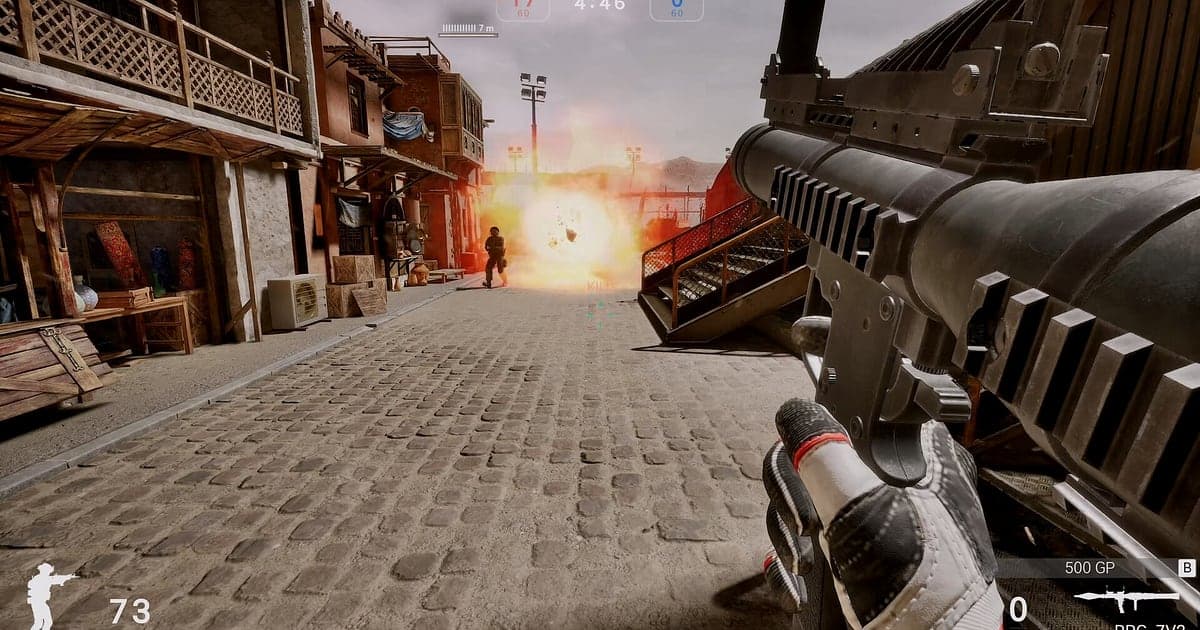
Special Force Remastered records automatically once DOR is installed: launch the game and the AI handles the rest. The Korean PC bang classic is back with new visuals, and when you start it from Steam, DOR detects it and keeps everything from room setup through Team Mission, Team Deathmatch and the final round results in one video until you close the game. Rounds you swung with tactical gear such as drones, the RPG-7, recon support or healing injectors are captured, and so is that sniper shot on a map you remember from years ago. This guide covers installing DOR, confirming the recording, saving round highlights, finding rounds later, building a frag movie and sharing it with your clan.
- Keep every Team Mission and Team Deathmatch you play in a session in one video, from room setup to the final results screen.
- Save your first kill in Remastered, a grenade double or a last second defuse clutch as separate clips.
- Use AI Voice Notes to find clan match calls like 'three going B, hold it' and settle who called the rush first.
- Combine back to back sniper shots, a last alive round flip and the clan match final round into an old school frag movie.
- Send your first Remastered match to friends you played the original with using a single dor.gg link.
Before you record Special Force Remastered: install and recording mode
Many people play Special Force Remastered at 144Hz or 240Hz, so it is worth deciding your capture frame rate once before you record. DOR is a free Windows app and never adds a watermark. Special Force Remastered uses full session recording, which means it is not split by match or round; even if you switch modes or play several matches, it stays one video until you close the game. If your in game frame rate wobbles once recording is on, check fixing FPS drops while recording first. The table below lists what is worth knowing before your first recording.
| Item | For Special Force Remastered | Notes |
|---|---|---|
| Install | DOR, free Windows app | No watermark on your videos |
| Game version | Special Force Remastered on PC, launched from Steam | DOR detects the game automatically when it starts |
| Recording mode | Full session recording | Matches, rounds and mode changes stay in one video until you quit |
| Display mode | Fullscreen, windowed and borderless all record | Keep whichever mode you already use in the game settings |
| In game FPS and capture FPS | Capture is 30fps by default, 60fps available | Your 144Hz or 240Hz in game frame rate stays as it is |
| Storage | About 30MB for a 30 second 1080p clip | Leave extra free space on nights the clan match runs long |
Record Special Force Remastered with DOR: step by step
- 1Install DORDownload DOR and install it. Setup takes about a minute and the app is free. Leave DOR running afterwards. You do not need to press a record button before joining the clan match room.
- 2Launch Special Force Remastered from SteamStart Special Force Remastered from Steam. Recording begins as soon as DOR detects the game, so the lobby and room setup screens at the start of the video are expected.
- 3Confirm the recording is runningWhen the first round starts, glance at the DOR app once to check that recording is in progress. If the game is not picked up, follow what to do when the recorder does not detect your game. After that, focus on your aim however many matches you play.
- 4Clip round highlights right awayIf you cleared three defenders right before the plant, or picked off the last enemy just before the defuse to take the round, press the clip save shortcut as soon as the round ends. The last 30 seconds are stored as a separate clip, so you will not have to scrub a recording full of mixed matches.
- 5Quit and open My ClipsCheck the final match results and close the game, and the full session video plus every clip you saved appear together in My Clips in the DOR app. A clan match that ran long is kept the same way, through the last round.
Find your recordings
Your recordings live in My Clips in the DOR app, also called the library. Each time you open and close the game becomes one session, and anything you saved with the clip save shortcut appears as its own clip. To find a round inside a session, split it into matches first using the match result screens, then, in Team Mission, treat each tactical gear selection as the start of a new round. Narrowing it down in two steps gets you to the round you want quickly. Set a start and an end point to trim what you need, then export as 16:9, 9:16 or 1:1. The full walkthrough is in how to trim game clips. Like the videos you want to keep, such as a tier deciding match or a clan final. When space fills up, older videos you have not liked are cleared first, so liked videos stay.
Save the moments you want to keep
Even with the whole match recorded, saving the rounds you will rewatch on the spot makes them far easier to find. Press the clip save shortcut and the last stretch becomes a clip. The default length is 30 seconds, and you can pick 15, 30, 45 or 60 seconds in settings. In Special Force Remastered, good moments to press it are right after back to back sniper one shots, right after a single grenade takes out two, and right after a defuse clutch. Rounds with a longer arc, like spotting enemies with a drone before a teammate finishes them, fit better with the clip length at 45 or 60 seconds so the recon and the kill land together. To change the shortcut, see saving the last few seconds instantly.
Find what was said with AI Voice Notes
Clan matches run on calls like 'three going B, hold it', 'bomb's planted, go defuse' and 'nade first, then we push'. DOR records game audio and your microphone together, and AI Voice Notes writes your clan's callouts onto the recording timeline as text. After the match, if you want to look back at who called the B rush first, find the line in the timeline text and select it to jump to that round. The moment everyone laughed that 'this map looks exactly like the old one' is kept too. If your clan calls over Discord, see recording Discord call audio.
Build a montage with AI Highlight
Clips saved round by round add up to a frag movie. In the library, check your clips of the first kill in Remastered, back to back sniper shots, the grenade double, the last alive round flip, the last second defuse and the clan match final round, then select AI Highlight. DOR joins them into one montage of your first season back, with the same feel as the frag movies from the original's heyday. To set the round order yourself, see how to merge game clips.
Edit in DOR Studio
DOR Studio opens in your browser with nothing to install. Punch zoom the frame the sniper shot lands and shake zoom the moment an RPG-7 round explodes. Stitch rounds together with a glitch transition between them and lay a track on top for that old school frag movie feel. Writing out your weapon parts as text lets friends with the same gun copy the build. Frag movies suit 16:9, while a single one shot works as a 9:16 short; framing tips are in recording games for vertical Shorts. Download the result as an mp4 or share it as a link right away.
Share with a dor.gg link
Send trimmed rounds as dor.gg links. Whoever opens the link plays it in the browser without installing anything, which makes it easy to send your first Remastered match to friends you played with years ago. Give the squad you played with a 16:9 round that shows the whole situation, and for friends who only know the original, pick tactical gear scenes like a drone or the RPG-7 that are new in Remastered. Scenes worth keeping in each mode are in sharing Special Force Remastered clips, and picking headshots from the original game is covered in sending Special Force headshot videos.
Special Force Remastered recommended settings and troubleshooting
If you play Special Force Remastered at 144Hz or 240Hz, a GPU at or above the recommended spec keeps your high refresh rate while recording. Capture runs at 30fps by default with 60fps available, and your in game frame rate stays the same either way. Pick 60fps if you want fast flicks and sniper shots to look smooth, or the 720p/30fps mode if your PC is working hard. Fullscreen, windowed and borderless windows all record, and DOR uses GPU hardware encoding so the frame rate impact is small. For clan nights that run for hours, see recording long gameplay without stutter. DOR is a regular recorder that captures only video and audio, never touches game files or memory, and has no cheat features.
| Symptom | What to check | Fix |
|---|---|---|
| The recording is a black screen | The display mode in the game settings | DOR records fullscreen, windowed and borderless alike. If it is still black, follow [fixing fullscreen recording](fullscreen-recording-not-working) to switch to monitor capture. |
| Clan calls are missing | Your Windows input device and DOR mic settings | Make sure the right microphone is selected, then follow [fixing a mic that is not recording](mic-not-recording-fix). |
| In game frame rate wobbles in fights | Recording resolution and frame rate | GPU hardware encoding keeps the impact small, but if your PC still struggles, drop to 720p/30fps mode. |
| Mixed matches make rounds hard to find | Match result screens and tactical gear picks | Split by result screens first, then by gear selection to find each round. |
| Worried a recorder could get flagged as a hack | How DOR works | DOR never touches game files or memory, only captures video and audio, and has no cheat features. |