The answer: try 8000Hz, and if it stutters, step down from 4000Hz
The best polling rate for gaming on an 8K mouse is the highest one your PC can actually sustain. Treat 8000Hz as something you try, not something you lock in. If the view hitches when you flick or your FPS dips, don't drop the rate straight away.
First update Windows 11, enable the game's own high polling option, plug the cable or dongle directly into the PC and close overlays you don't need. If the stutter is still there, go to 4000Hz, then 2000Hz, then 1000Hz, and keep the highest rate where the problem is gone.
Razer and Logitech both officially tell users to lower the polling rate when problems appear. Razer gives 4000Hz or 2000Hz as examples, and Logitech suggests lowering it or testing with a different game. Here is the short version by situation.
- No stutter at 8000Hz: keep it. On wireless, just weigh the battery cost.
- Stutter only when flicking fast: work through the steps below, then drop 4000Hz → 2000Hz → 1000Hz if it remains.
- 144Hz or slower monitor, or battery matters more: 1000 to 2000Hz is a sensible starting point (rule of thumb).
- Only one older game misbehaves: run that game at 1000Hz or lower. Razer can switch automatically per game.
- Shared, school or tournament PCs where you can't touch background apps: starting at 4000Hz or 2000Hz is the safer bet (rule of thumb).
Why 8000Hz stutters: your PC has to process 8,000 reports a second
Polling rate is how often the mouse tells the PC where it is. At 1000Hz that happens every 1ms, at 8000Hz every 0.125ms, so the gap between reports shrinks by at most 0.875ms while the PC has eight times as many inputs to handle (our calculation).
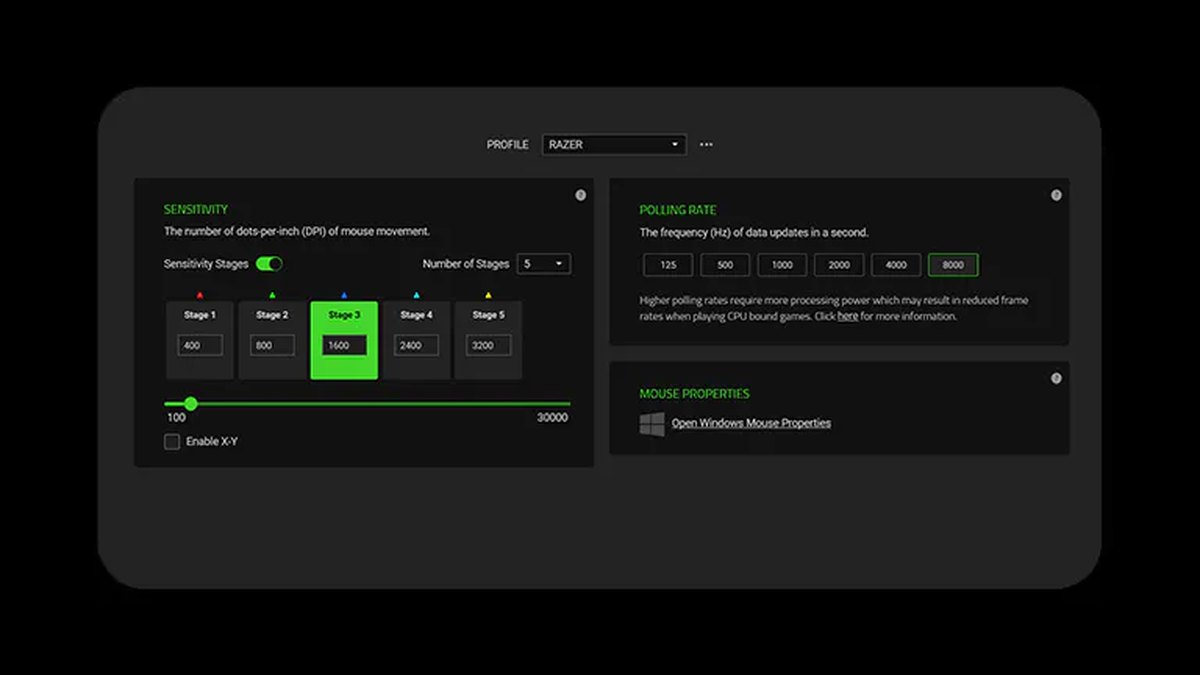
Razer says a PC that is CPU bound may not have the resources to process 8,000 reports per second. Razer Synapse even shows a note next to the polling setting saying higher polling rates require more processing power and may reduce frame rates in CPU bound games.
Logitech explains that some users can see FPS drops above 1kHz and that the extra USB traffic can affect overall system performance.
Windows was part of the problem too. Microsoft explained that high report rate mouse input was being delivered not only to the game but also to background programs such as voice chat, streaming tools and peripheral or graphics settings apps, which caused stutter.
It reduced this by batching input sent to background listeners and capping how often they receive it. That fix shipped in the June 2023 Windows 11 22H2 update KB5027303, listed as improved performance when using high report rate gaming mice.
Razer also notes that older game engines may not cope with high polling rates. Whether 8K holds up therefore depends on CPU headroom, your Windows version, the game engine and whatever else is running. If you want to check your CPU headroom first, see how to spot a CPU or GPU bottleneck.
Step by step: the order that clears up stutter
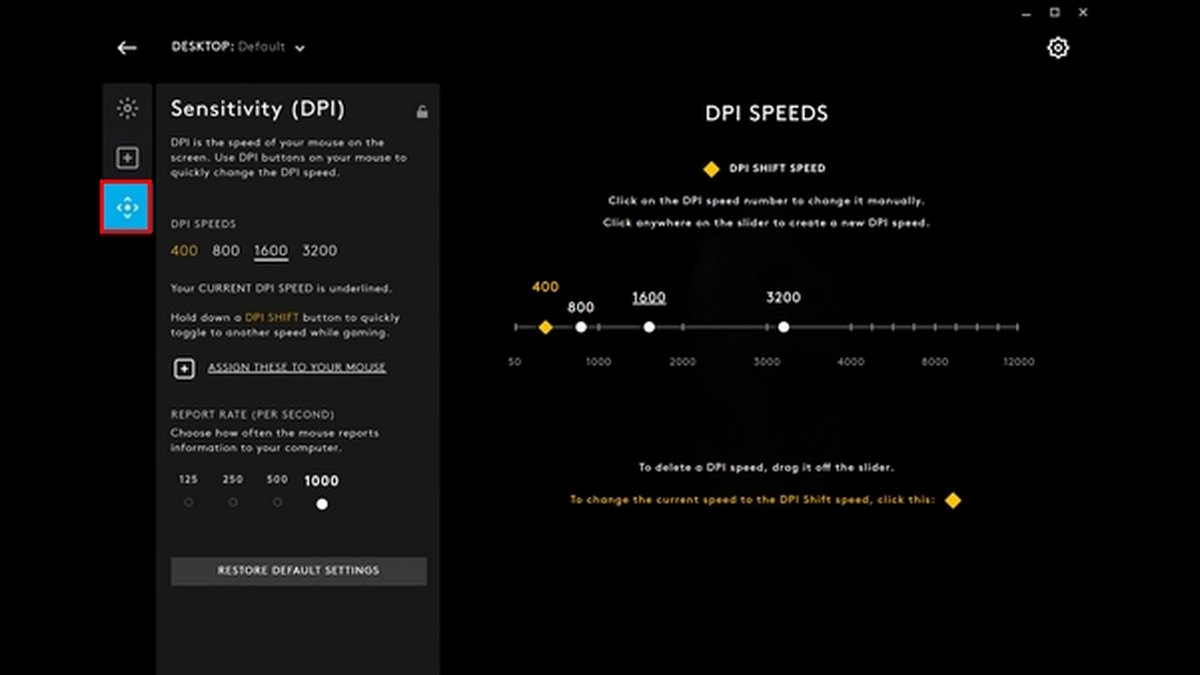
- 1Check your current polling rateOn Razer, open Razer Synapse, pick the mouse and find the Polling Rate setting. Tab names can differ between Synapse versions. The Viper V4 Pro can also be changed in the browser with Synapse Web, no install needed, and its dongle LEDs show battery, connection and polling level by default. On Logitech, open G HUB, select the mouse and pick a value under REPORT RATE below the Sensitivity (DPI) panel.
- 2Update firmware and the app firstRazer lists firmware v2.0 or later as the first HyperPolling troubleshooting step. Logitech added an 8kHz report rate to the PRO X SUPERLIGHT 2, PRO 2 LIGHTSPEED and SUPERLIGHT 2 DEX through G HUB firmware updates, so 8000 may not appear until you update.
- 3Update Windows 11 and turn off Enhance pointer precisionKeep Windows 11 current through Windows Update. The high report rate fix arrived as a Windows 11 update, and Windows 10 support ended on October 14, 2025. Also go to Control Panel > Hardware and Sound > Mouse > Pointer Options and untick Enhance pointer precision. Logitech warns that changing the report rate with it on can make your DPI feel different.
- 4Turn on in game high polling optionsVALORANT has Raw Input Buffer, Overwatch 2 has High Precision Mouse Input, and Marvel Rivals has an experimental high polling rate mouse optimization under Settings > Keyboard. Apex Legends now separates rendering from the input thread by default on CPUs with 8 or more cores. The table below lists values per game.
- 5Plug straight in and place the dongle wellFor wired use, skip hubs and plug into a USB port on the PC itself. For wireless, Razer recommends keeping the dongle within 30cm of the mouse with a clear line of sight, as far as possible from active USB 3 hubs, and moving nearby wireless devices to 5GHz. Logitech's SUPERLIGHT 2 manual says to keep the receiver within 20cm and at least 2m from 2.4GHz sources such as Wi-Fi routers.
- 6Close overlays and unneeded appsRazer advises closing background programs that use overlays or kernel drivers and any apps eating CPU. If you have game overlays, hardware monitors and several brands of peripheral software open at once, close them one at a time and compare.
- 7Start at 8000Hz and step down one levelIn the same game and the same scene, flick quickly at 8000Hz. If it hitches, go to 4000Hz, then 2000Hz, then 1000Hz. Change one thing at a time so you know what actually fixed it.
- 8Save a rate per gameThe Smart Polling Rate Switcher in Razer Synapse lets you set a polling rate for each favorite game and changes it automatically when that game runs. The Viper V4 Pro saves your last used performance settings to its onboard profile, and the Logitech G PRO X3 SUPERSTRIKE also has onboard memory.
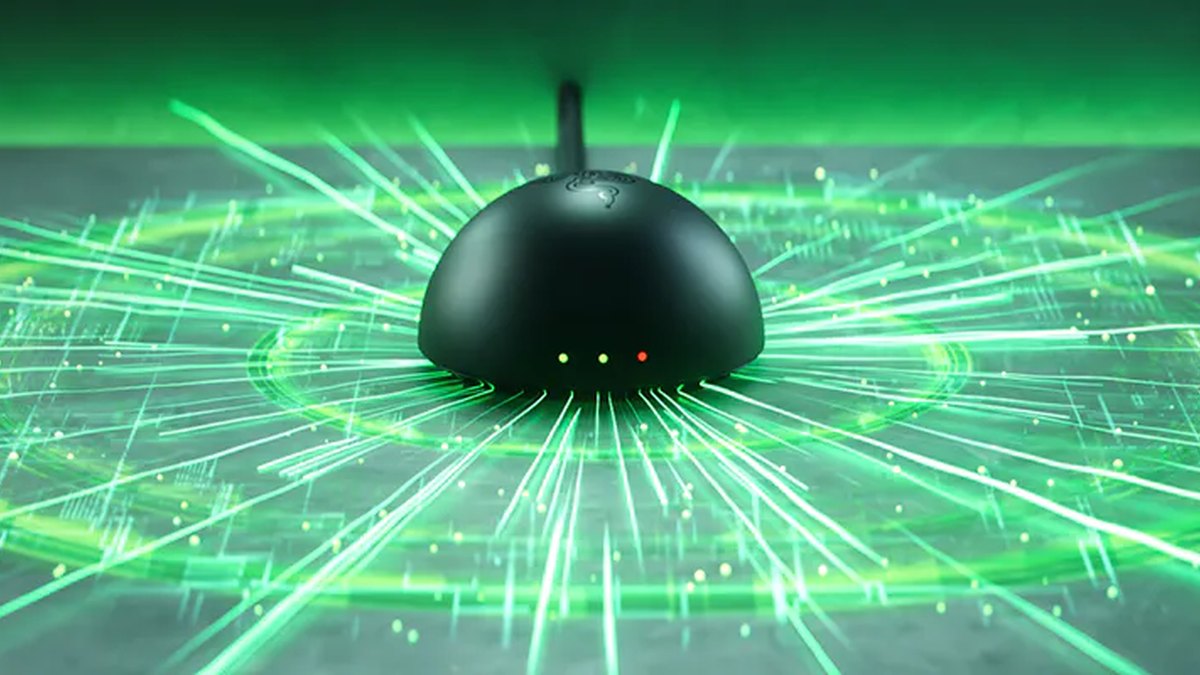
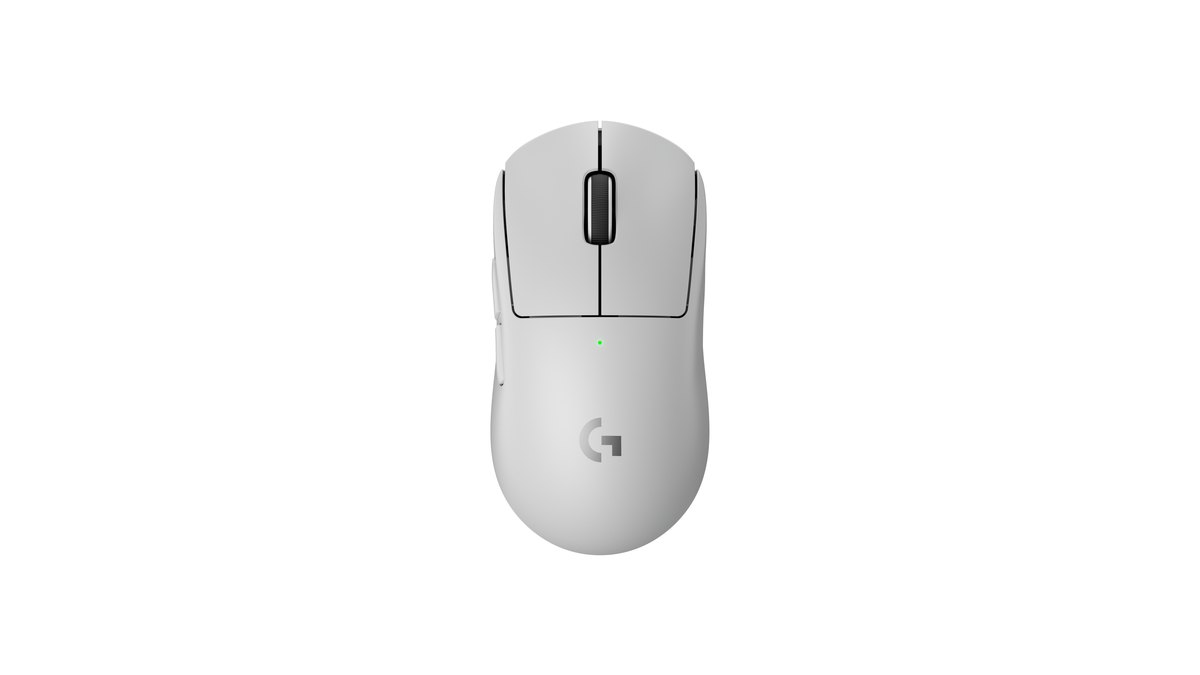
If 8000 never shows up in the menu, check the model and receiver first. The Logitech PRO 2 LIGHTSPEED and G304 or G305 X SUPERLIGHT need the separately sold PRO receiver to go above 1kHz, and the PRO X SUPERLIGHT 2 SE tops out at 1000Hz.
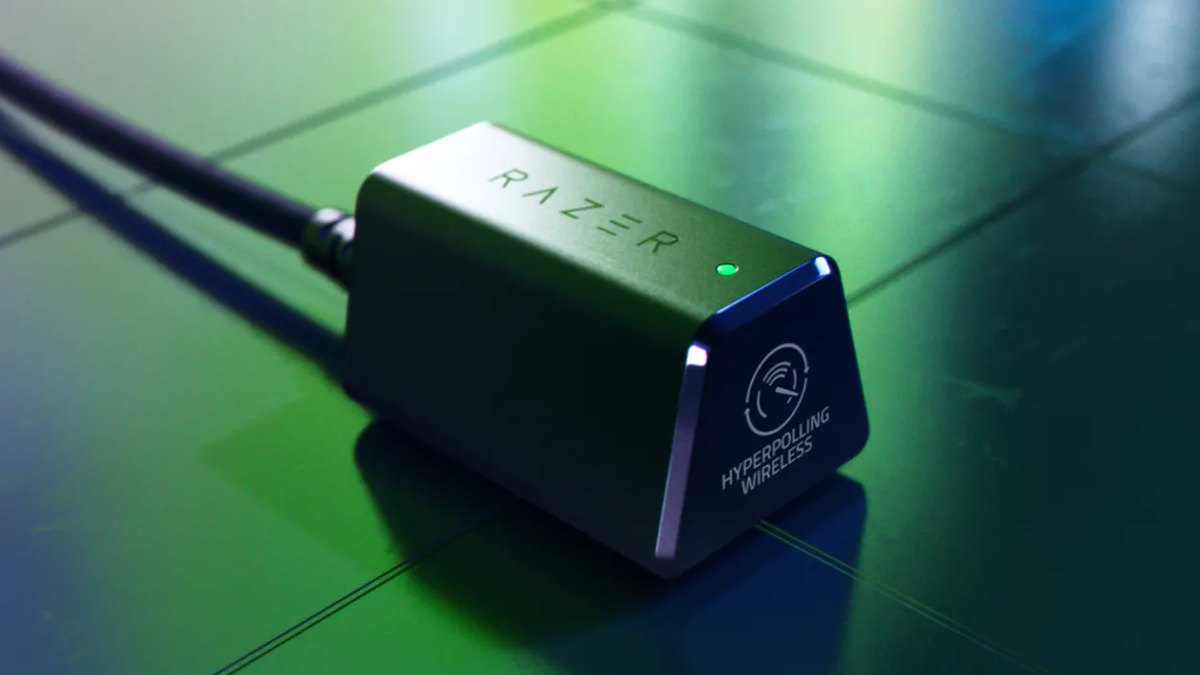
The Razer Viper V3 Pro ships with a HyperPolling dongle for 8000Hz, while the separately sold HyperPolling dongle is built to hold 8000Hz rather than to pair several devices. When both dongles are powered on, the HyperPolling dongle takes priority.
A dongle on a cable is easy to keep within that 30cm range if you set it on the desk near your mouse pad. Plugging it straight into the back of a tower puts it far away and often behind the case, so use the extension cable if one came in the box.
For pointer precision and acceleration settings see mouse acceleration and LOD settings, and to confirm your DPI didn't shift after changing the rate see how to check your mouse DPI.
Best polling rate per game: turn on the option if the game has one
| Game | In game option | Start at | If it stutters |
|---|---|---|---|
| VALORANT | Turn on Raw Input Buffer | Try 8000Hz | 4000 → 2000Hz |
| Overwatch 2 | Turn on High Precision Mouse Input | Try 4000 to 8000Hz | 2000 → 1000Hz |
| Marvel Rivals | Settings > Keyboard: high polling rate mouse optimization (experimental) and Raw Input on | With an 8K mouse, turn it on and test | 4000 → 2000Hz |
| Apex Legends | Input thread split is default on 8+ cores; under 8 cores add launch option -no_render_on_input_thread | Start at 4000Hz | 2000 → 1000Hz |
| CS2, PUBG: BATTLEGROUNDS, League of Legends | No dedicated high polling option found in official notes | 1000Hz; try 2000 to 4000Hz with headroom | 1000Hz |
| Older games and online client games | None | 1000Hz or lower | 500Hz |
VALORANT added Raw Input Buffer in patch 3.07 in October 2021, saying it greatly improves performance with 8000Hz mice and that turning it on enables 8000Hz mouse support.
On high polling rate mouse optimization in Marvel Rivals, on or off comes down to your mouse: the January 2026 patch describes it as an experimental option for 8K polling mice that can fix related latency issues, so with an 8K mouse turn it on and compare.
Apex Legends changed the default for CPUs with 8 or more cores in a June 2025 update and said it helps especially with high polling rate mice and controllers. For games where you don't whip the camera around, like League of Legends, a common view is that 1000Hz is plenty. If your frame rate is simply too low, start with boosting FPS in Apex or CS2 FPS settings before touching polling.
How monitor refresh rate fits in: reports per frame
| Monitor | Frame time | 1000Hz | 2000Hz | 4000Hz | 8000Hz |
|---|---|---|---|---|---|
| 60Hz | 16.7ms | about 17 | about 33 | about 67 | about 133 |
| 144Hz | 6.9ms | about 7 | about 14 | about 28 | about 56 |
| 240Hz | 4.2ms | about 4 | about 8 | about 17 | about 33 |
| 360Hz | 2.8ms | about 3 | about 6 | about 11 | about 22 |
| 500Hz | 2.0ms | 2 | 4 | 8 | 16 |
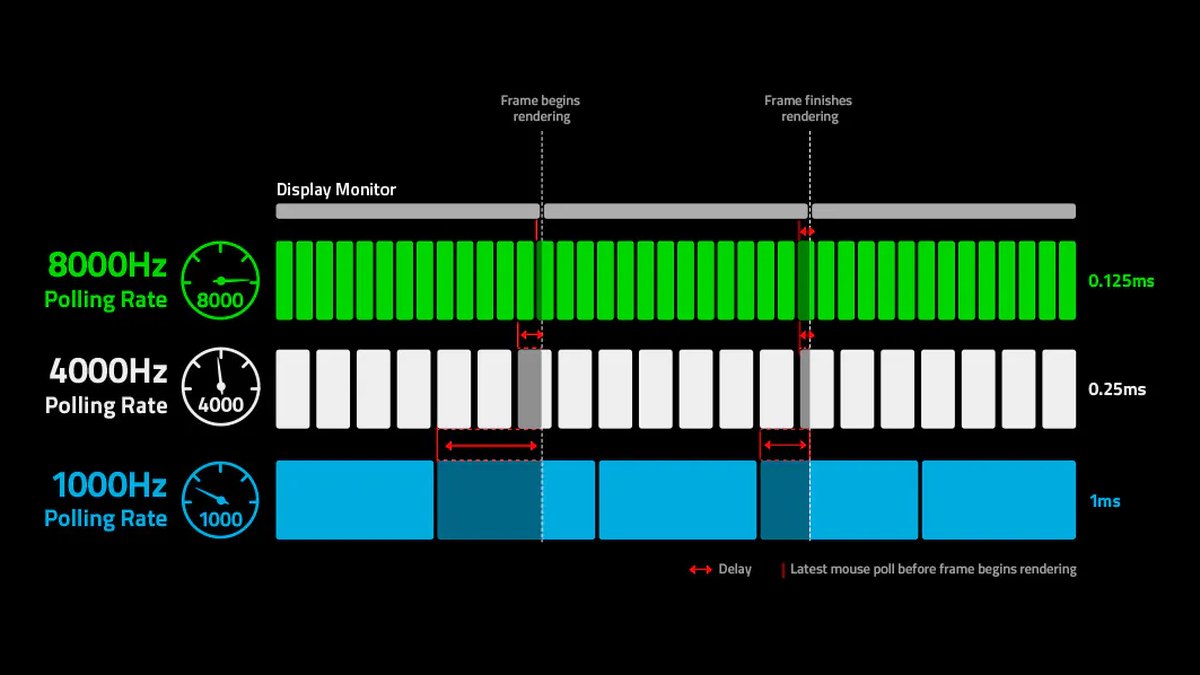
Razer argues that high polling matters more as refresh rates climb and that low polling can cause micro stutter. The table shows why the argument has some logic: on a 60Hz monitor even 1000Hz delivers around 17 reports per frame, but at 360Hz it is barely 3.
So on a 360Hz or faster monitor there is more reason to test 4000 to 8000Hz, while at 144Hz or below 1000 to 2000Hz already gives plenty of reports per frame.
Measurement reviews have also noted that you need to move the mouse quickly to actually saturate 8000Hz, so whether you feel a difference varies by player and game. For choosing a monitor by refresh rate, see our gaming monitor buying guide.
Wireless 8000Hz and battery: expect far shorter runtime
| Model | 1000Hz | 8000Hz | 8000Hz runtime vs 1000Hz |
|---|---|---|---|
| Razer Viper V4 Pro | up to 180 hours | up to 45 hours | about 25% |
| Razer Viper V3 Pro | up to 95 hours | up to 17 hours | about 18% |
| Razer DeathAdder V4 Pro | up to 150 hours (latest firmware) | up to 22 hours | about 15% |
| Logitech G PRO X3 SUPERSTRIKE | 135 hours (constant motion, polling rate not stated) | not listed by maker | can't be calculated from official figures |
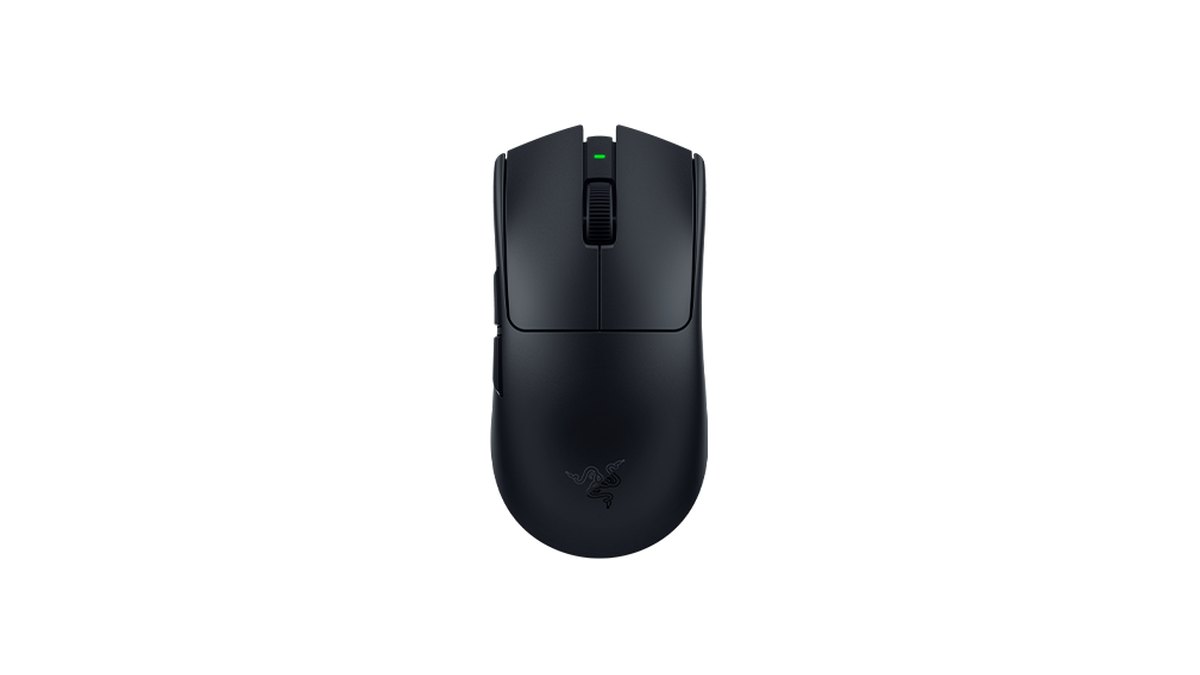
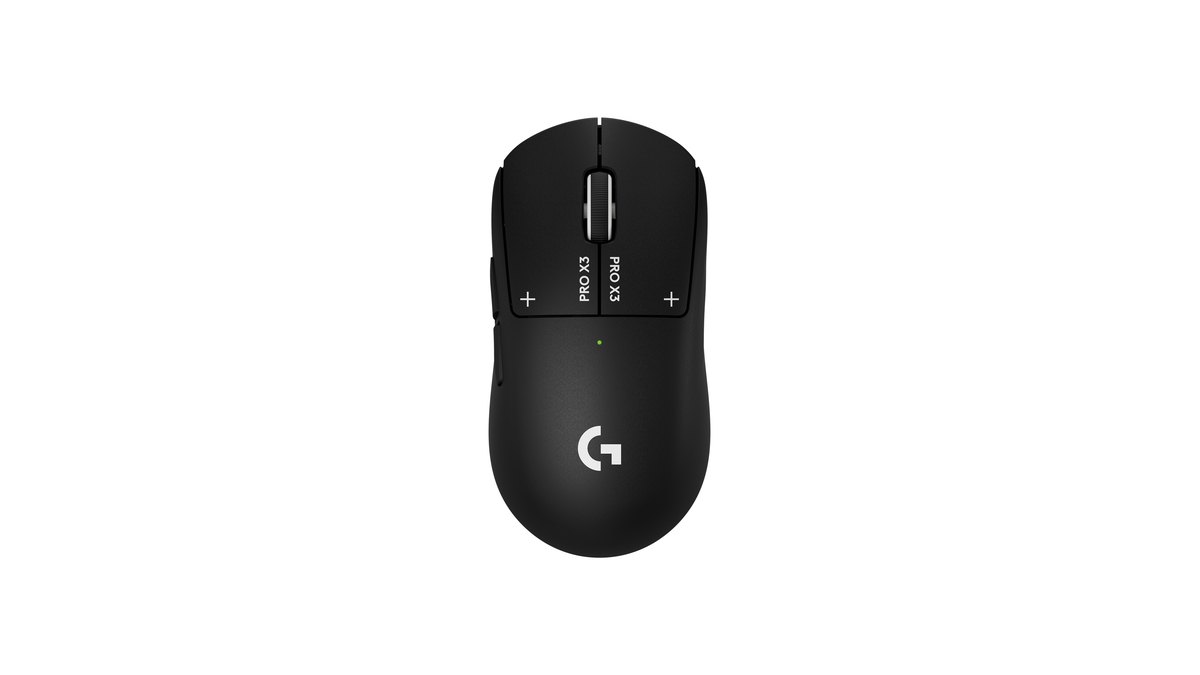
Wireless 8000Hz is hard on batteries. Razer rates the Viper V3 Pro at 62 hours at 2000Hz and 40 hours at 4000Hz, so even 4000Hz is less than half the 1000Hz figure. On wireless, a realistic routine is 1000 to 2000Hz for everyday play and 4000 to 8000Hz only for ranked or tournament sessions.
Razer users can let the Smart Polling Rate Switcher raise it only when a chosen game launches. User reviews also mention running 4000Hz because 8000Hz drains the battery too quickly. For how the two flagship 8K wireless mice compare, read PRO X3 SUPERSTRIKE vs Viper V4 Pro with star ratings.
Prices (as of November 10, 2026)
| Product | Launch price (MSRP) | Street price range |
|---|---|---|
| Razer Viper V4 Pro | $159.99 | About $159.99 (official store) |
| Razer Viper V3 Pro | $159.99 | $129.99 on sale at the official store |
| Razer DeathAdder V4 Pro | $179.99 | About $153 to $180 |
| Logitech G PRO X3 SUPERSTRIKE | $199.99 | About $199.99 |
US prices in US dollars before tax. Razer often runs sales on its own store, so the V3 Pro and the DeathAdder V4 Pro can come in well under MSRP. Check the retailer listing and warranty terms before you buy, and weigh the battery figures above if you plan to run 8000Hz wireless.
Six common mistakes
- Trusting a browser polling test: Logitech says browser based tools can't handle high report rates properly, and that Logitech G mice adjust their report rate dynamically to save battery.
- Plugging into a USB hub or a monitor or keyboard passthrough port: Razer recommends connecting wired mice directly to a USB port on the PC.
- Comparing with Enhance pointer precision on: changing the report rate can make sensitivity feel different and muddy the comparison.
- Hunting for the menu without checking receiver and firmware: some models only show 8000 after a firmware update or with a separately sold receiver.
- Locking every game at 8000Hz: older engines may not cope with high polling, so splitting rates by game works better.
- Registry tweaks, unofficial drivers or optimization batch files: these change system settings and we don't recommend them. Stick to official updates and official app settings.
How to confirm it worked: compare the same scene, not just the number
Check the polling number itself in the maker's app or an official test tool. Razer distributes an official polling rate test app for Windows and recommends plugging the dongle directly into the PC, closing background apps and moving the mouse in circles while testing.
Logitech's own documentation says its mice can reach about 4kHz or about 8kHz depending on PC performance, so a reading that isn't exactly 8000 doesn't automatically mean something is broken. What matters more is what happens in game.
Put FPS, 1% lows and CPU usage on screen, repeat the same map and drill, and change only the polling rate. Our guide on how to show FPS in games covers the overlays.
To compare stutter with your own eyes, recording each run helps, because you can rewatch the same moment instead of relying on memory.
DOR is a free Windows game recorder: when you launch a supported game such as VALORANT it detects it automatically, records the whole match and collects the recordings in My Clips.
Play the same Range drill once at 8000Hz, once at 4000Hz and once at 2000Hz, then watch the fast flick moments side by side to see where the hitching stops.
For games like Apex Legends, DOR records automatically and you trim and save the moments you want, so you can run the same comparison in the Firing Range. Our before and after gear recording guide walks through the method, and why CPU usage spikes when you record covers general fixes if CPU usage runs high while recording.
What players say: smoother on one side, better after lowering it on the other
Players who run into trouble mostly describe hitching or FPS drops when they flick fast, and wireless batteries draining faster than expected. Stories of things improving after dropping to 4000Hz or 2000Hz, sometimes lower, come up again and again.
Players who are happy with 8K say cursor movement feels smoother, though some reviews also say they can't really feel a latency difference. There are also posts about FPS drops even at 1000Hz, which suggests polling isn't always the root cause.
Since the benefit depends on the monitor and the person, running through the steps above on your own PC beats copying someone else's settings. If you're buying a new mouse, see the polling rate advice in our gaming mouse buying guide and best gaming mouse picks.