Record, edit
& find your community
Practical guides from capturing and editing gameplay to finding friends, parties, and communities.
Page 7 of 12
 Community guide
PUBG Clan Finder: Choose a Long-Term Group, Not One Squad
For a long-term clan, verify platform, region, mode, real active hours, voice culture, application path, and current administration.
 Team & Community
Rainbow Six Siege Ranked Squad Finder: Match Operators and Map Roles
Recruit an R6 Siege ranked squad by matching server, platform, current rank, entry, hard-breach, support, anchor or roam roles, operator pools, and map calls.
 Team & Community
TFT Double Up Duo Finder: Match Tempo, Economy, and Support Calls
Find a TFT Double Up partner by aligning Riot shard and patch, current rank, reroll or leveling tempo, flexible comps, gifting and reinforcement calls, and voice preferences.
 Community guide
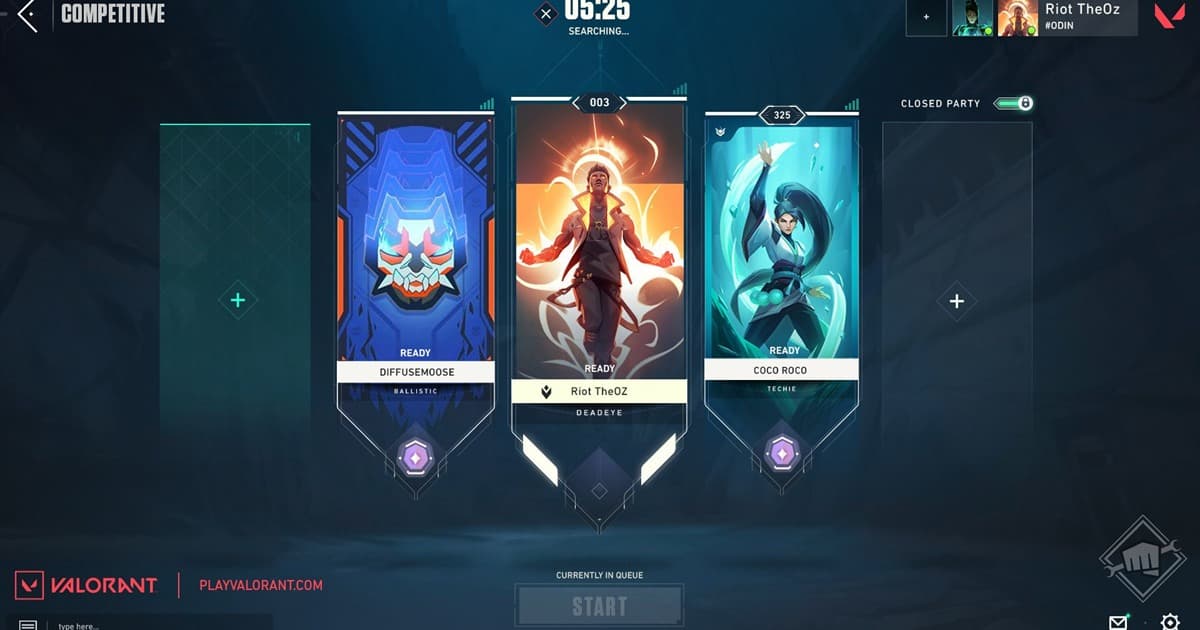
VALORANT Five-Stack Finder: Match Roles, Maps, Schedule, and Comms
Go beyond rank by publishing region, schedule, role pool, map comfort, comms intensity, and a two-game trial before committing.
 Community guide
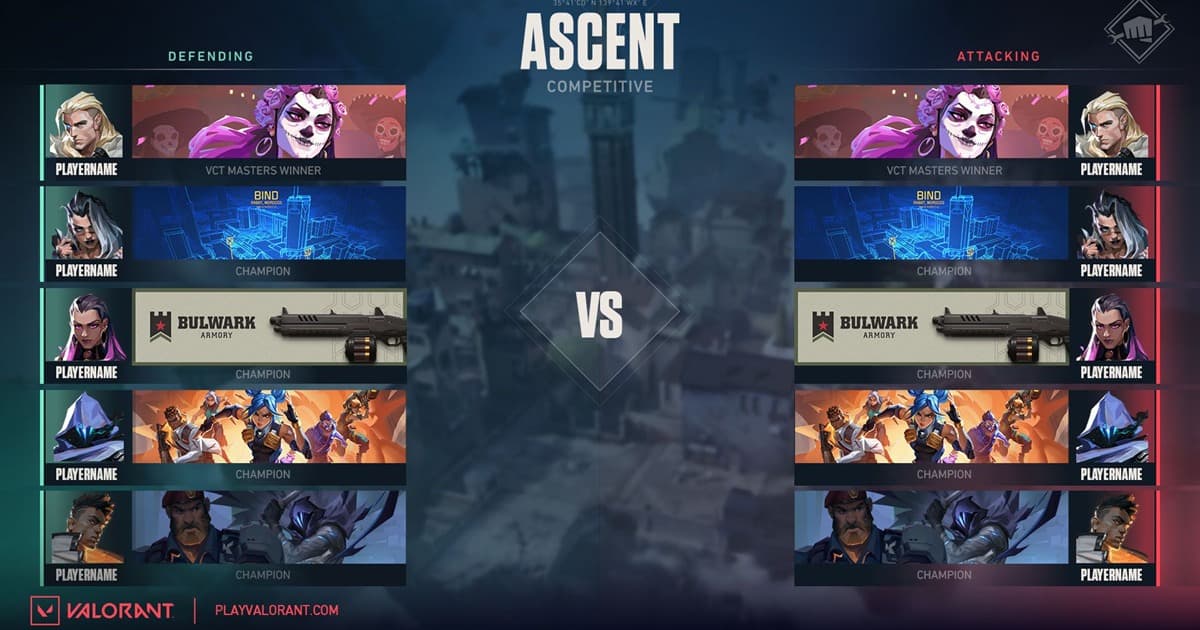
VALORANT Scrim Finder: Agree on Opponent, Rules, and Replays
Go beyond similar rank by confirming server, maps, start time, coaches, pauses, replays, and clip publication with the opposing team.
 Recording guide
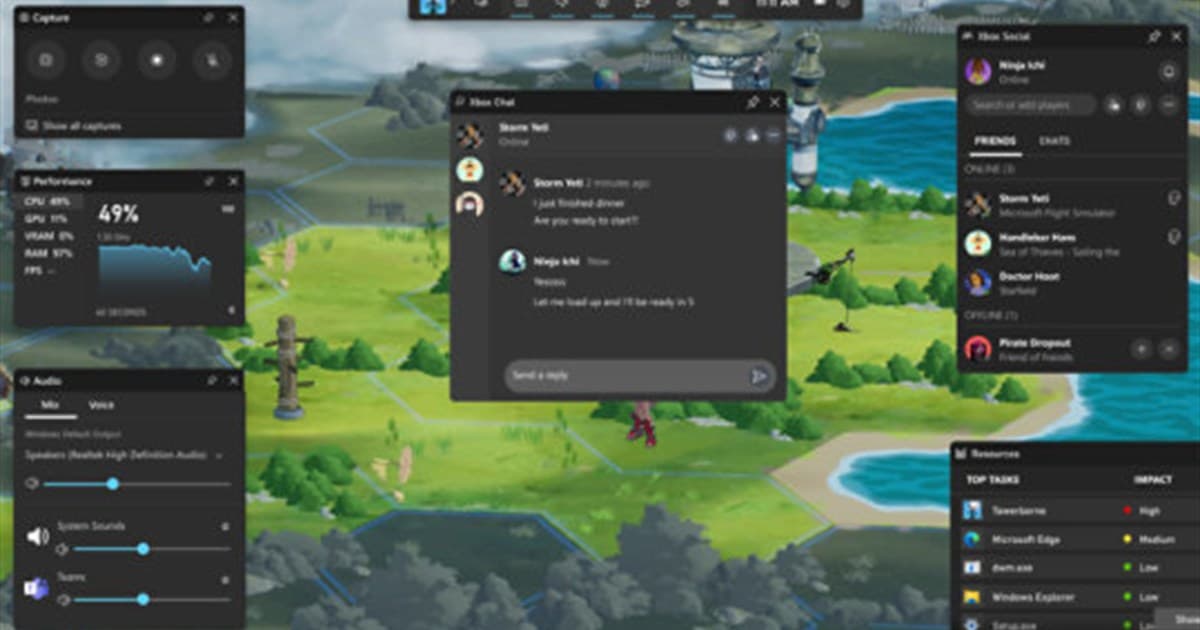
Xbox Game Bar Recording Not Working: Fix Disabled Capture and Missing Files
Diagnose a disabled record button, failed shortcut, missing capture, or silent file in a safe order, then compare a dedicated game recorder.
 Community
Game Guild Recruitment Template: Rules, Schedule, and Joining Process
Go beyond benefits: publish games, active hours, joining and trial steps, leaving rules, money, and privacy expectations in one recruitment post.
 Team Finder Guide
League Clash Team Finder: Roles, Schedule and Tryout Template
A stable Clash roster needs clear role gaps, check-in availability, calls, and practice expectations. Use this roster table and recruitment template.
 Discord Guide
League Discord Server Finder: Activity and Safety Checklist
The biggest League Discord is not automatically the best fit. Compare live LFG structure, moderation rules, active hours, and privacy before joining.
 Troubleshooting
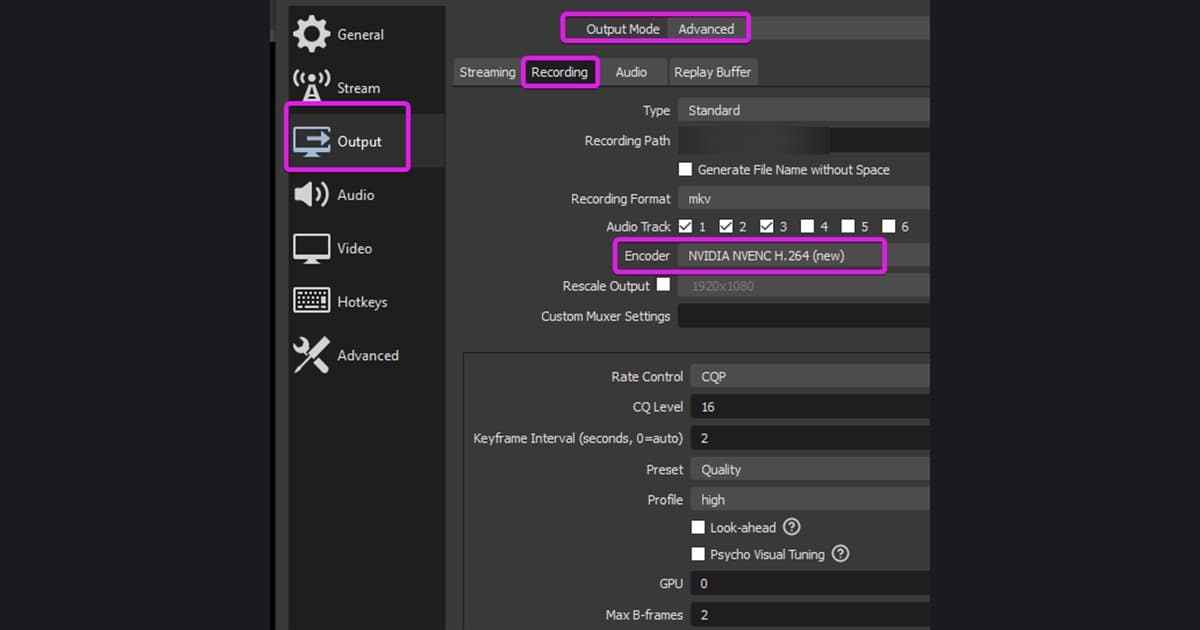
OBS Encoding Overloaded: Diagnose and Fix Encoder Lag
Separate rendering lag from encoding lag, then reduce game, GPU, and output load in a controlled order when OBS reports Encoding overloaded.
 Community
Overwatch Party Finder: Recruit for Role, Rank, Voice, and Fit
State tank, damage, or support needs, competitive or quick play, schedule, and voice expectations, then test comms and atmosphere in a short session.
 Community
PUBG Discord Server Finder: Active Squads and Safer Invite Links
Look beyond member count to recruiting activity in your time zone, channel structure, moderation, and invite provenance, then test one clear squad post.
 Community
PUBG Squad Finder: Recruit Teammates for Map, Perspective, and Comms
Align region, map, FPP or TPP, mode, schedule, and comms, then use public clips and a short first session to test squad fit.
 Troubleshooting
Recording Audio Out of Sync: Fix Constant Delay and Drift
Determine whether game-recording audio starts late or drifts over time, then address device latency, sample rates, and encoding load.
 Recording Guide
Separate Game Audio and Mic Tracks in OBS for Editing
Record game, microphone, and Discord audio to separate OBS tracks so each can be mixed, muted, or cleaned independently during editing.
 Discord Guide
VALORANT Discord Server Finder for Duos and Five-Stacks
A useful VALORANT Discord separates regions and ranked LFG, explains voice recording, and provides a real report route. Compare servers with this checklist.
 Community Guide
VALORANT Duo Finder: Match Rank Goals, Roles and Voice
A VALORANT duo needs compatible server, agent roles, call style, and schedule—not just similar rank. Use this LFG template and trial checklist.
 Community
VALORANT Premier Team Finder: Recruit for Roles, Schedule, and Fit
Align roles, availability, goals, and communication before forming a Premier team, then use a short and consistent tryout process.
 Guide
GuideThe Complete Guide to Recording Settings for Streamers: Simultaneous Local High-Quality Recording While Streaming, for Replays and Clips (2026)
We organized OBS settings for recording high-quality video locally to your PC while streaming to Twitch or YouTube, step by step. Secure clean originals for replays and editing clips instead of a compressed stream, and learn how DOR even leaves highlight moments as auto-clips.
 Troubleshooting
When a Recording Is Corrupted or Won't Play: A Step-by-Step Recovery Guide
If a recording suddenly turns corrupted or won't play, in most cases a forced shutdown mid-recording left the file unfinished. We lay out how to salvage it with remuxing and repair tools, and how to set up your recording to prevent corruption in the first place, all in order.
 Troubleshooting
How to Record Only the Game Cleanly on a Dual-Monitor Setup
When you use two monitors, the wrong screen easily gets caught in the recording. Here is a step-by-step guide to specifying the monitor and window to record so you capture only the game screen cleanly.
 Troubleshooting
When Your Game Crashes or Freezes While Recording: A Step-by-Step Fix
If your game crashes or freezes the moment you turn on recording, the causes fall into three groups: system overload, anti-cheat conflicts, and driver issues. Work through them in order with hardware encoding, lower resolution, and a different capture method.
 Troubleshooting
FPS Drops When Recording? The Real Cause Is the Encoder (Fix It in 5 Minutes by Switching from x264 to NVENC)
Losing 20-30 frames the moment you turn on recording usually isn't a lack of specs but the CPU encoder (x264). Switching to a GPU encoder (NVENC) recovers it to a single-digit loss. We've laid out the fix order by cause, with numbers.
 Troubleshooting
No Sound in Game Recording: How to Fix It by Setting Your Desktop Audio Device
If the recording worked but only the game sound is missing, nine times out of ten it's a desktop audio device setting issue. We'll walk you through it button by button, from setting the device, to splitting system sound and mic into separate tracks, to monitoring.