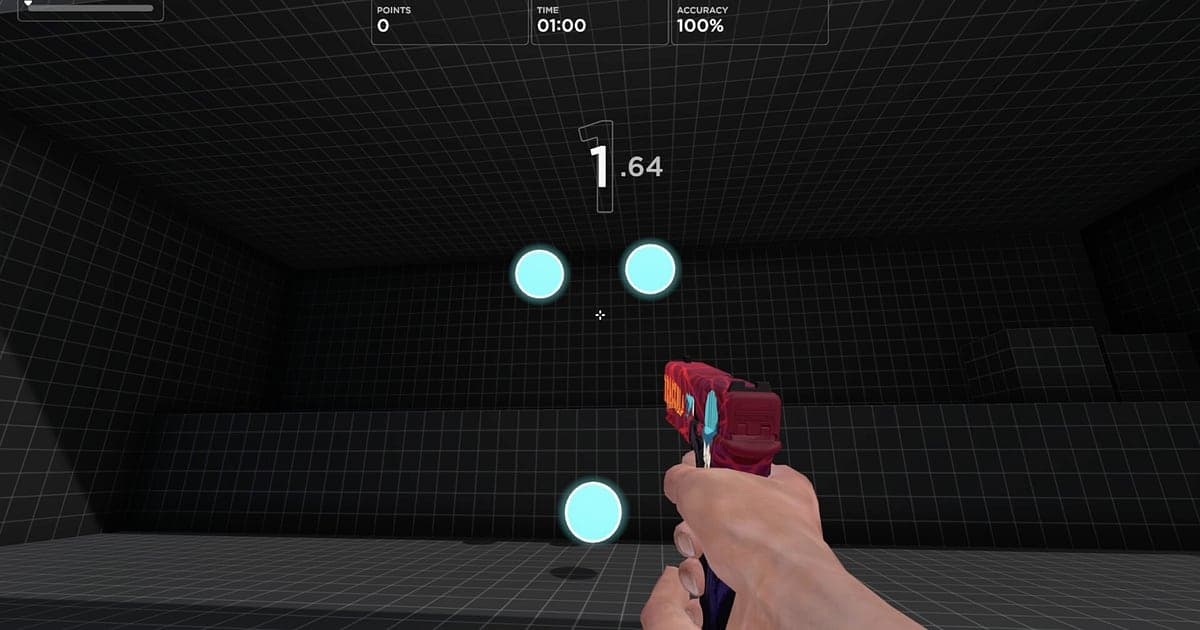
Aimlabs records automatically once DOR is installed: launch the game and the AI takes care of the recording. You never press a record button or pick a window. The moment Aimlabs starts, DOR detects it and keeps your first warm up scenario through your last run in one video, without splitting at the end of each scenario. Rewatching practice you only knew as scores lets you see from your crosshair movement whether your flicks overshoot or where your tracking falls behind. This guide is for anyone recording Aimlabs for the first time. It covers getting ready, confirming the recording, saving record runs, finding runs in a session, building a one month before and after video, sharing score proof, and settings for high refresh monitors.
- Keep a full day's routine of Gridshot, Spidershot and tracking scenarios in one video.
- Save the run where you hit a Gridshot personal best or a Spidershot accuracy jump as its own clip.
- Use AI Voice Notes to find lines like 'lowered my sens a bit and tracking feels locked on' or coach feedback and jump to that run.
- Join your first baseline from a month ago with today's best run into a before and after video.
- Send a record run, from scenario start to results screen, to your duo with a single dor.gg link.
Before you record Aimlabs: install and recording mode
All you need to record Aimlabs is DOR. It is a free Windows app and never adds a watermark to your videos. Aimlabs uses full session recording, so even if you run the same scenario more than ten times, no separate file is made per run: everything from launch to exit is one video. Whether your routine is matched to your VALORANT sensitivity or another shooter, the Aimlabs screen is recorded exactly as it appears regardless of sensitivity settings. How DOR detects a game and starts recording is explained in DOR automatic game recording. The table below covers what is worth knowing before your first Aimlabs recording.
| Item | For Aimlabs | Notes |
|---|---|---|
| Install | DOR, free Windows app | No watermark on your recordings |
| Game version | Windows PC version on Steam | DOR detects and records Aimlabs running on your PC |
| Recording mode | Full session recording | Not split at the end of each scenario; one video until you quit |
| Display mode | Fullscreen, windowed and borderless all record | Keep the mode you already use in the game's settings |
| Resolution and frame rate | 1080p at 30fps by default | 60fps suits frame by frame flick review, plus a lighter 720p/30fps mode |
| High refresh monitors | Practicing at 144Hz or 240Hz | A recommended spec GPU is advised to hold your in game frame rate while recording |
Record Aimlabs with DOR: step by step
- 1Install DOR and pick 60fpsDownload DOR, install it and leave it running. Aimlabs recordings are mostly for reviewing your crosshair movement later, so pick 60fps in DOR settings before you launch and fast flicks will not blur between frames.
- 2Launch AimlabsStart Aimlabs from Steam and DOR detects the game and starts recording right away. The menu where you pick a scenario is captured too, so there is nothing to do before you start your warm up routine.
- 3Check the recording before your first scenarioBefore your first Gridshot run, open the DOR app once and confirm it is recording. If the game is not detected, follow what to do when the recorder does not detect your game. After that, focus on practice.
- 4Save a clip the moment a record appearsWhen a new personal best appears on the results screen, press the clip save shortcut right away. Runs of the same scenario look almost identical in a long session, but once you save it like this, you never have to hunt for it.
- 5Quit and open My ClipsFinish your routine and close Aimlabs. The session video and every clip you saved appear together in My Clips in the DOR app. Sessions build up by date, which makes it easy to compare the same scenario a week later.
Find your recordings
Open your recordings in My Clips in the DOR app, also called the library. Each time you open and close Aimlabs is one session, and record runs you saved with the clip save shortcut appear in the clip list separately. In a session where you ran the same scenario many times, a run begins when the scenario starts and the first target appears, and ends when the score shows on the results screen. If you jot down the scenario name and the real time whenever you set a record, you can jump straight to that run without checking each results screen. For score proof, do not cut out only the results screen; keep the whole run from scenario start to results without a break. Many scenarios spawn targets at the edges of the screen, so 16:9 is the safe export, though 9:16 and 1:1 are also available. Tips on setting the end point are in how to trim game clips. Like your first baseline runs so you can compare later. When space fills up, older videos you have not liked are cleared first.
Save the moments you want to keep
Aimlabs practice means repeating the same scenarios, so the surest way to keep a record run is to clip it on the spot. Press the clip save shortcut and the last stretch is saved as a clip. The default length is 30 seconds, and you can choose 15, 30, 45 or 60 seconds in settings. If one run of your scenario lasts about a minute, set clips to 60 seconds so that pressing the shortcut on the results screen still captures the scenario from the start. Good moments to press it are right after a Gridshot personal best, right after a Spidershot accuracy jump, right after you stay on a moving target to the end of a tracking scenario, and right after your first run on a new sensitivity. For the deciding seconds of a 1v1 multiplayer match, 15 seconds is enough. Length settings are covered in saving the last few seconds instantly.
Find what was said with AI Voice Notes
Aim practice seems quiet, but you end up saying things like 'just hit a Gridshot PB', 'I keep overflicking' and 'one more routine before VALORANT'. If you practice on a call with a friend or coach, feedback like 'use more wrist' goes back and forth too. DOR records game audio and your microphone together, and AI Voice Notes writes what was said onto the recording timeline as text. To find the run where you agreed to drop your sensitivity, search the timeline text for 'sens' and select it to jump straight there, then compare your crosshair movement before and after the feedback. If your mic sounds quiet, check your input device with recording games with mic audio.
Build a montage with AI Highlight
Turn growth you only saw as numbers into one comparison video. In the library, check your clips of a Gridshot personal best, a Spidershot accuracy jump, a peak tracking stretch, a flick streak, your first run on a new sensitivity and your baseline from a month ago, then select AI Highlight. DOR joins a month of practice into one before and after video. Pick clips of a single scenario in date order for a progress log, or split flick and tracking clips for a weakness review. If you want to set the order yourself, see how to merge game clips.
Edit in DOR Studio
DOR Studio opens in your browser with nothing to install. Join your first and best run of the same scenario, then add the date and score to each as text. A punch zoom on the frame where the new record appears and a glitch transition between runs make the comparison clear. Add background music and export in 9:16 for an aim progress Short, but check first, because scenarios that spawn targets at the edges can lose some of them in a vertical crop. Framing tips are in recording games for vertical Shorts. Download the result as an mp4 or share a link straight away.
Share with a dor.gg link
Send trimmed runs as dor.gg links. Whoever opens one plays it right in their browser without the app, and there is no watermark. Paste your best run into a Discord server or community thread and it is far more convincing than a screenshot of a number, and it is a good way to show your FPS duo why your aim has improved lately. How to put together a score proof video is covered in making an Aimlabs score proof video, and posting to Discord is covered in sharing clips on Discord.
Aimlabs recommended settings and troubleshooting
Many players practice Aimlabs on high refresh monitors, so if you train at 144Hz or 240Hz, a recommended spec GPU is advised to hold your in game frame rate while recording. Recording at 60fps makes it easy to step back through each flick, and on a laptop the 720p/30fps mode keeps the load down. DOR uses GPU hardware encoding, so its impact on in game frame rate is small. Fullscreen, windowed and borderless windows all record, so you do not need to change game settings. If practice feels different with recording on, work through fixing FPS drops while recording. DOR has no cheat features and never touches your game files or play data.
| Symptom | What to check | Fix |
|---|---|---|
| The recording is a black screen | The display mode in the game's settings | DOR records fullscreen, windowed and borderless alike. If it is still black, follow [fixing fullscreen recording](fullscreen-recording-not-working) to switch to monitor capture. |
| Your coaching call is not recorded | The microphone selected in DOR | Confirm your usual headset is selected, then follow [fixing a mic that is not recording](mic-not-recording-fix). |
| Frame rate wobbles at high refresh | Recording resolution and frame rate | GPU hardware encoding keeps the impact small, but if it still bothers you, drop to 720p/30fps mode. |
| Daily practice piles up files | Recording resolution and free drive space | Clip only record runs and see [reducing game recording file size](reduce-game-recording-file-size). |
| Worried a recorder could affect your account | How DOR works | DOR only captures the screen, has no cheat features and does not modify game files or play data. |