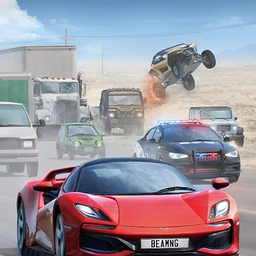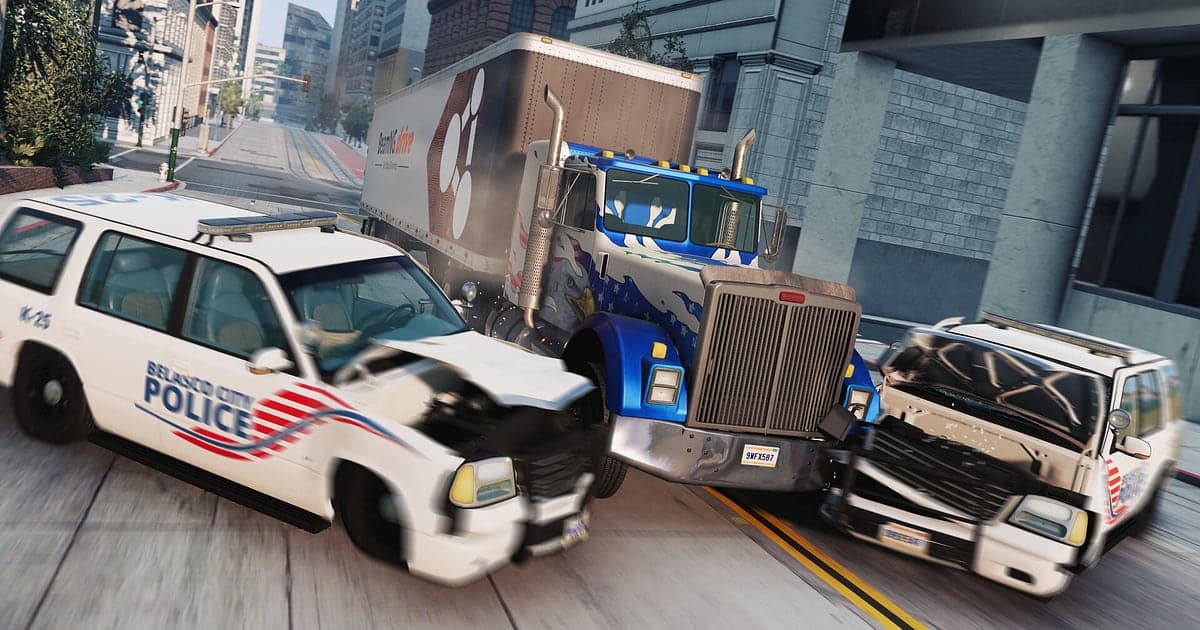
BeamNG.drive records automatically once DOR is installed: launch the game and the AI handles the rest. There is no record button and no replay file to convert, because you get an mp4 video from the start. Start BeamNG.drive from Steam and DOR has already detected the game while the map loads, then keeps recording until you quit, however many cars you wreck. Soft body physics crumple cars like paper, so the same crash never breaks quite the same way twice, which means plenty of moments worth rewatching. This guide is for anyone recording BeamNG.drive for the first time. It covers getting ready, confirming the recording, saving crashes, finding the best attempt among many repeats, building a crash compilation, sharing Shorts, and settings for a physics heavy game.
- Keep a whole driving session in one video, from a Utah canyon ramp jump to a West Coast mountain road drift.
- Save a 200 km/h head on collision or a five roll tumble off a cliff as its own clip.
- Use AI Voice Notes to find lines like 'this time I'm clearing it' and see which attempt it was.
- Join high speed jumps, head on crashes and a trailer jackknife into one crash compilation.
- Send a 9:16 crash clip to your car friends' group chat or Discord with a single dor.gg link.
Before you record BeamNG.drive: install and recording mode
All you need to record BeamNG.drive is DOR. It is a free Windows app and never adds a watermark to your videos. BeamNG.drive uses full session recording, so even if you reset the car and rerun the same test dozens of times, no separate file is created per attempt: everything from launch to exit is one video. Any mod you load, from car packs to custom maps, is recorded exactly as it appears on screen. The real time physics that simulate every vehicle part put a heavy load on your PC, though, so pick recording settings that match your hardware. How DOR detects a game and starts recording is explained in DOR automatic game recording.
| Item | For BeamNG.drive | Notes |
|---|---|---|
| Install | DOR, free Windows app | No watermark on your recordings |
| Game version | Windows PC version on Steam | DOR detects and records BeamNG.drive running on your PC |
| Recording mode | Full session recording | One video from launch to exit, however many resets you do |
| Mod vehicles and maps | Recorded as they appear | DOR captures the game screen, so any mod works the same |
| Display mode | Fullscreen, windowed and borderless all record | Keep the mode you already use in the game's settings |
| Resolution and frame rate | 1080p at 30fps by default | 60fps is available; use 720p/30fps mode if physics load gets heavy |
Record BeamNG.drive with DOR: step by step
- 1Install DORDownload DOR, install it and leave it running. Game audio like engine noise and impacts is recorded together with your mic, so if you plan to commentate your tests, just plug in a headset mic.
- 2Launch BeamNG.drive and pick a mapStart BeamNG.drive from Steam and DOR detects the game and starts recording while the map loads. Whether you choose Utah or West Coast, recording is already running while you pick a map and a vehicle.
- 3Check the recording before your first runOnce your vehicle spawns, open the DOR app once before you set off and confirm it is recording. If the game is not detected, follow what to do when the recorder does not detect your game. Then floor it toward the ramp.
- 4Save a clip right after a great wreckIf you hit a truck head on and the engine block flew out, or you cleared the jump and landed it perfectly, press the clip save shortcut right after the car comes to rest. The last stretch is saved as its own clip, so you do not have to hunt for that one attempt among dozens.
- 5Quit and open My ClipsWhen you finish testing, close the game. The session video and every clip you saved appear together in My Clips in the DOR app. Crashes you forgot to clip are all still in the session video.
Find your recordings
Recordings pile up in My Clips in the DOR app, also called the library. Each time you open and close BeamNG.drive is one session, and moments you saved with the clip save shortcut appear in the clip list separately. In a session where you repeated the same test with small changes, look for the instant the screen jumps when the car resets to its start point: that is the border between attempts. Between two borders, find the moment the body crumples hardest, then keep only from 2 to 3 seconds before impact until the car stops completely. Most crash clips land between 5 and 15 seconds, so cut the acceleration run up without hesitation. Export as 16:9, 9:16 or 1:1, and see how to trim game clips for tips on picking a start point. Like the crashes you want to keep. When space fills up, older videos you have not liked are cleared first.
Save the moments you want to keep
Because you rerun the same crash dozens of times, the surest approach is to clip the attempt you like on the spot. Press the clip save shortcut and the last stretch is saved as a clip. The default length is 30 seconds, and you can choose 15, 30, 45 or 60 seconds in settings. BeamNG crashes are over in seconds, so a 15 second length gives you a tight clip straight away. Longer scenes, like a five roll tumble down a cliff, a trailer folding into a jackknife, or a police chase scenario that runs until you lose them, fit better at 45 or 60 seconds. Good moments to press it are right after a 200 km/h head on hit, right after a ramp landing, and right after you drift out of a mountain road corner. What each length is good for is covered in saving the last few seconds instantly.
Find what was said with AI Voice Notes
Testing on your own, you end up narrating: 'hitting 200 and going for that ramp', 'oh, the engine block flew out', 'what happens if I hit the truck head on'. DOR records game audio and your microphone together, and AI Voice Notes writes those lines onto the recording timeline. If you lose track of which attempt finally cleared the jump, find the line where you shouted 'this time I'm clearing it' and select it to jump to that attempt. Notes like 'let's raise the suspension a bit' are kept too, which helps you trace which setup changed the result. If your voice sounds quiet, check your input device with recording games with mic audio.
Build a montage with AI Highlight
Every attempt breaks differently, so crash compilations never get old. In the library, check your clips of the Utah canyon ramp jump, the 200 km/h head on crash, the West Coast mountain drift, the trailer jackknife, the five roll cliff tumble and a mod car crash test, then select AI Highlight. DOR joins them into one crash compilation. Pick one clip per vehicle from the same test and you get a car comparison video. If you want to set the order yourself, see how to merge game clips.
Edit in DOR Studio
DOR Studio opens in your browser with nothing to install. Trim the acceleration so the clip starts just before impact, then put a punch zoom on the frame where the cars meet. A shake zoom suits rollovers, and a handheld effect adds grit to chase scenes. When you join several attempts, drop a glitch transition between them and add a text line like '200 km/h head on' plus background music. Jumps and rollovers fit 9:16 well, with the car big in the middle of the frame; see recording games for vertical Shorts for framing tips. Download the result as an mp4 or share a link straight away.
Share with a dor.gg link
Send trimmed crashes as dor.gg links. Whoever opens one plays it in their browser right away, without the game or any app. Drop a 9:16 crash link into your car friends' group chat or Discord channel. What to look for in each kind of test and which aspect ratio suits it are covered in sharing BeamNG.drive crash videos, and posting to Discord is covered in sharing clips on Discord. Your clips go up on TikTok, YouTube Shorts and Instagram Reels with no watermark.
BeamNG.drive recommended settings and troubleshooting
BeamNG.drive calculates every vehicle part in real time, so it puts a heavy load on your PC. At or above the recommended spec, the default 1080p at 30fps or 60fps keeps both game frame rate and recording stable. If your frame rate drops, for example in tests with many vehicles spawned, lowering recording to 720p/30fps is the lightest option. DOR uses GPU hardware encoding, so its impact on in game frame rate is small. Fullscreen, windowed and borderless windows all record. If you play a replay inside the game, that screen is recorded too, so you can capture a crash again from any camera angle. Work through frame rate issues step by step with fixing FPS drops while recording. DOR has no cheat features and never touches your game files or play data.
| Symptom | What to check | Fix |
|---|---|---|
| The recording is a black screen | The display mode in the game's settings | DOR records fullscreen, windowed and borderless alike. If it is still black, follow [fixing fullscreen recording](fullscreen-recording-not-working) to switch to monitor capture. |
| Frame rate drops with many vehicles spawned | In game physics load and recording resolution | Drop recording to 720p/30fps mode and reduce how many vehicles you spawn. |
| Files get large after long test sessions | Recording resolution and session length | Clip only the best wrecks and see [reducing game recording file size](reduce-game-recording-file-size). |
| The game's drive is nearly full | Recording save path | Follow [changing your recording save location](change-recording-save-location) to move recordings to a roomier drive. |
| Worried a recorder could affect your account | How DOR works | DOR only captures the screen, has no cheat features and does not modify game files or play data. |