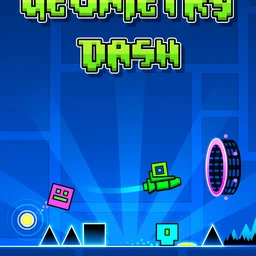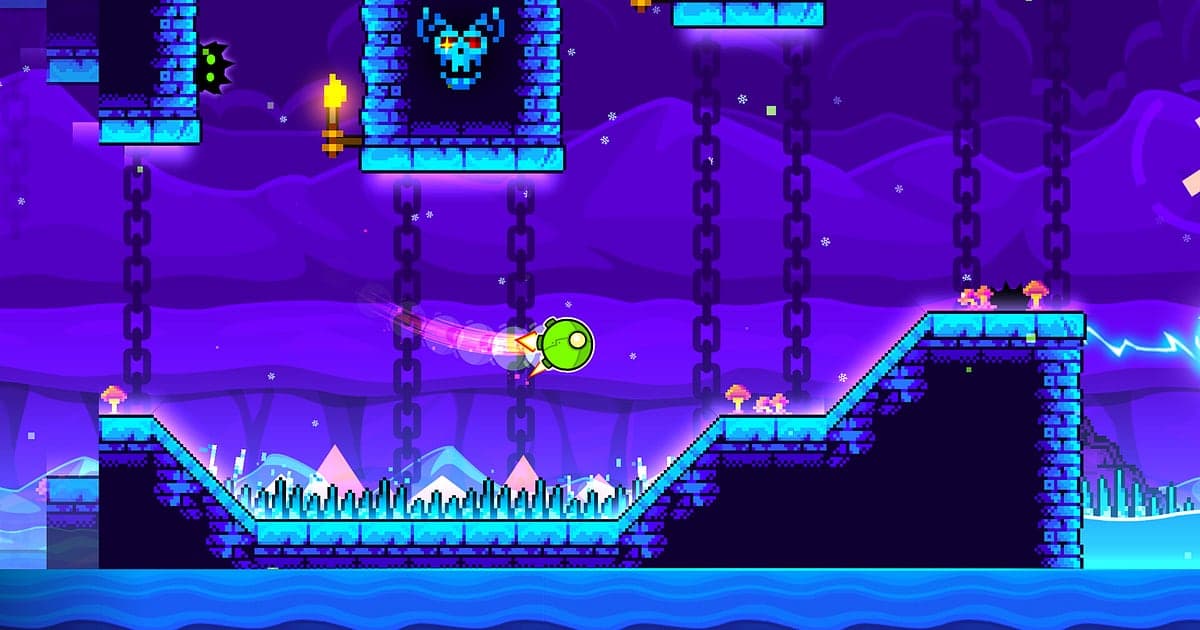
Geometry Dash records automatically once DOR is installed: launch the game and the AI handles capture. Nobody knows which attempt will be the one, but because recording runs from the moment the game starts, every death at 97% and the run that finally hits 100% all stay in one video. Checkpoint grinding in practice mode and full normal mode runs flow together without gaps, so you never toggle recording on and off. This guide shows you how to record Geometry Dash on PC with DOR, a free Windows app, then find the clear among hundreds of attempts, trim it and share it as raw completion footage.
- Keep your whole Geometry Dash session in one video, from checkpoint grinding in practice mode to full normal mode runs.
- Save your first demon completion or a New Best as its own clip with the clip save shortcut right after it happens.
- Use AI Voice Notes to turn what you say while grinding into timeline text, then jump to the clear by searching 'I beat it'.
- Combine your death at 97, a flawless wave section and your post clear reaction into one progress montage.
- Send a clear trimmed from the attempt counter to the level complete screen to friends on Discord as a dor.gg link.
Before you record Geometry Dash: install and recording mode
Geometry Dash is a lightweight rhythm platformer, so setup is quick and even an older laptop can record it comfortably. DOR is a free Windows app and never adds a watermark to your videos. Geometry Dash uses full session recording, which means menus, practice mode, countless deaths and the final success all run together in one video until you close the game. You do not need to know which attempt will win, but knowing how to find it later in a long recording matters. If your PC is on the weaker side, read recording games on a low end PC first. The table below lists what is worth knowing before you record Geometry Dash.
| Item | For Geometry Dash | Notes |
|---|---|---|
| Install | DOR, free Windows app, no watermark | No record button or capture area to set after install |
| Game version | Windows PC version on Steam | DOR records Geometry Dash running on your PC |
| Recording mode | Full session recording, one video from launch to exit | Practice mode and normal mode attempts share one video |
| Display mode | Fullscreen, windowed and borderless all record | DOR switches to monitor capture where game capture is blocked |
| Resolution and frame rate | 1080p at 30fps by default, 60fps available | Fast wave sections look much smoother at 60fps |
| Audio | Game music and your mic together | Clicks your mic picks up and your scream at 100% are included |
Record Geometry Dash with DOR: step by step
- 1Install DORDownload DOR and install it. It takes about a minute and costs nothing. Once installed, leave DOR running. If you want your clicks in the recording, just make sure your mic is connected.
- 2Launch Geometry DashStart Geometry Dash from Steam. Recording begins as soon as DOR detects the game, so even the main menu where you pick a level is captured. Warming up in practice mode before you attempt today's demon level stays in the recording as well.
- 3Confirm the recording is runningBefore your first attempt, glance at the DOR app to make sure recording is in progress. If the game is not picked up, follow what to do when the recorder does not detect your game. After that, forget about recording and focus, even if the attempt count climbs into the hundreds.
- 4Save a clip right after a clear or New BestAs soon as the level complete screen appears or your New Best percentage updates, press the clip save shortcut. The moment is saved as its own clip, so you never have to hunt for that attempt in a recording full of deaths.
- 5Close the game and open My ClipsWhen you are done grinding, close the game. The full session video and your saved clips appear together in My Clips in the DOR app. Open the clear first and check that the level complete screen made it in.
Find your recordings
Your recordings live in My Clips in the DOR app, also called the library. Each launch and exit of Geometry Dash becomes one session, and attempts saved with the clip save shortcut show up as their own clips. Missed the clip? No problem. Geometry Dash shows the attempt number at the start of every try, so look for the attempt where the number stops changing and play continues to the end of the level. That is your clear. Put the start where that attempt number appears and the end just after the level complete screen, so it is obvious you beat it from the beginning. Export the trimmed part as 16:9, 9:16 or 1:1. Attempts are short, so being a second or two off at either end changes how the clip feels; how to trim game clips covers precise cutting. Like the videos you want to keep for good, such as your first demon completion. When space fills up, older videos you have not liked are cleared first, so your liked clears stay put.
Save the moments you want to keep
Even though every attempt is recorded, saving the attempt that matters as a clip on the spot is far easier than digging later. Press the clip save shortcut and the last stretch of gameplay is saved as a clip. The default length is 30 seconds, and you can choose 15, 30, 45 or 60 seconds in settings. In Geometry Dash, good times to press it are right after the level complete screen appears, right after your New Best percentage updates, right after you finally get past the wave section that always kills you, and right after a painful death at something like 97%. Many levels run past a minute, so set the length to 60 seconds if you want as much of the winning run as possible, and trim longer levels from the full recording in the library. A painful death only needs 15 seconds. Lengths and shortcut settings are covered in saving the last few seconds instantly.
Find what was said with AI Voice Notes
Nobody grinds Geometry Dash in silence. Lines like '97 again, are you kidding', 'Just get past the wave' and 'Hands shaking, this is a new best' pile up attempt after attempt. DOR records game music and your mic together, and AI Voice Notes writes what you say onto the recording timeline as text. To find the clear in a practice session several hours long, search the timeline text for 'I beat it, I actually beat it' and select it to jump straight there. You can even scroll back to see the exact attempt where your reactions changed. If your mic is not being recorded, work through fixing a mic that is not recording.
Build a montage with AI Highlight
Putting hundreds of fails and the final clear into one video shows your progress in a couple of minutes. In the library, check your death at 97, the New Best, the flawless wave section, your first demon completion and your post clear reaction, then select AI Highlight. DOR joins them into a progress montage that runs from the part that killed you at first to the full completion. To arrange the attempts in order yourself, see how to merge game clips.
Edit in DOR Studio
DOR Studio opens in your browser with nothing to install. Keep the final stretch of your winning run and drop a shake zoom on the frame where 100% pops up. Add the attempt count as text, something like 'Attempt 1,247', and use a punch zoom on the hardest part to build tension. A fail compilation gets a nice rhythm when you join the deaths with glitch transitions. Export in 9:16 and your GD Short is done, or use 16:9 to show the whole level without cropping. Framing tips for vertical video are in recording games for vertical Shorts. Download the result as an mp4 or share it as a link straight away.
Share with a dor.gg link
Send your trimmed clear as a dor.gg link. Whoever opens it plays the video right in the browser without an app, so sending it to a friend stuck on the same level doubles as a reference run. When you post proof in a Discord server, a video with the whole level from the attempt counter to the level complete screen is the most convincing. If it is a custom level you built, include the level name in your message. Tips on choosing a ratio and length for each kind of moment are in sharing Geometry Dash clear videos, and posting to Discord is covered in sharing clips on Discord.
Geometry Dash recommended settings and troubleshooting
Geometry Dash is light, so the default 1080p at 30fps already captures level design crisply. Because the screen moves fast, though, 60fps is the better choice if you want wave and ship sections to look smooth. For long practice sessions on a laptop, the 720p/30fps mode keeps the load low. Fullscreen, windowed and borderless windows all record, so leave the game's display settings as they are. DOR uses GPU hardware encoding, so its effect on your in game frame rate is small. Timing is everything in this game, so if inputs feel delayed only while recording, work through fixing FPS drops while recording. DOR has no cheat features and never touches your game files or save data.
| Symptom | What to check | Fix |
|---|---|---|
| The recording is a black screen | The display mode in the game's settings | DOR records fullscreen, windowed and borderless alike. If it is still black, follow [fixing fullscreen recording](fullscreen-recording-not-working) to switch to monitor capture |
| Level music is missing | Your Windows output device and DOR audio settings | Check which device the game plays through, then work through [fixing game recordings with no sound](game-recording-no-sound-fix) |
| The game feels laggy when recording | Recording resolution and frame rate, and other programs running | GPU hardware encoding keeps the impact small, but drop to 720p/30fps mode if your PC still struggles |
| Files get huge after a full day of practice | Recording resolution and free drive space | Keep clears as clips and adjust settings with [reducing game recording file size](reduce-game-recording-file-size) |
| You cannot find the winning attempt | The attempt counter and your saved clips | Look for the attempt where the number stops changing and play reaches the end, and save a clip right after your next clear |