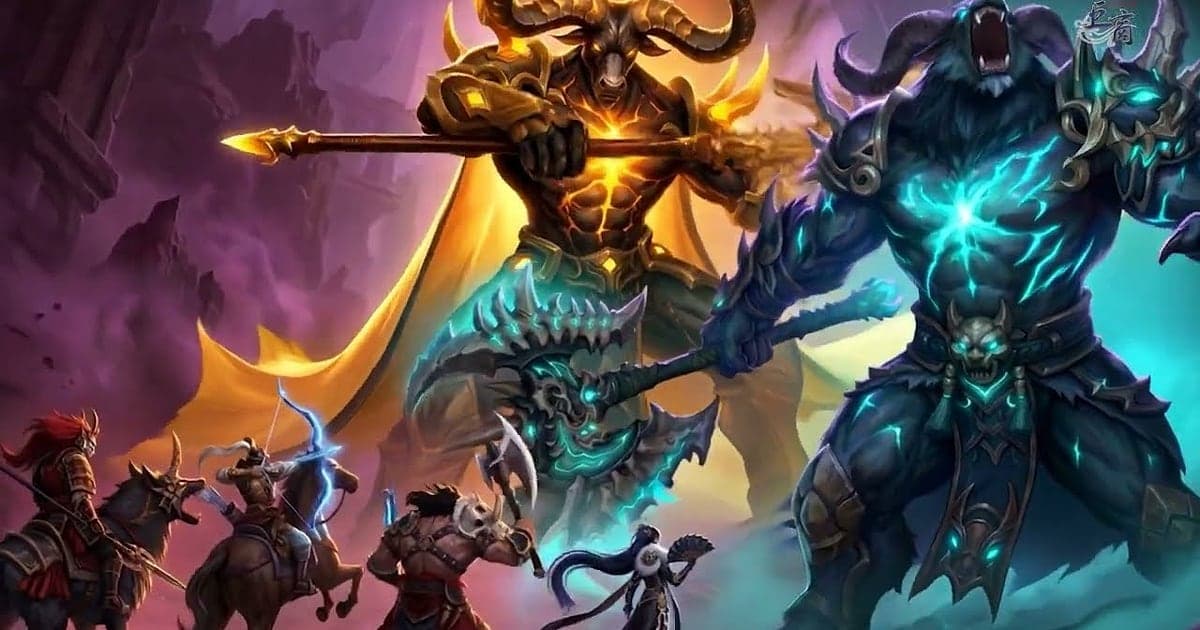
Gersang records automatically once DOR is installed: launch the game and the AI takes care of it. There is no record button and no window to pick. When Gersang starts, DOR records the whole session, from haggling in the market to hunting with your mercenaries. The profit you made buying goods in Joseon and selling them in another country's market, a hunt for the Four Heavenly Kings with your mercenary squad, and the moment your side held the castle in a national war all land in one video. The same goods sell for different prices in every town, so trading often runs for hours, which makes it important to know how to find moments quickly in a long recording. This guide is for anyone recording Gersang for the first time. It covers getting ready, confirming the recording, saving fights and deals, finding moments in a long recording, building a trading company video, sharing, and settings for long sessions.
- Keep hours of trading between towns in Joseon, Japan, China, Taiwan and India on video until you quit.
- Save a mercenary formation battle, a successful Four Heavenly Kings hunt or a castle defense in a national war as its own clip.
- Use AI Voice Notes to find lines like 'prices just went up, sell now' from your trading company and jump to that scene.
- Join a big arbitrage trade, a new mercenary hire and a rare item drop into one Gersang journal for the week.
- Post a Four Heavenly Kings hunt to your trading company chat or Discord with a single dor.gg link.
Before you record Gersang: install and recording mode
All you need to record Gersang is DOR. It is a free Windows app and never adds a watermark to your videos. Gersang is not saved per battle or per trade; it uses full session recording, so everything from launch to exit is one continuous video. Most of your time goes into moving between towns, checking prices and buying and selling, so recordings easily run for hours. It is worth reading recording long gameplay without stutter before your first long session. The game is light on hardware, so recording runs smoothly even at minimum spec. The table below lists what is worth knowing for Gersang.
| Item | For Gersang | Notes |
|---|---|---|
| Install | DOR, free Windows app | No watermark on your recordings |
| Game version | Gersang for Windows PC | DOR detects and records Gersang running on your PC |
| Recording mode | Full session recording | One file however many towns you visit or battles you fight |
| Display mode | Fullscreen, windowed and borderless all record | Keep the mode you already use in the game's settings |
| Resolution and frame rate | 1080p at 30fps by default | 60fps is available, plus a lighter 720p/30fps mode |
| Storage | About 30MB for a 30 second 1080p clip | Leave plenty of free drive space on days you trade for hours |
Record Gersang with DOR: step by step
- 1Install DORDownload DOR, install it and leave it running. If you share price tips with your trading company on voice, confirm DOR has your headset mic selected. Game audio and your mic are recorded together.
- 2Launch GersangStart Gersang and DOR detects the game and starts recording right away. Everything from picking your character to walking into town is captured, so there is nothing to do before you start trading.
- 3Check the recording before your first tradeOnce you are in town, open the DOR app once before visiting a shop and confirm it is recording. If the game is not detected, follow what to do when the recorder does not detect your game. Then jot down your route, such as when and in which town you buy and where you will sell.
- 4Save a clip when a fight or deal endsWhen you bring down one of the Four Heavenly Kings, or a rare item trade goes through after confirmation, press the clip save shortcut right after. The last stretch is saved as its own clip, so you never have to scroll through hours of recording from the start.
- 5Quit and open My ClipsFinish trading and close the game. The session video and every clip you saved appear together in My Clips in the DOR app. Battles you forgot to clip are all in the session video too.
Find your recordings
Find your recordings in My Clips in the DOR app, also called the library. Each time you open and close Gersang is grouped into one session, and moments saved with the clip save shortcut appear as separate clips. In Gersang, knowing roughly where a moment is matters more than deciding what to cut. When you meet monsters in the field, the game moves you to a battle map to fight, so when you scrub the timeline and see the field switch to a battle map, that is where a fight begins. Start a few seconds before that switch and the scene flows naturally. For trades, look for stretches where shop screens like the rice shop, market, weapon shop or apothecary open again in a different town. Trim the buy and the sell into about 15 seconds each so they are easy to join later. Export as 16:9, 9:16 or 1:1, and see how to trim game clips for the full walkthrough. Like videos you want to keep, such as a national war victory. When space fills up, older videos you have not liked are cleared first.
Save the moments you want to keep
Even with the whole session recorded, moments in Gersang are scattered across hours, so saving the ones you want as clips on the spot is much faster. Press the clip save shortcut and the last stretch is saved as a clip. The default length is 30 seconds, and you can choose 15, 30, 45 or 60 seconds in settings. A rare item trade that ends when the trade window closes after confirmation fits 15 seconds, and goods selling from your street stall fit 30 seconds. A battle where your mercenaries fight in formation on the battle map, the final blow of a Four Heavenly Kings hunt, or a castle held in a national war should be set to 60 seconds to capture the flow. Right after a newly hired mercenary from the training hall or general academy fights its first real battle is also a good moment to press it. Length settings are covered in saving the last few seconds instantly.
Find what was said with AI Voice Notes
In Gersang, information shared within your trading company is money. Lines like 'prices just went up, sell now', 'let's reset the mercenary formation and go in', 'what time does the national war start' and 'gather a party for the Four Heavenly Kings' fly constantly. DOR records game audio and your microphone together, and AI Voice Notes writes the price tips and hunt plans you shared with your guild onto the recording timeline as text. Later, when you want to know what an item cost on a given day, or who called the national war rally and when, find the line in the timeline text and select it to jump straight to that scene. In a recording that runs for hours, what you said at the time is the quickest way back. If your mic sounds quiet, check your input device with recording games with mic audio.
Build a montage with AI Highlight
A week of trading company activity fits neatly into one video. In the library, check your clips of a big arbitrage trade, a mercenary formation battle, a successful Four Heavenly Kings hunt, a national war castle defense, a rare item drop and a new mercenary hire, then select AI Highlight. DOR joins them into one Gersang journal. Pick only battle clips for a mercenary combat log, or only trade clips for a trading tips video, both good as activity records for your guild's community page or Discord. If you want to order clips by date yourself, see how to merge game clips.
Edit in DOR Studio
DOR Studio opens in your browser with nothing to install. Trim just the final blow out of a long hunt and add a shake zoom. For trades, join the buy in a cheap town with the sell in an expensive one and label the town names with text, and you get a short video that shows your profit at a glance. Lay out your mercenary lineup as text for a strategy video your guild can follow; a glitch transition between scenes and a punch zoom on the frame where a big deal closes work well. Mercenary battles spread across the battle map, so 16:9 fits them best, while a closed deal can be cut to 1:1 or a 9:16 Short and still read clearly on a phone. Framing tips are in recording games for vertical Shorts. Download the result as an mp4 or share it as a link.
Share with a dor.gg link
Send trimmed moments as dor.gg links. Whoever opens one plays it in their phone's browser without the app. Paste the link into a small trading company of up to 15 people or a larger company's group chat and members watch right away, and a street stall sale is a good one to send a friend who asked for trading tips. Before sending a trade scene, check that nothing the other player would not want shown is visible. Which moments to pull from each kind of content and how long to trim them are covered in sharing Gersang mercenary battle videos, and posting to Discord is covered in sharing clips on Discord.
Gersang recommended settings and troubleshooting
Gersang is light on hardware, so recording runs smoothly even at minimum spec. The default 1080p at 30fps is enough, and if you want scenes where your whole mercenary squad moves at once on the battle map to look smoother, choose 60fps. On an older laptop, the 720p/30fps mode keeps the load down; tips for light setups are in recording games on a low end PC. DOR uses GPU hardware encoding, so its impact on in game frame rate is small. Fullscreen, windowed and borderless windows all record, so keep the mode you already use. On days you do not want to record, you can switch full session recording on or off per game in settings. DOR has no cheat features and never touches your game files or play data.
| Symptom | What to check | Fix |
|---|---|---|
| The recording is a black screen | The display mode in the game's settings | DOR records fullscreen, windowed and borderless alike. If it is still black, follow [fixing fullscreen recording](fullscreen-recording-not-working) to switch to monitor capture. |
| Files get large after hours of trading | Recording resolution and session length | Clip only fights and deals and see [reducing game recording file size](reduce-game-recording-file-size). |
| Your game drive is low on space | Recording save path | Follow [changing your recording save location](change-recording-save-location) to move recordings to a roomier drive. |
| You do not want to record today | Per game recording in DOR settings | Turn off full session recording for Gersang in settings, then turn it back on for national war days. |
| Worried a recorder could affect your account | How DOR works | DOR only captures the screen, has no cheat features and does not modify game files or play data. |