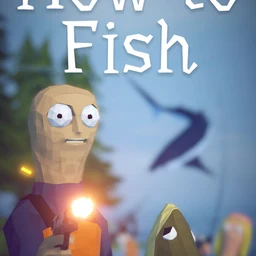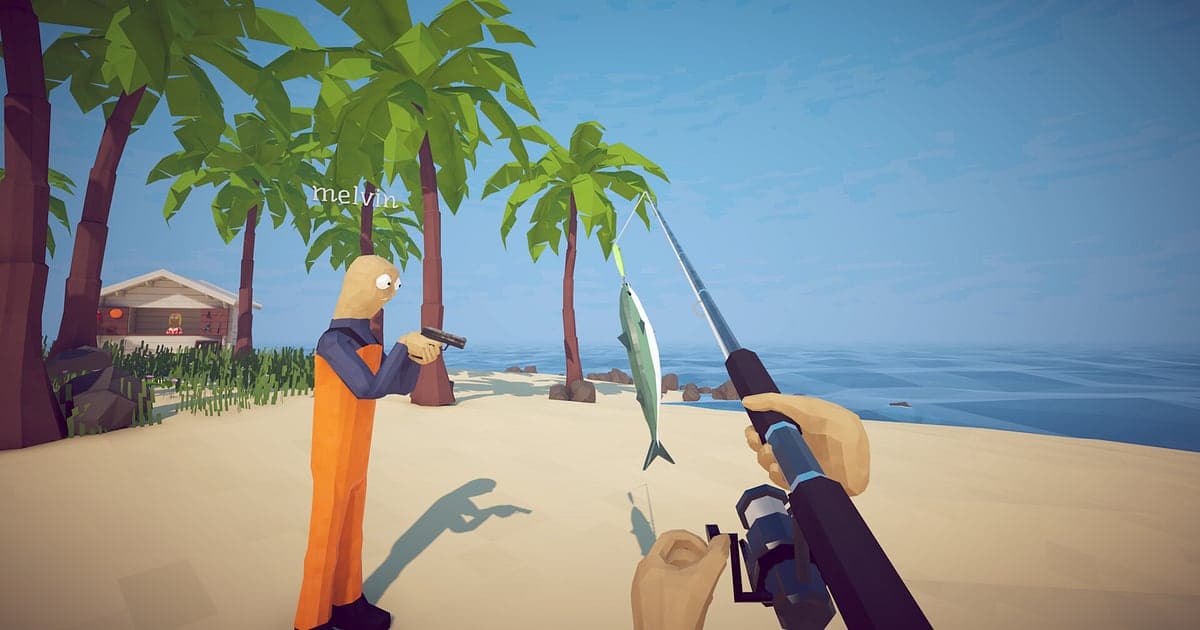
How to Fish records automatically once DOR is installed: launch the game and the AI handles the rest. From your first cast to the moment you reach the last island, the whole trip becomes one video. The game is at its best with friends, and that is exactly when the unrepeatable moments happen: a bullet or arrow that lands at an absurd angle, a fight with something as big as a pufferfish boss, or a stray explosive that launches the whole crew at once. Those moments pass long before anyone could reach a record button. This guide walks you through recording How to Fish in order: installing DOR, checking that recording is running, saving big catches and chaos, finding scenes later, building a fishing log and sending it to friends.
- Keep a whole trip in one video, from waiting for the first bite to the reel fight with a big fish.
- Save your first rare species, a line that nearly snapped or a friend's trick shot as separate clips.
- Use AI Voice Notes to find chatter like 'got a bite, everyone hush' and jump straight to that moment.
- Join the first bite, the big fish reel fight and the new rod debut into today's fishing log with AI Highlight.
- Send a clip link instead of a screenshot to prove your catch in Discord or a group chat.
Before you record How to Fish: install and recording mode
How to Fish is a light co op fishing game, so getting ready to record takes very little. DOR is a free Windows app and never puts a watermark on your videos. The game uses full session recording, which means moving between islands or reopening a lobby does not split the video; it keeps going until you close the game. How to Fish is installed and played as the Windows version on Steam, so if you want to check whether your device can run it first, read How to Fish platform support. The table below sums up what to know before you record.
| Item | For How to Fish | Notes |
|---|---|---|
| Install | DOR, free Windows app | Free to use, and no watermark on your videos |
| Game version | Windows PC version on Steam | DOR records How to Fish running on your PC |
| Recording mode | Full session recording | Island hops, shop visits and boss fights stay in one video until you quit |
| Co op | Lobbies of up to 8 players | Your view, game audio and your mic are recorded, and friends watch through a link |
| Resolution and frame rate | 1080p at 30fps by default | 60fps is available, plus a lighter 720p/30fps mode |
| Storage | About 30MB for a 30 second 1080p clip | Leave plenty of free space for trips that run for hours |
Record How to Fish with DOR: step by step
- 1Install DORDownload DOR, install it and leave it running. It is free, and once it is set up there is nothing to prepare each time you launch How to Fish. Do it before the trip you planned with friends.
- 2Launch How to Fish and open a lobbyStart How to Fish from Steam and DOR detects it and starts recording right away. If you are hosting, recording is already running while you open the lobby and invite friends. Player limits and private lobby invites are covered in How to Fish player count and co op setup.
- 3Check recording before the first castBefore you cast on the first island, open the DOR app once and confirm the recording is in progress. After that, wait for bites or browse gear in the shop without thinking about it.
- 4Clip big catches and chaos right awayWhen a big fish breaks the surface or a friend's trick shot lands somewhere ridiculous, press the clip save shortcut immediately. The last stretch of play is stored as a separate clip, so you can pull it up again after everyone stops laughing.
- 5End the trip and open My ClipsWhen you call it a day and close the game, the full session video and every clip you saved appear together in My Clips in the DOR app. A trip that reached the last island and one where everyone went down on the first island are kept the same way.
Find your recordings
Your recordings live in My Clips in the DOR app, also called the library. Each time you open and close How to Fish becomes one session, and anything you grabbed with the clip save shortcut shows up as its own clip. To find a scene in a long session, use island transitions and shop visits as landmarks. Just remembering which island something happened on narrows it down fast. Once you find it, set a start and an end point to keep only that stretch, then export as 16:9, 9:16 or 1:1. If you missed the clip save shortcut on a trick shot or the ending, the steps for recovering it from the session video are in finding missed How to Fish moments. Like the videos you want to keep for good, such as the trip where you saw the ending. When space fills up, older videos you have not liked are cleared first, so liked trips stay put.
Save the moments you want to keep
Even with the whole trip recorded, clipping the moments you care about on the spot makes them easy to find. Press the clip save shortcut and the last stretch of play is saved as a clip. The default length is 30 seconds, and you can choose 15, 30, 45 or 60 seconds in settings. In How to Fish, good times to press it are right after you land a species you have never seen, right after a reel fight where the line almost snapped, right after a friend's bullet or arrow lands at an impossible angle, and right after someone's explosive sends the whole crew flying. A reel fight with a big fish can last close to a minute, so set the length to 60 seconds and you will catch everything from the bite to the fish leaving the water. To change the shortcut, see saving the last few seconds instantly.
Find what was said with AI Voice Notes
Half the fun of How to Fish is the chatter. Lines like 'got a bite, everyone hush', 'ease off, the line's gonna snap' and 'that's a pufferfish, never seen one' never stop. DOR records game audio and your microphone together, and AI Voice Notes writes that chatter onto the recording timeline as text. When you want to know where that spot was that someone called stacked, find the line in the timeline text and select it to jump straight to the scene. Whatever a friend said right before throwing an explosive is on record too, which helps settle who caused the accident. If you fish over a Discord call, see recording Discord call audio to get the call into the recording as well.
Build a montage with AI Highlight
To pull the best catches out of a long trip, use AI Highlight. In the library, check your first bite, the big fish reel fight, your first rare catch, the line that almost snapped, the new rod debut and the day you completed the collection, then select AI Highlight. DOR joins them into a single fishing log. Mix in a few of the chaotic moments with friends and the video captures the mood of the whole trip too. To place clips island by island yourself, see how to merge game clips.
Edit in DOR Studio
DOR Studio opens in your browser with nothing to install. Add a punch zoom on the frame where the fish jumps clear of the water and put its name on screen as text, and you have proof of your trophy catch. Lay a calm background track under it for a cozy fishing Short, or put a shake zoom on an explosion accident to land the joke. 9:16 suits Shorts and Reels, while 1:1 works for group chat previews. For keeping the rod tip and the fish in a vertical frame, read recording games for vertical Shorts. When you are done, download the result as an mp4 or share it as a link straight away.
Share with a dor.gg link
Send trimmed moments as dor.gg links. Whoever opens the link plays it right in their browser without installing anything, so you can post today's chaos in the Discord server where your fishing crew hangs out or drop a trophy catch into a group chat. For a friend who could not make it, pick the stretch where you reached the last island. Choosing big catch and boss fight scenes to send is covered in sharing How to Fish catch videos, and posting to Discord is covered in sharing clips on Discord.
How to Fish recommended settings and troubleshooting
How to Fish is fairly light, so recording runs smoothly even at minimum spec. The default 1080p at 30fps captures the sea and the fish cleanly, and 60fps is the pick if you want reel fights and gunfights to look smoother. On a laptop during a long trip, the 720p/30fps mode keeps the load low. Fullscreen, windowed and borderless windows all record, so leave the game's settings as they are. Difficulty is a game setting and has nothing to do with recording settings; what easy and hard actually change is covered in How to Fish difficulty settings. DOR uses GPU hardware encoding, so its effect on play is small. It has no cheat features and never touches your game files or play data. For trips that run for hours, see recording long gameplay without stutter.
| Symptom | What to check | Fix |
|---|---|---|
| The recording is a black screen | The display mode in the game's settings | DOR records fullscreen, windowed and borderless alike. If it is still black, follow [fixing fullscreen recording](fullscreen-recording-not-working) to switch to monitor capture. |
| Your voice is missing from the chatter | Your Windows input device and DOR mic settings | Check that the right mic is selected, then work through [fixing a mic that is not recording](mic-not-recording-fix). |
| Fights look choppy with eight players | Recording frame rate and resolution | GPU hardware encoding keeps the impact small, but if your PC struggles, drop to 720p/30fps mode. |
| Long trips make large files | Free drive space | Clip only the scenes you will rewatch, and like the trip where you saw the ending. |