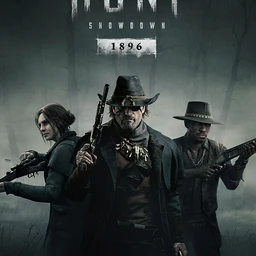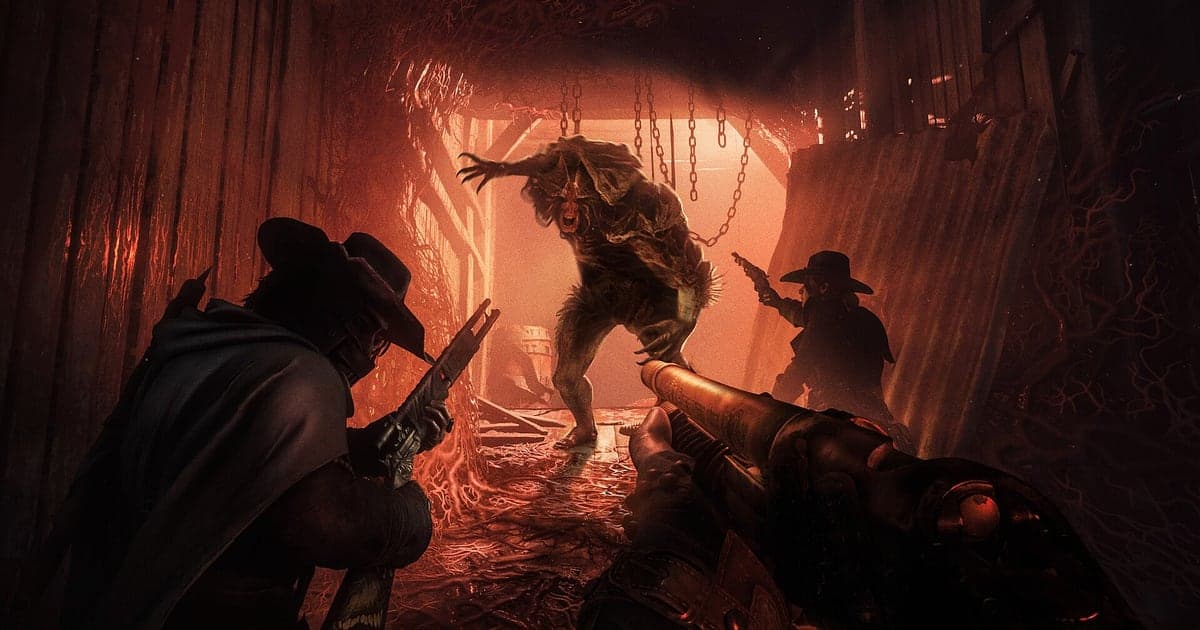
Hunt: Showdown 1896 records automatically once DOR is installed: launch the game and the AI handles the rest. You never press a record button before a contract or draw a capture area. DOR detects the game and, whether you drop into Mammon's Gulch or Stillwater Bayou, keeps one continuous video from your first step at the spawn point through tracking three clues, the fight at the boss lair, holding out while the banish burns and extraction. When you close the game, the recording ends. Hunt is full of deaths where you never saw where the shot came from, so it is the kind of game where you want to rewatch the fight like a replay the moment it ends. This guide focuses on making that review quick, and walks through installing DOR, saving moments, finding duo and trio sound calls, editing a survival reel, sharing a link, and recommended settings and fixes for a GPU heavy game.
- Keep a whole Hunt contract in one video, from the spawn point through clues, the boss fight, the banish and extraction.
- Save the moment you held a compound until the banish finished or got out with the bounty using the clip save shortcut.
- Use AI Voice Notes to find the call "Crows went up to the north" and review the ambush from the moment it began.
- Combine a Butcher kill, a banish defense and a shot across the swamp into a bayou survival reel.
- Send a bounty extraction to your hunting partner's Discord with a single dor.gg link.
Before you record Hunt: Showdown 1896: install and recording mode
DOR records the Windows PC version of Hunt: Showdown 1896 that you launch through Steam. DOR is a free Windows app and never puts a watermark on your videos. It uses full session recording: the file is not split after each contract, and from the hunter selection menu through several contracts in a row, everything stays in one video until you close the game. There is no recording time limit, so even a contract where the clue hunt drags on is kept through extraction. Game audio is recorded as it plays, so you can relisten to footsteps and gunshot direction later while reviewing a fight. To see how detection and recording work in general, read how DOR records games automatically. The table below covers what to check before your first recording.
| Item | For Hunt: Showdown 1896 | Notes |
|---|---|---|
| Install | DOR, free Windows app | No watermark on your videos |
| Game version | Windows PC version on Steam | Detected automatically when the game launches |
| Recording mode | Full session recording | Back to back contracts stay in one video until you close the game |
| Sound | Game audio and microphone recorded together | Crows, footsteps, gunshot direction and your partner's voice land in the same video |
| Resolution and frame rate | 1080p at 30fps by default, 60fps available | GPU heavy, so recommended spec or above is steadiest; use 720p/30fps mode if it struggles |
| Storage | About 30MB for a 30 second 1080p clip | Leave plenty of free space if you play several long contracts |
Record Hunt: Showdown 1896 with DOR: step by step
- 1Install DORDownload and install DOR. It takes about a minute and is free. Leave DOR running once it is installed. If you have an evening hunt planned with your duo or trio, get this done before you log in.
- 2Launch Hunt: Showdown 1896Start Hunt: Showdown 1896 from Steam. DOR begins recording as soon as it detects the game, so it is normal for the recording to start in the menus where you pick your hunter and loadout.
- 3Check that recording is runningBefore your first contract, glance at the DOR app once to confirm recording is in progress. If the game is not picked up, follow what to do when the recorder does not detect your game. After that, leave the spawn point and hunt for clues as usual.
- 4Save the clip right after the banishWhen you kill the boss and hold a window each until the banish finishes, or drop an enemy across the swamp with a single shot, press the clip save shortcut right after. The last 30 seconds are saved as a separate clip.
- 5Close the game and open My ClipsFinish your last contract and close the game. The full session video and every clip you saved appear together in My Clips in the DOR app. Even the matches where you died without knowing where the shot came from are there to scrub back through.
Find your recordings
Your hunts are organized in My Clips in the DOR app, also called the library. Each time you open and close Hunt: Showdown 1896 becomes one session, and moments you saved during play show up as separate clips. To find a particular contract inside a long session, use the loading screen as you enter the map and the results screen after the contract ends as landmarks, and you can split the recording contract by contract. Within a match, entering the boss lair and the start of the banish are good markers. When reviewing a death, jump to just before the results screen and back up a little to start from the final fight. Set a start and an end point to trim the part you need, then export as 16:9, 9:16 or 1:1. Trimming tips are in how to trim game clips. Like the contracts you walked out of with the bounty. When space fills up, older videos you have not liked are cleared first, so liked ones stay put.
Save the moments you want to keep
Even with the whole contract recorded, saving a moment as a clip on the spot makes it far easier to find. Press the clip save shortcut and the last stretch of gameplay is saved as a clip. The default length is 30 seconds, and you can choose 15, 30, 45 or 60 seconds in settings. In Hunt, good times to press it are right after you kill a boss like the Butcher, right after you hold out until the banish finishes, right after you reach the extraction point with the bounty, and right after you land a single shot on an enemy across the swamp. A long range shot fits in 15 seconds, but a banish defense where you move between windows or a late trio wipe is better at 60 seconds so the whole fight is captured. To pick the right length for each kind of moment, see saving the last few seconds instantly.
Find what was said with AI Voice Notes
Hunt lives on audio, so the calls you trade with your partner are the plan. Lines like "Crows went up to the north", "Banish started, take a window each", "Got the bounty, heading northeast extract" and "How far was that shot?" go back and forth. DOR records game audio and your microphone together, and AI Voice Notes writes your duo or trio's calls onto the recording timeline as text. If the crow call up north was where the ambush began, that is exactly where your review starts. Search the timeline text for "crows" and select it to jump straight to that moment, then relisten to the footsteps and shots you heard. If you and your partner talk over a Discord voice channel, check your devices with recording Discord call audio.
Build a montage with AI Highlight
Gather only the contracts you walked out of with the bounty and you have a bayou survival reel. In the library, check the Butcher kill, the banish defense, the bounty extraction, the shot across the swamp and the close quarters fight in a compound, then select AI Highlight. DOR joins them into one video. Check them in the order a contract plays out, from boss kill to extraction, and one hunt reads like a short western; gather the late trio wipes from several matches and you get a fight montage. If you would rather set the clip order yourself, see how to merge game clips.
Edit in DOR Studio
DOR Studio opens in your browser with nothing to install. A shot that lands across the swamp needs a punch zoom to read: trim from just before the crack and put the punch zoom on the hit frame, then add a shake zoom and a handheld effect to close quarters fights for tension. Use glitch transitions between matches and put text like "banish held 1:21" on screen. Export long range shots as 9:16 Shorts and full contracts as 16:9 montages. Framing tips for vertical video are in recording games for vertical Shorts. When you are done, download an mp4 or share it as a link straight away.
Share with a dor.gg link
Send trimmed moments as dor.gg links. Whoever opens the link plays the video right in the browser without installing anything, so sending the extraction to your hunting partner on Discord lets you review it together before the next contract. Sending just the shot across the swamp to a friend who could not join that night tends to get a reaction too. Tips on cutting out bounty fights and footstep ambushes are in sending Hunt: Showdown extraction videos, and posting to Discord is covered in sharing clips on Discord.
Hunt: Showdown 1896 recommended settings and troubleshooting
Hunt: Showdown 1896 has dark swamps, dense brush and complex lighting, which makes it GPU heavy, so recommended spec hardware or better keeps both your in game frame rate and the recording stable. Recording starts at 1080p and 30fps by default; switch to 60fps if you want fast moments like close quarters fights to look smoother. DOR uses GPU hardware encoding, so its effect on your frame rate is small. If your PC still struggles, drop recording to 720p/30fps mode, and if the stutter only happens while recording, start with fixing FPS drops while recording. Since you read enemies by sound, it is also worth confirming that your game audio output device is the one DOR records. Fullscreen, windowed and borderless all record, and where anti cheat blocks game capture, DOR switches to monitor capture. DOR has no cheat features and never touches your game files or play data.
| Symptom | What to check | Fix |
|---|---|---|
| The recording is a black screen | The in game display mode and capture method | All three display modes record. If it is still black, follow [fixing fullscreen recording](fullscreen-recording-not-working) to switch to monitor capture. |
| Footsteps and gunshots are missing | Your Windows output device and DOR audio settings | Confirm the headset the game plays through, then work through [fixing game recordings with no sound](game-recording-no-sound-fix). |
| Frame rate drops in swamps or heavy brush | Recording frame rate and in game graphics options | Keep recording at 30fps or drop to 720p/30fps mode, and set in game options to match the recommended spec. |
| Night maps record too dark | The game's brightness setting | The recording shows exactly what is on screen. Adjust brightness in game and check with a short test recording. |
| Worried a recorder could affect your account | How DOR works | DOR only captures the screen, has no cheat features and does not modify game files or play data. |