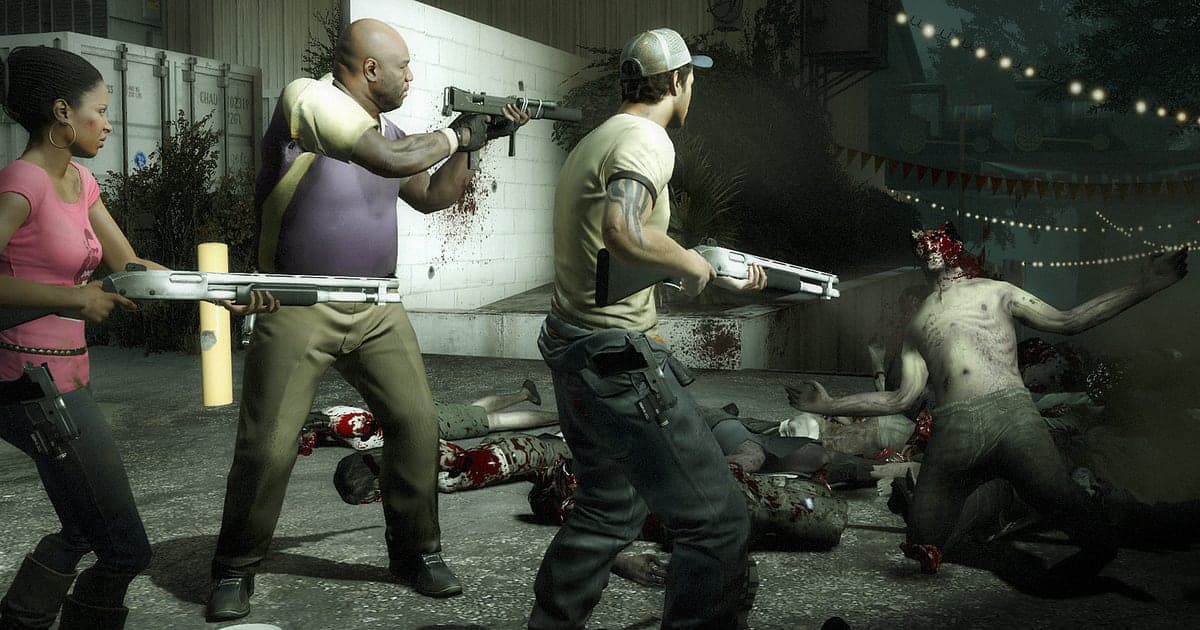
Left 4 Dead 2 records automatically once DOR is installed: launch the game and the AI takes care of it. There is no need to record a demo and replay it later to capture the screen, because you get an mp4 of exactly what you played. Start L4D2 through Steam and DOR detects it, then records Campaign, Versus or Survival until you quit, keeping the Witch's crying, your team's voice chat and every shotgun pump in one video. Who startled the Witch? Now there is video evidence. This guide is for anyone recording Left 4 Dead 2 for the first time. It walks through getting ready, confirming the recording, saving close calls, finding footage chapter by chapter, building a campaign montage, sharing with friends and fixing common problems.
- Record a whole night of campaigns, from Dark Carnival through Hard Rain, in one video until you quit.
- Save a Molotov Tank kill, a rescue from a Charger or a one shot Witch crown as separate clips.
- Use AI Voice Notes to find shouts like 'Jockey's got me, help' and jump straight to that scene.
- Join Tank kills, the finale chopper boarding and a Boomer bile disaster into one video of your four player campaign.
- Post the hilarious team wipe to your crew's Discord with a single dor.gg link.
Before you record Left 4 Dead 2: install and recording mode
All you need to record Left 4 Dead 2 is DOR. It is a free Windows app and never adds a watermark to your videos. L4D2 uses full session recording, so a full campaign from the first saferoom to the finale becomes one video, loading screens between chapters included. Add on campaigns are recorded the same way while you play them in L4D2. The game is old and light on hardware, so recording runs smoothly even at minimum spec; on a laptop, also read recording games on a low end PC. The table below lists what is worth knowing before your first L4D2 recording.
| Item | For Left 4 Dead 2 | Notes |
|---|---|---|
| Install | DOR, free Windows app | No watermark on your recordings |
| Game version | Windows PC version on Steam | DOR detects and records Left 4 Dead 2 running on your PC |
| Recording mode | Full session recording | Saved directly as an mp4 video, not a demo file |
| Modes recorded | Campaign, Versus, Survival and add on campaigns | Every mode stays in one video until you quit |
| Display mode | Fullscreen, windowed and borderless all record | Keep the mode you already use in the video settings |
| Resolution and frame rate | 1080p at 30fps by default | 60fps is available, plus a lighter 720p/30fps mode |
Record Left 4 Dead 2 with DOR: step by step
- 1Install DORDownload DOR, install it and leave it running. If the four of you will be talking on Discord or in game voice, just confirm DOR has your usual headset mic selected. Game audio and your mic are recorded together.
- 2Launch L4D2 and open a lobbyStart Left 4 Dead 2 from Steam and DOR detects the game and starts recording right away. The lobby, where you pick a campaign and difficulty, is captured too, so there is nothing to do while you wait for everyone to join.
- 3Check the recording in the first saferoomWhen the first chapter loads, open the DOR app once before you open the saferoom door and confirm it is recording. If the game is not detected, follow what to do when the recorder does not detect your game. Then grab your weapons and head out.
- 4Save a clip right after a close callWhen the Tank music kicks in and the four of you finally bring it down with Molotovs and shotguns, press the clip save shortcut right after it falls. The last stretch is saved as a separate clip, so you never have to dig through a multi hour campaign recording for that fight.
- 5Quit and open My ClipsBoard the finale chopper, finish the campaign and close the game. The session video and every clip you saved appear together in My Clips in the DOR app. Wipes where you had to restart a chapter are in there too.
Find your recordings
Look for your recordings in My Clips in the DOR app, also called the library. Everything from launching L4D2 to quitting is grouped into one session, and anything you saved with the clip save shortcut is listed as its own clip. Campaign recordings pass through a loading screen at every chapter, so if you remember 'middle of the third chapter', count loading screens and you will land on it quickly. Inside a chapter, the music change when a Tank appears, a teammate's scream and the moment the saferoom door comes into view are all good markers. Once you find the scene, set the start a few seconds before the tension builds and the end after it resolves, then export as 16:9, 9:16 or 1:1. Tips on choosing a start point are in how to trim game clips. Like the videos you want to keep, such as the first time your group cleared a harder difficulty. When space fills up, older videos you have not liked are cleared first.
Save the moments you want to keep
Even with the whole campaign recorded, clipping close calls right after you survive them is much faster than searching later. Press the clip save shortcut and the last stretch is saved as a clip. The default length is 30 seconds, and you can choose 15, 30, 45 or 60 seconds in settings. In L4D2, good moments to press it are right after the Tank drops, right after you pull a teammate free from a Charger or a Jockey, right after you crown a Witch in one shot, and right after you survive a horde while covered in Boomer bile. A Witch crown is over in an instant, so 15 seconds is plenty, but long scenes like a Tank fight or a finale hold need 60 seconds to include the moment the music changes. What each clip length is good for is covered in saving the last few seconds instantly.
Find what was said with AI Voice Notes
When four people scream at once, nobody remembers who said what. Lines like 'Witch is crying, lights off and go around', 'Tank's up, throw the Molotov' and 'one gas can left, I'll carry it' fly constantly. DOR records game audio and your microphone together, and AI Voice Notes lays those shouts out as text on the recording timeline. Want to find who ruined the run? Search for 'don't startle the Witch' and select it. You jump straight to the scene right after, where you can see who walked in with their flashlight on. If you play on a Discord call, see recording Discord call audio to get your friends' voices into the same video.
Build a montage with AI Highlight
A night where you ran a full campaign to the finale deserves a montage. In the library, check your clips of the Molotov Tank kill, the rescue from a Charger, the finale chopper boarding, the Witch crown, the Boomer bile disaster and the last gas can scramble, then select AI Highlight. DOR joins them into one video of the four of you getting through the campaign. Pick only wins for a survival story, or only wipes for a blooper reel. If you want to order clips by chapter yourself, see how to merge game clips.
Edit in DOR Studio
DOR Studio opens in your browser with nothing to install. A shake zoom brings a Tank's rock throw to life, and a punch zoom suits the frame where your Witch crown lands. Add a handheld effect to a teammate being dragged off by a Charger to sell the panic, and use a glitch transition between chapters. Add text like 'First finale survived' and background music, then export as 16:9, 9:16 or 1:1; vertical framing tips are in recording games for vertical Shorts. Download the result as an mp4 or share it as a link straight away.
Share with a dor.gg link
Send trimmed scenes to the other three with one dor.gg link. They play the video right in their browser without downloading anything. Paste it into the Discord channel where you set up the campaign and everyone watches at once, and a clip of all four of you sent flying by a Tank works as a Short with no watermark. Which teammate's view works best for each kind of crisis, and what to look for, is covered in sharing Left 4 Dead 2 Tank videos. Posting to Discord is covered in sharing clips on Discord.
Left 4 Dead 2 recommended settings and troubleshooting
L4D2 is a light game, so the default 1080p at 30fps already captures hordes and fire effects clearly. If you want shotgun spam and incoming hordes to look smoother, choose 60fps, and on an older laptop use the 720p/30fps mode to keep the load down. Fullscreen, windowed and borderless windows all record, so you do not need to change the game's video settings. DOR uses GPU hardware encoding, so its impact on frame rate is small. Nights where you chain several campaigns produce sessions that run for hours, so read recording long gameplay without stutter and keep plenty of free drive space. DOR has no cheat features and never touches your game files or play data.
| Symptom | What to check | Fix |
|---|---|---|
| The recording is a black screen | The display mode in the game's video settings | DOR records fullscreen, windowed and borderless alike. If it is still black, follow [fixing fullscreen recording](fullscreen-recording-not-working) to switch to monitor capture. |
| Friends' voices or game audio are missing | Your Windows output device and DOR audio settings | Confirm which device the game plays through, then work through [fixing game recordings with no sound](game-recording-no-sound-fix). |
| Files get large after several campaigns | Recording resolution and free drive space | Save the scenes you rewatch as clips and adjust settings using [reducing game recording file size](reduce-game-recording-file-size). |
| Lag when a horde rushes in | Recording resolution and frame rate | GPU hardware encoding keeps the impact small, but if your PC still struggles, drop to 720p/30fps mode. |
| Worried a recorder could affect your account | How DOR works | DOR only captures the screen, has no cheat features and does not modify game files or play data. |