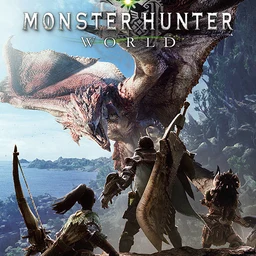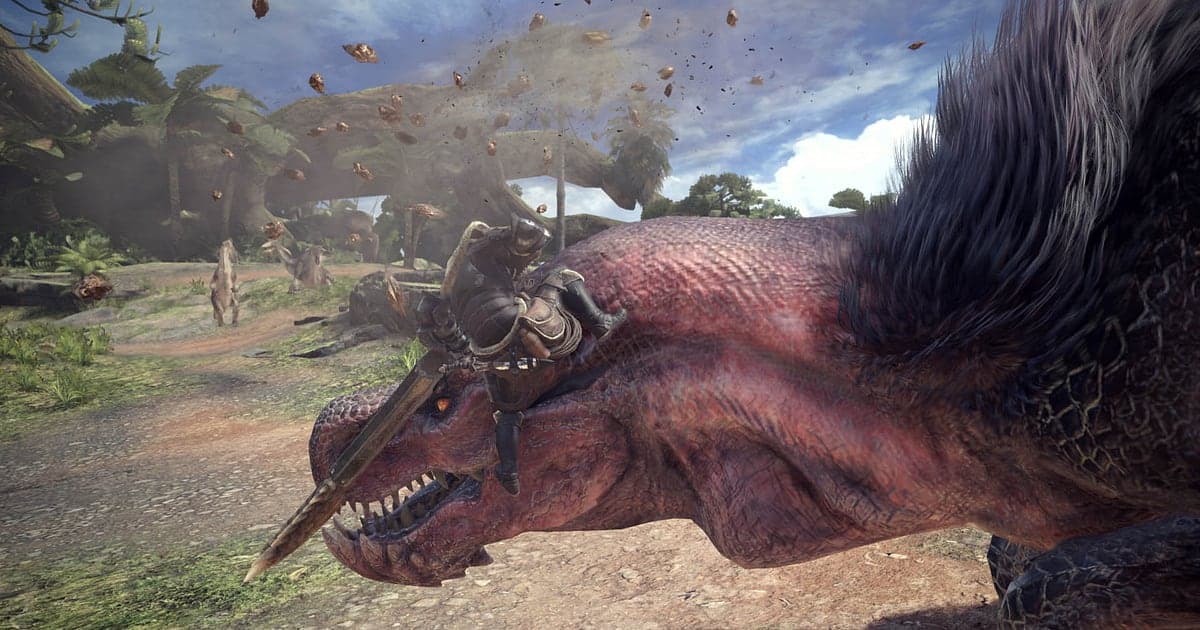
Monster Hunter: World records automatically once DOR is installed: launch the game and the AI handles recording. There is no record button to press. From the moment you pick your gear and take a quest at the hub until the reward screen, the whole hunt ends up in one video, monster roars and party voice included. This guide walks hunters through the routine in order: installing DOR, checking the recording, saving highlight moments, finding them later, building a hunt reel and sharing it with your party. Where did you cart, and why did that attack land? The recording has the answer.
- Keep a full hunt on video, from tracking Rathalos through the Ancient Forest to the reward screen.
- Save a Great Sword True Charged Slash to the head or a successful trap capture as a clip on the spot.
- Use AI Voice Notes to find party calls like 'flash pod, look away' and jump straight to that moment.
- Combine broken Nergigante spikes, a mount into topple and your Fatalis clear into a hunt reel.
- Send the clear to the people you hunted with using a single dor.gg link.
Before you record Monster Hunter: World: install and recording mode
Monster Hunter: World is GPU heavy, so playing at or above the recommended spec keeps both your in game frame rate and the recording stable. DOR is a free Windows app and never adds a watermark. MHW uses full session recording, so running several quests and heading back to Astera between hunts does not break the video. It keeps going until you close the game. If you are worried about frames in effect heavy four player hunts, read fixing FPS drops while recording first. The table below lists what is worth knowing before your first MHW recording.
| Item | For Monster Hunter: World | Notes |
|---|---|---|
| Install | DOR, free Windows app | No watermark, so hunt videos go up exactly as recorded |
| Game version | Windows PC version on Steam, Iceborne included | DOR records MHW on your PC, solo or in a party of four |
| Recording mode | Full session recording | One video from launch to exit, not cut when a quest ends |
| Hardware | GPU heavy game | At or above recommended spec, frame rate and recording both stay stable |
| Resolution and frame rate | 1080p at 30fps by default | 60fps for smoother dodges, or the lighter 720p/30fps mode to cut the load |
| Storage | About 30MB for a 30 second 1080p clip | Leave plenty of drive space on days you repeat the same quest for hours |
Record Monster Hunter: World with DOR: step by step
- 1Install DORDownload and install DOR. It takes about a minute and is free. Leave it running afterwards, so forgetting to open a recorder before a hunt never costs you footage.
- 2Launch Monster Hunter: WorldStart Monster Hunter: World from Steam and pick your hunter. As soon as DOR detects the game, recording begins, so everything from setting up gear in the hub and stepping up to the quest board is captured.
- 3Check the recording before you departBefore your first quest, glance at the DOR app once to confirm the recording. If nothing starts, follow what to do when the recorder does not detect your game. After that, focus on following the tracks.
- 4Clip right after the big momentPress the clip save shortcut right after a True Charged Slash lands on the head, a trapped monster is captured or a mount ends in a topple. The last 30 seconds are saved as a clip, so you never have to hunt for that one hit inside a long recording.
- 5Quit and open My ClipsWhen the hunting is done, close the game. The full session and every clip you saved show up together in My Clips in the DOR app. The day you slew Fatalis and the day you carted three times and failed are filed the same way.
Find your recordings
Your recordings live in My Clips in the DOR app, also called the library. Each time you open and close MHW becomes one session, and clips saved with the shortcut appear underneath it. To find a particular hunt inside a long session, use the departure screen and the reward screen after the slay as landmarks. They split the session into hunts cleanly. If you want to see why you carted, rewind the few dozen seconds before it and the attack that hit you is right there. Set a start and an end point to trim what you need, then export as 16:9, 9:16 or 1:1. The full steps are in how to trim game clips. Like the videos you want to keep, such as your first slay of a new monster. When space fills up, older videos you have not liked are cleared first, so that hunt stays.
Save the moments you want to keep
Even with the whole hunt recorded, clipping the hit you want to show your party on the spot makes it easy to find later. Press the clip save shortcut and the last stretch is saved as a clip. The default length is 30 seconds, and you can choose 15, 30, 45 or 60 seconds in settings. In MHW, good times to press it are right after a True Charged Slash lands on the head, right after a trap capture succeeds, right after you break Nergigante's spikes, and right after a dodge that missed by a hair. A single Great Sword hit fits in 15 seconds, while a mount that turns into a topple, or the final exchanges against Fatalis, fit better at 60. See saving the last few seconds instantly for which length suits which moment.
Find what was said with AI Voice Notes
In four player hunts, one call can decide the quest. Lines like 'it's limping, laying a trap', 'flash pod, look away' and 'hit it while I'm mounted' never stop. DOR records game audio and your mic together, and AI Voice Notes writes your party's calls onto the recording timeline as text. To check whether 'trap's down, capture it' came at the right moment, find that line in the timeline text and select it to jump straight to the scene. How you held on after 'one more cart and we fail' is found the same way. To record your party's voices as well, see recording Discord call audio.
Build a montage with AI Highlight
Once your clears pile up, turn saved clips into a hunt reel. In the library, check the True Charged Slash to the head, the Rathalos knockdown, the broken Nergigante spikes, the trap capture and the Fatalis slay, then select AI Highlight. DOR joins them into one montage. Grouping clips by weapon gives you themed videos, like a Great Sword big hits reel or a Bow hunts reel. To set the order yourself, see how to merge game clips.
Edit in DOR Studio
DOR Studio opens in your browser with nothing to install. Show the frame where the Great Sword lands on the head twice with a punch zoom. Add the monster's name as text and a music track for a slay video, and a shake zoom suits roar moments well. When you export a 9:16 short, see recording games for vertical Shorts for framing the hunter and the monster together. Download the result as an mp4 or share it as a link straight away.
Share with a dor.gg link
Send trimmed moments as dor.gg links. The person you send it to plays it in the browser without installing anything, so just send your party the slay link on Discord. Your Fatalis clear can also go to YouTube exactly as recorded, with no watermark. Tips on cutting only the slay and capture moments are in sending Monster Hunter: World hunt videos, and posting to Discord is covered in sharing clips on Discord.
Monster Hunter: World recommended settings and troubleshooting
Monster Hunter: World is GPU heavy, so matching recording settings to your hardware matters. At or above recommended spec, start with the default 1080p at 30fps, and switch to 60fps if you want dodges and weapon animations to look smoother. On a PC with little frame headroom, use the 720p/30fps mode to cut the load. DOR records with your graphics card's hardware encoder, so the cost stays low even in effect heavy four player hunts. Fullscreen, windowed and borderless windows all record, so keep the game's display settings as they are. Hours of repeated quests fill a drive quickly, so to move recordings somewhere roomier, see changing the recording save location. DOR has no cheat features and never touches your game files or save data.
| Symptom | What to check | Fix |
|---|---|---|
| Monster roars or party voice are missing | Your Windows output device and DOR audio settings | Confirm which device the game and Discord play through, then work through [fixing game recordings with no sound](game-recording-no-sound-fix). |
| Fullscreen records as a black screen | The game's display mode and the capture method | Switch to borderless, or follow [fixing fullscreen recording](fullscreen-recording-not-working) to change to monitor capture. |
| Frame rate drops in four player hunts | Recording resolution, frame rate and in game graphics | Drop to 720p/30fps mode and lower the in game graphics preset one step. |
| Worried a recorder could affect your account | How DOR works | DOR only captures the screen, has no cheat features and does not modify game files or save data. |