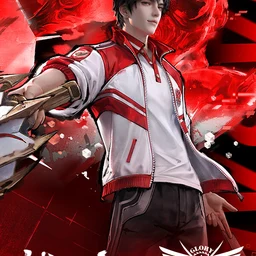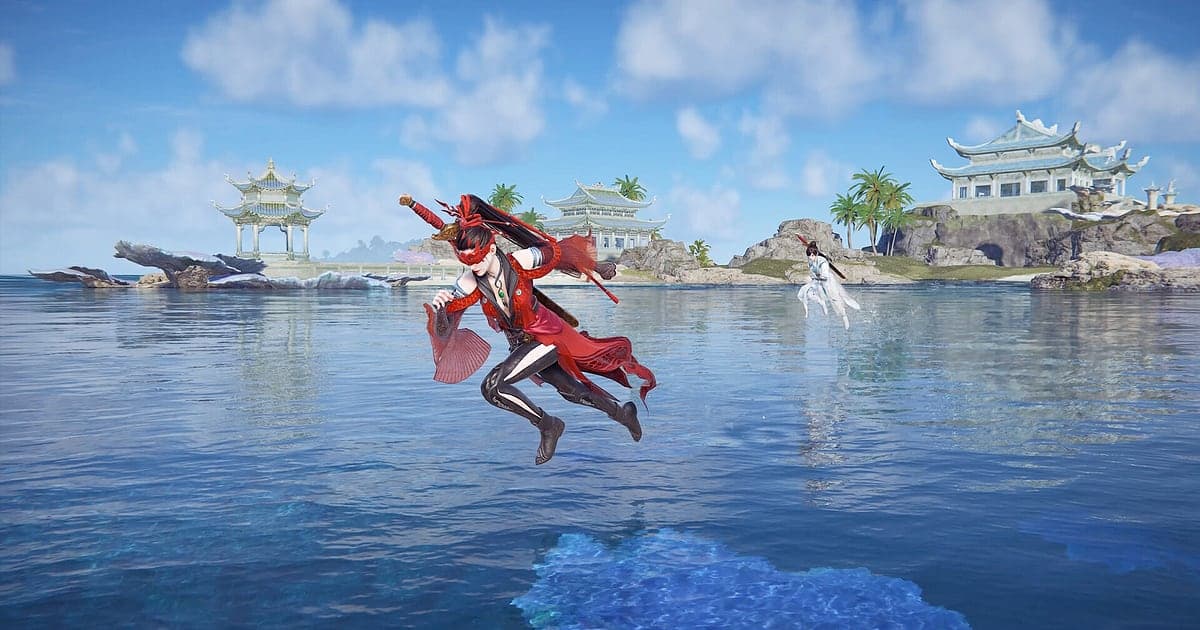
NARAKA: BLADEPOINT records automatically once DOR is installed: launch the game and the AI handles the rest. It is a battle royale where blades and spears come before guns, so a clean parry on a charged attack, a grappling hook ambush on an enemy perched on a roof, or a hero ultimate that pressures two opponents at once can be over in seconds. DOR records from the drop to the last one standing, including the time between matches, so your counters are kept without turning on a separate feature like NVIDIA Highlights. This guide covers recording NARAKA with DOR in order: getting ready, checking recording, saving parries and ambushes, finding fights in a recording of back to back matches, making wuxia Shorts and sending links to your trio.
- Keep back to back matches in one video, from the drop to the last one standing and the lobby time in between.
- Save a parry on a charged attack, a grappling hook ambush or a katana combo chain as separate clips.
- Use AI Voice Notes to find trio calls like 'charge incoming, parry it' and jump straight to that fight.
- Join a trio fight comeback, a rooftop one on one and the last one standing into a highlight reel with AI Highlight.
- Drop the parry counter you just landed into your trio's Discord with a single dor.gg link.
Before you record NARAKA BLADEPOINT: install and recording mode
NARAKA: BLADEPOINT is GPU heavy, so check your graphics card's headroom before you record. DOR is a free Windows app and never puts a watermark on your videos, so blade trails stay clean. The game uses full session recording, which means picking heroes and weapons in the lobby, entering a match, fighting and the results screen all go into one video until you quit, without splitting at the end of each match. If you are worried about frame rate while recording, read fixing FPS drops while recording first. The table below lists what to know for NARAKA.
| Item | For NARAKA BLADEPOINT | Notes |
|---|---|---|
| Install | DOR, free Windows app | No watermark, so blade trails stay clean |
| Game version | NARAKA: BLADEPOINT for PC on Steam | DOR records matches running on your PC |
| Recording mode | Full session recording | Lobby, matches and results stay in one video until you quit |
| Separate recording feature | Not needed | DOR records without turning on a GPU feature like NVIDIA Highlights |
| Resolution and frame rate | 1080p at 30fps by default, 60fps available | Pick 60fps to keep blade clashes smooth |
| Storage | About 30MB for a 30 second 1080p clip | Back to back matches make recordings grow fast, so keep free space |
Record NARAKA BLADEPOINT with DOR: step by step
- 1Install DORDownload DOR, install it and leave it running. It is free, and there is nothing else to prepare each time you start NARAKA. Install it once before your trio gets together and you are set.
- 2Launch NARAKA: BLADEPOINTStart NARAKA: BLADEPOINT from Steam. When DOR detects the game, recording begins from the lobby screen where you pick your hero and weapons.
- 3Check recording before the first dropBefore you enter a match, open the DOR app once and confirm the recording is in progress. If the game is not picked up, follow what to do when the recorder does not detect your game. After that, recording carries on even when a match ends and you return to the lobby.
- 4Clip the parry counter right awayWhen you parry a charged attack and follow up with a counter, press the clip save shortcut as your opponent goes down. Everything from the start of their attack to your counter landing is stored as a separate clip.
- 5Quit and open My ClipsWhen you finish your matches for the day and close the game, the full session video and every clip you saved appear together in My Clips in the DOR app. You can rewatch that counter straight away without looking for an in game replay.
Find your recordings
Open your recordings from My Clips in the DOR app, also called the library. Each time you open and close NARAKA becomes one session, and anything you grabbed with the clip save shortcut shows up as its own clip. In a recording of back to back matches, skimming the progress bar shows the same pattern after every match: the results screen, then the return to the lobby. Remember which match number it was and you can count lobby screens to jump straight there. NARAKA is built around melee, so fights are where the sound of clashing weapons gets dense; skip the quiet movement stretches and start playback where the clashes pile up to find parries and one on ones fast. A parry only makes sense if you cut from the moment your opponent started the attack. Set a start and an end, trim, then export as 16:9, 9:16 or 1:1; the walkthrough is in how to trim game clips. Like the videos you want to keep for good, such as your first last one standing win. When space fills up, older videos you have not liked are cleared first, so liked matches stay put.
Save the moments you want to keep
Even with every match recorded, technique moments that pass in seconds are safest clipped on the spot. Press the clip save shortcut and the last stretch of play is saved as a clip. The default length is 30 seconds, and you can choose 15, 30, 45 or 60 seconds in settings. Good times to press it in NARAKA are right after you parry a charged attack into a counter, right after a grappling hook ambush lands, right after a katana combo chain, and right after you are confirmed as the last one standing. A single parry or ultimate fits in 15 seconds, while a long fight like a trio comeback at the end of a grappling chase fits better at 60 so it is kept from start to finish. To change the shortcut and length, see saving the last few seconds instantly.
Find what was said with AI Voice Notes
Running matches as a trio means a stream of calls like 'charge incoming, parry it', 'grapple up to the roof' and 'gold weapon here, it's mine'. DOR records game audio and your microphone together, and AI Voice Notes writes those calls onto the recording timeline as text. Who called the push first and who grabbed the gold weapon are on record, so if you want to rewatch the final fight right after someone said 'last team, they're down to two', find the line in the timeline text and select it to jump straight there. Reviewing calls alongside the swordplay also helps plan the next match. If your trio talks over Discord, see recording Discord call audio.
Build a montage with AI Highlight
Every match leaves you more scenes to choose from, which makes AI Highlight perfect for a reel that plays like a martial arts film. In the library, check the parry on a charged attack, the grappling hook ambush, the katana combo chain, the trio fight comeback, the rooftop one on one and the last one standing, then select AI Highlight. DOR joins the checked moments into one video. Use only clips from the same hero and you have a showcase for your main. To arrange clips in match order yourself, see how to merge game clips.
Edit in DOR Studio
DOR Studio opens in your browser with nothing to install. A punch zoom where blades meet and a shake zoom on a grappling ambush bring out the impact of wuxia action. Put the hero's name and text like 'last one standing' on screen and lay a background track underneath to set the rhythm. Short parries and ultimates suit 9:16 Shorts, while grappling chases and final fights read better in 16:9. To keep the blade trail and your opponent in a vertical frame, read recording games for vertical Shorts. When you are done, download the result as an mp4 or share it as a link straight away.
Share with a dor.gg link
Send trimmed scenes as dor.gg links. Whoever opens the link plays it right in their browser without installing anything, so you can post the parry counter you just landed in your trio's Discord or send the last one standing moment to a friend. Send a short clip that shows parry timing to a friend who plays the same hero, and a landscape video of the whole team fight to your trio. Cutting grappling ambushes and final survival scenes to send is covered in sending NARAKA: BLADEPOINT parry clips, and posting to Discord is covered in sharing clips on Discord.
NARAKA BLADEPOINT recommended settings and troubleshooting
NARAKA: BLADEPOINT is GPU heavy, so a PC at or above the recommended spec keeps both your in game frame rate and the recording steady. You can start with the default 1080p at 30fps, but blades and grappling move fast, and 60fps keeps parries much smoother. On a tighter PC, the lighter 720p/30fps mode keeps the load down. Fullscreen, windowed and borderless windows all record, so leave the game's settings alone. Where anti cheat blocks game capture, DOR switches to monitor capture and keeps recording. DOR uses GPU hardware encoding, so its effect on your frame rate is small. It has no cheat features and never touches your game files or play data. If you play matches all evening, see recording long gameplay without stutter.
| Symptom | What to check | Fix |
|---|---|---|
| The recording is a black screen | The display mode in the game's settings | DOR records fullscreen, windowed and borderless alike. If it is still black, follow [fixing fullscreen recording](fullscreen-recording-not-working) to switch to monitor capture. |
| Your voice is missing from trio calls | Your Windows input device and DOR mic settings | Check that the right mic is selected, then follow [fixing a mic that is not recording](mic-not-recording-fix). |
| In game FPS drops during fights | Recording resolution, frame rate and your PC spec | GPU hardware encoding keeps the impact small, but on a tight spec drop to 720p/30fps mode. |
| Back to back matches make large files | Recording settings and free drive space | Clip only the scenes worth showing and adjust settings using [reducing game recording file size](reduce-game-recording-file-size). |
| Worried a recorder could affect your account | How DOR works | DOR only captures the screen, has no cheat features and does not modify game files or play data. |