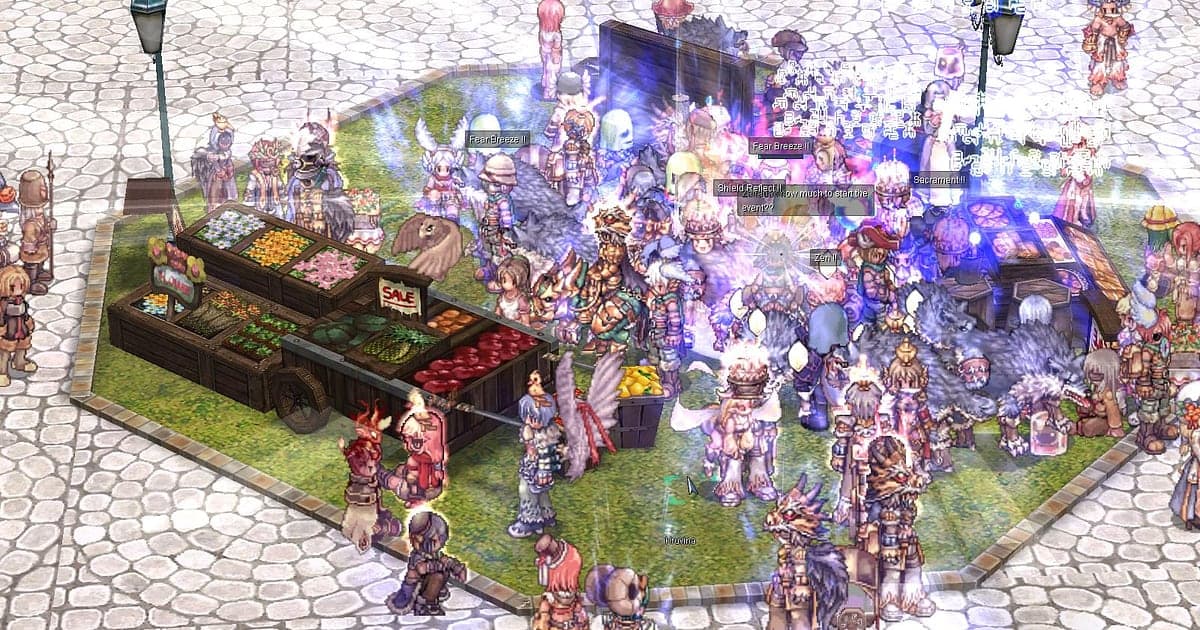
Ragnarok Online records automatically once DOR is installed: launch the game and the AI handles capture. Restocking at the Kafra after logging in at Prontera, heading out to a map, grinding Porings, camping a Baphomet spawn and the final push on the Emperium in War of Emperium, everything from launch until you close the game flows into one video. RO is a game of long waits and long grinds where the decisive moment is over in a few seconds, so recording the whole session is the safest way to catch it. This guide shows you how to record Ragnarok Online with DOR, a free Windows app, then find card drops, MVP kills and refine results, trim them and send them to your guild.
- Keep your whole Ragnarok Online session in one video, from logging in at Prontera to castle siege, without a record button.
- Save a card that dropped off a Poring or the screen where your +10 refine actually held as a clip right away.
- Use AI Voice Notes to keep your guild's WoE calls as timeline text and check who was on Emperium duty beside the footage.
- Combine a Baphomet MVP, an Osiris hunt and your job change into an RO memory reel.
- Show off a card drop by posting it to your guild Discord or a forum as a dor.gg link.
Before you record Ragnarok Online: install and recording mode
Ragnarok Online is a light MMORPG, so even an older PC is easy to set up for recording. DOR is a free Windows app and never adds a watermark. RO uses full session recording, which means travel between maps, MVP camping and siege are not split but stay in one video until you close the game. Long grinds in one spot and long waits for a boss make recordings grow quickly, so check recording long gameplay without stutter first for steady long captures. The table below lists what is worth knowing before you record RO.
| Item | For Ragnarok Online | Notes |
|---|---|---|
| Install | DOR, free Windows app, no watermark | Nothing to set up each time you log in |
| Game version | Windows PC client | DOR records Ragnarok Online running on your PC |
| Recording mode | Full session recording, one video from launch to exit | Grinding, MVP camping and WoE run together without breaks |
| Display mode | Fullscreen, windowed and borderless all record | Playing in a window with other windows open records just the same |
| Resolution and frame rate | 1080p at 30fps by default, 60fps available | The default is plenty for a light game, and 720p/30fps mode is there too |
| Storage | About 30MB for a 30 second 1080p clip | Long MVP camps mean long recordings, so keep plenty of free space |
Record Ragnarok Online with DOR: step by step
- 1Install DORDownload DOR and install it. It takes about a minute and costs nothing. Once installed, leave DOR running. If you trade guild calls during WoE, check that your usual headset mic is connected.
- 2Launch Ragnarok Online and log inStart Ragnarok Online and log in with your character. Recording begins as soon as DOR detects the game, so even restocking with the Kafra in Prontera is captured.
- 3Confirm the recording is runningOnce you are in town, glance at the DOR app to confirm recording is in progress. If the game is not picked up, follow what to do when the recorder does not detect your game. From there, play as usual, whether you are heading to a map or forming a party.
- 4Save a clip right after the decisive secondsWhen a card drops where the monster went down, or the refine result appears after you hand your gear to the NPC, press the clip save shortcut right away. The moment is saved as its own clip, so you will not have to hunt for those seconds in hours of grinding footage.
- 5Close the game and open My ClipsWhen you are done grinding, close the game. That session's full video and your saved clips appear together in My Clips in the DOR app. Open the card drop clip first and check that it runs from the monster going down to you picking up the card.
Find your recordings
Your recordings live in My Clips in the DOR app, also called the library. Each launch and exit of RO becomes one session, and anything you saved with the clip save shortcut appears as its own clip. An RO recording is mostly waiting and grinding with only a few decisive seconds, so to find a moment you did not clip, take big jumps along the playback bar and slow down where skill effects multiply or people start gathering. The start of an MVP fight or a siege shows up quickly that way. A card drop clip that shows only the card hitting the ground does not tell anyone where or what you killed, so trim 8 to 10 seconds from just before the monster falls to the moment you pick up the card. RO's camera follows your character and keeps it centered, so card drops and refine results keep what matters even in 1:1, and only siege, where fighting fills the screen, needs 16:9. 9:16 is available too. The full walkthrough is in how to trim game clips. Like the videos you want to keep for good, such as your first MVP kill. When space fills up, older videos you have not liked are cleared first, so your liked moments stay safe.
Save the moments you want to keep
Even with the whole session recorded, the safest way to keep the few seconds that arrive after hours of grinding is to save them as a clip on the spot. Press the clip save shortcut and the last stretch of gameplay is saved as a clip. The default length is 30 seconds, and you can choose 15, 30, 45 or 60 seconds in settings. In RO, good times to press it are right after a card hits the ground, right after a +10 refine result appears, right after Baphomet falls and party and guild chat flood at once, and right after the Emperium breaks in WoE. Short moments like a card drop or a refine result only need 15 seconds, while an MVP fight or a siege push you want to keep from the last exchange is better at 60. The moment your character's look changes after finishing the job change NPC dialogue can be saved the same way. Lengths and shortcut settings are covered in saving the last few seconds instantly.
Find what was said with AI Voice Notes
RO sieges and MVP parties run on calls like 'Baphomet's up, everyone group' and 'Cover the guy hitting the Emperium', and even solo grinding brings out lines like 'A card just dropped, for real' and 'Going for +10, I'll cry if it breaks'. DOR records game audio and your mic together, and AI Voice Notes writes all of it onto the recording timeline as text. Who was on Emperium duty, and when the priests were told to push in, comes up the moment you find that call in the timeline text and select it to jump to the scene. After WoE, it also works as review material for figuring out which entrance your guild lost. If your guild runs siege calls over a Discord call, see recording Discord call audio to capture that voice chat as well.
Build a montage with AI Highlight
Collect only the moments that paid off after a long wait and you get an RO memory reel. In the library, check the Baphomet MVP, the card drop, the +10 refine success, the Emperium break, the Osiris hunt and your job change, then select AI Highlight. DOR joins them into one montage, a good record of one character's journey and something to show a guildmate returning after a long break. To join a night of WoE scenes in time order yourself, see how to merge game clips.
Edit in DOR Studio
DOR Studio opens in your browser with nothing to install. Add a punch zoom on the frame the card hits the ground, then label the monster and card name as text, and the excitement of that moment comes right back. Sieges happen in several places at once, so trim a few scenes, merge them and add the time or location as text, and guildmates can follow the whole night in one go. Try a shake zoom on the Emperium breaking and a glitch transition where scenes change. Short moments like card drops and refines work well as 9:16 Shorts with background music underneath. Vertical framing tips are in recording games for vertical Shorts. Download the finished video as an mp4 or share it as a link straight away.
Share with a dor.gg link
Send trimmed scenes as dor.gg links. Whoever opens the link plays the video right in the browser without the app, so a card drop posted in your guild Discord gets watched by guildmates immediately. A DOR recording is a normal video, so even friends without the game client can watch from one link. Split it by audience: the full WoE night merged in time order for the whole guild, and the card drop for the party you were grinding with. Cut ranges and ratios for each decisive moment are covered in sharing a Ragnarok Online card drop or MVP kill, and posting to Discord is covered in sharing clips on Discord.
Ragnarok Online recommended settings and troubleshooting
Ragnarok Online is light, so the default 1080p at 30fps already keeps characters and skill effects crisp. Pick 60fps if you want crowded scenes like siege, where countless characters and effects overlap, to look smoother. On an older PC or a laptop, use the 720p/30fps mode, and see recording games on a low end PC for more settings. Fullscreen, windowed and borderless windows all record. DOR uses GPU hardware encoding, so its effect on your game is small. If MVP camps and long grinds pile recordings onto a drive you would rather keep free, see changing where recordings are saved. DOR has no cheat features and never touches your game files or character data.
| Symptom | What to check | Fix |
|---|---|---|
| The recording is a black screen | The display mode in the game's settings | DOR records fullscreen, windowed and borderless alike. If it is still black, follow [fixing fullscreen recording](fullscreen-recording-not-working) to switch to monitor capture |
| Music or guild calls are missing | Your Windows output device and DOR audio settings | Check the device game audio plays through and your mic, then work through [fixing game recordings with no sound](game-recording-no-sound-fix) |
| Video stutters during WoE | Recording resolution and frame rate | GPU hardware encoding keeps the impact small, but drop to 720p/30fps mode if your PC still struggles |
| You cannot find a card drop in hours of footage | Your drop time note and stretches where skill effects pile up | Note the time from the taskbar clock, and save a clip right after drops next time |
| Worried a recorder could affect your account | How DOR works | DOR only captures the screen, has no cheat features and does not modify game files or character data |