Ready or Not records automatically once DOR is installed: launch the game and the AI handles the rest. From the loadout screen before deployment, through the scenes in Los Suenos, to the debrief after each mission, everything runs together in one video while the game is open, so there is no record button to remember before you stack up on a door. This guide walks through the full routine in order: getting ready, confirming the recording, saving entries and arrests, finding a specific breach in a multi mission recording, building op videos, and sending links to your squad. A clean op and a run that went sideways because a round came through the wall both make great review material.
- Keep every mission from the night in one video, from loadout selection to the final debrief.
- Save a synced C2 breach or a flashbang into a clean arrest as its own clip on the spot.
- Find stack calls like 'C2 and bang, then we go' with AI Voice Notes and jump to that entry.
- Join the hostage extraction and the everyone arrested debrief into one SWAT op video with AI Highlight.
- Post a long review cut of an entry in your squad's Discord with a dor.gg link and go over it together.
Before you record Ready or Not: install and recording mode
Ready or Not is GPU heavy, so a PC at the recommended spec or above keeps both in game frame rate and recording stable. DOR is a free Windows app and never adds a watermark. Ready or Not uses full session recording, which means missions are not split into separate files. The loadout screen, the retry after a failed mission and the next mission all run together in one video until you close the game. How recording starts on its own when a game launches is explained in DOR automatic game recording. The table below covers what to check before your first recording.
| Item | For Ready or Not | Notes |
|---|---|---|
| Install | DOR, free Windows app | No watermark on recordings or edits |
| Game version | Windows PC version on Steam | DOR records Ready or Not running on your PC |
| Recording mode | Full session recording | Missions and retries stay in one video until you exit |
| Display mode | Fullscreen, windowed and borderless all record | If game capture is blocked, DOR switches to monitor capture |
| Resolution and frame rate | 1080p at 30fps by default | Pick 60fps for smoother entries into dark rooms, or the lighter 720p/30fps mode |
| Audio | Game audio and mic recorded together | Flashbangs and squad calls share one video, so reviews show exactly what happened |
Record Ready or Not with DOR: step by step
- 1Install DORDownload DOR and install it. Once setup finishes, DOR waits in the background for the game to start. If your squad is running high difficulty missions tonight, install it before everyone joins Discord.
- 2Launch Ready or NotStart Ready or Not from Steam as usual. Recording begins as soon as DOR detects the game, so the menus and loadout screen at the start of the video are expected.
- 3Check that recording is runningBefore your first deployment, glance at the DOR app once to confirm the recording is in progress. If the game is not picked up, follow what to do when the recorder does not detect your game. After that, retrying or switching missions keeps everything in the same video.
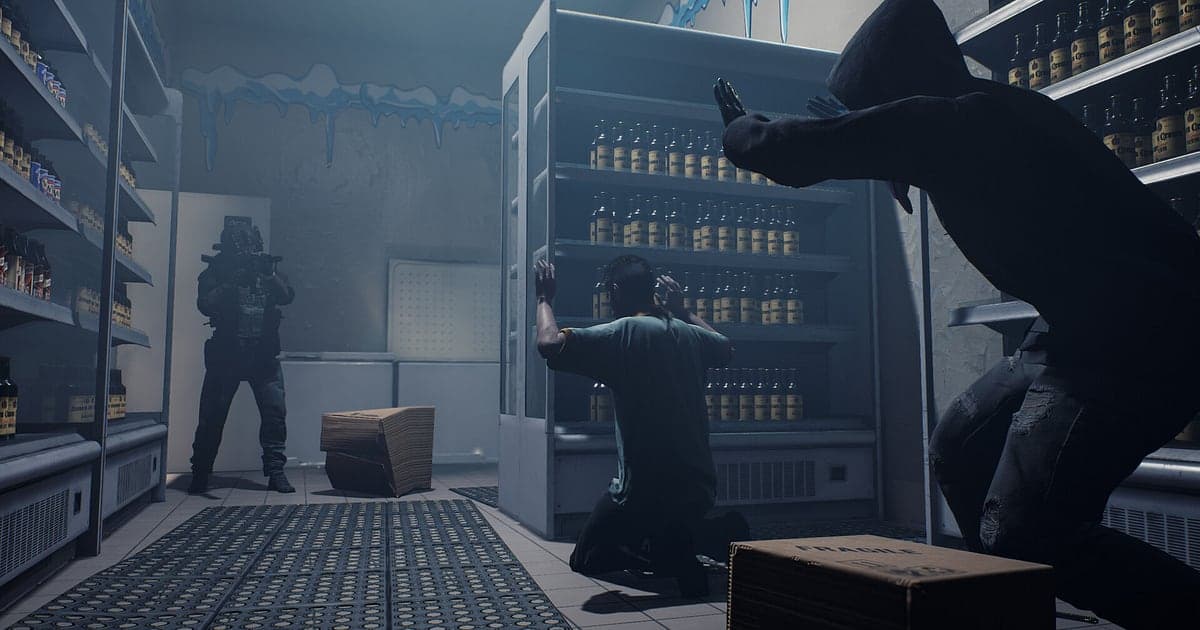
- 4Save the clip right after the entryMirrored under the door, breached with C2 and cleared the room, or watched a suspect drop to his knees after a flashbang? Press the clip save shortcut right after. The last 30 seconds are stored as a separate clip.
- 5Quit and open My ClipsClose the game and the whole session lands in My Clips as one video, with the clips you saved alongside. A mission you failed and retried is in the same video too.
Find your recordings
Your recordings collect in My Clips in the DOR app, also called the library. Each time you open and close Ready or Not becomes one session, and anything you grabbed with the clip save shortcut appears as its own clip. Since several missions run together in one session, drop the mission name, the attempt number and the rough time of a standout entry in your squad chat, and you can go straight to it in the library. Entries usually sit where the door noise, a flashbang and your squad's shouting pile up at once, so find the spot where the audio suddenly gets loud and start about 10 seconds earlier to keep the tension at the door. Set a start and an end point to trim, then export as 16:9, 9:16 or 1:1. The walkthrough is in how to trim game clips. Like the videos you want to keep, such as a top grade op. When space fills up, older videos you have not liked are cleared first.
Save the moments you want to keep
In Ready or Not, an entry is decided seconds after the door opens. Press the clip save shortcut right after the room is clear and the last stretch is saved as a clip. The default length is 30 seconds, and you can choose 15, 30, 45 or 60 seconds in settings. A synced C2 breach is best at 45 or 60 seconds so the stack up is included, while a flashbang into a clean arrest fits in 30. When the mirror gun spots an ambush, a quick 15 second save right after makes good review material. For long sequences like a hostage extraction or clearing a hallway firefight, save 60 seconds the moment it ends and trim the rest from the session video. To change the shortcut or length, see saving the last few seconds instantly.
Find what was said with AI Voice Notes
Running ops as a squad, calls like 'mirroring the door, hold up', 'C2 and bang, then we go', 'hands up, get down, cuffing' and 'civ secured, next room clear' set the order of every entry. DOR records game audio and your microphone together, and AI Voice Notes writes those calls onto the recording timeline as text. You can read who opened the door and who threw the bang without rewatching the whole mission, and select a line to jump straight to the room where the stack fell apart. To capture your squadmates' voices as well, see recording Discord call audio.
Build a montage with AI Highlight
Turn a clean op into a proper record. In the library, check the C2 breach and synced entry, the mirror gun spotting an ambush, the flashbang into a clean arrest, the hostage extraction, the hallway firefight cleared and the everyone arrested debrief, then select AI Highlight to cut a SWAT op video. It is great for reliving a top grade run with the squad. You can also build one per mission so every map has its own op log. To set the order yourself, see how to merge game clips.
Edit in DOR Studio
DOR Studio opens in your browser with nothing to install. Trim from just before the breach and add a shake zoom where the flashbang pops to keep the bodycam feel. Try a punch zoom on the suspect giving up and a glitch transition between rooms. Add the map name and grade as text with background music, and you have an op log video. Export review cuts in 16:9 so the whole screen is visible, and short entries for friends in 9:16. For vertical framing, see recording games for vertical Shorts. When you are done, download an mp4 or share it as a link straight away.
Share with a dor.gg link
Send trimmed moments as dor.gg links. Whoever opens the link watches in a browser without the app, so one link lets the squad rewatch the op together in Discord. Trim the same recording twice: a long review cut from entry to the end of the room clear that shows who took which corner, and a short cut under 20 seconds from the door opening to the suspect giving up for friends who do not play. How to cut a mission by phase is covered in sharing Ready or Not breach videos, and posting to Discord is in sharing clips on Discord.
Ready or Not recommended settings and troubleshooting
Ready or Not puts a heavy load on the GPU, so start recording at the default 1080p and 30fps and move to 60fps only when your in game frame rate has headroom. If frames are still short, drop to the 720p/30fps mode. DOR uses GPU hardware encoding, so its effect on frame rate is small. Fullscreen, windowed and borderless windows all record, so keep your usual display settings. The game has a lot of dark interiors, so if recordings look dim, check the in game brightness first. If frames drop only while recording, see fixing FPS drops while recording. DOR has no cheat features and never touches game files or play data.
| Symptom | What to check | Fix |
|---|---|---|
| The recording is a black screen | The game's display mode | DOR records fullscreen, windowed and borderless alike. If it is still black, follow [fixing fullscreen recording](fullscreen-recording-not-working) to switch to monitor capture. |
| Flashbangs and squad calls are missing | Your Windows output device and DOR audio settings | Confirm which device the game plays through, then work through [fixing game recordings with no sound](game-recording-no-sound-fix). |
| Frames drop during entries while recording | Recording frame rate and graphics load | GPU hardware encoding keeps the impact small, but if it struggles, keep recording at 30fps or use 720p/30fps mode. |
| Several missions in one video make an entry hard to find | Where the audio gets loud | Look for the spot where door noise, a flashbang and shouting overlap, and save a clip right after each room clear next time. |
| Worried a recorder could cause a ban | How DOR works | DOR only captures the screen, has no cheat features and does not modify game files or play data. |