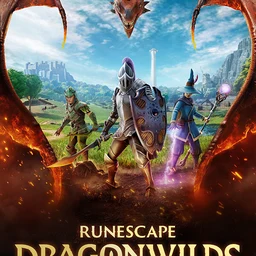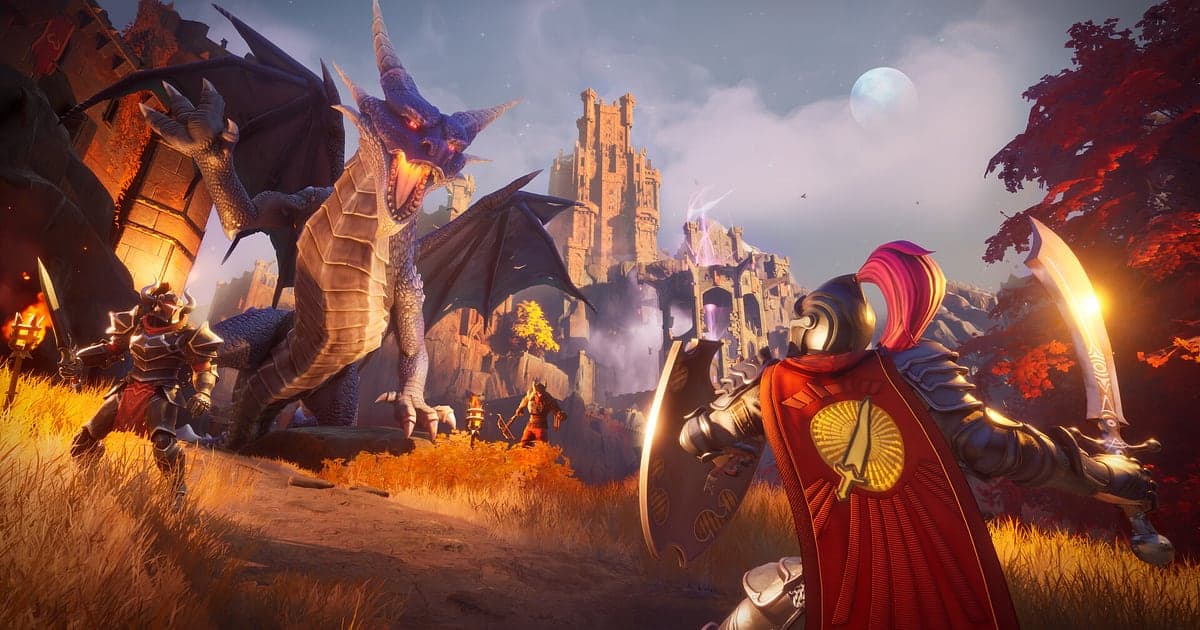
RuneScape: Dragonwilds records automatically once DOR is installed: launch the game and the AI handles the rest. Built by Jagex, it is a co op survival adventure set on Ashenfall, a forgotten continent of the RuneScape world, where you gather, build and level skills on the way to facing the Dragon Queen. From the first tree you chop to the fort your group raises wall by wall and the dragon fight overhead, everything is recorded until you close the game. Most of a survival recording is repetitive gathering, so this guide focuses on keeping and finding the moments worth watching: getting ready, checking recording, saving scenes, finding them later, building a survival log and sharing links.
- Keep your survival story on video until you quit, however many in game days pass, from the first log to the finished fort.
- Save roofing your first shelter, rune magic on a monster or solving the library puzzle as separate clips.
- Use AI Voice Notes to read back co op planning like 'I'll grab ore, you get the roof up' like a work log.
- Join your bare handed first night and the four player fort into a survival log with AI Highlight.
- Send a fort tour to a friend who could not join the server with a dor.gg link.
Before you record RuneScape Dragonwilds: install and recording mode
RuneScape: Dragonwilds is GPU heavy, so it is worth checking your PC once before you record. DOR is a free Windows app and never puts a watermark on your videos. The game uses full session recording, which means recording keeps going while you join a friend's world, and even the time spent chopping and mining goes into one video until you close the game. Co op sessions easily run for hours, so read recording long gameplay without stutter ahead of time too. The table below lists what to know for Dragonwilds.
| Item | For RuneScape Dragonwilds | Notes |
|---|---|---|
| Install | DOR, free Windows app | No watermark on your videos |
| Game version | RuneScape: Dragonwilds for PC on Steam | DOR records solo or co op play on your Windows PC |
| Recording mode | Full session recording | In game days can pass and it stays one video until you quit |
| Co op | Joining a friend's world records as usual | Your view, game audio and your mic are captured together |
| Resolution and frame rate | 1080p at 30fps by default, 60fps available | Use the lighter 720p/30fps mode on a tight spec |
| Storage | About 30MB for a 30 second 1080p clip | Multi day co op worlds make large recordings, so keep plenty of free space |
Record RuneScape Dragonwilds with DOR: step by step
- 1Install and run DORDownload DOR, install it and leave it running. It is free, and once it is installed there is nothing to prepare each time you start Dragonwilds. Do it before your group's first night on the server and day one is on record.
- 2Launch DragonwildsStart RuneScape: Dragonwilds from Steam and DOR recognises the game and starts recording. Whether you open your own world or join a friend's, recording carries on the same way.
- 3Check recording before you gatherBefore you pick up your axe, open the DOR app once and confirm recording is running. If it is not picked up, follow what to do when the recorder does not detect your game. After that, chop trees or hunt for ore veins without thinking about it.
- 4Clip finished builds and big fightsWhen you get the roof on your first shelter or a dragon fight ends, press the clip save shortcut right away. That moment is saved as its own clip among hours of gathering, so it is easy to find later.
- 5Quit and open My ClipsWhen you finish for the day and close the game, the full session video and every clip you saved appear together in My Clips in the DOR app. However many in game days passed, they sit in one session.
Find your recordings
Your recordings live in My Clips in the DOR app, also called the library. Each time you open and close Dragonwilds becomes one session, and anything you grabbed with the clip save shortcut shows up as its own clip. Survival recordings are mostly repeated gathering, so use day and night transitions and returns to your base as landmarks when you search. The first time you meet a boss is easy to spot where the mic audio suddenly spikes. Once you find a scene, set a start and an end, trim, then export as 16:9, 9:16 or 1:1. The walkthrough is in how to trim game clips. Like the videos you want to keep for good, such as the day your fort was finished. When space fills up, older videos you have not liked are cleared first, so liked records stay put.
Save the moments you want to keep
Even with your whole survival run recorded, clipping the scenes you want to show on the spot saves digging through hours of gathering. Press the clip save shortcut and the last stretch of play is saved as a clip. The default length is 30 seconds, and you can choose 15, 30, 45 or 60 seconds in settings. Good times to press it in Dragonwilds are right after the roof goes on your first shelter, right after a mining rush on a fresh vein, right after you take down a monster with rune magic, and right after you solve the library puzzle. Long scenes like a dragon fight or a fort tour fit better if you set the length to 60 seconds. To change the shortcut, see saving the last few seconds instantly.
Find what was said with AI Voice Notes
On a co op server, the conversation never stops being about who does what. Lines like 'I'll grab ore, you get the roof up', 'out of runes, no spells for me' and 'dragon's circling up there, hide' go back and forth, and AI Voice Notes writes them onto the recording timeline like a work log. DOR records game audio and your microphone together, so when you want to find the moment someone said 'pretty sure this is the library puzzle order', select that line in the timeline text to jump straight there. You can also see how the plan you agreed on actually went. To confirm your mic is set as the Windows default input, see recording games with mic audio.
Build a montage with AI Highlight
Compare your bare handed first night with the finished fort in one video. In the library, check roofing your first shelter, the mining rush on a fresh vein, rune magic on a monster, solving the library puzzle, the tour of the four player fort and the dragon fight, then select AI Highlight. DOR joins them into a single survival log. Pick scenes featuring every server member and you get a keepsake for that world. To order clips by in game day yourself, see how to merge game clips.
Edit in DOR Studio
DOR Studio opens in your browser with nothing to install. Cut the gathering grind into short pieces, then add a background track and text like 'day 3, fort complete' over the finished build, and a fort that took hours becomes a one minute build video. Try a shake zoom when the dragon roars and a glitch transition where one day cuts to the next. Build Shorts suit 9:16, while fort tours suit 16:9. To fit the whole fort in a vertical frame, read recording games for vertical Shorts. When you are done, download the result as an mp4 or share it as a link straight away.
Share with a dor.gg link
Send trimmed scenes as dor.gg links. Whoever opens the link plays it right in their browser without installing anything, so friends who could not join can tour your fort, and a friend stuck on the library puzzle can see the order you used. Post the dragon fight in the Discord channel where your co op server gathers. Choosing base and boss fight scenes to send is covered in saving Dragonwilds co op videos, and posting to Discord is covered in sharing clips on Discord.
RuneScape Dragonwilds recommended settings and troubleshooting
RuneScape: Dragonwilds is GPU heavy, so a PC at or above the recommended spec keeps both your in game frame rate and the recording steady. Start with the default 1080p at 30fps, and pick 60fps if you want dragon fights to look smoother. On a tighter PC, the lighter 720p/30fps mode keeps the load down. Fullscreen, windowed and borderless windows all record, so leave the game's settings as they are. DOR uses GPU hardware encoding, so its effect on play is small. It has no cheat features and never touches your game files or play data. If frames drop while recording, see fixing FPS drops while recording.
| Symptom | What to check | Fix |
|---|---|---|
| The recording is a black screen | The display mode in the game's settings | DOR records fullscreen, windowed and borderless alike. If it is still black, follow [fixing fullscreen recording](fullscreen-recording-not-working) to switch to monitor capture. |
| Your voice is missing in co op | Your Windows default input device and DOR mic settings | Check that your mic is the default input, then follow [fixing a mic that is not recording](mic-not-recording-fix). |
| A multi day co op world fills the drive | Save location and free space | Move recordings to a roomier drive with [changing the recording save location](change-recording-save-location), and save the scenes worth watching as clips. |
| Frame rate wobbles during the dragon fight | Recording resolution, frame rate and your PC spec | GPU hardware encoding keeps the impact small, but on a tight spec drop to 720p/30fps mode. |