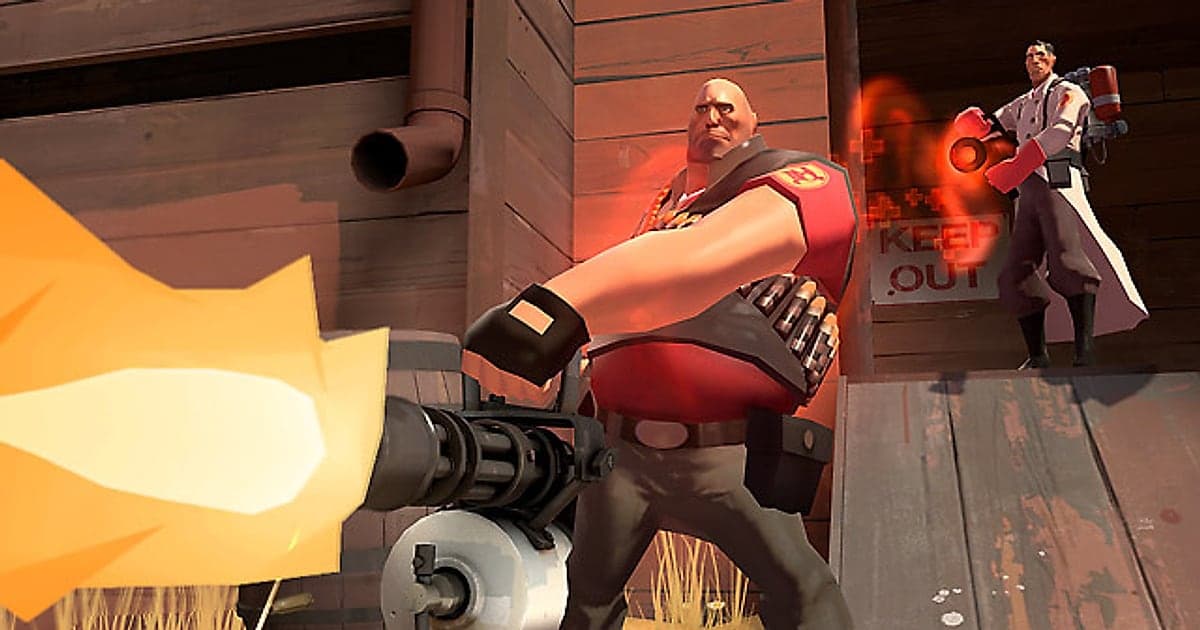
Team Fortress 2 records automatically once DOR is installed: launch the game and the AI handles the rest. You never type demo commands into the console or check whether a server allows replays. From the moment TF2 starts through Steam until you quit, joining a server, setup time, every round and every map change run together in one video. This guide walks through the full routine in order: getting ready, confirming the recording, saving class highlights, finding a round inside a long recording, making frag movies and meme clips, and sending links to the people you played with.
- Keep your whole night on a server in one video, through map changes from 2Fort to Badwater.
- Save a Spy double backstab or a Pyro reflect kill as its own clip the moment it happens.
- Find voice chat callouts like 'Uber at 99, on me' with AI Voice Notes and jump straight to them.
- Combine backstabs, reflects and Uber pushes from every round into one frag movie with AI Highlight.
- Cut a funny taunt into a 9:16 meme clip and post the dor.gg link in your community Discord.
Before you record Team Fortress 2: install and recording mode
TF2 is light on hardware, so recording runs smoothly even at minimum spec. DOR is a free Windows app and never adds a watermark. TF2 uses full session recording, which means that however many times the server changes maps, the video keeps going until you close the game. Because DOR records your screen directly, there are no demo files to manage and no need to check which servers support replays. If you hop community servers on an older laptop, also read recording games on a low end PC. The table below lists what to know before your first recording.
| Item | For Team Fortress 2 | Notes |
|---|---|---|
| Install | DOR, free Windows app | No watermark on your videos |
| Game version | Windows PC version on Steam | DOR records TF2 running on your PC |
| Recording mode | Full session recording | One video from joining to quitting, not split by map change |
| Demos and replays | No console commands needed | Your own screen is recorded, so server replay settings make no difference |
| Display mode | Fullscreen, windowed and borderless all record | If game capture is blocked, DOR switches to monitor capture |
| Resolution and frame rate | 1080p at 30fps by default | 60fps keeps rocket jumps smooth, or use the lighter 720p/30fps mode |
Record Team Fortress 2 with DOR: step by step
- 1Install DORDownload DOR and install it. Once setup finishes, DOR waits in the background for the game to start. Install it before you hop onto your regular community server on a weekend night.
- 2Launch Team Fortress 2Start TF2 from Steam as usual. Recording begins as soon as DOR detects the game, so the main menu and server browser at the start of the video are expected.
- 3Check that recording is runningOn the class select screen after joining, glance at the DOR app once to confirm the recording is in progress. If the game is not picked up, follow what to do when the recorder does not detect your game. From then on, map changes stay in the same video.
- 4Save the play right after it happensJust stabbed the Medic and then the Heavy while disguised, or airblasted a crit rocket back at the Soldier who fired it? Press the clip save shortcut right after. The last 30 seconds are stored as a separate clip.
- 5Quit and open My ClipsClose TF2 and your whole time on the server lands in My Clips as one video, with the clips you saved alongside. A long Mann vs. Machine run is in that same video.
Find your recordings
Your recordings collect in My Clips in the DOR app, also called the library. Each time you open and close TF2 becomes one session, and anything you grabbed with the clip save shortcut appears as its own clip. The longer you stay on a server, the more respawn waits and setup time pile up, so use the loading screen at each map change to find the right map first. In Payload or Control Point games that end at the last point, the big plays cluster right before the round result screen, so find the result screen and step backward to locate an Uber push or a last second hold. Set a start and an end point to trim, then export as 16:9, 9:16 or 1:1. Keep backstabs and funny deaths to 5 to 15 seconds, and give an Uber push 30 seconds to a minute. The walkthrough is in how to trim game clips. Like the frags you want to keep. When space fills up, older videos you have not liked are cleared first.
Save the moments you want to keep
Every class shines differently in TF2, but most highlights are over in seconds. Press the clip save shortcut right after a play and the last stretch is saved as a clip. The default length is 30 seconds, and you can choose 15, 30, 45 or 60 seconds in settings. A Spy double backstab or a Pyro reflect kill fits in 15 seconds. A Market Garden rocket jump suits 30 seconds so the launch is included. Plays that need context, like a Medic Uber push or an overtime cart stop, are better at 60 seconds so you get everything from popping Uber to the end of invulnerability. If you just busted a sentry nest, press it right after the last building goes down. To change the shortcut or length, see saving the last few seconds instantly.
Find what was said with AI Voice Notes
On servers with lively voice chat, callouts like 'Uber at 99, on me', 'Spy behind the Medic', 'sentry is up top on the left' and 'everyone on the cart' never stop. DOR records game audio and your microphone together, and AI Voice Notes writes what was said onto the recording timeline as text. After the round, if you want to see who called Uber ready and who ignored it, select that line in the timeline and jump straight to the moment. If your own voice is missing from the recording, check your input device with fixing a mic that is not recording.
Build a montage with AI Highlight
Gather a night of community server clips into a frag movie. In the library, check the Spy double backstab, the Pyro reflect kill, the Medic Uber push, the Market Garden rocket jump, the sentry nest bust and the overtime cart stop, then select AI Highlight to join them into one video. Going all in on one class works well too, like a pure Spy trickstab reel or a Soldier Market Garden montage. To set the order yourself, see how to merge game clips.
Edit in DOR Studio
DOR Studio opens in your browser with nothing to install. Add a punch zoom right as the crit rocket lands, and give the Heavy spinning up his minigun a shake zoom for extra weight. Caption a funny taunt kill with a text line, bridge map changes with a glitch transition, and lay background music underneath for a proper frag movie. Export the frag movie in 16:9 and the quick meme bits in 9:16. For vertical framing, see recording games for vertical Shorts. When you are done, download an mp4 or share it as a link straight away.
Share with a dor.gg link
Send trimmed moments as dor.gg links. Whoever opens the link watches in a browser without the app, so you can paste it into the community Discord where everyone from the server hangs out and skip passing video files around entirely. Friends who were on your team can open a funny death in a DM and it plays right away. Which scenes to cut for each class, and for how long, is covered in sharing TF2 backstabs and Uber pushes, and posting to Discord is in sharing clips on Discord.
Team Fortress 2 recommended settings and troubleshooting
TF2 is a light game, so the default 1080p at 30fps already records smoothly. To keep rocket jumps and fast Scout movement smooth, choose 60fps. On an older PC, the 720p/30fps mode keeps the load low. Fullscreen, windowed and borderless windows all record, so keep your usual display settings. DOR uses GPU hardware encoding, so its effect on frame rate is small. Hours on a server make for large recordings, so keep only the moments you clip and adjust quality in settings. Ways to shrink files are in reducing game recording file size. DOR has no cheat features and never touches game files or play data.
| Symptom | What to check | Fix |
|---|---|---|
| The recording is a black screen | The game's display mode | DOR records fullscreen, windowed and borderless alike. If it is still black, follow [fixing fullscreen recording](fullscreen-recording-not-working) to switch to monitor capture. |
| Gunfire and voice chat are missing | Your Windows output device and DOR audio settings | Confirm which device the game plays through, then work through [fixing game recordings with no sound](game-recording-no-sound-fix). |
| The server says replays are disabled | How recording works | DOR records your own screen, so you get video regardless of server replay settings. |
| The picture stutters while recording | Recording resolution and frame rate | GPU hardware encoding keeps the impact small, but if it still stutters, drop to 720p/30fps mode. |
| Worried a recorder could cause a VAC issue | How DOR works | DOR only captures the screen, has no cheat features and does not modify game files or play data. |