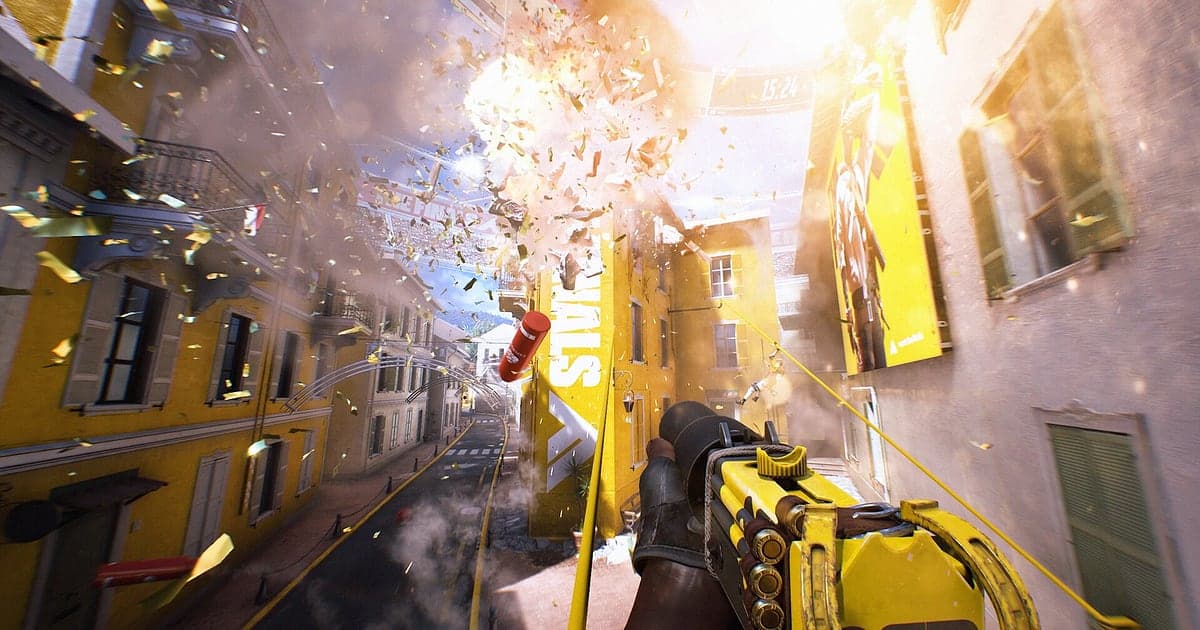
THE FINALS records automatically once DOR is installed: launch the game and the AI takes care of it. There is no record button and no replay to dig up, because DOR records every match, whether you are in Quick Cash or Ranked Tournament. The play where you blew through the floor with C4 and dropped the vault a level, the cashout you stole with three seconds left, and the moment an entire Seoul tower came down all end up on video. After the match you can retrace which floor you broke in through and why you lost the vault. This guide is for anyone recording THE FINALS for the first time. It covers getting ready, confirming the recording, saving destruction, finding matches in a long session, building highlights, sharing with your squad, and settings for high refresh play.
- Keep a whole evening of Quick Cash, Ranked Tournament and Power Shift in one video.
- Save the moment you drop a whole building on an enemy team with explosives, or a last second cashout steal, as its own clip.
- Use AI Voice Notes to find team calls like 'I'm down, defib me' and jump straight to that fight.
- Join a building collapse, a grapple ambush and a team wipe into a one minute highlight of a match full of destruction.
- Send your cashout steal to the teammates you played with on Discord with a single dor.gg link.
Before you record THE FINALS: install and recording mode
All you need to record THE FINALS is DOR. It is a free Windows app and never adds a watermark to your videos. THE FINALS uses full session recording, so even if you play many short matches back to back, everything from launch to exit is one video and you can watch the matches in sequence. That means remembering which number match something happened in is enough to find it later. How DOR detects a game and starts recording is explained in DOR automatic game recording. The table below covers what is worth knowing before your first THE FINALS recording.
| Item | For THE FINALS | Notes |
|---|---|---|
| Install | DOR, free Windows app | No watermark on your recordings |
| Game version | Windows PC version on Steam | DOR detects and records THE FINALS running on your PC |
| Recording mode | Full session recording | Matches run on in one video, with each match's start screen as the border |
| Display mode | Fullscreen, windowed and borderless all record | Switches to monitor capture if game capture is blocked |
| Resolution and frame rate | 1080p at 30fps by default | 60fps suits fast Light build movement, plus a lighter 720p/30fps mode |
| High refresh monitors | Playing at 144Hz or 240Hz | A recommended spec GPU is advised to hold your in game frame rate while recording |
Record THE FINALS with DOR: step by step
- 1Install DOR and pick 60fpsDownload DOR, install it and leave it running. THE FINALS is full of fast grappling hook dives, so pick 60fps in DOR settings before you launch and movement will stay smooth.
- 2Launch THE FINALSStart THE FINALS from Steam and DOR detects the game and starts recording right away. The lobby where you pick your build and gear is captured too, so there is nothing to do before you queue.
- 3Check the recording before your first matchBefore your first match is found, open the DOR app once and confirm it is recording. If the game is not detected, follow what to do when the recorder does not detect your game. After that, focus on the arena.
- 4Save a clip right after you wreck or stealIf you plant explosives on the supports and bring a whole building down, or grab the cashout station just before the timer ends, press the clip save shortcut right after. The last stretch is saved as its own clip, so you never have to scroll through a session of back to back matches.
- 5Quit and open My ClipsFinish your last match and close the game. The session video and every clip you saved appear together in My Clips in the DOR app. Matches you forgot to clip are all in the session video too.
Find your recordings
Check your recordings in My Clips in the DOR app, also called the library. Each time you open and close THE FINALS is one session, and moments saved with the clip save shortcut appear as separate clips. Since one recording holds several matches, use the start screen that leads into the arena as the border between matches. If you remember something like 'comeback on the cashout in match three', you can skip through start screens on the timeline and land right on that match. For a building collapse, find the big blast and dust cloud, then start your trim about 10 seconds earlier, at the moment you planted the explosives, so it is obvious you brought it down. For a cashout comeback, find that match's results screen first and go back about 30 seconds to catch the whole swing. Export as 16:9, 9:16 or 1:1, and see how to trim game clips for the full walkthrough. Like the matches you want to keep. When space fills up, older videos you have not liked are cleared first.
Save the moments you want to keep
Even with every match recorded, it pays to grab the moment the map breaks as a clip on the spot. Press the clip save shortcut and the last stretch is saved as a clip. The default length is 30 seconds, and you can choose 15, 30, 45 or 60 seconds in settings. A grappling hook ambush that ends in a kill or a team wipe of all three enemies fits a tight 15 seconds. A building collapse, from planting explosives to the fall, suits 30 seconds, while carrying a cashbox from the opened vault to the station or stealing a cashout right before the timer ends fits 45 or 60 seconds. Good moments to press it are right after you punch through the floor and drop the vault, right after a defib turns the fight around, and right after you hold the Power Shift platform to the end. Length settings are covered in saving the last few seconds instantly.
Find what was said with AI Voice Notes
THE FINALS is a three player team game, so the calls never stop. Lines like 'breaking the floor, drop it down', '30 seconds on the cashout, everyone group up' and 'Heavy has a mesh shield, flank behind' run through every match. DOR records game audio and your microphone together, and AI Voice Notes writes the calls between you and your two teammates onto the recording timeline as text. Who you agreed to defib, or which direction you planned to block the cashout from, can be found in the timeline text and selected to jump straight to that scene, readable right next to the footage. When you review a match where you lost the vault, lining up who called what and when helps plan your route next match. If your mic sounds quiet, check your input device with recording games with mic audio.
Build a montage with AI Highlight
A match packed with destruction is worth squeezing into a one minute highlight. In the library, check your clips of a whole building collapse, a last second cashout steal, a grapple ambush, dropping the vault through the floor, a team wipe and a defib comeback, then select AI Highlight. DOR joins them into one video. Collect only the buildings you flattened with a Heavy build for a destruction reel, or only Light build ambushes for a movement montage. If you want to place clips in match order yourself, see how to merge game clips.
Edit in DOR Studio
DOR Studio opens in your browser with nothing to install. Put a shake zoom on the frame where a building caves in and the weight of the destruction carries right off the screen. A handheld effect suits grapple dives, a punch zoom suits the frame where you drop the last enemy, and a glitch transition works between matches. Add your build and map name as text and lay down background music. Scenes that pour from top to bottom, like a building collapse, hit hard as 9:16 Shorts, while a cashout with several teams tangled together needs width, so 16:9 is better. Framing tips are in recording games for vertical Shorts. Download the result as an mp4 or share it as a link.
Share with a dor.gg link
Send trimmed moments as dor.gg links. Whoever opens one plays it right in their phone's browser without installing the app. Paste your cashout steal into Discord and the teammates who were there see it at once, or send it to a friend you want to recruit for your next squad. There is no watermark, so it looks clean on TikTok or YouTube Shorts as is. Which modes and builds produce each kind of highlight, and how to trim them, are covered in sharing THE FINALS building collapse videos, and posting to Discord is covered in sharing clips on Discord.
THE FINALS recommended settings and troubleshooting
THE FINALS is full of destruction effects and fast movement, so if you play on a 144Hz or 240Hz monitor, a recommended spec GPU is advised to hold your in game frame rate while recording. Recording at 60fps keeps grapple movement and falling debris from stuttering, and if your PC is near its limit, choose the 720p/30fps mode. DOR uses GPU hardware encoding, so its impact on in game frame rate is small. Fullscreen, windowed and borderless windows all record, and if anti cheat blocks game capture, DOR switches to monitor capture. If your frame rate wobbles when buildings come down one after another, work through fixing FPS drops while recording. DOR has no cheat features and never touches your game files or play data.
| Symptom | What to check | Fix |
|---|---|---|
| The recording is a black screen | The display mode in the game's settings | DOR records fullscreen, windowed and borderless, and switches to monitor capture when game capture is blocked. Follow [fixing fullscreen recording](fullscreen-recording-not-working). |
| Team calls or explosions are missing | Your Windows output device and DOR audio settings | Confirm which device the game plays through, then work through [fixing game recordings with no sound](game-recording-no-sound-fix). |
| Frame rate wobbles during collapses | Recording resolution and frame rate | GPU hardware encoding keeps the impact small, but if your PC still struggles, drop to 720p/30fps mode. |
| Files get large after many matches | Recording resolution and free drive space | Clip only the highlights and see [reducing game recording file size](reduce-game-recording-file-size). |
| Worried a recorder could affect your account | How DOR works | DOR only captures the screen, has no cheat features and does not modify game files or play data. |