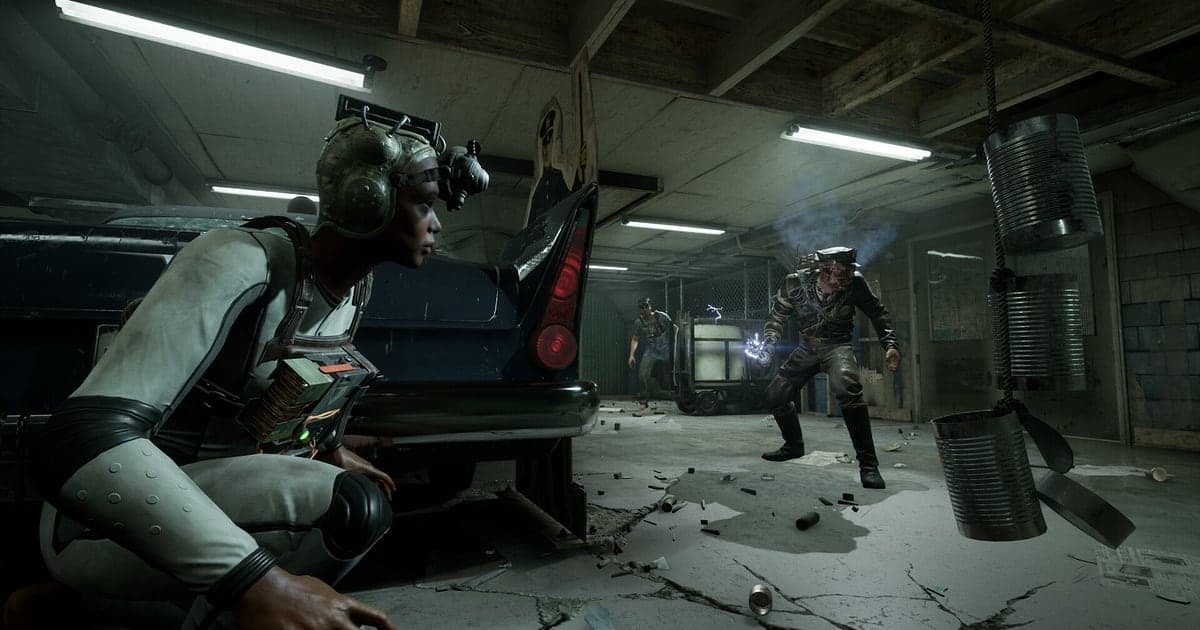
The Outlast Trials records automatically once DOR is installed: launch the game and the AI handles the rest. Recording is quietly running from the moment your Reagent wakes up in Murkoff's facility, so a stalker ambush is on file before you could ever reach for a button. In this game, your squad's voices stick with you as much as the visuals: everyone scattering when a stalker appears at the end of a corridor, holding your breath as an enemy walks past your locker, the relief when you finally reach the exit. This guide covers recording The Outlast Trials on PC in order: getting ready, checking recording, clipping chases, finding screams in the recording, building reaction videos and sharing links.
- Keep everything from prepping in the lobby to several trials and MK Challenges in one video until you quit.
- Save an escape from Mother Gooseberry, a locker close call or a sprint to the exit as separate clips.
- Use AI Voice Notes to find panicked lines like 'night vision battery's dying' and jump to that moment.
- Bundle chase escapes, revives and group screams into a horror reaction compilation with AI Highlight.
- Send the scream you just shared to your fellow Reagents with a single dor.gg link.
Before you record The Outlast Trials: install and recording mode
The Outlast Trials is a GPU heavy horror game, so it is worth checking your spec once before you record. DOR is a free Windows app, and nothing gets stamped over even the darkest corners of your footage. Recording covers your whole session rather than individual trials, so lobby time, several trials and the results screens all go into one video until you close the game. Reactions are half the fun here, so it matters that your own voice comes through; what to check is in recording games with mic audio. The table below covers what to know for The Outlast Trials.
| Item | For The Outlast Trials | Notes |
|---|---|---|
| Install | DOR, free Windows app | No watermark, even in the dark corners of the screen |
| Game version | The Outlast Trials for PC on Steam | DOR records the trials running on your PC |
| Recording mode | Full session recording | Lobby, trials and MK Challenges stay in one video until you quit |
| Co op | Solo or 2 to 4 player co op | Your view, game audio and your mic are recorded together |
| Resolution and frame rate | 1080p at 30fps by default, 60fps available | Night vision footage looks just as you saw it, and a lighter 720p/30fps mode exists |
| Storage | About 30MB for a 30 second 1080p clip | Back to back trials all night make big files, so leave free space |
Record The Outlast Trials with DOR: step by step
- 1Download and install DORInstall DOR and leave it running. It is a free app with no payment step, so it is ready as soon as setup finishes, and there is nothing to do each time you launch the game. In co op, tell your squad you are recording so sharing the footage later is easy.
- 2Launch The Outlast TrialsStart The Outlast Trials from Steam and DOR detects it and starts recording. Everything from waking up as a Reagent and wandering the lobby is captured, so there is nothing to set up before you pick a trial.
- 3Check recording before entering a trialBefore your first trial, glance at the DOR app to confirm recording is in progress. If the game is not picked up, follow what to do when the recorder does not detect your game. After that, all you need to worry about is your night vision battery.
- 4Clip the chase you just escapedWhen you duck into a locker to dodge Mother Gooseberry or Coyle and slip away safely, press the clip save shortcut while you catch your breath. Everything from the stalker's appearance to the seconds it passes your locker is stored as a separate clip.
- 5Quit and open My ClipsWhen you finish your trials for the night and close the game, the full session video and every clip you saved land together in My Clips in the DOR app. Runs where you reached the exit and runs where everyone got caught are filed in the same session.
Find your recordings
Your recordings are collected in My Clips in the DOR app, also called the library. Each time you open and close The Outlast Trials becomes one session, and anything you grabbed with the clip save shortcut shows up as its own clip. To find a scene in a session of back to back runs, use the return to the lobby and the trial results screen as boundaries between runs. Within a run, screams sit where the mic audio spikes all at once. What people want to see in this game is the reaction more than the visuals, so start your cut a few seconds before a jump scare to keep the build up intact. Set a start and an end, trim, then export as 16:9, 9:16 or 1:1; the full walkthrough is in how to trim game clips. Like the videos you want to keep for good, such as your first trial clear. When space fills up, older videos you have not liked are cleared first, so liked runs stay put.
Save the moments you want to keep
Even with every trial recorded, clipping the moments your squad will want to rewatch on the spot is easier. Press the clip save shortcut and the last stretch of play is saved as a clip. The default length is 30 seconds, and you can choose 15, 30, 45 or 60 seconds in settings. Good times to press it in The Outlast Trials are right after you lose Mother Gooseberry, right after a locker close call, right after you escape the dark on a dead battery, and right after you revive a downed teammate and run. A short burst like a jump scare group scream fits in 15 seconds, while a long revive and run sequence fits better at 60 so the ending is kept. To change the shortcut, see saving the last few seconds instantly.
Find what was said with AI Voice Notes
Running trials in co op means a steady stream of urgent calls like 'get in the locker, stay quiet', 'Coyle's coming, run' and 'exit's open, hurry up'. DOR records game audio and your microphone together, and AI Voice Notes writes that conversation onto the recording timeline as text. When you want to settle who screamed first or who hid in a locker alone, find a line like 'night vision battery's dying' in the timeline text and select it to jump straight to that scene. With the screams written down like subtitles, finding the start point for a reaction edit gets easy too. If you talk over a separate Discord call, see recording Discord call audio.
Build a montage with AI Highlight
The video your squad will rewatch most is the reaction compilation. In the library, check your escape from Mother Gooseberry, the locker close call, the dead battery escape in the dark, the revive and run, the sprint to the exit and the jump scare group scream, then select AI Highlight. DOR joins the checked moments into one video. Structure it to follow one trial from entry to escape and viewers live through the night's terror with you. To set the order yourself, see how to merge game clips.
Edit in DOR Studio
DOR Studio opens in your browser with nothing to install. Drop a shake zoom on the jump scare and crop it to 9:16. Reaction Shorts that start three seconds before the scream land best. Put the name of whoever screamed on screen as text and use glitch transitions between chase scenes to keep the tension running. Longer scenes like a co op escape read better exported in 16:9. To fit the dark corridor and the stalker into a vertical frame, read recording games for vertical Shorts. When you are done, download the result as an mp4 or share it as a link straight away.
Share with a dor.gg link
Send trimmed scenes as dor.gg links. Whoever opens the link plays it right in their browser without installing anything, so you can drop the scream you just shared into the Discord server where your squad hangs out. When sending to a friend who cannot handle horror, cut before the jump scare or give them a heads up first. Tips on cutting chases and screams short and vertical, and co op escapes a little longer in landscape, are in sharing The Outlast Trials scream clips, and posting to Discord is covered in sharing clips on Discord.
The Outlast Trials recommended settings and troubleshooting
The Outlast Trials is GPU heavy, so a PC at or above the recommended spec keeps both your in game frame rate and the recording steady. The default 1080p at 30fps already captures the dark facility and night vision exactly as you saw them, and 60fps is the pick if you want sprints during a chase to look smoother. On a tighter PC, the lighter 720p/30fps mode keeps the load down. Fullscreen, windowed and borderless windows all record, so leave the game's settings alone. Where anti cheat blocks game capture, DOR switches to monitor capture and keeps recording. DOR uses GPU hardware encoding, so its effect on your frame rate is small. It has no cheat features and never touches your game files or play data. If frames drop while recording, see fixing FPS drops while recording.
| Symptom | What to check | Fix |
|---|---|---|
| The recording is a black screen | The display mode in the game's settings | DOR records fullscreen, windowed and borderless alike. If it is still black, follow [fixing fullscreen recording](fullscreen-recording-not-working) to switch to monitor capture. |
| Your voice is missing in co op | Your Windows input device and DOR mic settings | Check that the right mic is selected, then follow [fixing a mic that is not recording](mic-not-recording-fix). |
| Chase scenes stutter | Recording frame rate, resolution and your PC spec | GPU hardware encoding keeps the impact small, but on a tight spec drop to 720p/30fps mode. |
| Night vision footage looks dark | The game's brightness setting | DOR records the screen exactly as shown, so a brightness that is comfortable to play at carries straight into the recording. |
| Worried a recorder could affect your account | How DOR works | DOR only captures the screen, has no cheat features and does not modify game files or play data. |