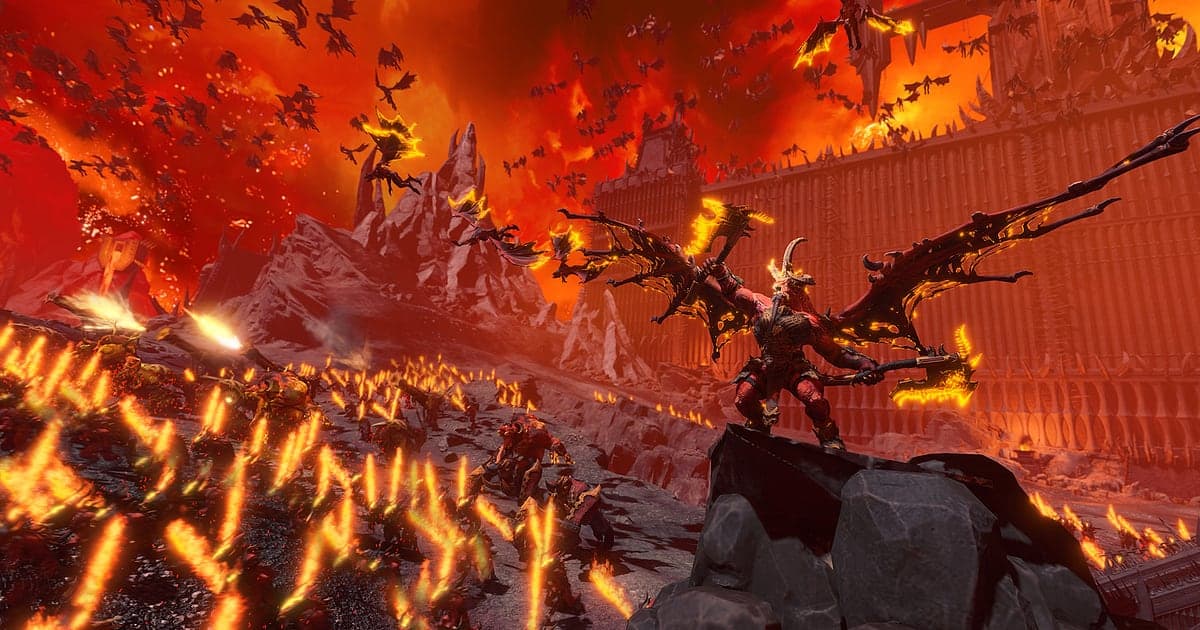
Total War: WARHAMMER III records automatically once DOR is installed: launch the game and the AI takes care of capture. The hours you spend moving armies on the campaign map and the moments thousands of troops collide in real time battles all flow into one video, from launch until you close the game. No more digging through the replay folder to play a file back: a siege hammering at Kislev's gates or Cathay artillery splitting a battle line is already saved as video. This guide walks you through recording Total War: WARHAMMER III with DOR, a free Windows app, then finding battles inside hours of campaign footage, trimming them into cinematics and sending them to friends.
- Keep your whole Total War: WARHAMMER III session in one video, from campaign turns to real time battles, without a record button.
- Save battles you only recognize as great on the results screen, like a gate breach siege or a cavalry flank charge, as clips.
- Use AI Voice Notes to keep co op and versus orders as timeline text, then find a scene from a line like 'send the cavalry round the left'.
- Combine a spell that wiped a line, a dragon dogfight and an encirclement comeback into a campaign chronicle.
- Show a battle with one dor.gg link, even to someone who does not have the game installed.
Before you record Total War: WARHAMMER III: install and recording mode
Total War: WARHAMMER III packs huge armies onto one screen, so it puts a heavy load on your GPU, and a single campaign sitting can easily run for hours. DOR is a free Windows app and never adds a watermark. The game uses full session recording, which means battles are not split into separate files: campaign map turns and battle time land in one video until you close the game. Tips for keeping long campaign recordings steady are in recording long gameplay without stutter. The table below lists what is worth knowing before you record Total War: WARHAMMER III.
| Item | For Total War: WARHAMMER III | Notes |
|---|---|---|
| Install | DOR, free Windows app, no watermark | After install, just load a save and recording starts |
| Game version | Windows PC version on Steam | DOR records the game running on your PC |
| Recording mode | Full session recording, one video from launch to exit | Campaign map and real time battles run together, not split |
| Display mode | Fullscreen, windowed and borderless all record | DOR switches to monitor capture where game capture is blocked |
| Resolution and frame rate | 1080p at 30fps by default, 60fps available | GPU heavy game, so use the lighter 720p/30fps mode if it struggles |
| Storage | Longer campaigns mean bigger recordings | The game itself is a big install, so set aside separate space for recordings |
Record Total War: WARHAMMER III with DOR: step by step
- 1Install DORDownload DOR and install it. It takes about a minute and there is nothing to pay. Once installed, leave DOR running. If you play a co op campaign with a friend, just check that your usual headset mic is plugged in.
- 2Launch the game and load your saveStart the game from Steam and load the campaign you are in the middle of. Recording begins as soon as DOR detects the game, so the recording starts from your first end turn on the campaign map. A campaign hundreds of turns long, like Immortal Empires, carries on the same way.
- 3Confirm the recording is runningWhen the campaign map appears, glance at the DOR app to confirm recording is in progress. If the game is not picked up, follow what to do when the recorder does not detect your game. After that, play your turns as usual, whether you are in the diplomacy screen or recruiting a new lord.
- 4Save a clip right after the decisive momentWhen a gate gives way in a siege or a powerful spell lands in the middle of the enemy line, press the clip save shortcut right away. The moment is saved as its own clip, so you do not have to skim hours of footage later.
- 5Close the game and open My ClipsEnd your turn and close the game. The full session video and every clip you saved appear together in My Clips in the DOR app. Even on days with several battles, one launch and exit stays together as one session.
Find your recordings
Your recordings live in My Clips in the DOR app, also called the library. Each launch and exit of the game becomes one session, and anything you grabbed with the clip save shortcut shows up as its own clip. To find a battle inside a long campaign recording, use two landmarks. The loading screen that takes you from the campaign map into battle is the start, and the results screen after the fight is the end. Everything in between is one battle, and the clash or breakthrough worth showing usually sits a little before the results screen. Start about five seconds before the lines meet, so viewers see how both armies deployed before the collision. Set a start and an end point to trim that part, then export it as 16:9, 9:16 or 1:1. The full walkthrough is in how to trim game clips. Like the videos you want to keep for good, such as the battle that turned a campaign around. When space fills up, older videos you have not liked are cleared first, so your liked battles stay put.
Save the moments you want to keep
Even though the whole session is recorded, saving the battle moments you will rewatch as clips on the spot makes it far easier to sort things out after a campaign. Press the clip save shortcut and the last stretch of gameplay is saved as a clip. The default length is 30 seconds, and you can choose 15, 30, 45 or 60 seconds in settings. In Total War: WARHAMMER III, good times to press it are right after a gate collapses and troops pour into the city, right after a single spell scatters the enemy line, right after your cavalry swings around the flank and hits the rear, and right after a dragon dogfight ends. Big field battle collisions fit better at 60 seconds so the moment the lines meet is included, while a single spell is fine at 15. Lengths and shortcut settings are covered in saving the last few seconds instantly.
Find what was said with AI Voice Notes
Co op campaigns and versus matches are full of orders like 'Send the cavalry round the left', 'Dragon incoming, get the archers on it' and 'Once the gate breaks, push to the square'. DOR records game audio and your mic together, and AI Voice Notes logs those orders onto the recording timeline as text. If you later wonder whether the flank worked after 'send the cavalry round the left', find that line in the text before you even scrub, select it and you jump straight to the scene. Plans from the campaign map, like 'Recruit another lord this turn', are kept too, so a campaign that runs for weeks gets its own logbook. If you plan over a Discord call, see recording Discord call audio to capture that voice chat as well.
Build a montage with AI Highlight
When you finish a campaign or close out a big war, turn your saved clips into a campaign chronicle. In the library, check the gate breach siege, the cavalry flank charge, the spell that wiped a line, the dragon dogfight, the encirclement comeback and the lord duel, then select AI Highlight. DOR joins them into a montage that tells the story of the war, perfect for catching up a friend who plays the same race. To set the order of battles yourself, see how to merge game clips.
Edit in DOR Studio
DOR Studio opens in your browser with nothing to install. Keep only the moment two armies collide and an hour long battle becomes a cinematic. Put a punch zoom on the impact and a shake zoom where artillery or a spell lands, add faction names and a battle title as text, then lay down background music. Wide battlefields read best in 16:9 so both lines are visible, while a close shot of a giant monster or a single hero works well in 9:16 or 1:1 for phone viewers. Export formats are covered in exporting clips. Download the finished video as an mp4 or share it as a link straight away.
Share with a dor.gg link
Send trimmed battles as dor.gg links. Whoever opens the link plays the video right in the browser without the game or the app, so nobody has to swap replay files. Send it to your co op campaign partner as a recap of the last war before your next session, or to a friend who does not know the game to show the scale of the fighting. If a versus opponent's name is on screen, check that they are fine with it before you share. Tips for finding each kind of battle in a recording are in sharing Total War: WARHAMMER III battle videos.
Total War: WARHAMMER III recommended settings and troubleshooting
Total War: WARHAMMER III is GPU heavy. Start with the default 1080p at 30fps and only move up to 60fps if your graphics card has room to spare. If the game struggles in huge battles with thousands of units on screen, switch to the 720p/30fps mode to cut the load. DOR uses GPU hardware encoding, so its effect on your in game frame rate is small. If frames only drop while recording, work through fixing FPS drops while recording. Fullscreen, windowed and borderless windows all record, so keep whatever display mode you already use. Campaign recordings grow fast, so if you want them on a different drive from the game, see changing where recordings are saved. DOR has no cheat features and never touches your game files or save data.
| Symptom | What to check | Fix |
|---|---|---|
| The recording is a black screen | Whether you play in fullscreen, windowed or borderless | DOR records all three and switches to monitor capture when game capture is blocked. If it is still black, follow [fixing fullscreen recording](fullscreen-recording-not-working) |
| Battle sounds or your voice are missing | Your Windows output device and DOR mic setting | Make sure the device you actually use is selected, then work through [fixing game recordings with no sound](game-recording-no-sound-fix) |
| Frames drop in huge battles | Whether recording is set to 60fps, unit sizes and graphics settings | Set recording back to 30fps or switch to 720p/30fps mode |
| You cannot find a battle in the campaign recording | Where the loading and results screens are | Everything from the loading screen into battle to the results screen is one battle. Next time, save a clip right after big fights |
| Files get huge after hours of campaign | Recording resolution and free space on the save drive | Trim and keep only the battles you want to show, and clear out originals you have finished with |