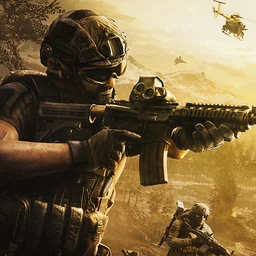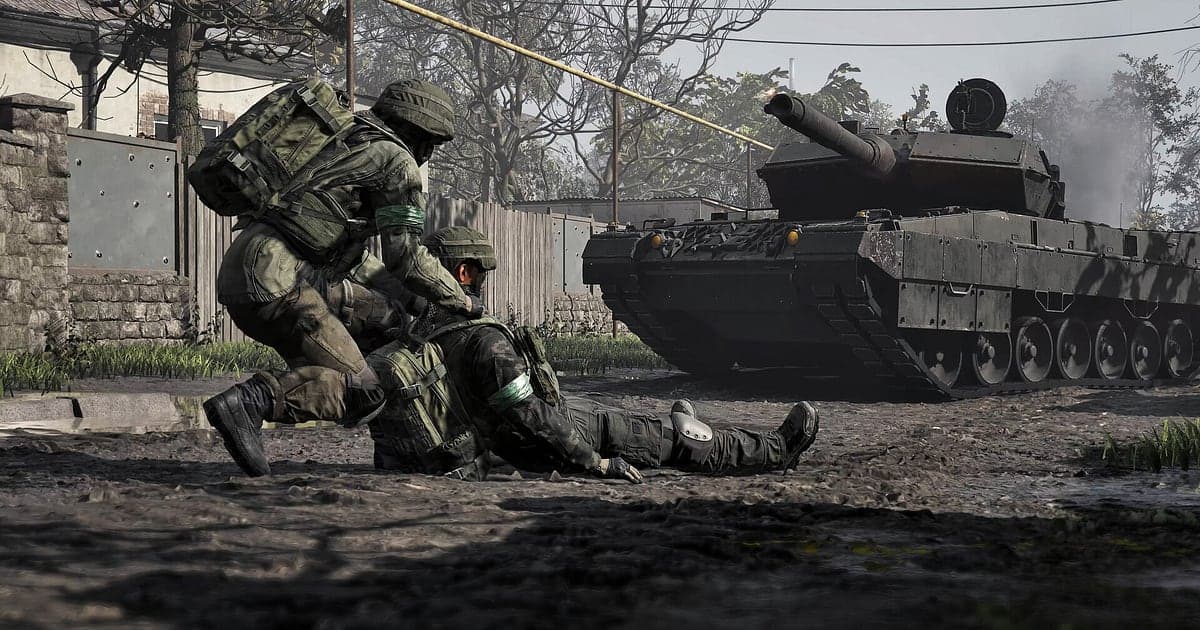
WARDOGS records automatically once DOR is installed: launch the game and the AI handles the rest. You never press a record button before deploying or draw a capture area. Up to a hundred players split into three teams fight over a single Control Zone, so a single match is packed with events. DOR detects the game and keeps one continuous video covering the loadout screen you see every life, each deployment, every firefight and the end of the match when a team reaches 100 points. When you close the game, the recording stops. This guide focuses on pulling the zone flip or the collapsing building out of that long recording quickly, and walks through installing DOR, saving moments, finding squad callouts, building a montage and Shorts, sharing a link, and recommended settings and fixes.
- Keep several WARDOGS matches from one evening in a single video, from the first loadout screen to the last results screen.
- Save the moment you slipped into the Control Zone while the other two teams were busy and flipped the score.
- Use AI Voice Notes to jump to the point someone said "Zone's empty, drive us in now".
- Turn a building collapse squad wipe, a vehicle run and a fortified hold into one match recap.
- Send the finished video to your squad Discord or group chat with a single dor.gg link.
Before you record WARDOGS: install and recording mode
WARDOGS is a Windows PC game you launch through Steam, and DOR detects it and starts recording the moment it opens. DOR is a free Windows app and never puts a watermark on your videos. It uses full session recording, so the file is not split at the end of every match; if you play three matches in one evening, all three sit in one video. The results screen at the end of each match and the loadout screen at the start of every life become handy landmarks inside that recording. To see how detection and recording work in general, read how DOR records games automatically. The table below covers what to check for WARDOGS.
| Item | For WARDOGS | Notes |
|---|---|---|
| Install | DOR, free Windows app | No watermark on your videos |
| Game version | Windows PC version on Steam | Detected automatically when the game launches |
| Recording mode | Full session recording | Several matches stay in one video until you close the game |
| Display mode | Fullscreen, windowed and borderless all record | Switches to monitor capture where game capture is blocked |
| Resolution and frame rate | 1080p at 30fps by default, 60fps available | A GPU heavy game, so recommended spec or above is steadiest; use 720p/30fps mode if it struggles |
| Storage | About 30MB for a 30 second 1080p clip | Leave plenty of space if you play several long matches to 100 points |
Record WARDOGS with DOR: step by step
- 1Install DORDownload and install DOR. It takes about a minute and is free to use. Leave DOR running once it is installed. If your squad has an evening session lined up, set it up before you log in.
- 2Launch WARDOGSStart WARDOGS from Steam. DOR begins recording as soon as it detects the game, so it is normal for the menu screens before your first match to appear in the recording.
- 3Check that recording is runningOn your first loadout screen, open the DOR app once and confirm recording is in progress. If the game is not picked up, follow what to do when the recorder does not detect your game. After that, buy your loadout and deploy as usual.
- 4Save the clip right after you flip the zoneWhen you hold out inside the Control Zone and your team score starts climbing, or you bring a building down on the squad hiding upstairs, press the clip save shortcut right after. The last 30 seconds are saved as a separate clip.
- 5Close the game and open My ClipsOnce you see the final results screen and close the game, the full session video and every clip you saved appear together in My Clips in the DOR app.
Find your recordings
Your recordings live in My Clips in the DOR app, also called the library. Each time you open and close WARDOGS becomes one session, and moments you saved during play show up as separate clips. Two landmarks make long sessions easy to search. The results screen that appears when a team reaches 100 points splits the recording into matches. The loadout screen you see before every life marks the start of each deployment, so a memorable life where you bought a tank or a helicopter is easy to spot. Set a start and an end point to trim the part you need, then export as 16:9, 9:16 or 1:1. The full walkthrough is in how to trim game clips. Like the videos you want to keep for good, such as your squad's first last second comeback. When space fills up, older videos you have not liked are cleared first, so liked videos stay put.
Save the moments you want to keep
Even with the whole session recorded, saving the moments you want to show off on the spot makes them much easier to find. Press the clip save shortcut and the last stretch of gameplay is saved as a clip. The default length is 30 seconds, and you can choose 15, 30, 45 or 60 seconds in settings. In WARDOGS, good times to press it are right after a last second Control Zone hold, right after a building collapse wipes an enemy squad, right after you revive a downed squadmate and turn the fight, and right after you third party both teams while they fight each other. A vehicle run carrying the squad to the objective or a long stand in a fortified position depends on what came before, so raise the clip length to 60 seconds for those. To pick the right length for each kind of moment, see saving the last few seconds instantly.
Find what was said with AI Voice Notes
In a three way brawl, squad comms decide the round. Lines like "Zone's empty, drive us in now", "Drop that building, they're all upstairs", "Got the cash, buying the good loadout" and "Let the other two teams fight it out" fly constantly. DOR records game audio and your microphone together, and AI Voice Notes writes what your squad said onto the recording timeline as text. You can see the exact minute someone called the flank and check on video whether anyone moved. Search the timeline text for a word like "flank" or "heli" and select it to jump straight to that moment. If your own voice sounds quiet, check your input device with recording games with mic audio.
Build a montage with AI Highlight
To sum up a match in one video, use AI Highlight. In the library, check the last second Control Zone hold, the vehicle run to the objective, holding the fortified position, the building collapse squad wipe and the time you third partied both teams, then select AI Highlight. Several lives of work join into one video. Make it as soon as the match ends and your squad Discord gets a match recap before the next queue pops. If you would rather set the clip order yourself, see how to merge game clips.
Edit in DOR Studio
DOR Studio opens in your browser with nothing to install. Trim from just before the blast and add a shake zoom as the floors give way, and the collapse hits much harder. Put the team score on screen as text, add background music and export in 16:9 for a YouTube battle video. A single sniper shot that plays out in the center of the screen works well cut to 9:16 for Shorts. Try a handheld effect during vehicle pushes and a glitch transition between lives. Export formats are covered in exporting clips. When you are done, download an mp4 or share it as a link straight away.
Share with a dor.gg link
Send trimmed moments as dor.gg links. Whoever opens the link plays the video right in a phone or desktop browser without installing anything, so if you paste it into your squad Discord channel as soon as the match ends, everyone can watch while waiting for the next one. Send just the building collapse to a friend who could not join that night. Tips on matching length and aspect ratio to each kind of scene are in sharing WARDOGS gameplay videos, and posting to Discord is covered in sharing clips on Discord.
WARDOGS recommended settings and troubleshooting
WARDOGS stacks building destruction on top of large firefights, which makes it GPU heavy, so recommended spec hardware or better keeps both your in game frame rate and the recording stable. Recording starts at 1080p and 30fps by default. Switch to 60fps if you want vehicle pushes and helicopter flights to look smoother. DOR uses GPU hardware encoding, so its effect on your in game frame rate is small, but if frames swing during collapses, drop recording to 720p/30fps mode. If the stutter only happens while recording, start with fixing FPS drops while recording. Fullscreen, windowed and borderless all record, and where anti cheat blocks game capture, DOR switches to monitor capture. DOR has no cheat features and never touches your game files or play data.
| Symptom | What to check | Fix |
|---|---|---|
| The recording is a black screen | The in game display mode and capture method | All three display modes record. If it is still black, follow [fixing fullscreen recording](fullscreen-recording-not-working) to switch to monitor capture. |
| Frame rate drops when buildings collapse | Recording frame rate and in game graphics options | Keep recording at 30fps or drop to 720p/30fps mode, and set in game options to match the recommended spec. |
| Squad callouts are not recorded | Your Windows input device and DOR mic settings | Pick the headset mic you actually use in DOR settings and make a short test recording. |
| Files get large after several matches | Recording resolution and free drive space | Save only the scenes you will show as clips and adjust settings with [reducing game recording file size](reduce-game-recording-file-size). |
| Worried a recorder could affect your account | How DOR works | DOR only captures the screen, has no cheat features and does not modify game files or play data. |