Diablo 4 records automatically once DOR is installed: launch the game and the AI handles capture. From the character select screen as you step into Sanctuary, through sorting gear in town, Helltide farming, Nightmare Dungeons and world bosses, everything from launch until you quit flows into one video. Diablo IV is the kind of game where you log in and hop between activities for hours, so it is hard to predict when your build will finally melt everything or a Mythic Unique will drop. Recording is already running, so just focus on the grind. This guide shows you how to record Diablo 4 gameplay with DOR, a free Windows app, then find the best moments from each activity inside a long session, trim them and share them.
- Keep an hours long Diablo IV session in one video, from the character select screen to quitting, without a record button.
- Save once a season moments like a Mythic Unique drop or a top Pit tier push as clips right away.
- Use AI Voice Notes to keep your party's calls as timeline text and check who was opening the Pit right beside the footage.
- Combine your first Mythic drop, a Helltide massacre, a world boss kill and your first Torment run into a season build story.
- Prove your Mythic drop by posting the clip to your clan Discord or Reddit as a dor.gg link.
Before you record Diablo 4: install and recording mode
Diablo IV is a GPU heavy action RPG, and once a season starts you can easily grind for hours a day. DOR is a free Windows app and never adds a watermark. Diablo IV uses full session recording, which means town chores, travel, dungeons and Helltides are not split by activity but stay in one video until you close the game. Tips for recording long grinding sessions without stutter are in recording long gameplay without stutter. The table below lists what is worth knowing before you record Diablo 4.
| Item | For Diablo 4 | Notes |
|---|---|---|
| Install | DOR, free Windows app, no watermark | Nothing to set up each time you pick a character |
| Game version | Windows PC version | DOR records Diablo IV running on your PC |
| Recording mode | Full session recording, one video from launch to exit | Town, Helltides, dungeons and world bosses run together without splitting |
| Display mode | Fullscreen, windowed and borderless all record | DOR switches to monitor capture where game capture is blocked |
| Resolution and frame rate | 1080p at 30fps by default, 60fps available | GPU heavy game, so use the lighter 720p/30fps mode if it struggles |
| Storage | Longer sessions mean bigger files | Long raw recordings fill a drive fast, so trim what you need right after a session |
Record Diablo 4 with DOR: step by step
- 1Install DORDownload DOR and install it. It takes about a minute and there is nothing to pay. Once installed, leave DOR running. If you trade calls with a party while you farm, check that your usual headset mic is connected.
- 2Launch Diablo 4 and pick a characterStart Diablo IV and choose today's character on the character select screen. Recording begins as soon as DOR detects the game, so at the start of a new season even the creation of your first seasonal character is captured.
- 3Confirm the recording is runningOnce you are in town, glance at the DOR app to confirm recording is in progress. If the game is not picked up, follow what to do when the recorder does not detect your game. After that, play as usual, whether you are trading with vendors or heading straight into a Helltide.
- 4Save a clip right after a drop or a clearWhen a Mythic Unique drops in its beam of light, or you drop the Pit guardian before the timer runs out, press the clip save shortcut right away. The moment is saved as its own clip, so you will not have to scrub through hours of footage later.
- 5Close the game and open My ClipsWhen you are done farming, close the game. That session's full video and your saved clips appear together in My Clips in the DOR app. A few days later it is hard to remember what happened when, so trim the scenes you want to send while the session is still fresh.
Find your recordings
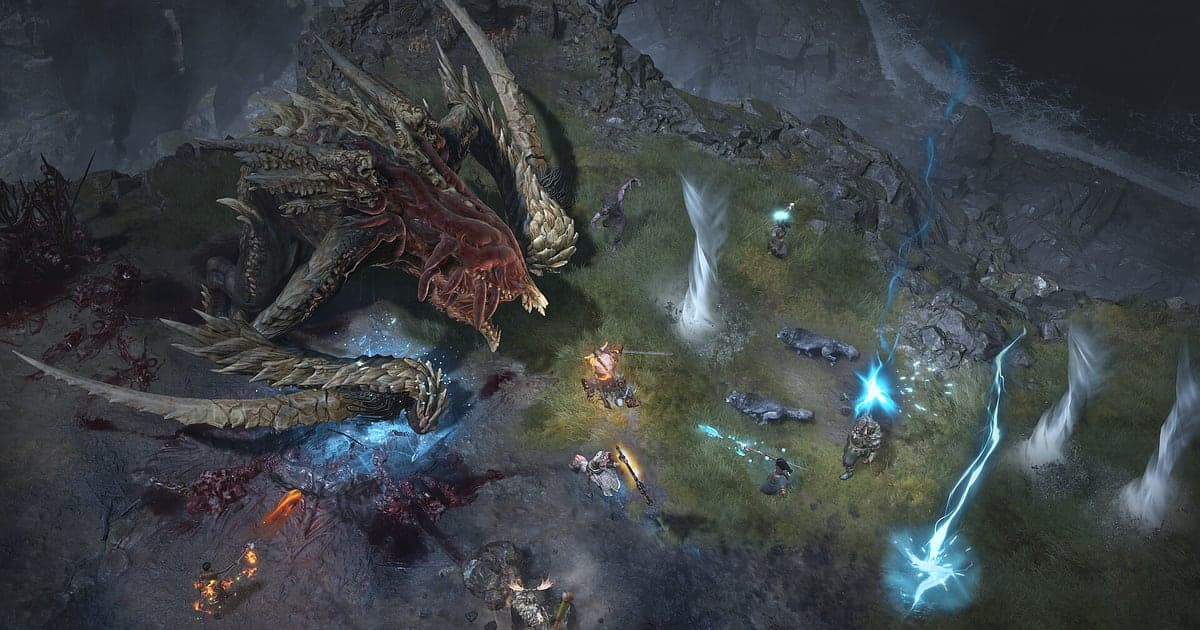
Your recordings live in My Clips in the DOR app, also called the library. Each launch and exit of Diablo IV becomes one session, and anything you saved with the clip save shortcut appears as its own clip. In a long grinding session, each activity leaves its own mark on screen, so scenes are not hard to find. A Helltide is the stretch where the area turns red and monsters swarm in, a world boss is where many player characters gather in one spot, and a Nightmare Dungeon starts right after the loading screen at its entrance. Town scenes where you sort gear are nearly static, so they fly by when you scrub. For boss fights, keep only the last minute, from when the boss's health is nearly gone to the moment it falls, so friends watch to the end. The top down view keeps your character centered, so solo build showcases work in 9:16, while a party surrounding a boss fits better in 16:9, and 1:1 is there too. The full walkthrough is in how to trim game clips. Like the videos you want to keep for good, such as your first Mythic drop. When space fills up, older videos you have not liked are cleared first, so your liked scenes stay put.
Save the moments you want to keep
Even with the whole session recorded, the safest way to keep a once a season moment is to save it as a clip on the spot. Press the clip save shortcut and the last stretch of gameplay is saved as a clip. The default length is 30 seconds, and you can choose 15, 30, 45 or 60 seconds in settings. In Diablo IV, good times to press it are right after a Mythic Unique drops in its beam of light, right after you clear a new Pit tier for the first time, right after a world boss falls and the rewards pour out, and right after you barely survive on Torment. Sweeping a whole pack in a Helltide is better at 45 or 60 seconds so the full combo fits, while a Mythic drop is fine at 15. If you die on Torment, save that too: rewatching it shows which elite affix got you so you can adjust your defenses. Lengths and shortcut settings are covered in saving the last few seconds instantly.
Find what was said with AI Voice Notes
Party farming in Diablo IV means calls like 'Mythic just dropped, look at that beam', 'Let's push the Pit one more tier' and 'World boss spawns in ten' coming nonstop. DOR records game audio and your mic together, and AI Voice Notes writes your party's calls onto the recording timeline as text. When nobody can remember who said when the next world boss spawns, or who was opening the Pit, find that line in the timeline text and select it to jump straight to that scene. Search 'go open the Helltide chest' and the chest run comes right up too. If your clan forms parties over a Discord call, see recording Discord call audio to capture that voice chat as well.
Build a montage with AI Highlight
The trip from season start to Torment fits in one short video. In the library, check the Mythic Unique Drop, the Pit Tier Push, the Helltide Massacre, World Boss Down, the Nightmare Dungeon Speed Clear and your First Torment Run, then select AI Highlight. DOR joins them into a montage of your season build coming together, a good record to have before you roll a new character next season. To set the order of activities yourself, see how to merge game clips.
Edit in DOR Studio
DOR Studio opens in your browser with nothing to install. Punch zoom the stretch where your skills wipe the screen and add your class, build name and Pit tier as text. Stitch several Helltide and Pit scenes together, add music, and you have a 16:9 build guide for your season. A shake zoom suits the beam of light when a Mythic drops, and glitch transitions keep the pace up between activities. A build showcase with your character centered also works well as a 9:16 Short. Vertical framing tips are in recording games for vertical Shorts. Download the finished video as an mp4 or share it as a link straight away.
Share with a dor.gg link
Send trimmed scenes as dor.gg links. Whoever opens the link plays the video right in the browser without the app, so pasting a Mythic drop clip into your clan Discord or a Reddit thread lets people see it instantly. Match the clip to the person: the world boss kill to the party that waited with you, the vertical build showcase to the friend who asked about your build, and a short drop to the clan chat. Trim ranges and ratios for each activity are covered in sending Diablo 4 world boss and Helltide videos, and posting to Discord is covered in sharing clips on Discord.
Diablo 4 recommended settings and troubleshooting
Diablo IV is GPU heavy. Start with the default 1080p at 30fps and only move up to 60fps if your graphics card has room to spare. If the game struggles when a Helltide fills the screen with monsters and effects, switch to the 720p/30fps mode to cut the load. DOR uses GPU hardware encoding, so its effect on your in game frame rate is small, and if frames only drop while recording, work through fixing FPS drops while recording. Fullscreen, windowed and borderless windows all record. If long raw recordings fill your drive quickly, see reducing game recording file size. DOR has no cheat features and never touches your game files or character data.
| Symptom | What to check | Fix |
|---|---|---|
| The recording is a black screen | Whether you play in fullscreen, windowed or borderless | DOR records all three and switches to monitor capture when game capture is blocked. If it is still black, follow [fixing fullscreen recording](fullscreen-recording-not-working) |
| Skill sounds or party calls are missing | Your Windows output device and DOR mic setting | Make sure the device you actually use is selected, then work through [fixing game recordings with no sound](game-recording-no-sound-fix) |
| Frames drop in Helltides | Whether recording is set to 60fps, and whether graphics settings are high for your PC | Set recording back to 30fps or switch to 720p/30fps mode |
| You cannot find a boss fight in hours of footage | Where players gather and where dungeon loading screens appear | Note the time whenever you switch activities, and save a clip right after kills next time |
| Worried a recorder could affect your account | How DOR works | DOR only captures the screen, has no cheat features and does not modify game files or character data |