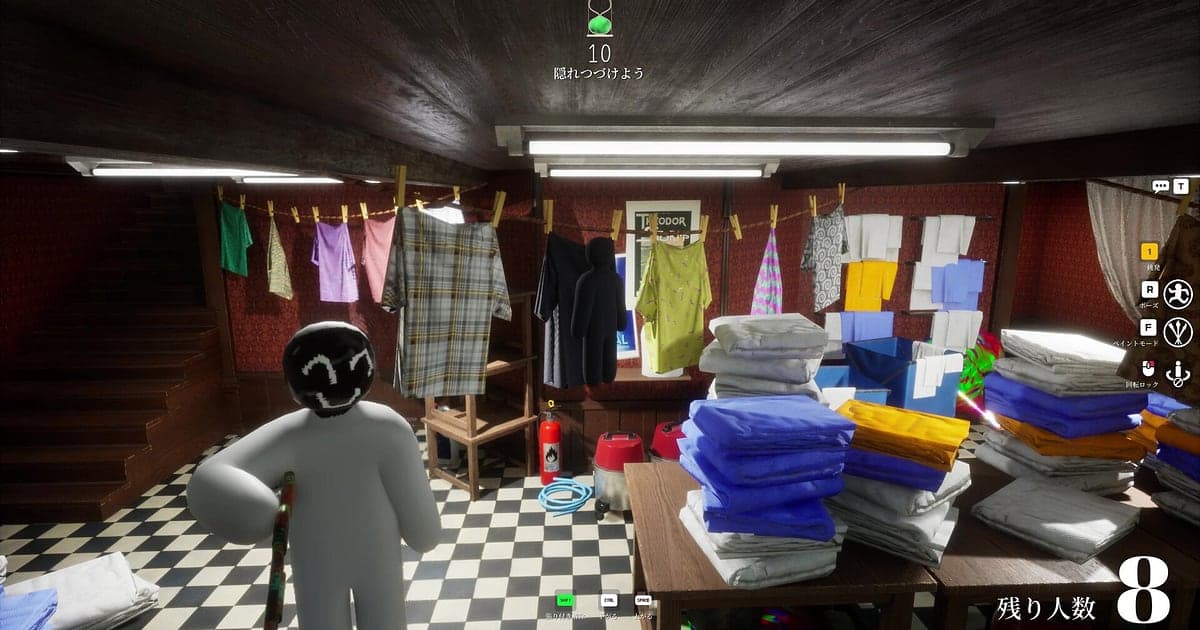
MECCHA CHAMELEON records automatically once DOR is installed: launch the game and the AI handles the rest. You never press a record button or choose a window. When MECCHA CHAMELEON starts through Steam, DOR detects it and records from the lobby to the final round, keeping your friends' laughter on voice and every bit of mouse work you did matching colors. Who hid where? Check the footage afterwards. This guide is for anyone recording MECCHA CHAMELEON for the first time. It covers getting ready, confirming the recording, saving the moment you get caught, finding rounds later, building a reaction reel, sharing it with your group, and fixing audio and crash problems.
- Keep a whole night of hide and seek rounds with friends in one video, then trim out the rounds you want afterwards.
- Save a disguise blended into the wallpaper, a seeker walking right past you, or the instant scream when you get found as separate clips.
- Use AI Voice Notes to find lines like 'you were standing there the whole time?' and jump straight to that scene.
- Gather caught reactions into a try not to laugh reel with AI Highlight and cut it into a 9:16 Short.
- Post the funniest round of the night to your Discord group with a single dor.gg link.
Before you record MECCHA CHAMELEON: install and recording mode
All you need to record MECCHA CHAMELEON is DOR. It is a free Windows app and never adds a watermark to your videos. MECCHA CHAMELEON uses full session recording, so if you play ten rounds with friends over an hour, all ten sit in one video in the order you played them. The game is light on hardware, so recording runs smoothly even on a PC at minimum spec. Join codes and what to check when a room does not show up are covered in how to play MECCHA CHAMELEON with friends. The table below lists what is worth knowing before your first recording.
| Item | For MECCHA CHAMELEON | Notes |
|---|---|---|
| Install | DOR, free Windows app | No watermark on your recordings |
| Game version | Windows PC version on Steam | DOR detects and records MECCHA CHAMELEON running on your PC |
| Recording mode | Full session recording | One video from launch to exit, not split by round |
| Display mode | Fullscreen, windowed and borderless all record | Keep whichever mode you already use in the game |
| Resolution and frame rate | 1080p at 30fps by default | 60fps is available, plus a lighter 720p/30fps mode |
| Audio | Game audio and your mic record together | In game voice chat is muted by default, so unmute incoming voices in options to hear friends |
Record MECCHA CHAMELEON with DOR: step by step
- 1Install DORDownload DOR, install it and leave it running. Setup takes about a minute. If you want your group's chatter in the recording, just confirm DOR has the headset mic you normally talk through selected.
- 2Launch MECCHA CHAMELEON and join a roomStart MECCHA CHAMELEON from Steam and DOR detects the game and starts recording right away. Everything from entering the host's join code to the lobby small talk is captured, so there is nothing to do before the first round begins.
- 3Check the recording before round oneBefore the first hiding phase starts, open the DOR app once and confirm MECCHA CHAMELEON is being recorded. If it is not detected, follow what to do when the recorder does not detect your game. After that, focus on your paint job.
- 4Clip the disguises that work and the moments you get caughtWhen the seeker walks right past you and nothing happens, or your friends start screaming the second you get found, press the clip save shortcut right after. The last stretch is saved as its own clip, so you never have to scrub a ten round recording from the start.
- 5Quit and open My ClipsWhen the last round ends, close the game. The session video and every clip you saved appear together in My Clips in the DOR app. The answer reveal you all laughed through is right there in the session video.
Find your recordings
Your recordings live in My Clips in the DOR app, also called the library. Each time you open and close MECCHA CHAMELEON becomes one session, and anything you grabbed with the clip save shortcut shows up as its own clip. To find a specific round inside a long session, use the two scenes that come back every round. One is the hiding phase, when hiders paint their white bodies. The other is the answer reveal after the timer runs out, when hiders who were never found show in red and found hiders show in blue. Once you find the round, set a start and an end point to trim the part you need, then export it as 16:9, 9:16 or 1:1. The full walkthrough is in how to trim game clips. Like the videos you want to keep, such as a round where you survived as the last hider. When space fills up, older videos you have not liked are cleared first, so liked rounds stay.
Save the moments you want to keep
Even with the whole session recorded, the funny moments are much easier to find if you clip them on the spot. Press the clip save shortcut and the last stretch of gameplay is saved as a clip. The default length is 30 seconds, and you can choose 15, 30, 45 or 60 seconds in settings. In MECCHA CHAMELEON, good times to press it are right after a seeker brushes past your face, right after you get found and the screaming starts, right after you hit taunt with the seeker standing in front of you, and right after a clone gets destroyed and takes you down with it. If you want a disguise masterpiece to include the painting itself, raise the clip length to 60 seconds so the brushwork and the seeker strolling past both fit in one clip. If you only need the caught reaction, 15 seconds keeps editing quick. Rules for each mode and the clone and hunter ammo options are in MECCHA CHAMELEON modes and how to play.
Find what was said with AI Voice Notes
The real fun in MECCHA CHAMELEON is the chatter. Lines like 'don't move, the seeker's right there', 'you're literally the same color as the wall' and 'stop taunting, you'll get found' pour out every round. DOR records game audio and your microphone together, and AI Voice Notes writes what was said onto the recording timeline as text. Wherever someone yelled 'you were standing there the whole time?' is your disguise of the day, so find that line in the timeline text and select it to jump straight to the scene. In game voice chat now mutes both your mic and incoming voices by default, so if you hear nothing, start with MECCHA CHAMELEON mic and voice chat not working. On nights you move the call to Discord, see recording Discord call audio to get your friends' voices into the same video.
Build a montage with AI Highlight
Getting caught is the funniest part, and the reactions alone make a whole video. In the library, check your clips of a disguise blended into the wallpaper, the seeker walking right past, the instant scream when found, a taunt at the worst time, the last hider standing and the seeker finding everyone, then select AI Highlight. DOR joins them into one reel full of your friends' screams. Pick only hider clips for a disguise portfolio, or only seeker clips for a hunting reel. If you want to place the clips in round order yourself, see how to merge game clips.
Edit in DOR Studio
DOR Studio opens in your browser with nothing to install. Put a punch zoom on the frame where the seeker spots a disguise, then add a speech bubble style text line like 'Found you'. A shake zoom right after the catch lines up nicely with the scream. When you string reactions from several rounds together, a glitch transition between them keeps the short form rhythm going. Add background music, export in 9:16, and you have a TikTok or Shorts clip ready to post; framing tips are in recording games for vertical Shorts. When you are done, download an mp4 or share it as a link straight away.
Share with a dor.gg link
Send trimmed moments as dor.gg links. Whoever opens the link plays the video right in their browser, even on a phone, without installing anything. Drop the funniest round into your Discord group right after the session and everyone gets to laugh again, or send it to the friend who missed tonight to talk them into the next lobby. Tips on picking the best hide and seek moments to send are in sharing MECCHA CHAMELEON gameplay videos, and posting to Discord is covered in sharing clips on Discord.
MECCHA CHAMELEON recommended settings and troubleshooting
MECCHA CHAMELEON is light on hardware, so the default 1080p at 30fps already captures painted patterns and backgrounds clearly. If you want fast seeker sweeps to look smoother, switch to 60fps, and on a laptop the 720p/30fps mode keeps the load low. The game itself has a Performance Mode and a shadow quality option, so adjust those too if a crowded room feels heavy. Fullscreen, windowed and borderless windows all record. DOR uses GPU hardware encoding, so its impact on your frame rate is small, and tips for older machines are in recording games on a low end PC. DOR has no cheat features and never touches your game files or play data.
| Symptom | What to check | Fix |
|---|---|---|
| The recording is a black screen | The display mode in the game's settings | DOR records fullscreen, windowed and borderless alike. If it is still black, follow [fixing fullscreen recording](fullscreen-recording-not-working) to switch to monitor capture. |
| Friends' voices are missing | In game voice chat incoming setting | Incoming voices are muted by default, so unmute them in options. If still silent, work through [fixing game recordings with no sound](game-recording-no-sound-fix). |
| The game crashes while painting | The session video up to the crash | The crash sits at the end of that session video. Like it before relaunching, then check [MECCHA CHAMELEON crash and keeping footage](meccha-chameleon-crash-keep-footage). |
| Lag in a crowded room | In game Performance Mode and recording quality | Turn on Performance Mode, and drop recording to 720p/30fps if it still struggles. |
| Worried a recorder could affect your account | How DOR works | DOR only captures the screen, has no cheat features and does not modify game files or play data. |