Record, edit
& find your community
Practical guides from capturing and editing gameplay to finding friends, parties, and communities.
Page 60 of 63
 Troubleshooting
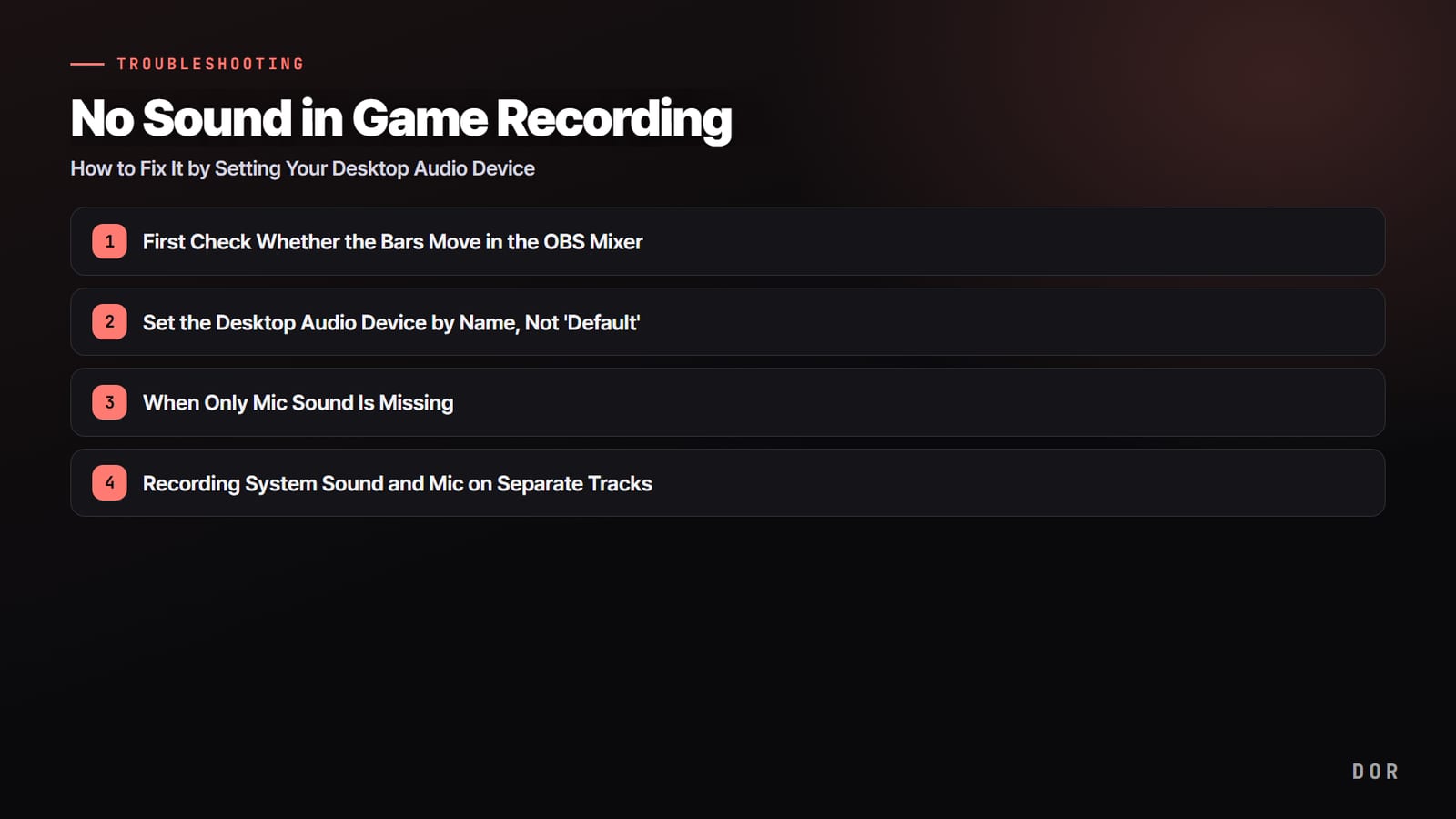
No Sound in Game Recording: How to Fix It by Setting Your Desktop Audio Device
If the recording worked but only the game sound is missing, nine times out of ten it's a desktop audio device setting issue. We'll walk you through it button by button, from setting the device, to splitting system sound and mic into separate tracks, to monitoring.
 Troubleshooting
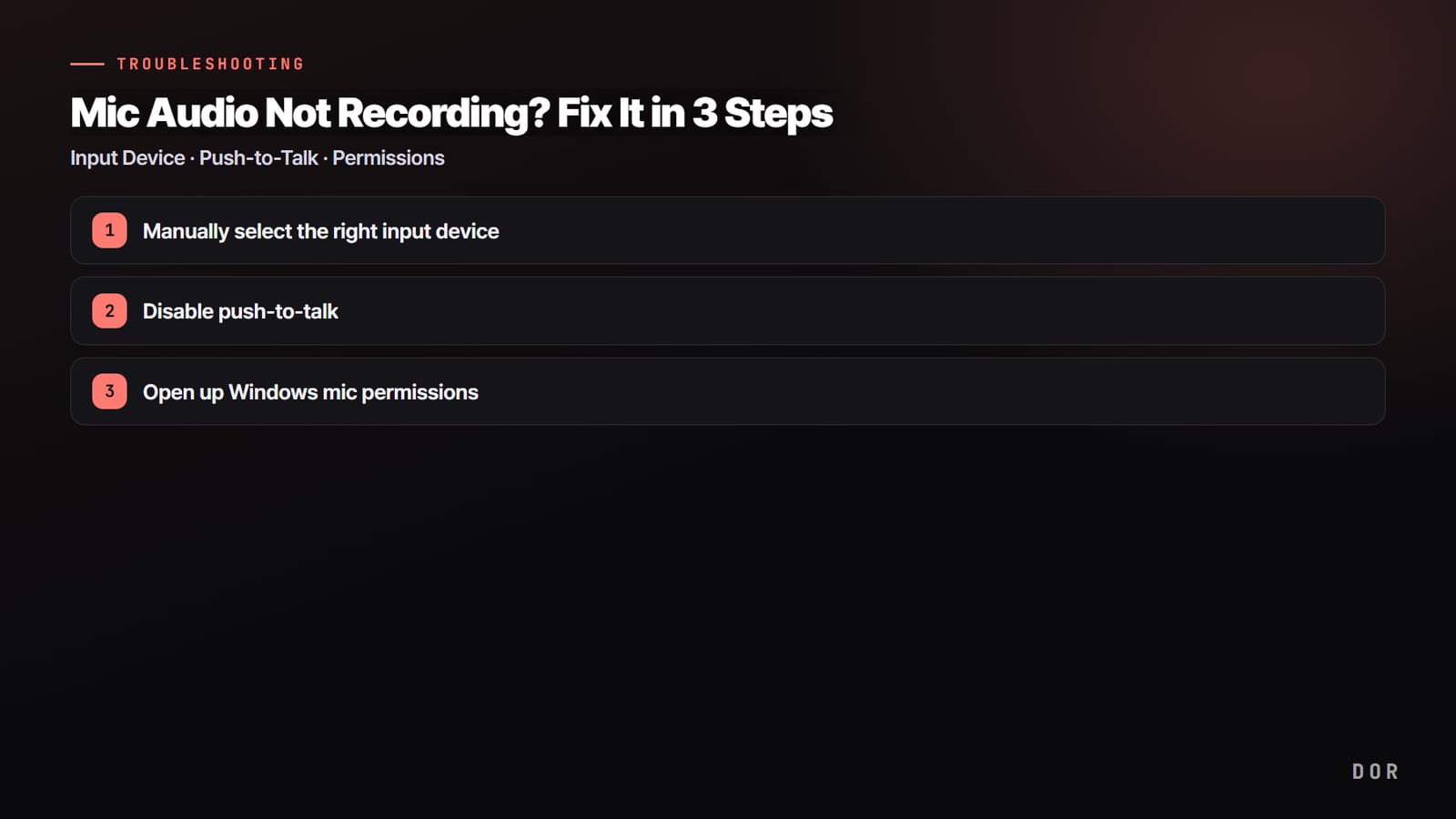
Mic Audio Not Recording? Fix It in 3 Steps: Input Device, Push-to-Talk, Permissions
If your game footage is fine but only your voice is missing, the cause is almost always one of a few things. Check your input device selection, disable push-to-talk, and verify your Windows mic permissions in that order, and you'll usually fix it on the spot.
 Guide
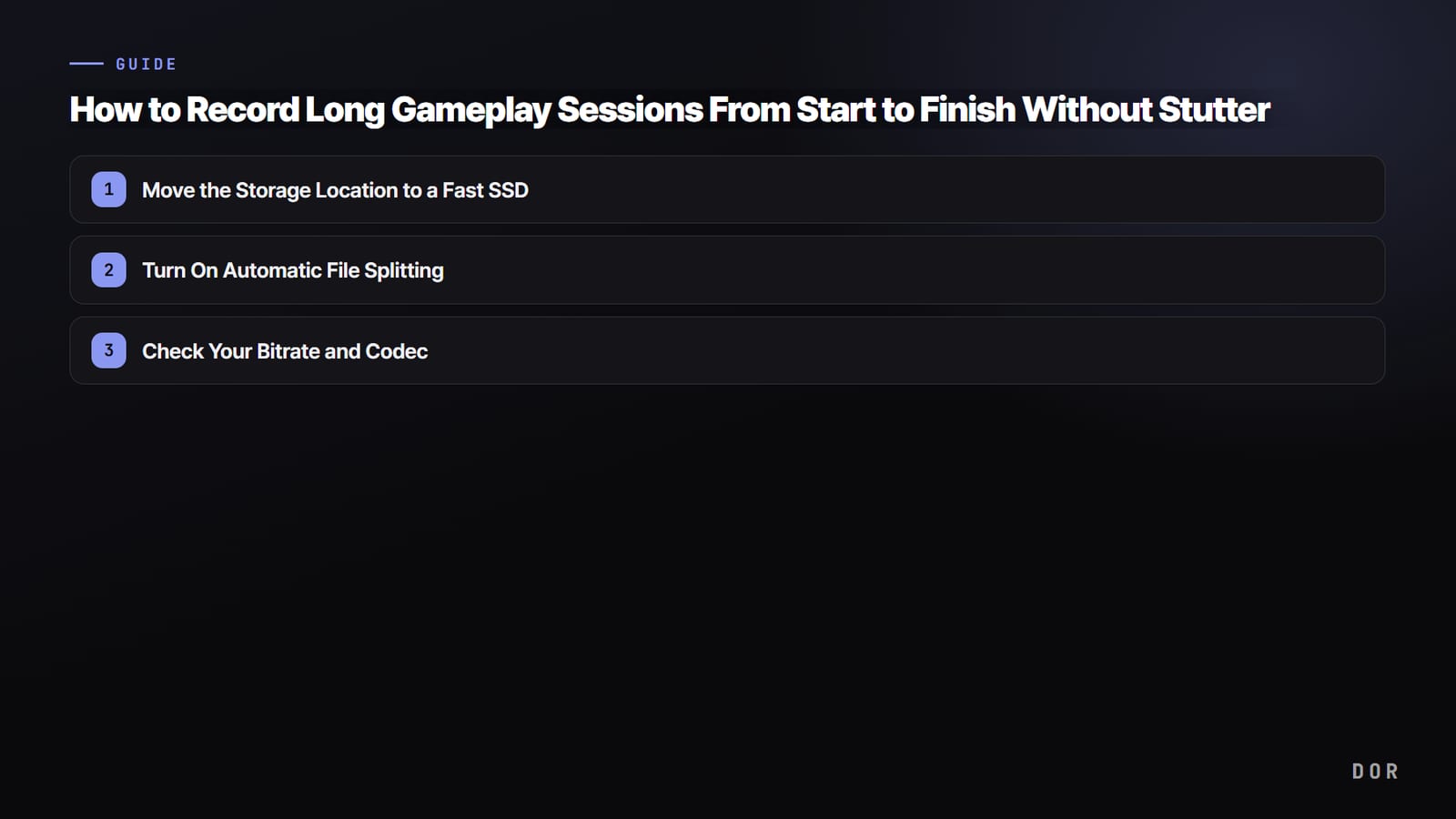
How to Record Long Gameplay Sessions From Start to Finish Without Stutter
When you record a two- or three-hour game session in one piece, the video stutters partway through. The cause is usually a slow disk and a huge file that has ballooned into a single chunk. Move it to an SSD and split the file, and it records smoothly to the end.
 Guide
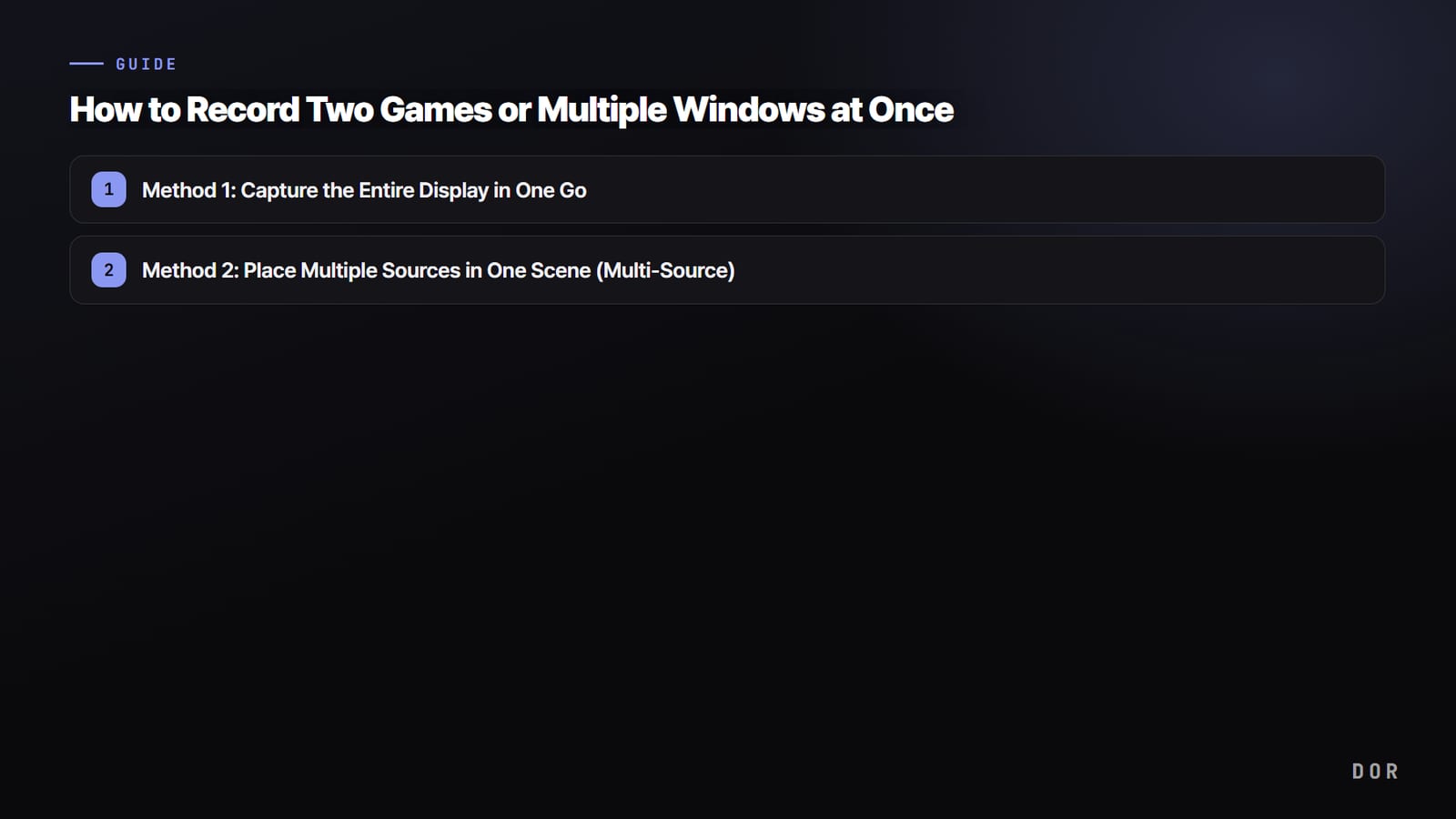
How to Record Two Games or Multiple Windows at Once
The fastest way to capture multiple windows at once is to grab the entire display in one go, or to arrange several sources within a single scene. Here is a step-by-step on the settings, layout options, and even simpler alternatives.
 Troubleshooting
Recording File Won't Open? Causes of Unsupported Codecs and Incomplete MKV, Plus a 4-Step Fix (Codec Pack, VLC, Remux)
When a file you just recorded won't open on double-click or shows a black screen, the cause is usually an unsupported codec or an MKV that did not close properly. Just follow along in order: install a codec pack, open it in VLC, and remux to MP4. Record with DOR and it saves as standard MP4, so these problems never come up in the first place.
 Troubleshooting
When Your Recording Freezes on Screen but Audio Keeps Playing: How to Fix It (Convert VFR to Constant FPS)
A recording where the audio is fine but the screen freezes is usually a variable frame rate (VFR) problem. Forcing a constant frame rate (CFR) and locking your capture FPS makes the screen freezing and sync drift disappear.
 Guide
Reducing GPU Load While Recording: A Hands-On Guide to Adjusting Resolution and Bitrate and Monitoring Load
If your GPU load spikes during game recording and frames drop, lower the resolution and bitrate one notch at a time and offload the encoding computation to a dedicated GPU chip with a hardware encoder (NVENC). Here are the step-by-step settings and how to read the load.
 Troubleshooting
Why CPU Usage Spikes When You Record, and How to Fix It
The most common cause of CPU usage climbing to 90-100% during recording is the CPU encoder (x264). Moving the encoding work to the GPU (NVENC) brings CPU load down instantly. We cover everything step by step, from switching to GPU encoding to adjusting process priority.
 Troubleshooting
How to Fix Recordings Not Saving: A 3-Step Path Permission, Disk Space, and Format Checklist (2026)
We lay out, in order of most common cause, the problem of a recording you clearly made but the file is missing or won't open. Checking three things in order, save path permissions, disk space, and recording format (MP4 vs MKV), solves most cases. We also cover the OBS step-by-step method and an auto-save approach that rarely fails to save in the first place.
 Guide
Downloading and Permanently Archiving Twitch Clips: The Latest Methods for 2026
Twitch clips can disappear along with a channel if it is deleted. Here is a step-by-step guide, as of 2026, to downloading Twitch clips and saving them to your own device, plus how to safely archive the source permanently.
 Community
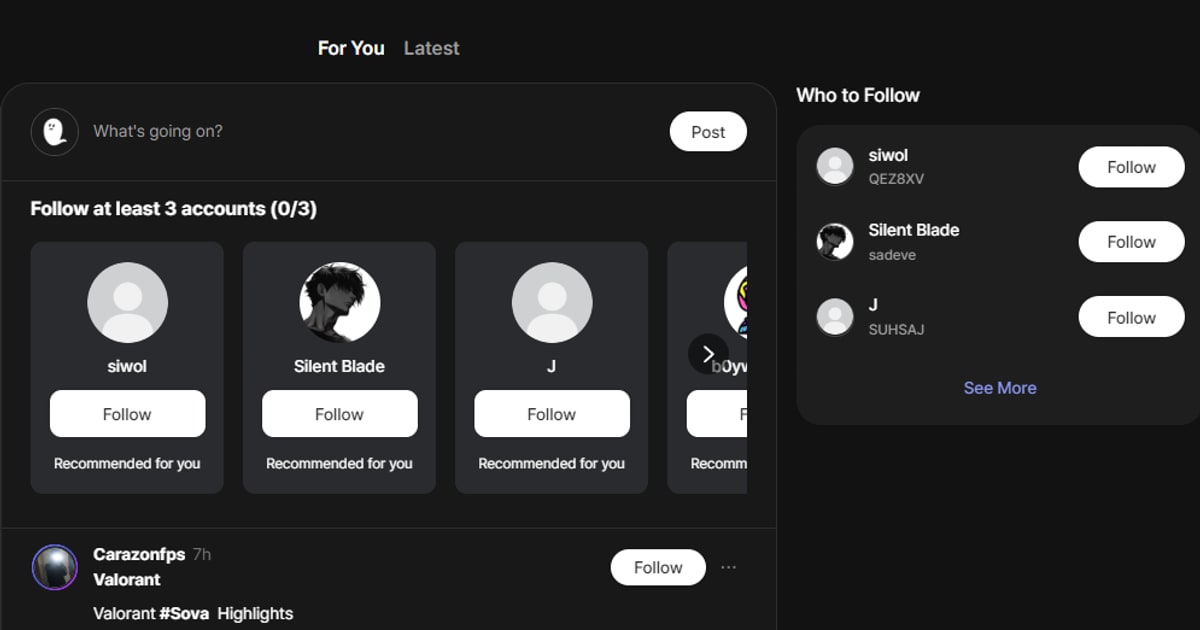
How to Find the Right Gaming Guild or Clan, and Know When to Leave
A guild or clan is a long-term social commitment, not just a one-night party. Compare goals, culture and requirements, apply clearly, evaluate the trial period and leave without unnecessary conflict.
 Guide
A 7-Step Workflow for Editing Game Highlight Videos: From Clip Selection to Export (2026)
We have laid out editing a game highlight (montage) video step by step, split into 7 stages: clip selection, story structure, cut editing, captions and sound effects, background music, color grading, and export. We cover free editing programs, recommended export settings, and how to cut editing time with DOR's automatic clips, all in one place.
 Guide
How to Record Games at a Korean PC Café (PC Bang): A Safe, Practical Guide
Recording at a Korean PC café is possible when the venue permits it, but shared-PC restrictions make preparation and privacy especially important. Learn how to check permissions, choose a recording method, manage files and leave no personal data behind.
 Guide
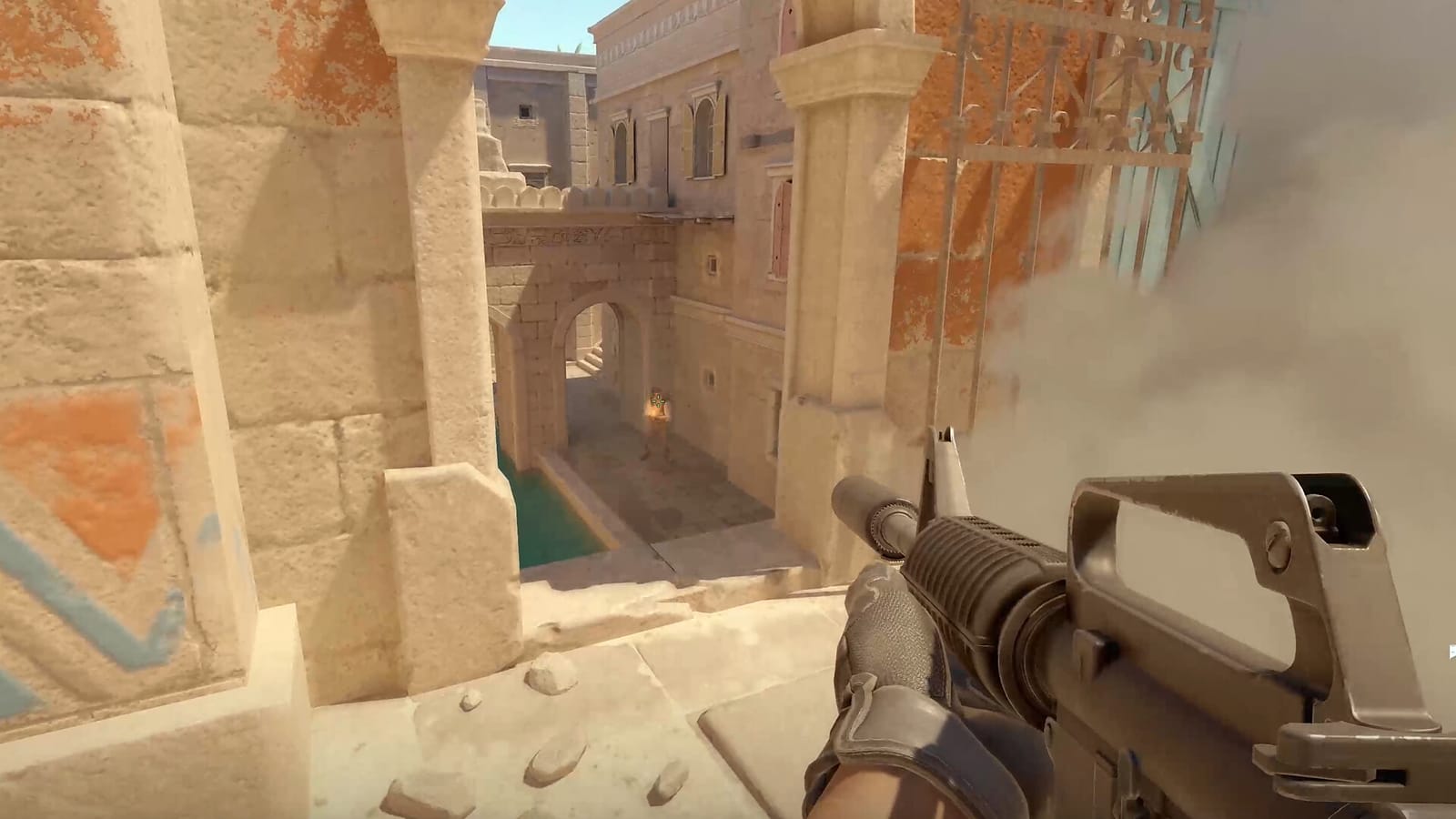
CS2 Graphics Settings: See Enemies Better While Keeping Your Frames
CS2 graphics settings are not only about raising FPS. Here are per-option recommendations balanced for enemy visibility and stable frames.
 Guide
How to Save a LoL Pentakill Clip: From Auto-Detection to In-Game Replay
Pentakills happen without warning. If you don't have recording running ahead of time, you let the moment of a lifetime slip away. Here's a step-by-step guide to catching the moment with DOR's auto-detection and backing it up cleanly with the client replay.
 Guide
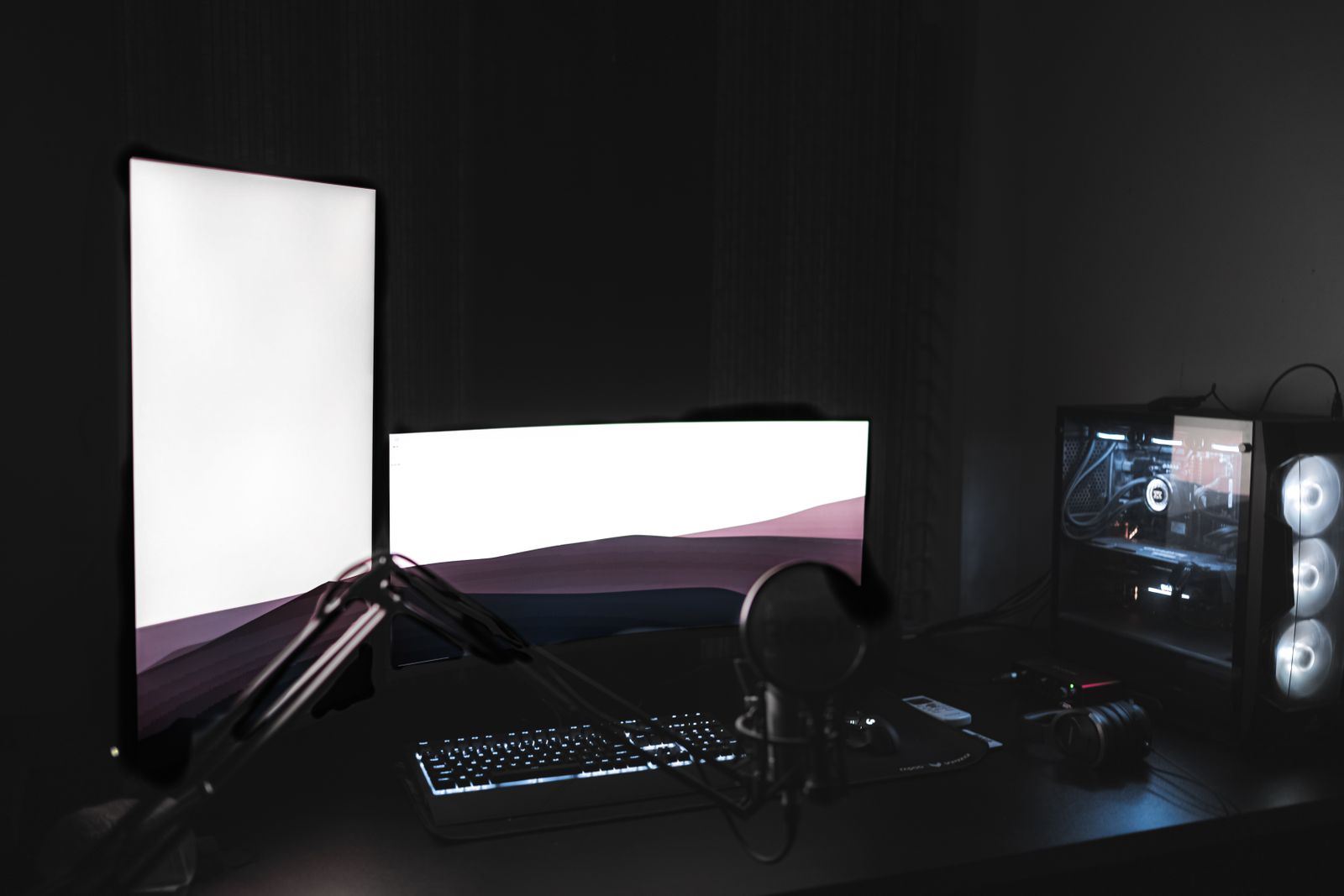
How to Save Twitch Streams Before the VOD Disappears: 3 Methods
Twitch VODs expire. Here is how to keep your own broadcasts permanently, save highlights from other streams, and capture the original locally so nothing is lost.
 Guide
Auto Highlight Clips: How DOR Saves Your Best Moments for You
In seven supported games, DOR automatically detects events like kills and saves them as clips. League of Legends clips cover multikills up to pentakills, VALORANT round clips get ace and clutch tags, and both games pick a POTG. When the game ends, your highlight list is ready.
 Guide
Edit Clips in Your Browser With No Install: The DOR Browser Editor
You do not need to install heavy editing software. When recording ends, DOR lets you trim, merge, and refine your remaining clips right in the browser so you can share them instantly.
 Guide
All of Today's Best Plays in One Place: The DOR Daily Recap
When your gaming session wraps up, DOR gathers the highlight moments it automatically detected that day and shows them to you as a summarized recap. No need to hunt them down one by one. See all of today's highlights at a glance.
 Guide
DOR Clip Export: mp4 vs GIF Formats and Options at a Glance
When exporting a game clip you edited in DOR as an mp4 video or a GIF, here is a use-case guide to which format and which quality and file-size options to choose.
 Guide
The Match Stats Right Beside Your Clip: Viewing Highlights and Match Data Side by Side with DOR
When you watch a highlight clip on its own, it's easy to miss why that moment happened. When you view a clip in DOR, it shows the KDA, scoreboard, and stats from that same match side by side, helping you review the moment and the data on a single screen.
 Guide
DOR One-Click Share: Post Your Edited Clips Straight to the dor.gg Community
Share your finished game clips to the dor.gg community with a single button. Here is how DOR's one-click share works, from copying a link to sharing on Discord.
 Guide
DOR Automatic POTG: The Single Best Moment of Each Game, Saved for You
In League of Legends and VALORANT, DOR picks one signature moment from each match's auto clips and marks it as POTG in your library. Here's which games it works in and how to use it.
 Guide
Rewatch What You Said Mid-Game: Mic and Discord Voice-to-Text (2026)
When you play with team voice, you often cannot remember what calls you made or whether your shotcalls actually got through. DOR keeps your mic and Discord voice in the same video as your gameplay, so you can cut out the decisive moments and run just those through a speech-to-text (STT) tool to reread what you said. This article covers why STT is useful for skill feedback, and how to use it with your DOR recordings.